Place a dropship order at checkout
This page is for retailers who send orders through their supplier's Customer Portal. If you run SKU.io yourself and want one of your own suppliers to ship an order for you, see Create a dropship request.
You (the retailer) can send one of your customer's orders to your supplier straight from the portal checkout. Switch on dropship, and your supplier ships the cart to your customer under your brand, with no prices on the packing slip. The examples use the retailer Trailhead Outfitters.
Before you begin
- Your portal role is Buyer or Company Admin. A Viewer can open checkout but can't place orders.
- Your supplier has turned on dropship at checkout for your account. Without it, checkout has no dropship switch. See How dropship works on the portal.
- Your cart holds the products for this one customer. Each dropship order goes to one address, so place one order per customer.
- You have your own order number for the order, such as your store's order number, and your customer's full address.
Steps
-
Add the products to your cart from Catalog or Quick Order, then click the cart icon and Checkout.
The catalog and cart show your normal wholesale prices. The order is repriced at your dropship prices in step 2.
-
Turn on Ship directly to my customer (dropship) at the top of the page.
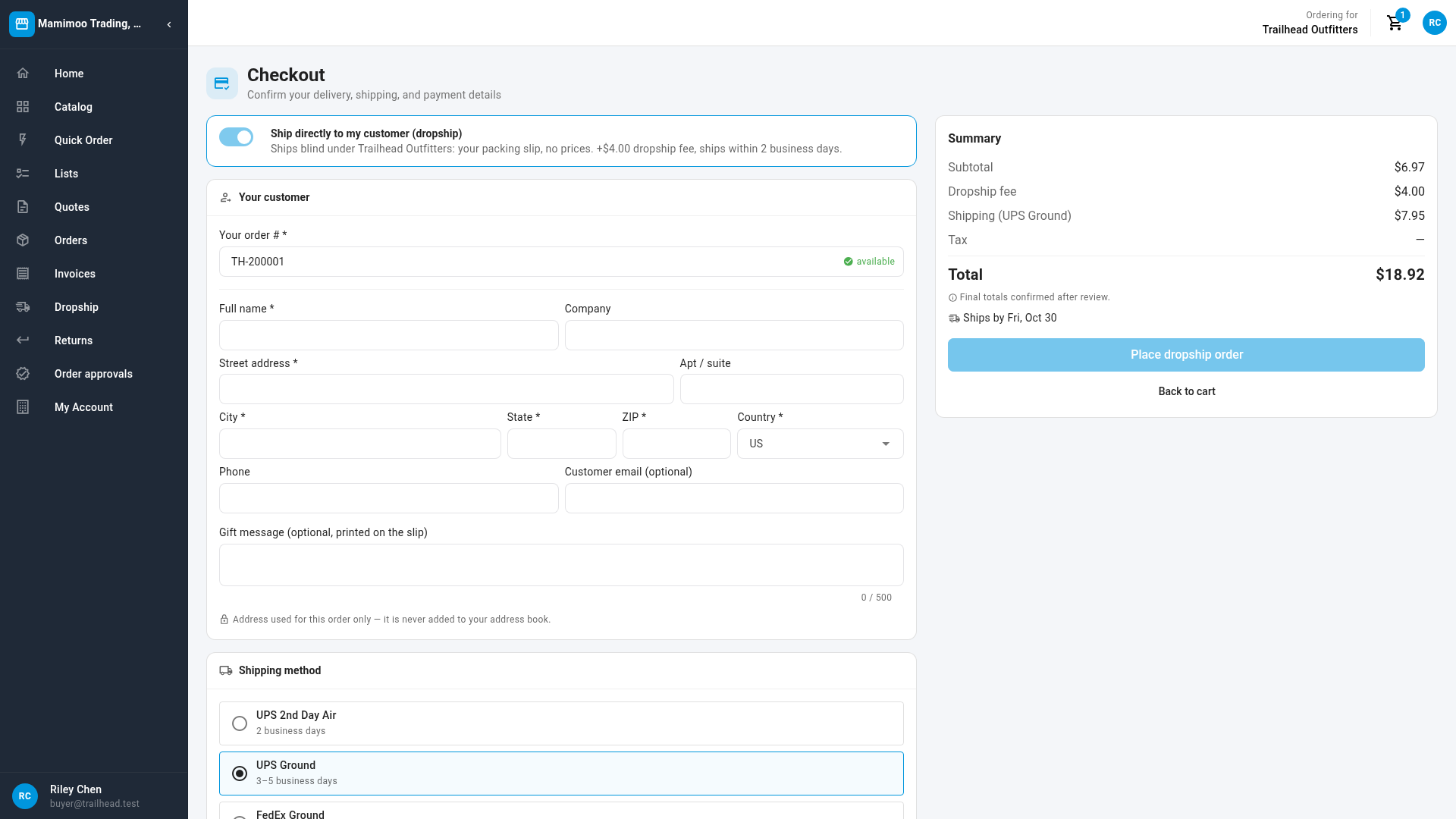
The card says how your order ships, for example Ships blind under Trailhead Outfitters: your packing slip, no prices. +$4.00 dropship fee, ships within 2 business days. The Shipping address card becomes Your customer, PO number (optional) disappears (Order note (optional) stays), and the button becomes Place dropship order.
-
In Your order #, enter your order number, for example
TH-100482. It can be up to 128 characters.When you leave the field, the portal checks the number. A green available means you haven't used it. If you have, the field says Already used on and the earlier order, with You already sent order and a link to it. Use a different number, or open the earlier order instead. A number becomes free again once its order is cancelled.
-
Enter your customer's address: Full name, Street address, City, State, ZIP and Country are required. Company, Apt / suite and Phone are optional.
Country starts on your supplier's home country. For any other country the label reads Phone (needed for international): fill it in. The portal checks the address as you go (Checking the address…) and shows any warning under the form, such as a ZIP code in the wrong format. The address is used for this order only. It's never added to your address book.
-
Optionally, enter Customer email (optional). Add it if your supplier sends your customer a shipped email in your name, because that email needs an address to go to.
-
Optionally, enter a Gift message (optional, printed on the slip), up to 500 characters.
-
Under Shipping method, choose a service.
Only the services your supplier allows for dropship are listed, and your default is chosen for you. Dropship services show no price of their own: the charge appears in the summary.
-
Check the Summary.
Line Shows Subtotal The products at your dropship prices. Volume and catalog discounts don't apply to dropship orders. Dropship fee Your supplier's fee for the order, when it charges one. Shipping (UPS Ground) The shipping charge for the service you chose. It reads Free when your order qualifies for free shipping, and Shipping — billed at label cost with no amount yet when your supplier bills the real label cost later. Tax and Total The estimated tax and the order total. Ships by The date your supplier commits to shipping by, for example Ships by Fri, Oct 30. 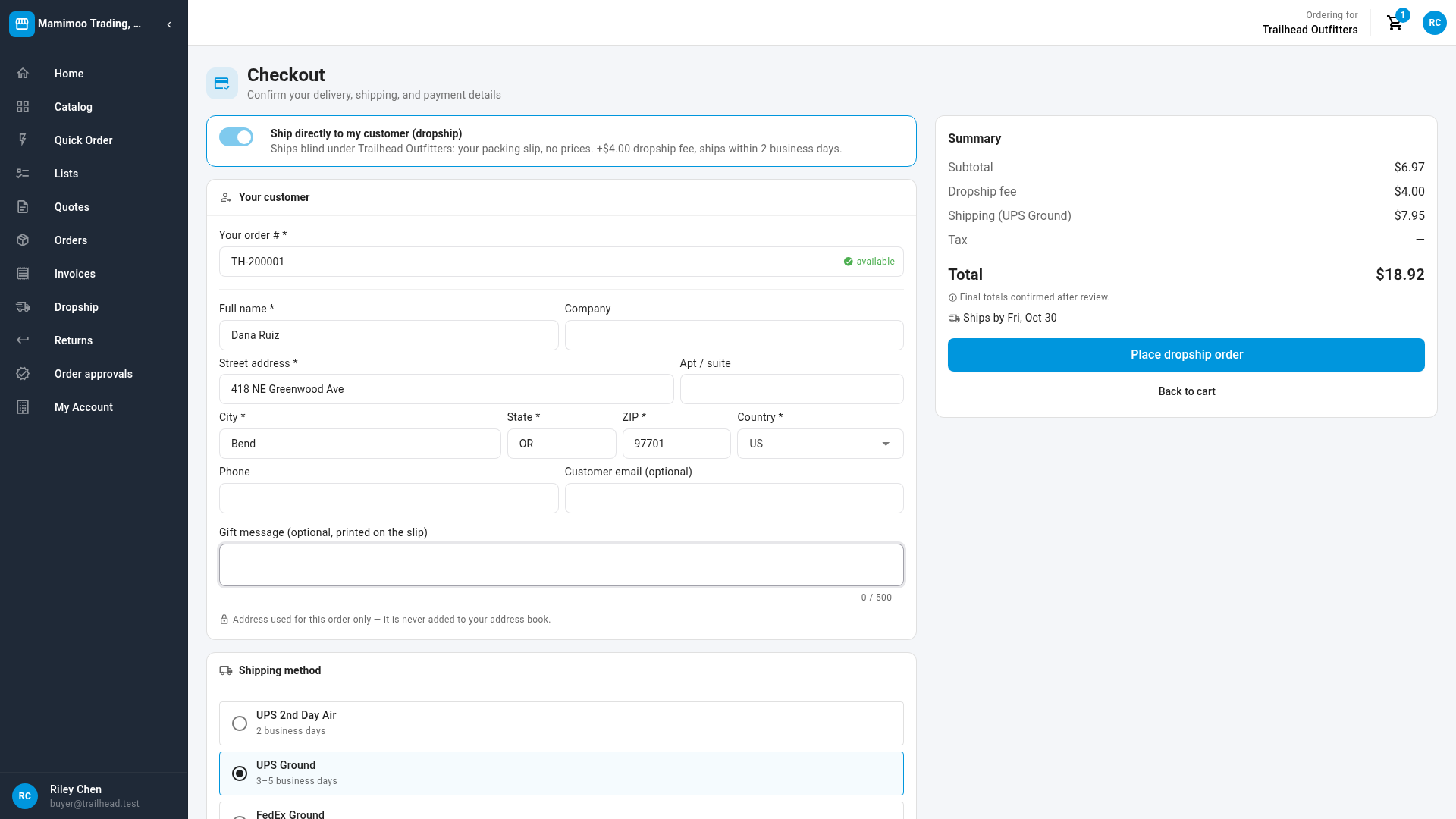
-
Click Place dropship order.
The Order placed! dialog shows your supplier's order number and Your ref (your order number) with the ship-by date. Your cart is emptied and the customer form cleared. Click View order to open it, or Continue shopping. The order appears on Dropship → Orders as Received.
If your company makes bigger orders wait for approval, the dialog says Submitted for approval and Your order needs approval before it's submitted. instead. Your supplier gets the order once it's approved, and the ship-by date starts then. See Require approval for portal orders.
If you can't place the order
Place dropship order stays greyed out until the order is complete. Hover over it to see why:
| Message | What to do |
|---|---|
| Your cart is empty. | Add products first. |
| Enter your order number. | Fill in Your order #. |
| You already sent order … | Use a number you haven't used on an open order. |
| Complete your customer's address. | Fill in every field marked with an asterisk. |
| A minimum-order message | Your supplier applies an order minimum to your dropship orders. Add products until the subtotal reaches it. |
| A Viewer message | Your role can't place orders. Ask your company admin to change it. |
When you click the button, your supplier's system checks the order again. If something is wrong, an error box lists each problem item with its reason, such as Can't be dropshipped, Price unavailable — contact your rep, Out of stock and not available for backorder, or Fewer units in stock than requested, and not available for backorder. Click Review cart to change the cart. Your cart is kept.
Other refusals you may see:
- Special order items can't be dropshipped. Remove them from your cart or order them for your own address.
- That shipping service is not offered for dropship orders. Choose one of the allowed services.
- No shipping methods available for this address. Check the country, or ask your supplier which services it offers for dropship.
- An address problem, such as The address is missing a recipient name.
- A credit message, such as This order would exceed your available credit of …
Every rule and its message, for every route, is in the Dropship orders reference.
Next steps
- Track, cancel and return dropship orders
- Upload dropship orders from a CSV, to send many orders at once
- How dropship works on the portal
Video transcript
To ship an order straight to your customer, start with a normal cart. Add the products, here from Quick Order. Then open your cart. Check the items, and click Checkout. Turn on Ship directly to my customer. The card says the order ships blind under your name, with the fee and the ship-by promise. Enter your own order number. If you already sent it, the field says so and links to the earlier order. Now enter your customer's name and address. It's used for this order only, and never saved to your address book. Check the summary on the right. It shows your dropship price, the dropship fee, shipping, and the date your order ships by. To finish, click Place dropship order. It takes a moment to check stock and your customer's address. When it's done, you see your supplier's order number, your own reference, and the ship-by date.