Track, cancel and return dropship orders
This page is for retailers who send orders through their supplier's Customer Portal. If you run SKU.io yourself and want one of your own suppliers to ship an order for you, see Create a dropship request.
Once you (the retailer) have sent your customers' orders to your supplier, the Dropship → Orders tab is where you follow them: what's due to ship today, what's late, where each parcel is, and which orders you can still cancel. From the same tab you download tracking for your own store, and from Returns you start a return using your own order number. The examples use the retailer Trailhead Outfitters.
Before you begin
- Any portal role can see dropship orders and export tracking. To cancel an order you need the Buyer or Company Admin role.
- You've sent at least one dropship order. Until then the tab says No dropship orders yet — place one at checkout or upload a CSV, with buttons for each.
See what's due and late
-
Click Dropship in the portal menu. The Orders tab opens.
-
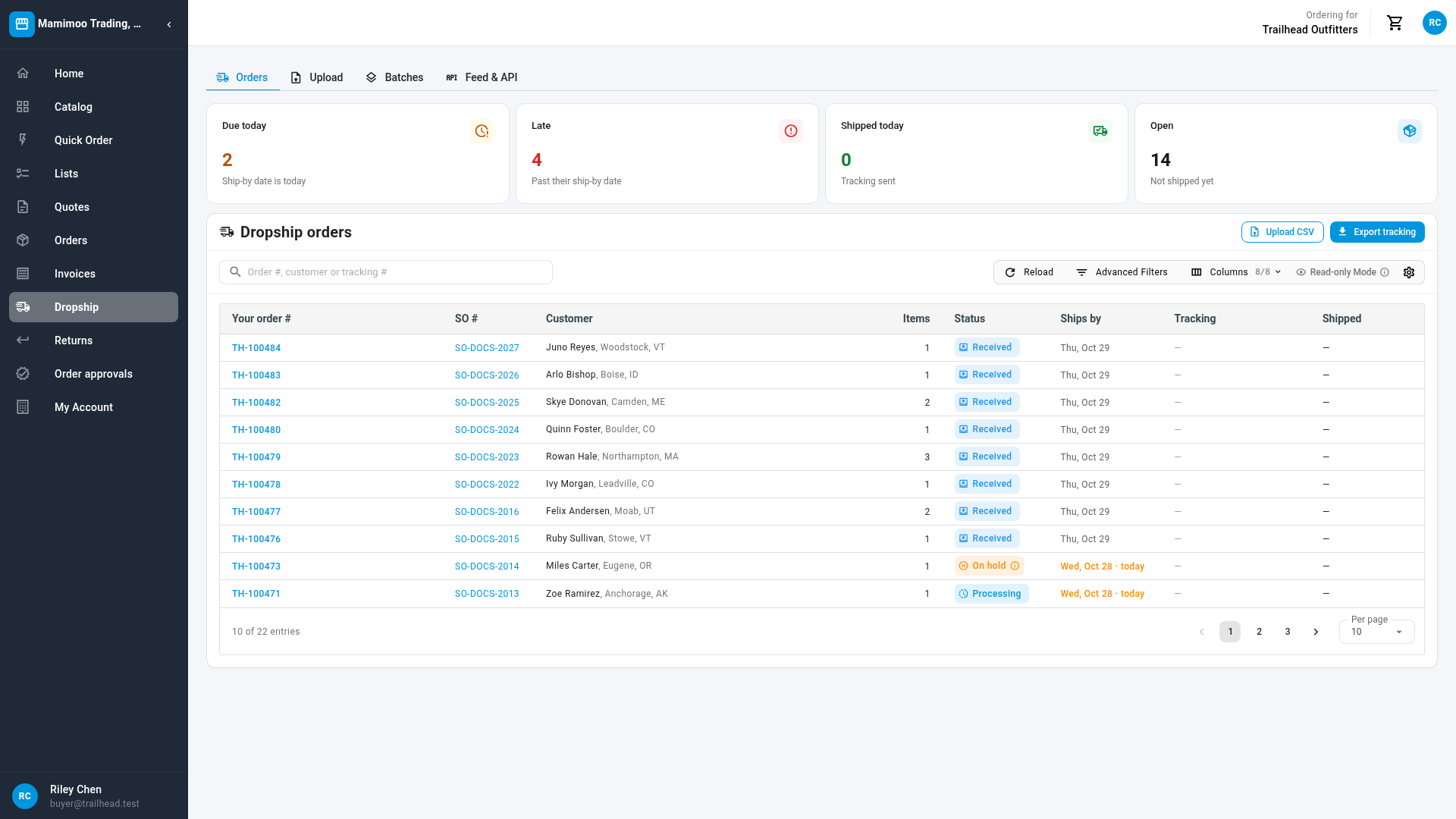
Read the four tiles at the top:
Tile Counts Due today Orders not shipped whose ship-by date is today. Late Orders not shipped whose ship-by date has passed. Shipped today Orders that shipped today, with tracking sent. Open Orders not shipped yet. Days follow your supplier's timezone.
-
To list only those orders, click Due today or Late. Click the tile again to see every order. Shipped today and Open are counts only.
Find an order
The Dropship orders list shows Your order #, SO # (your supplier's order number), Customer (your customer's name and city), Items, Status, Ships by, Tracking and Shipped. Newest orders come first.
- Search by your order number, your customer's name or a tracking number in Order #, customer or tracking #.
- Narrow the list to late or due orders with the Due today and Late tiles above it.
- Sort by Your order #, SO # or Ships by.
- Columns hides or shows columns. Show 10, 25, 50 or 100 orders a page.
- Right-click an order for View details or Copy tracking number.
The Ships by date is grey while the order is on track, amber with · today on its ship-by day, and red with · late once it's past. It turns green with a check mark once the order ships, and shows — when an order has no ship-by date.
The Tracking column shows the first tracking number as a link to the carrier, with a copy button. +1, +2 and so on means the order shipped in more than one parcel; open the order to see them all.
What each status means, and every hold reason, is in the Dropship orders reference. The status Delivered isn't reported yet, so a delivered order still shows Shipped.
Open an order
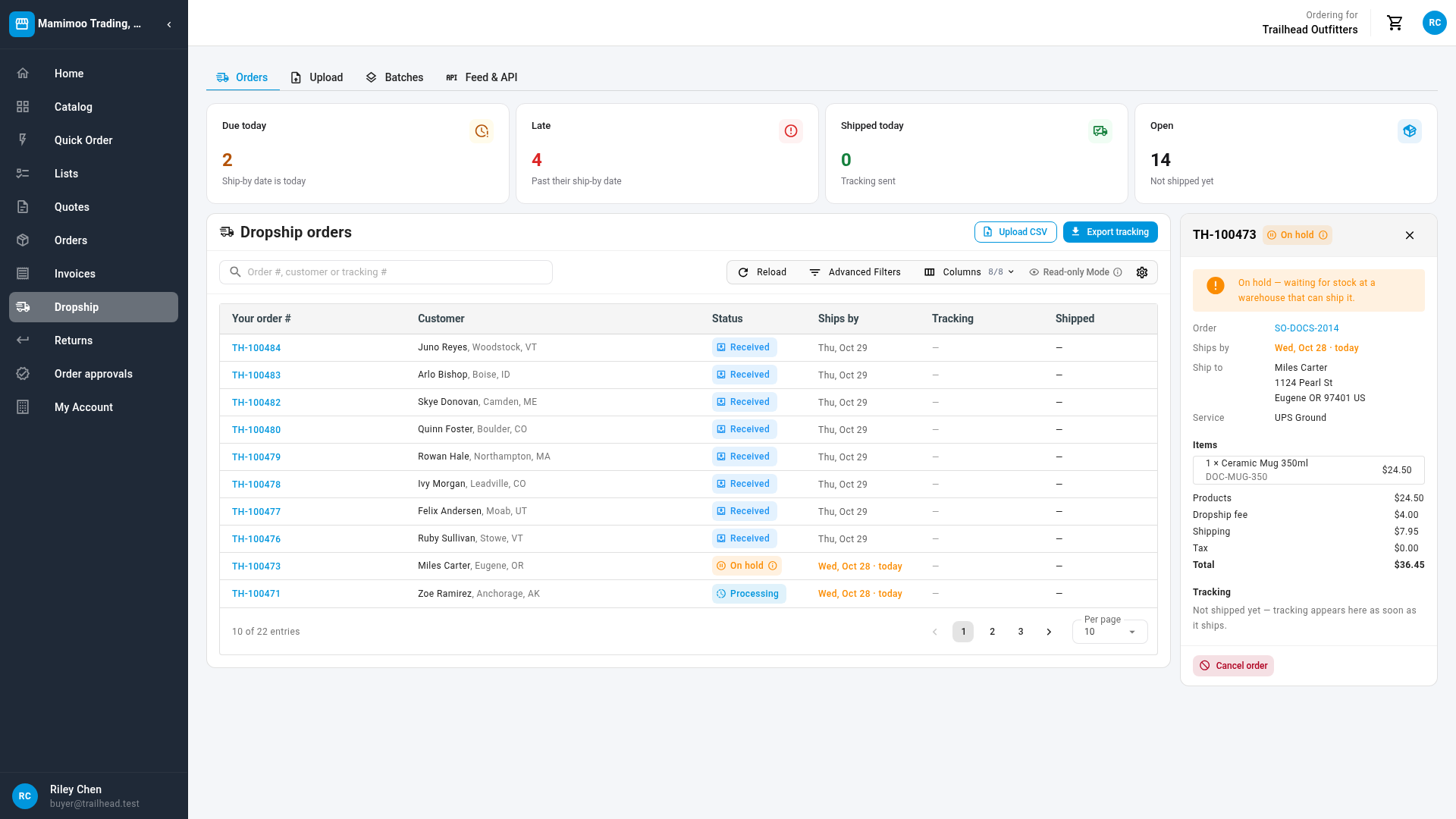
Click an order. Its details open on the right, headed by your order number and its status. While the panel is open, the list hides SO # and Items to make room.
| In the panel | Shows |
|---|---|
| The message at the top | Why the order is On hold, for example On hold — waiting for stock at a warehouse that can ship it. Only on held orders. |
| Order | Your supplier's order number. Click it to open the full order page, where your order number shows as PO and the number. |
| Uploaded in | The CSV batch the order came from, as Batch #2. Click it to open the batch. Only on uploaded orders. |
| Ships by | The ship-by date, coloured as in the list. |
| Ship to | Your customer's name, company and address. |
| Service | The shipping service, or Default service when the order didn't name one. |
| Gift message | The message printed on the packing slip, when there is one. |
| Items | Each product with its quantity, SKU and line price. |
| Products, Dropship fee, Shipping, Tax, Total | The order's charges. |
| Tracking | Each shipment with its carrier, ship date and tracking number (a link to the carrier, with a copy button). Before it ships: Not shipped yet — tracking appears here as soon as it ships. |
Click X to close the panel.
Cancel an order
You can cancel a dropship order yourself until your supplier's warehouse starts on it: while it shows Received, or On hold before any packing.
-
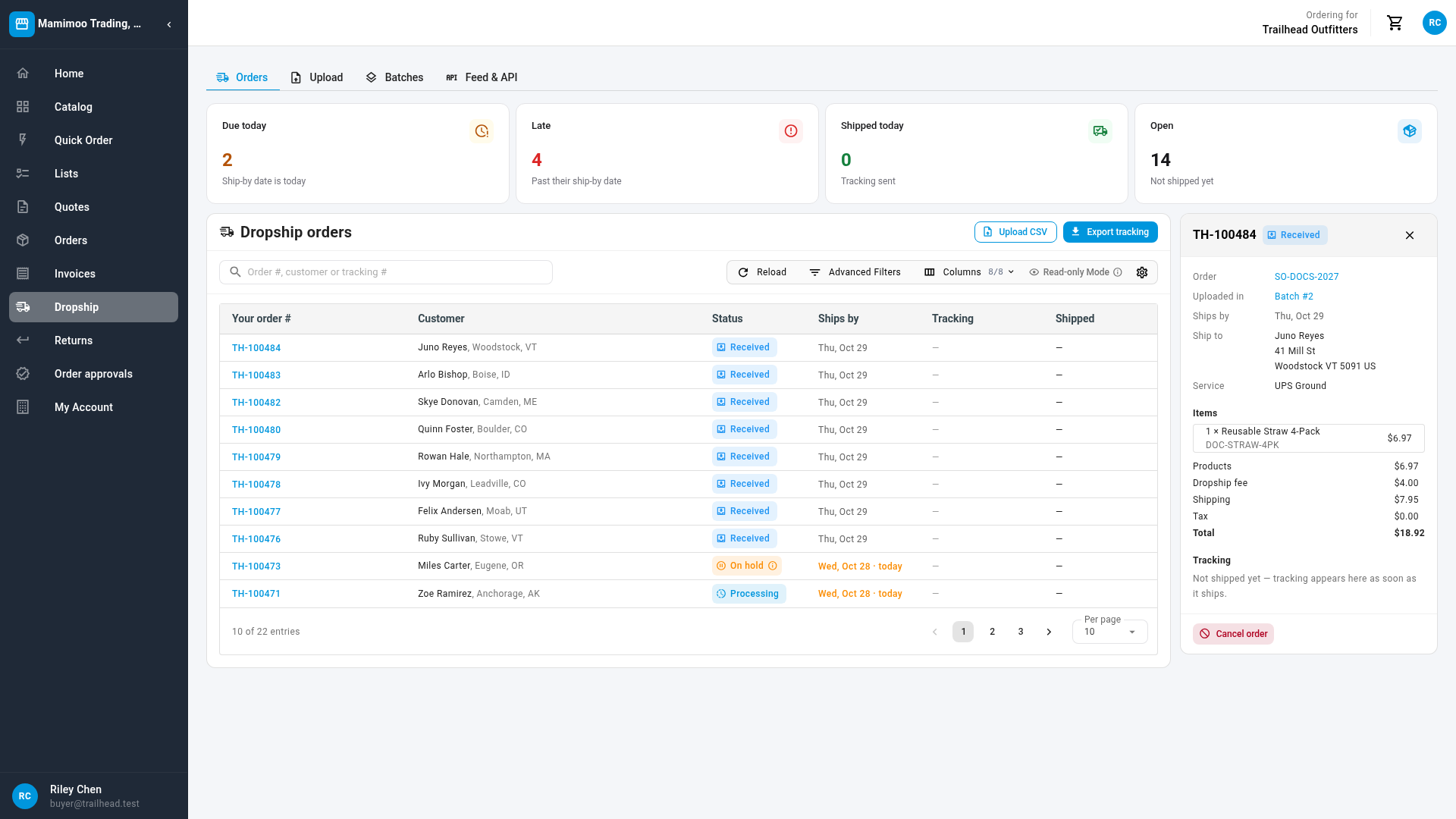
Click the order to open its details.
-
Click Cancel order.
-
Read the dialog, Cancel TH-100484?: The order is removed from the warehouse queue and its stock is released. You can send the same order number again later.
-
Click Cancel order to confirm, or Keep order to leave it.
Order TH-100484 cancelled confirms it, and the order shows Cancelled. Its order number is free to use again.
Cancel order is greyed out once you can't use it. Hover over it to see why:
| Message | Means |
|---|---|
| This order is already being packed. Contact your account manager to stop it. | The warehouse has started: a shipment exists, the order went to a warehouse or 3PL, or its packing slip was printed. Only your supplier can still stop it. |
| This order is already cancelled. | Nothing more to do. |
| Your role is Viewer (read-only), so you can't cancel orders. Ask your company admin to change your role. | Ask a Buyer or Company Admin, or ask for your role to be changed. |
A cancel sent through the dropship API follows the same rule. When it's refused because the warehouse has started, your supplier is told of the request so its team can try to stop the order.
Export tracking
To update your own store, or to answer your customers, download the tracking for your orders.
- On the Orders tab, search for the orders you want, or click the Due today or Late tile. The export follows the list's current search and tile, across all pages. With neither, it holds every dropship order.
- Click Export tracking.
You get dropship-tracking-<date>.csv with these columns:
| Column | Holds |
|---|---|
order_number | Your order number. |
sales_order_number | Your supplier's order number. |
status | The order's status, as a code such as shipped or on_hold. The codes are listed in the Dropship orders reference. |
carrier, service | The carrier and shipping service. |
tracking_number, tracking_url | The tracking number and the carrier's tracking link. |
shipped_at | When the shipment left, as a date and time with its time zone (ISO 8601). |
An order has one row per shipment. An order that hasn't shipped has one row with blank tracking. Voided shipments are left out.
More than 1,000 rows are prepared in the background. The portal says Large export — we're preparing it. You can leave this page; the download appears at the bottom right. A box at the bottom right of every portal page shows Preparing your tracking export…, then Tracking export ready with Download. If it fails, the box says The tracking export couldn't be prepared; try again with a narrower filter. A started export is remembered for a day, so it survives a page reload.
Start a return by your order number
When your customer wants to send something back, look the order up by your own order number. Returns go to an address in your name, not your supplier's.
-
Click Returns in the portal menu, then Start a return.
-
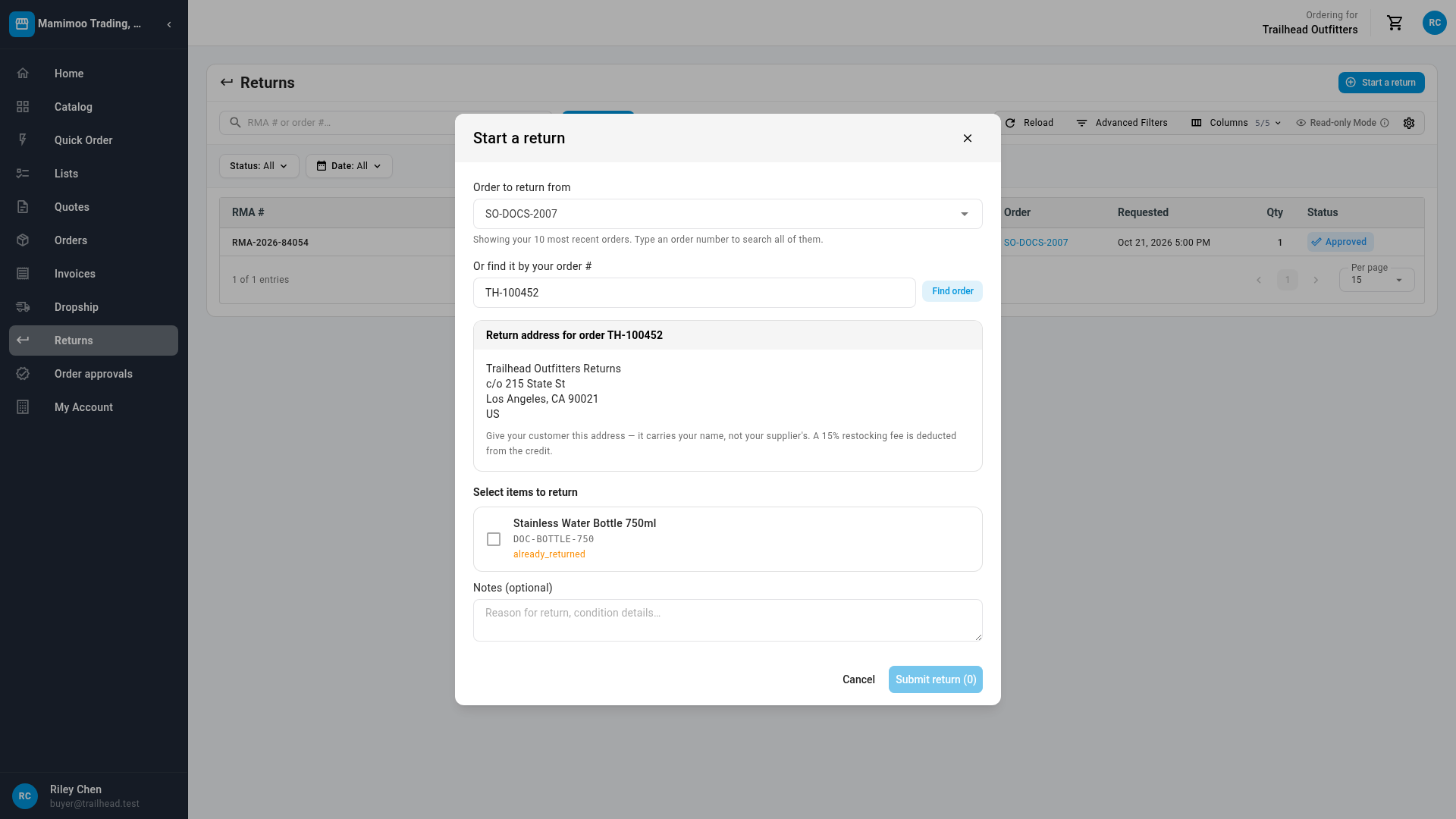
In Or find it by your order #, enter your order number, for example
TH-100452. It also finds an order by the PO number you gave it. -
Click Find order.
If no order matches, the field says No order TH-999999 found on your account.
-
Read the Return address for order TH-100452 card. Give your customer this address, which carries your name. If your supplier charges a restocking fee, the card says so, for example A 15% restocking fee is deducted from the credit. If your supplier hasn't set a return address, the card says Your supplier will send the return address once the return is approved.
-
Under Select items to return, tick the items your customer is returning. An item that can't be returned, for example because it has already been returned, can't be ticked.
-
Optionally, add Notes (optional), such as the reason and the item's condition.
-
Click Submit return.
The return appears in your Returns list, and your supplier reviews it.
Next steps
- Dropship orders reference, for every status and hold reason
- Connect your store with the dropship API and feed, to read tracking from your own system
- Place a dropship order at checkout, to send a replacement
Video transcript
Open Dropship to see your orders. The tiles count what's due today, what's late, and what's still open. Click Late to list only those orders. Click an order to see its details. A held order says why at the top. Tracking appears here as soon as the order is shipped. To cancel, open the order you no longer want. You can cancel it until the warehouse starts work on it. Click Cancel order, and confirm in the dialog. Its order number is then free to use again. Here, we keep the order. To update your own store, click Export tracking. You get one row per shipment, with the tracking link. For a return, open Returns from the menu. Then click Start a return. Type your own number for the order you want back. Then click Find order. The return address carries your name, not your supplier's.