Edit your packing-slip branding
This page is for retailers who send orders through their supplier's Customer Portal. If you run SKU.io yourself and want one of your own suppliers to ship an order for you, see Create a dropship request.
On this page, you are the retailer, your supplier is the business that runs this portal and ships your orders, and your customer is the shopper who bought from your store. Every parcel your supplier ships to your customer carries a packing slip with your brand on it, never your supplier's, and no prices. If your supplier lets you manage that branding yourself, you can change it on the Packing-slip branding page and see the slip update as you type.
Before you begin
| Requirement | Why it's needed |
|---|---|
| Your supplier lets you edit your own branding | Otherwise your supplier keeps the branding up to date for you. |
| Your portal role is Company Admin | Only a company admin sees the Packing-slip branding button and can change the branding. |
| Your logo, as a PNG, JPG or SVG file of 1 MB or less (optional) | It prints at the top of the slip. Keep it under 2,000 pixels on each side. |
Change your branding
-
In the portal menu, click Dropship, then the Feed & API tab.
-
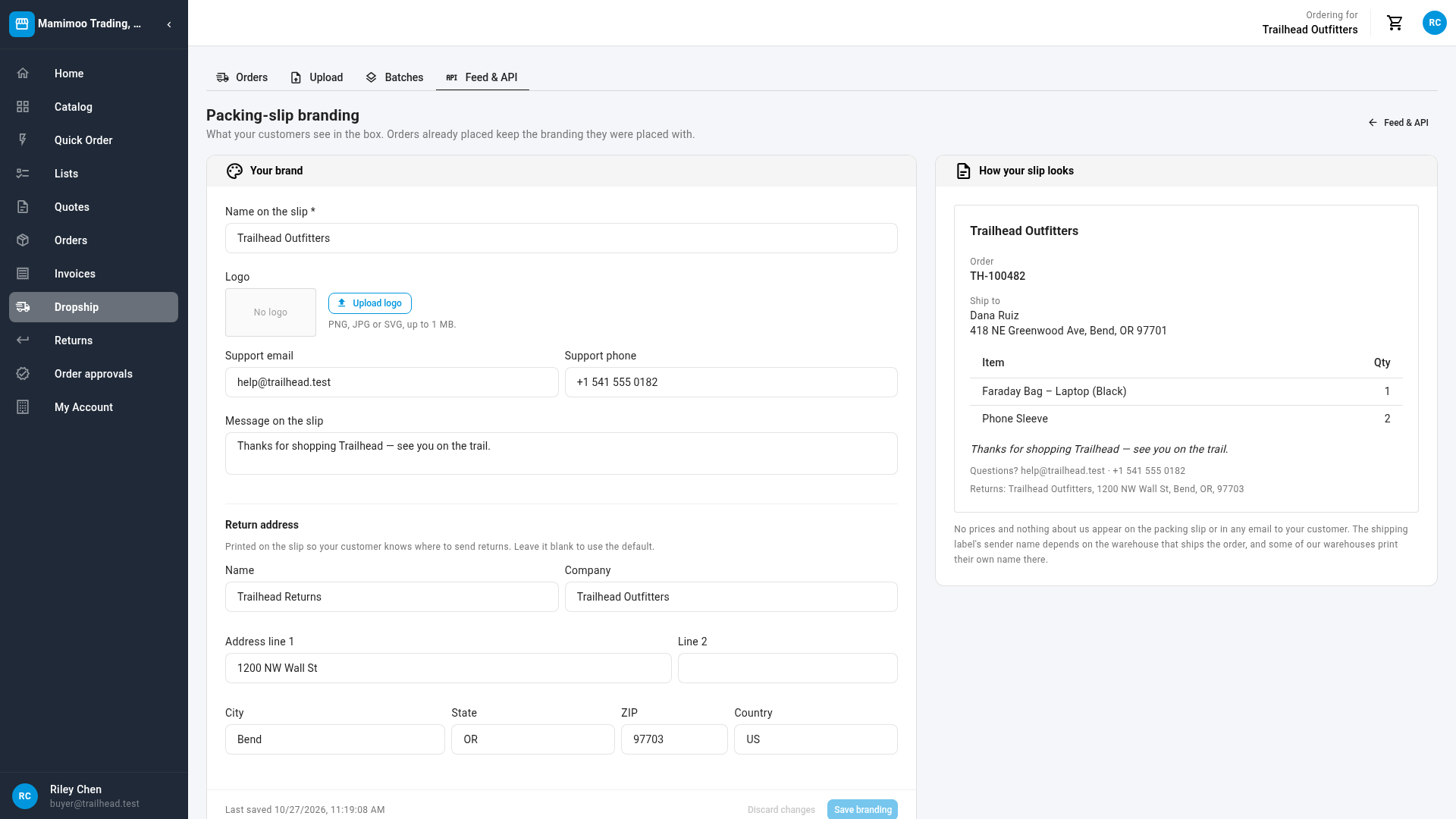
Click Packing-slip branding at the top right. The page opens with your current branding on the left and How your slip looks on the right.
-
In Name on the slip, enter the name your customers know you by. It's required.
-
To add or change your logo, click Upload logo (or Replace logo) and choose the file.
The logo is saved as soon as it uploads, and a Logo updated message confirms it. It doesn't wait for Save branding.
-
Fill in Support email and Support phone, so your customers know how to reach you. They print under Questions? on the slip.
-
In Message on the slip, add a note for your customers, such as a thank-you, up to 2,000 characters.
-
Under Return address, enter where your customers should send returns: Name, Company, Address line 1, Line 2, City, State, ZIP and Country (a 2-letter code, such as
US). Leave every field blank to use the default return address.If you start a return address, finish Name, Address line 1 and City, or clear them all.
-
Check How your slip looks. It updates as you type, using a sample order.
-
Click Save branding. The Branding saved — new orders will use it message confirms it, and Last saved shows the time.
No prices appear on the slip, and nothing about your supplier appears on it or in the shipping emails your customer gets. Most shipping labels also name you as the sender, but some of your supplier's shipping services always print their own warehouse as the sender. Ask your supplier if that matters to you.
An order keeps the branding it was placed with. Orders already placed still print your old name, logo and message, even if their slip is printed after you save. Branding can't be applied to past orders.
Undo or leave without saving
-
To throw away changes you haven't saved, click Discard changes. The form goes back to the last saved branding.
-
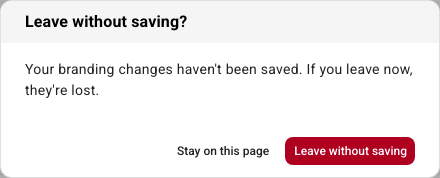
If you go to another page before you save, Leave without saving? asks first. Click Stay on this page, then Save branding, to keep your changes, or Leave without saving to drop them.
If you can't save
Save branding stays greyed out until the form can be saved. Hover over it to see why:
| Message | What to do |
|---|---|
| Enter the name to print on the slip. | Fill in Name on the slip. |
| Finish the return address (name, line 1 and city) or clear it. | Complete those three fields, or empty the return address. |
| Nothing has changed yet. | There's nothing new to save. |
After you click Save branding, the page can still point at a field:
| Message | What to do |
|---|---|
| Enter a valid support email, e.g. help@trailheadoutfitters.com. | Correct the email address. |
| Pick the return address country. | Enter the 2-letter country code. |
And when you upload a logo:
| Message | What to do |
|---|---|
| That logo is over 1 MB — use a smaller file. | Export a smaller file and upload it again. |
| The logo must be a PNG, JPG or SVG file. | Save the logo in one of those formats. |
| The logo is … px. Use one no larger than 2000 px on either side. | Resize the image. |
| The SVG logo contains …, which is not allowed on a packing slip. | Export the logo again as a plain SVG, or as a PNG. |
If the page itself shows Only a company admin can change your packing-slip branding., ask your company admin. If it shows Your supplier manages your packing-slip branding. Ask them to change it., send your supplier the changes you want.
Next steps
- Connect your store with the dropship API and feed
- How dropship works on the portal
- Track, cancel and return dropship orders
Video transcript
Every parcel your supplier ships to your customer carries your brand, not theirs. To change it, open Dropship, then the Feed and API tab. Click Packing-slip branding. Change the name on the slip, your logo, your support contact, or your message. The preview on the right updates as you type. Below, set the return address for your customers' returns. When you're done, click Save branding before you leave the page. Only new orders use the new branding. Earlier orders keep the branding they had when they were placed.