Dropship settings reference
This page is about shipping your retailers' orders to their customers. If your supplier ships orders for you, see Create a dropship request.
This page lists every field on a retailer's Dropship tab, in the order the cards appear on screen. On this page you are the merchant, the retailer is your wholesale customer, and the retailer's customer is the person the parcel ships to. To work through the tab step by step, see Set up dropship for a retailer.
The tab is at Contacts → Customers → Portal → Accounts, then the account, then Dropship. You need the permission to administer the B2B customer portal.
Header
| Control | What it does |
|---|---|
| <Retailer> · Dropship program | The tab's title. Under it, Saved with the date, time and person who last saved, or Not saved yet. |
| Dropship enabled / Dropship off switch | Turns the program on or off. Turning it off blocks new dropship orders on every route. Orders already placed carry on. |
| Cancel | Throws away your unsaved edits. Disabled, with the tooltip No unsaved changes to discard, when there is nothing to discard. |
| Save dropship profile | Saves every card at once. While a card has a problem, the button is disabled and its tooltip shows the first problem. With no edits, the tooltip reads Nothing has changed since the last save. A save shows Dropship profile saved. |
Saving records Dropship enabled, Dropship disabled or Dropship profile updated on the customer's activity.
If you leave the tab, or switch to Dealer hub, with unsaved edits, SKU.io asks Discard unsaved changes?. Click Keep editing to go back, or Discard changes to leave. A logo upload or removal is the exception: it saves straight away, even if you never click Save dropship profile.
Performance strip
Four figures for the last 30 days sit under the header. Track dropship performance explains each one.
Setup checklist
On a desktop screen, a menu on the left lists the six cards: Status & intake, Branding, Pricing & fees, Shipping & SLA, Tracking and Billing & returns. Click an entry to scroll to its card. Each entry shows a green check when the card is complete, a red alert when the card has a problem, and an empty circle otherwise. The footer reads Setup X of 6 complete, with a progress bar. The menu is hidden on a phone.
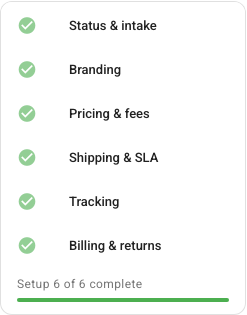
| Card | Counts as complete when |
|---|---|
| Status & intake | Dropship is on and at least one intake route is ticked. |
| Branding | It has a display name, and either a logo or a support email. |
| Pricing & fees | Always. |
| Shipping & SLA | Ship within and Daily cut-off both have a value. |
| Tracking | Send tracking is Don't email tracking, or a tracking email is filled in. |
| Billing & returns | Returns go to the warehouse, or the retailer's own return address has a street. |
Status and intake

How <retailer> sends dropship orders sets the routes the retailer may use. Tick at least one while dropship is on, or you see Pick at least one way the retailer sends orders.
| Route | What the retailer does |
|---|---|
| Portal checkout | Ticks Ship directly to my customer (dropship) at portal checkout. |
| CSV upload | Uploads a file of orders on the portal's Dropship → Upload page. |
| API | Sends orders from its own store with an API key it creates on the portal. |
| EDI (SPS dropship POs) | Sends dropship purchase orders through SPS Commerce. You map the trading partner in the SPS Commerce integration. |
After Enable dropship, check these boxes before you save: the routes can all be ticked to start with. Leave EDI ticked only once the retailer's SPS Commerce trading partner is mapped.
When dropship is on but a route isn't ticked, the retailer's order on that route is refused with a message that names the route, such as CSV upload isn't turned on for your account — ask your supplier. When dropship is off, every route is refused with Dropship is not enabled for your account. Contact us to set it up.
Every route applies the same rules: catalog, stock, address check, credit and minimums.
Branding (blind ship)
The card carries the chip Your identity never prints. Everything here prints on the retailer's blind packing slip.
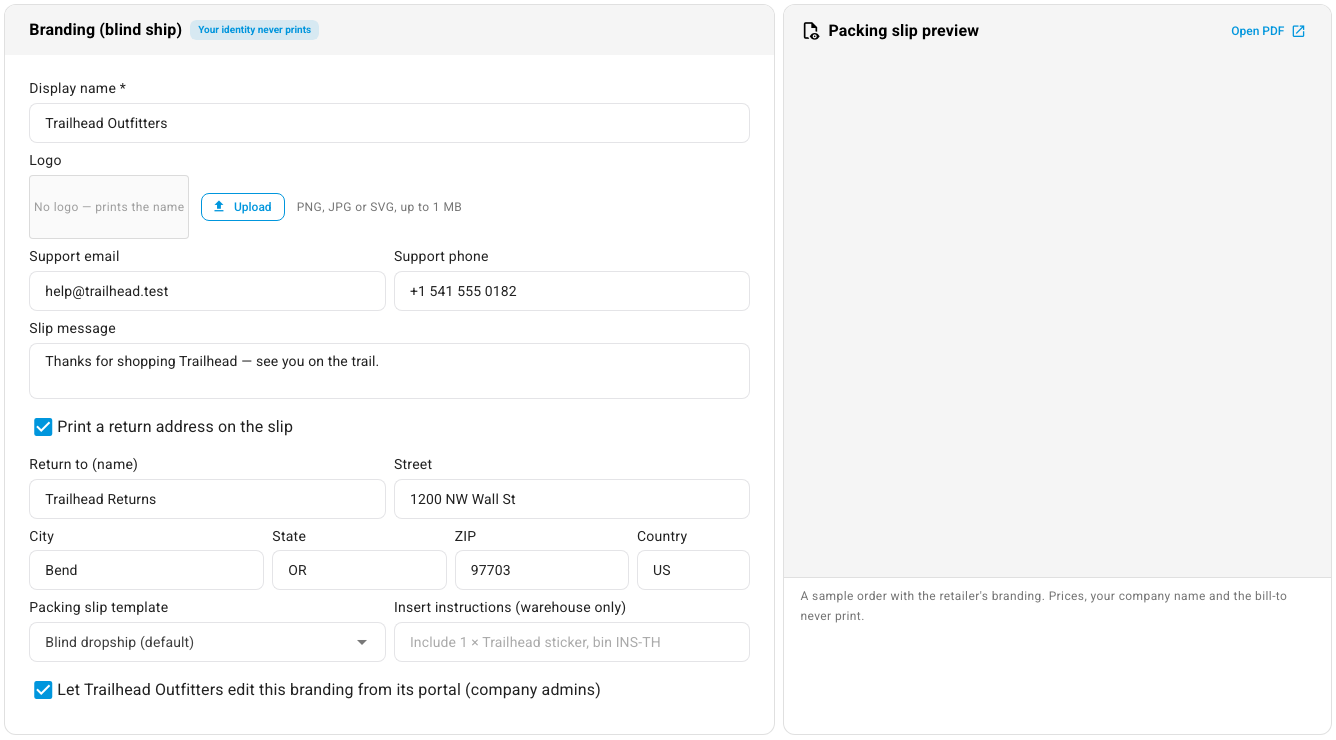
| Field | What it does | Limits and messages |
|---|---|---|
| Display name * | The name printed on every blind slip, and on the label where the label service supports it. Defaults to the customer's name. | Required while dropship is on: Enter the retailer's display name — it prints on every blind packing slip. |
| Logo | Printed at the top of the slip. With no logo the slip prints the display name in bold, and the box reads No logo — prints the name. Click Upload (or Replace), or Remove. | PNG, JPG or SVG, up to 1 MB. Saves at once, with Logo uploaded. See Logo messages. |
| Support email | Printed under "Questions about your order?" on the slip. | Enter a valid support email. |
| Support phone | Printed next to the support email. | — |
| Slip message | A note printed on every slip, such as a thank-you. | Up to 2,000 characters. |
| Print a return address on the slip | Shows Return to (name), Street, City, State, ZIP and Country (a 2-letter code). The slip's returns block then gives this address. | The return address needs a name, street, city and 2-letter country. |
| Packing slip template | The slip layout. Blind dropship (default) is the built-in blind slip. You can pick any other packing-slip template you've made, listed by name (store templates as "name — store"). | — |
| Insert instructions (warehouse only) | A note for your pickers, such as "Include 1 × Trailhead sticker, bin INS-TH". It prints on the pick list and goes to a 3PL as a warehouse instruction. It never prints on the slip. | Up to 2,000 characters. |
| Let <retailer> edit this branding from its portal (company admins) | Lets the retailer's Company Admins change the display name, logo, support email and phone, slip message and return address on the portal. They can never change fees, shipping or the SLA, and you can still edit everything here. When it's off, the retailer reads Your supplier manages your packing-slip branding. Ask them to change it. | — |
Branding is copied onto each order when it is placed, so a change here applies only to orders placed afterwards. See How dropship for retailers works.
Packing slip preview
The Packing slip preview card renders a sample blind slip for order TH-100482 a moment after you edit a branding field, including edits you haven't saved. While it renders, the card shows Updating… (or Rendering a sample blind slip… the first time). Open PDF opens it in a new tab; until the preview loads, its tooltip reads The preview has not loaded yet. If it fails you see The packing slip preview could not be rendered. with Retry. The footer says: "A sample order with the retailer's branding. Prices, your company name and the bill-to never print."
Logo messages
| Message | Cause |
|---|---|
| The logo must be 1 MB or smaller. | The file is larger than 1 MB. |
| The logo must be a PNG, JPG or SVG file. | Another file type. |
| The logo is W × H px. Use one no larger than 2000 px on either side. | The image is too large. |
| That file is not an SVG image. | A file named .svg that isn't one. |
| The SVG logo contains … which is not allowed on a packing slip. Export it again as a plain SVG or a PNG. | The SVG carries a script, an event handler or an external link. |
| The logo could not be uploaded. / The logo could not be removed. | Anything else went wrong. Try again. |
Pricing and fees
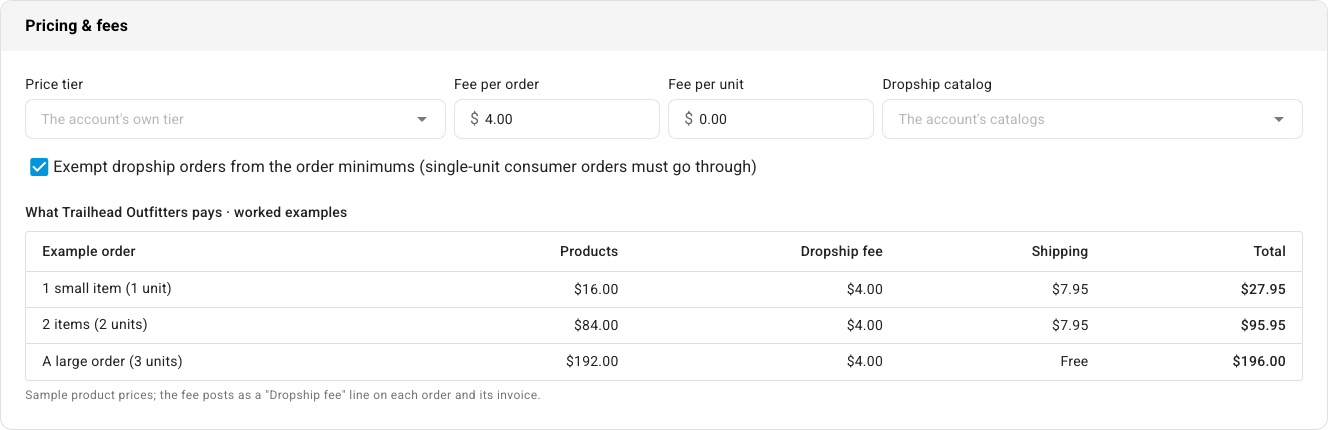
| Field | What it does | Limits and messages |
|---|---|---|
| Price tier | The pricing tier dropship products are charged at. Leave it blank (The account's own tier) to use the account's own tier. Contract and customer-specific prices still win over the tier. | The tier must be in the account's currency: The <tier> price tier is in EUR, but this account is billed in USD. Choose a USD price tier. |
| Fee per order | A fee added to every dropship order. | 0 to 99,999. Fees must be amounts of 0 or more. |
| Fee per unit | A fee added for every unit on the order. | 0 to 99,999. |
| Dropship catalog | Limits what the retailer can dropship. Leave it blank (The account's catalogs) to use the account's own catalogs. When set, a product must be in both. | — |
| Exempt dropship orders from the order minimums (single-unit consumer orders must go through) | On by default. When on, the account's minimum order value doesn't apply to dropship orders. Case-pack and minimum-quantity rules never apply to dropship lines. | When off, an order under the minimum is refused with Your order subtotal is below the minimum of $X. Add $Y more to check out. |
The same price tier and catalog drive what the retailer's inventory feed lists. For tiers and catalogs in general, see Manage pricing tiers and Restrict what buyers see with portal catalogs.
The dropship fee
The fee is Fee per order plus Fee per unit × the order's units. When it is more than zero it is added as a Dropship fee line on the order and its invoice, taxed at the order's destination tax rate (untaxed when the order has none). It posts to your shipping income account. The customer's tax exemptions and resale certificates apply as usual.
What the retailer pays: worked examples
A live table under the card shows what the retailer pays for three sample orders with your current settings: 1 small item (1 unit), 2 items (2 units) and A large order (3 units), with Products, Dropship fee, Shipping and Total. The product prices are samples. With Trailhead Outfitters' settings ($4.00 per order, $7.95 flat shipping, free over $150.00):
| Example order | Products | Dropship fee | Shipping | Total |
|---|---|---|---|---|
| 1 small item (1 unit) | $16.00 | $4.00 | $7.95 | $27.95 |
| 2 items (2 units) | $84.00 | $4.00 | $7.95 | $95.95 |
| A large order (3 units) | $192.00 | $4.00 | Free | $196.00 |
With By service or Actual cost shipping, the Shipping column reads By service or Label cost + N%, and Total reads —.
Shipping and SLA
Services and the shipping charge
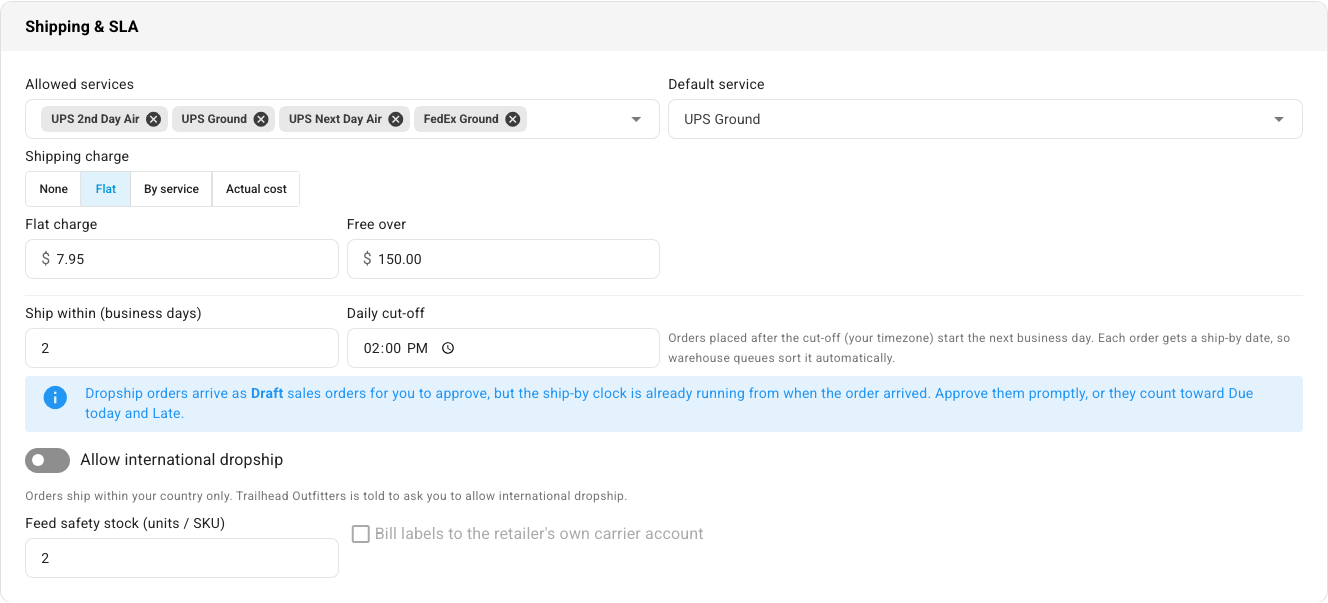
| Field | What it does | Limits and messages |
|---|---|---|
| Allowed services | The shipping services the retailer may choose. Blank (Any service) allows every service. | A service that isn't allowed is refused: That shipping service is not offered for dropship orders. Choose one of the allowed services. |
| Default service | Used when the retailer doesn't choose one. Blank (The account's default) uses the account's default. With services limited, it lists only the allowed ones. | The default service must be one of the allowed services. |
| Shipping charge | How you charge for shipping: None, Flat, By service or Actual cost. See the next table. | — |
When the retailer names no service, SKU.io uses the requested service, then the default service, then the first allowed service, then the account's default for that address.
| Shipping charge | What the order gets | Fields and messages |
|---|---|---|
| None | No shipping line. | — |
| Flat | A Shipping line at the flat amount. Once the products reach Free over, the line still shows, at $0. | Flat charge (Enter the flat shipping charge.) and Free over (blank reads Never free). |
| By service | A charge per allowed service. A service with no charge is refused as not offered. | Pick the services in Allowed services first (Pick the allowed services above, then set a charge for each.), then a box per service (Enter a charge for at least one shipping service.). |
| Actual cost | A $0 line Shipping — billed at label cost, repriced to the label cost plus your markup once the label cost is known. | Markup on label cost (0 to 1,000%). |
The shipping line carries the order's destination tax rate, like the fee.
When Actual cost is greyed out
Actual cost needs two things, because the invoice must wait until the label cost exists:
- Invoicing for dropship orders (under Billing & returns) must work out to Invoice per shipment or Consolidated statement.
- Freight & order-level charges in Settings → Sales invoices must be Prorate by product value or All on the last invoice.
While either is missing, the button is disabled and its tooltip starts Actual cost needs: and names each setting to change. When both are met, the tooltip reads "Label cost plus a markup, invoiced after the label exists. The shipping charge is filled in once the label cost is known." If one of these settings changes later, orders already set to Actual cost bill their shipping on the last invoice.
Choose Actual cost only for warehouses that record a label cost: labels you buy in SKU.io, or 3PLs whose cost reports reach SKU.io. See Work dropship orders.
Ship-by SLA
| Field | What it does | Limits and messages |
|---|---|---|
| Ship within (business days) | How many business days you have to ship. Default 2. | 0 to 30: Ship within 0 to 30 business days. |
| Daily cut-off | Orders that arrive after this time, in your timezone, start counting the next business day. Default 14:00. | Enter the daily cut-off as HH:MM, e.g. 14:00. |
The hint under the fields reads: "Orders placed after the cut-off (your timezone) start the next business day. Each order gets a ship-by date, so warehouse queues sort it automatically." An info box adds that dropship orders arrive as Draft, but the clock is already running. How the date is worked out: How the ship-by date is set.
International, feed and carrier account
| Field | What it does |
|---|---|
| Allow international dropship | Off by default: orders ship within your country only, and an order to another country is refused with Dropship orders ship within US only. Ask your supplier to allow international dropship to send this order to CA. (with the countries filled in). On: orders may ship to any country, and each international order needs the recipient's phone number for the carrier. Without it the order is refused with International dropship orders need the recipient's phone number for the carrier. |
| Feed safety stock (units / SKU) | Units held back from the retailer's inventory feed for every product, so the retailer stops selling before you run out. 0 to 100,000. Default 0. |
| Bill labels to the retailer's own carrier account | Shown but disabled, with the tooltip Coming later. For now, dropship labels are billed to your own carrier account. |
While dropship is on, the retailer's inventory feed (the one link under My Account → Inventory feed and Dropship → Feed & API on the portal) changes:
- It counts only stock in warehouses that can ship blind.
- It holds back Feed safety stock for each product, and works out each product's availability from what's left.
- It lists only the Dropship catalog, when you set one.
- It prices each unit at the dropship price tier, in the account's currency.
Special-order items are listed unchanged. Turning dropship off returns the feed to normal. For the feed's columns, see Share an inventory feed with a buyer.
Tracking and notifications

| Field | What it does | Limits and messages |
|---|---|---|
| Tracking email | The retailer's address for tracking emails. | Enter a valid tracking email. |
| Send tracking | An email per shipped order (default), A daily digest, or Don't email tracking. | — |
| Emails to the retailer's customer | Off — the retailer tells its own customer (default), or Send a shipped email in the retailer's name. | — |
What each email contains:
- An email per shipped order. Subject "Shipped: order <retailer order #>". It gives your sales order number, the ship-to, the carrier, the tracking number, the items and a Track the parcel button.
- A daily digest. One email each morning (09:00 UTC) for everything that shipped the day before in your timezone. Subject "Tracking for N dropship order(s) shipped <date>". It carries a table and a CSV attachment with these columns: Retailer order #, Sales order #, Ship to, City, State, Carrier, Service, Tracking number, Tracking URL, Shipped at (UTC). No email goes on a day with no shipments.
- Shipped email to the retailer's customer. Sent under the retailer's display name, replying to the retailer's support email. It reads "Good news — your order <retailer order #> is on its way.", with the carrier, the tracking number, a Track your parcel button and the retailer's support contact. It never shows your store name, logo, address or prices.
The shipped email reaches the retailer's customer only when the order carries that person's email address. The retailer adds it as Customer email (optional) at checkout, in the CSV file, or in the order it sends by API. With no address, nothing is sent and nothing warns you, so ask retailers to include it when you turn this on.
A shipment recorded more than 7 days after it shipped sends no tracking email and no webhook.
Webhooks
The Webhooks card sends order updates to the retailer's own system. See Send dropship updates to a retailer's system.
Billing and returns
| Field | What it does | Limits and messages |
|---|---|---|
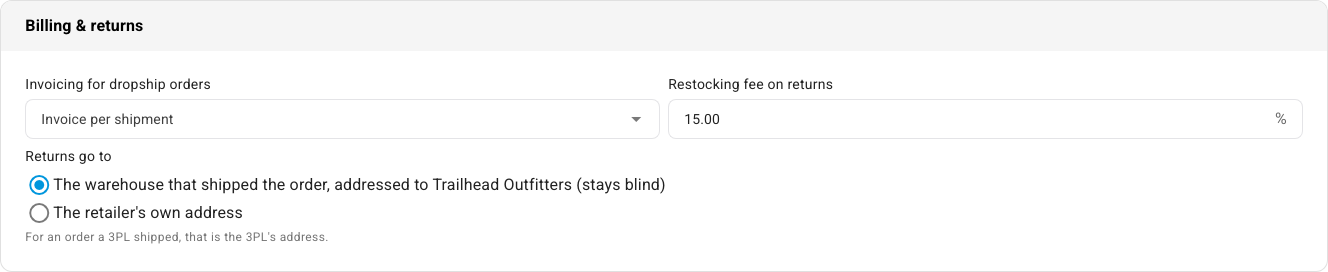
| Invoicing for dropship orders | Same as the customer (default; shows the customer's own policy in brackets, such as "Same as the customer (per order)"), Invoice per order, Invoice per shipment or Consolidated statement. It overrides the customer's invoicing for dropship orders only, and is fixed on each order when it arrives. | See below. |
| Restocking fee on returns | The percentage taken off the suggested credit when the retailer returns a dropship order. | 0 to 100: The restocking fee is a percentage between 0 and 100. |
| Returns go to | The warehouse that shipped the order, addressed to <display name> (stays blind) (default), or The retailer's own address (Name, Street, City, State, ZIP, Country). | Enter the retailer's return address, or send returns to the warehouse that shipped the order. |
A consolidated statement needs the customer's own cadence. The dropship tab has no schedule of its own: a consolidated statement runs on the customer's Consolidated invoicing setting (customer record → Settings), Weekly or Monthly. While that setting is Off, the card shows this error and the profile won't save: "A consolidated statement runs on <retailer>'s Consolidated invoicing, which is Off (customer → Settings), so these orders would never be invoiced. Set it to Weekly or Monthly there, or invoice dropship orders per order or per shipment." An order still waiting for its label cost rolls into the next statement. See Choose how orders are invoiced and Send sales invoices to customers.
Where returns go. With the default, the return address on the slip reads "<display name> Returns, c/o" the street of the warehouse that last shipped the order. For an order a 3PL shipped, that is the 3PL's address, as the hint under the option says. When no shipping warehouse is known yet, the retailer reads "Your supplier will send the return address once the return is approved."
Dropship row in What this dealer sees
On the account's Dealer hub tab, What this dealer sees has a Dropship row:
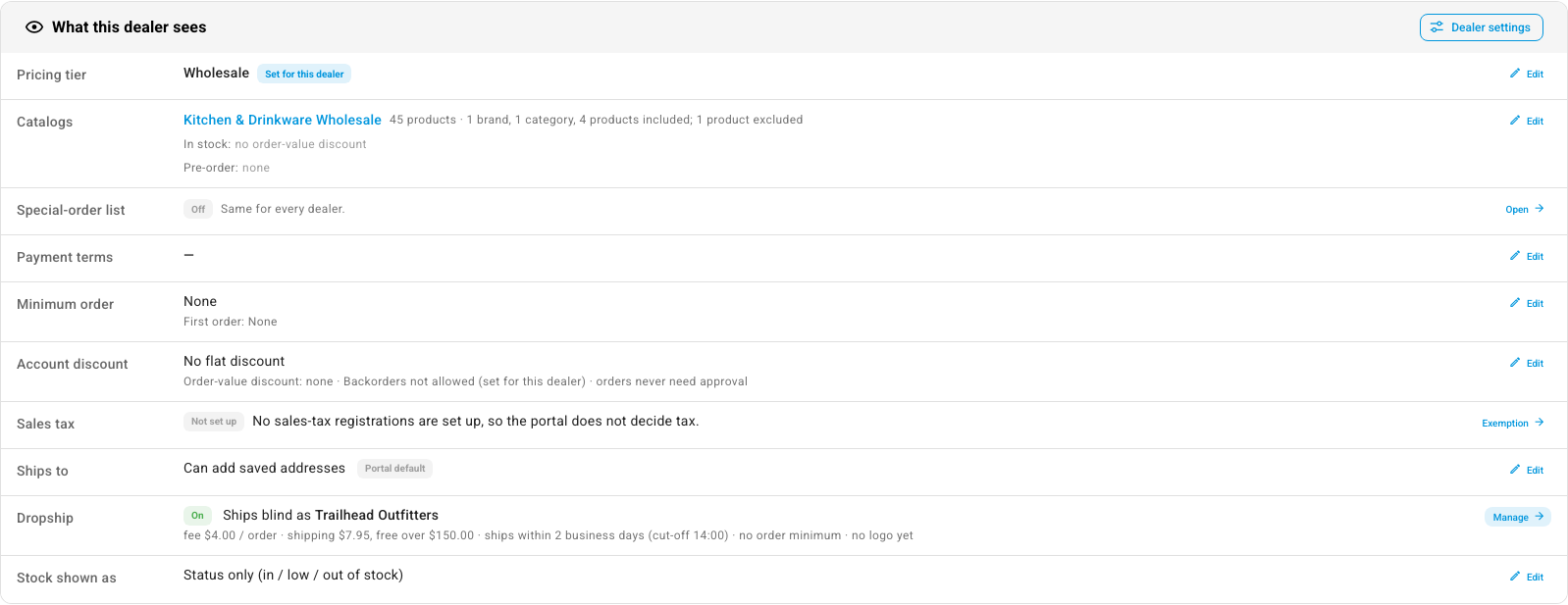
- On, with "Ships blind as <display name>" and a one-line summary, such as "fee $4.00 / order · shipping $7.95, free over $150.00 · ships within 2 business days (cut-off 14:00) · no order minimum · no logo yet". Other phrases you may see: "no dropship fee", "shipping by service", "shipping at label cost" and "no shipping charge". The button reads Manage.
- Off: Set up but switched off. when a profile was saved before, or This dealer cannot send orders for you to ship to its customers. when it never was. The button reads Set up.
Loading and error states
| What you see | Meaning |
|---|---|
| Grey placeholder cards | The tab is loading. |
| A red alert (often The dropship profile could not be loaded.) with Retry | The profile didn't load. Click Retry. |
| An amber Dropship performance could not be loaded. with Retry | Only the performance strip failed. The form still works. |
| The dropship profile could not be saved. (or the reason) | The save failed. Your edits stay on screen. |
What 3PLs and shipping providers receive
When a dropship order goes to a 3PL or shipping provider that can ship blind, SKU.io removes your prices and fills in the retailer's details. Lines added to the order later go without prices too.
| Provider | What changes |
|---|---|
| ShipStation | Totals, shipping, line prices and tax go as 0. The bill-to is the retailer at its return address. The gift message is filled in. |
| ShipRush | Totals and prices go as 0. The bill-to is the retailer. The gift message is filled in. |
| Trackstar | Prices go as 0. |
| VeraCore | The PO number is the retailer order #. The bill-to is the retailer. Prices go as 0. The gift and slip messages go in the packing-slip comments. |
| ShipHero | Prices go as 0, with gift invoice on. The bill-to is the retailer. The gift note is filled in, and insert instructions go as the packing note. |
| Shipfusion, ShipMyOrders | The gift and slip messages go on the slip. Insert instructions go in the warehouse instructions. |
| Shippo | Prices are left out. |
| Starshipit | Item values go as 0 for domestic parcels. International parcels keep them for customs. |
A message longer than the provider allows is cut with "…", and SKU.io adds a note to the order. The limit is 1,000 characters for ShipStation and ShipRush, and 500 for ShipHero, Shipfusion, ShipMyOrders and VeraCore.
Which providers can ship blind at all is in How dropship for retailers works.