Send dropship updates to a retailer's system
This page is about shipping your retailers' orders to their customers. If your supplier ships orders for you, see Create a dropship request.
A retailer that runs its own store or order system can be told the moment one of its dropship orders changes, so it can update its own customer without checking the portal. You add a webhook: a web address on the retailer's side that SKU.io calls with each update. Only you can add one; retailers can't add their own. Tracking still reaches the retailer by email and on the portal either way.
Retailer webhooks are set per retailer on its Dropship tab. They aren't the webhooks under Settings → Developer → Apps & webhooks, which send your own events to your own apps and have different events and retry rules. See Subscribe to webhooks for those.
Before you begin
| Requirement | Why it's needed |
|---|---|
| Dropship is set up for the retailer | The Webhooks card is on the retailer's Dropship tab. See Set up dropship for a retailer. |
| Permission to administer the B2B customer portal | It covers the whole Dropship tab. |
| The retailer's web address for updates | It must start with https:// and answer within 10 seconds with a success response (any 2xx). Ask the retailer's developer for it. |
| A safe way to send the retailer the signing secret | You see the secret once, and the retailer's developer needs it to check each request. |
The examples use the retailer Trailhead Outfitters.
Steps
-
Go to Contacts → Customers, click Portal, then Accounts, and click Trailhead Outfitters.
-
Click the Dropship tab and scroll to the Webhooks card.
With no webhook yet, the card reads "No webhook yet. Tracking still reaches the retailer by email and in their portal."
-
Click Add webhook.
-
In Endpoint URL, enter the retailer's address, such as
https://example.com/trailhead/sku-dropship-webhooks. -
Under Events, untick any event the retailer doesn't want. All four are ticked to start with.
-
Click Add webhook.
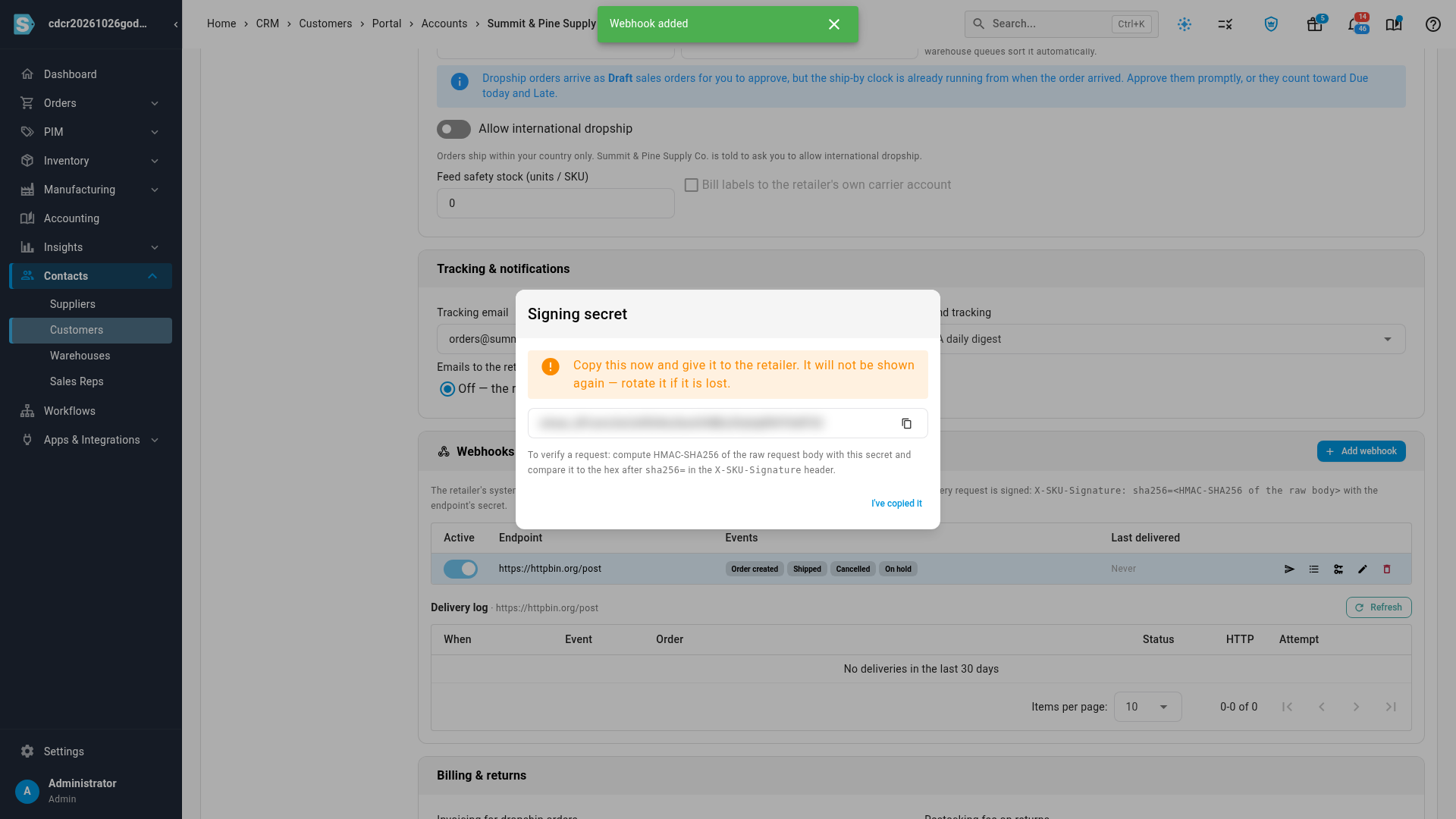
The Signing secret dialog opens. This is the only time you see the secret.
-
Click the copy icon next to the secret, and send it to the retailer's developer.
-
Click I've copied it.
-
To check the address works, click the send icon (Send a signed test event now) on the webhook's row.
You see Test event delivered (HTTP 200) when the retailer's system accepted it, or Test event failed (HTTP …) — see the delivery log when it didn't.
-
Read the result in the Delivery log under the table.
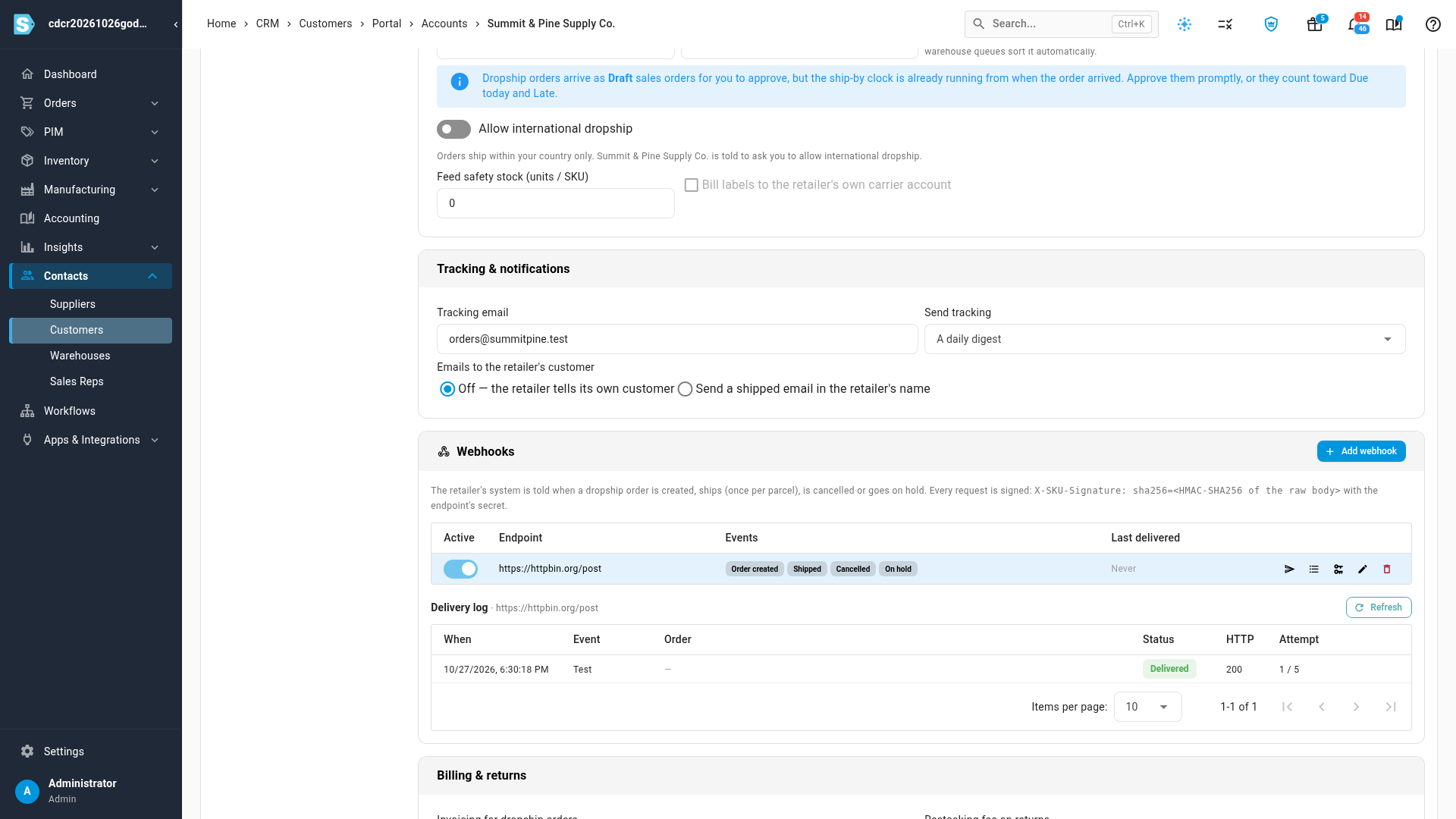
From now on, each event is sent as it happens. A webhook problem never blocks an order or a shipment.
Events
| Event | Sent when | What it carries |
|---|---|---|
| Order created | A dropship order is accepted into your queue. | The retailer's order number, your sales order number, the ship-by date and the lines. |
| Shipped | A parcel ships, once per parcel. | The carrier, service, tracking number and link, the time shipped, and the lines in that parcel. |
| Cancelled | The order is cancelled. | The cancelled lines. |
| On hold | The order goes on hold: a credit or billing hold, waiting for stock at a warehouse that can ship blind, or held for review. | The hold reason. |
A shipment recorded more than 7 days after it shipped doesn't send Shipped. The exact contents of each event, for the retailer's developer, are on developer.sku.io.
How the retailer checks a request
Every request carries a signature made with the webhook's signing secret. The retailer's developer uses the secret to check that each request really came from you and wasn't changed on the way; the Signing secret dialog shows how. Send the developer to developer.sku.io for the details.
SKU.io doesn't follow redirects, so the URL must be the final address.
Read the delivery log
Click the list icon (Delivery log) on a webhook's row to show its deliveries from the last 30 days, newest first. Click Refresh to update it.
| Column | Shows |
|---|---|
| When | When the delivery was made. |
| Event | Order created, Shipped, Cancelled, On hold, or Test. |
| Order | The retailer's order number and your sales order number. |
| Status | Delivered, Retrying, Failed or Queued. Hover over it to see what the retailer's system answered. |
| HTTP | The response code the retailer's system returned. |
| Attempt | The attempt number out of 5, and when the next try is due. |
The Webhook row on the order's Dropship for customer card shows the last delivery for that order.
Retries and automatic switch-off
- A delivery that fails is retried up to 5 attempts in all: after 1 minute, 10 minutes, 1 hour and 5 hours. Any success response counts as delivered, and one success resets the failure count.
- After several failures in a row, an amber banner on the card reads "The last N deliveries to … failed. It turns off automatically after 50 in a row."
- After 50 failures in a row, SKU.io turns the webhook off. A red banner reads "Turned off after 50 failed deliveries in a row (since …). … gets no updates until you switch it back on." Your admins get an email, "Dropship webhook disabled: Trailhead Outfitters", with an Open the dropship settings button.
Test events are never retried and don't count toward the switch-off.
Turn a webhook back on
-
Ask the retailer to fix the address so it answers again.
-
On the Webhooks card, switch Active back on for the webhook.
You see Webhook turned on.
-
Click Send a signed test event now and check the delivery log shows Delivered.
Updates that happened while the webhook was off aren't sent again.
Change, rotate or delete a webhook
- Change the URL or events: click the pencil icon (Edit), change the fields, and click Save Changes. You see Webhook saved.
- Pause it: switch Active off. You see Webhook turned off.
- Replace a lost or leaked secret: click the key icon (Rotate signing secret). The confirmation warns: "The current secret stops working immediately. The retailer must switch to the new one or their signature checks will fail." Click Rotate secret, then copy the new secret and send it to the retailer.
- Delete it: click the bin icon (Delete). The confirmation Delete this webhook? says the URL stops receiving dropship events and its delivery log is removed. Click Delete. You see Webhook deleted.
If the webhook won't save
| Message | Fix |
|---|---|
| The webhook URL must use HTTPS. | Use an https:// address. |
| Enter a full URL, like https://api.example.com/webhooks/sku. | Enter the whole address, including https://. |
| Target URL host cannot be resolved: … | The address doesn't exist. Check it with the retailer. |
| Target URL must not resolve to a private or reserved IP. | The address points inside a private network. Use a public address. |
The Add webhook button in the dialog stays disabled until you've entered a URL and ticked at least one event.
Next steps
- Work dropship orders
- Track dropship performance: the Ship → tracking figure measures how quickly tracking reaches the retailer's webhook.
- Dropship settings reference
Video transcript
To tell a retailer's own system about its dropship orders, start on its portal account. Click the Dropship tab. Then scroll down to the Webhooks card, near the bottom. Each request is signed, so the retailer can check it came from you. Click Add webhook. Enter the HTTPS address the retailer gave you, and keep the events it wants. Then click Add webhook in the dialog. Copy the signing secret, and send it to the retailer. You only see it once. To check the connection, click the send icon to send a signed test event. The delivery log shows whether the retailer's system accepted the event. From now on, every order created, shipped, cancelled or held is sent to the retailer. A failed delivery is retried, and every attempt is listed in the log.