Track dropship performance
This page is about shipping your retailers' orders to their customers. If your supplier ships orders for you, see Create a dropship request.
Retailers judge you on how reliably their customers' parcels leave on time. You can check one retailer at a glance on its Dropship tab, or compare all of them, with the late orders listed, in the Dropship Performance report. Both measure shipping against each order's ship-by date. See How the ship-by date is set.
Before you begin
| Requirement | Why it's needed |
|---|---|
| The Dropship Performance report permission | The report only appears with it. See Roles and permissions reference. |
| Permission to administer the B2B customer portal | For the strip on a retailer's Dropship tab. |
| Dropship orders from at least one retailer | Both views count dropship orders only. |
The examples use the retailers Trailhead Outfitters and Summit & Pine Supply Co.
Compare retailers in the report
-
Go to Insights → Reports, and click Dropship Performance.
The page opens on the last 30 days for all retailers.
-
Under Period, choose 7 days, 30 days, 90 days or Custom. To pick exact dates, change From and To; the period switches to Custom.
-
To look at some retailers only, pick them under Retailers. Leave it on All retailers to see everyone.
-
Read the figures across the top, then the By retailer table.
-
Scroll to Late orders to see each late order, most overdue first. Click an order number to open it.
Click Refresh to reload the figures. The report counts orders placed in the period.
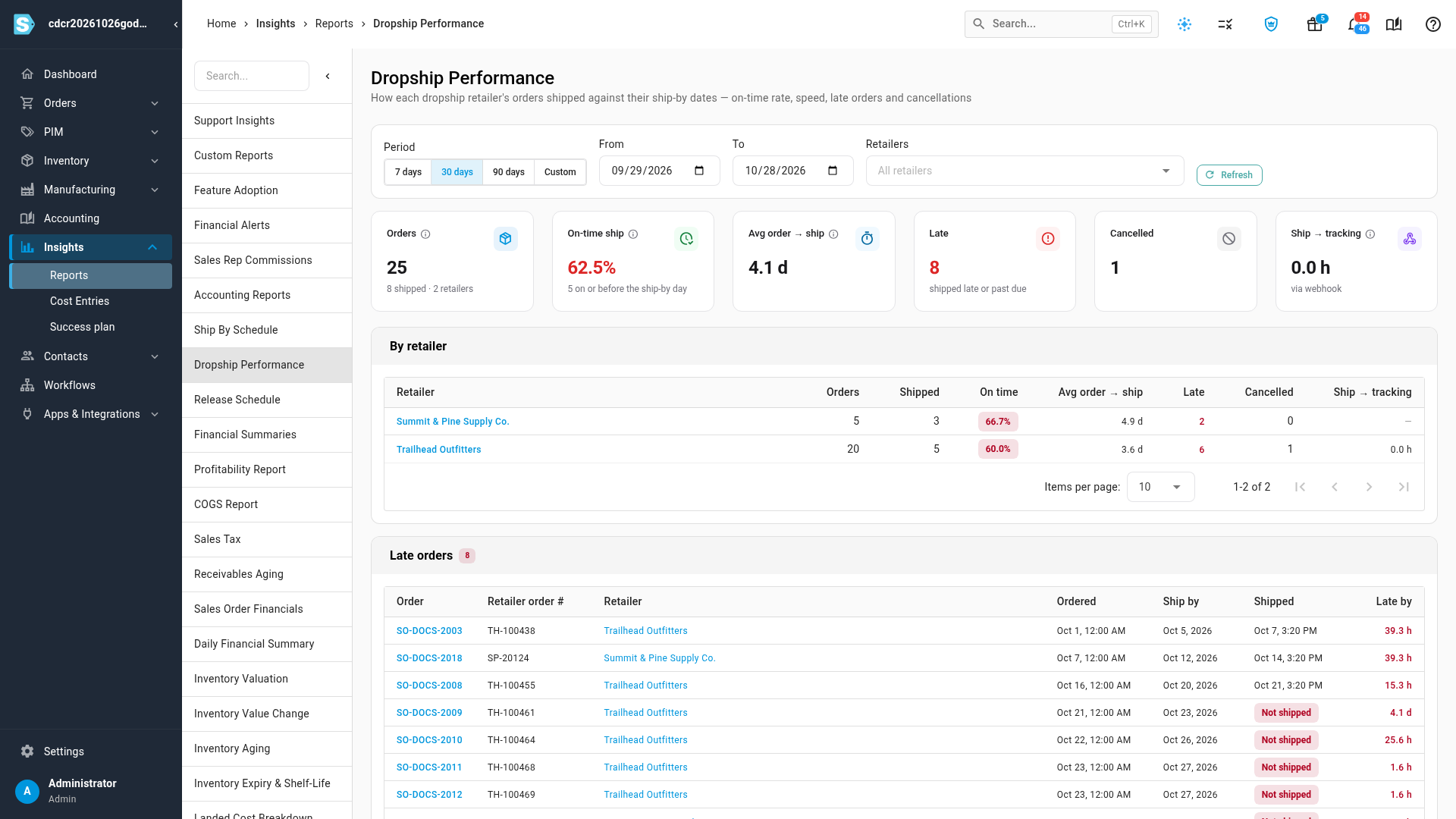
The figures
| Figure | What it measures |
|---|---|
| Orders | Dropship orders placed in the period, with how many shipped and how many retailers they came from. |
| On-time ship | Shipped orders whose first parcel left before the end of their ship-by day. Green at 95% or more, amber from 85%, red below. |
| Avg order → ship | The average time from the order being placed to its first shipment. |
| Late | Orders that shipped late, plus orders not yet shipped and already past their ship-by date. |
| Cancelled | Dropship orders cancelled in the period. |
| Ship → tracking | The average time from a parcel shipping to its tracking reaching the retailer's webhook. It reads no webhook deliveries when no retailer has a webhook. See Send dropship updates to a retailer's system. |
Times show in hours (such as 12.5 h) up to 48 hours, then in days (such as 2.3 d).
By retailer
One row per retailer: Retailer, Orders, Shipped, On time, Avg order → ship, Late, Cancelled and Ship → tracking. Hover over a Late figure to split it into shipped late and not shipped and past due. With nothing in the period, the table reads No dropship orders in this period.
Late orders
Each late order, most overdue first, up to 200: Order, Retailer order #, Retailer, Ordered, Ship by, Shipped (or a red Not shipped) and Late by. With none, it reads No late dropship orders in this period.
If the report can't load, you see Could not load the dropship performance report. Click Refresh to try again.
This report is only for dropship for retailers. The Drop-ship Order Money report is about supplier dropship. See Reconcile dropship order money.
Read the strip on the Dropship tab
Each retailer's Dropship tab opens with four figures for the last 30 days.
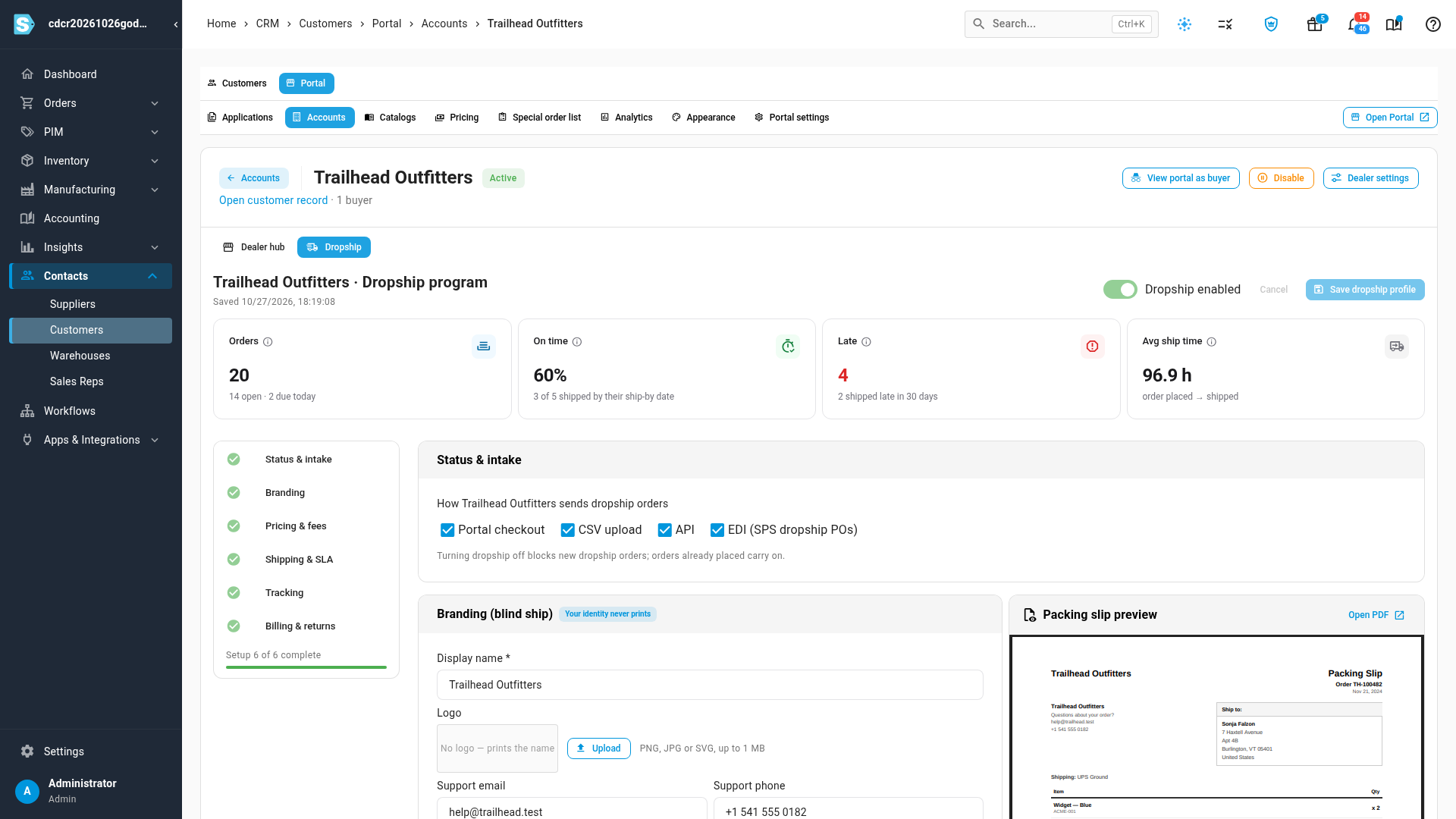
| Figure | What it shows |
|---|---|
| Orders | Dropship orders placed in the last 30 days, with how many are open and how many are due today, such as "14 open · 2 due today". |
| On time | The share of orders shipped in the last 30 days on or before their ship-by date, such as "4 of 6 shipped by their ship-by date". With nothing shipped yet, the line shows the SLA instead ("SLA 2 business days", or "No SLA set"). |
| Late | Open orders already past their ship-by date, in red when there are any. The line under it counts orders shipped late in the last 30 days. |
| Avg ship time | The average hours from order to shipment, for orders shipped in the last 30 days. |
A figure reads — when there's nothing to measure. If only the strip fails to load, you see Dropship performance could not be loaded. with Retry; the rest of the tab still works.
Find which retailers have dropship on
The Accounts list under Contacts → Customers → Portal has no dropship column or filter. To see who is set up:
- Open the Retailers picker on the Dropship Performance report, or the Dropship for customer filter on the Sales Orders list. Both list every dropship retailer.
- Or open an account's Dealer hub tab. The Dropship row in What this dealer sees reads On, with a summary of its terms, when dropship is on.
Next steps
- Work dropship orders, to clear the late orders.
- Dropship settings reference, to change a retailer's SLA.
Video transcript
To compare your dropship retailers, open Insights, then Reports. Choose Dropship Performance from the list. It opens on the last thirty days, for every retailer. The figures across the top show orders, the on-time rate, and the average time to ship. Late counts orders shipped late, and orders still unshipped after their ship-by date. The By retailer table splits the same figures for each retailer. To look further back, choose ninety days, or set your own dates under From and To. To focus on some retailers, pick them under Retailers. Scroll down to Late orders. Each late order is listed, most overdue first, with its ship-by date and how late it is. Click an order number to open that order. From there, you can approve it, or clear what is holding it up. To check one retailer, open Contacts, then Customers. Click the Portal tab, and open the retailer's account. Click the Dropship tab. The strip at the top covers the last thirty days. It shows orders, the share shipped on time, late orders, and the average ship time.