Set your sales order defaults and numbering
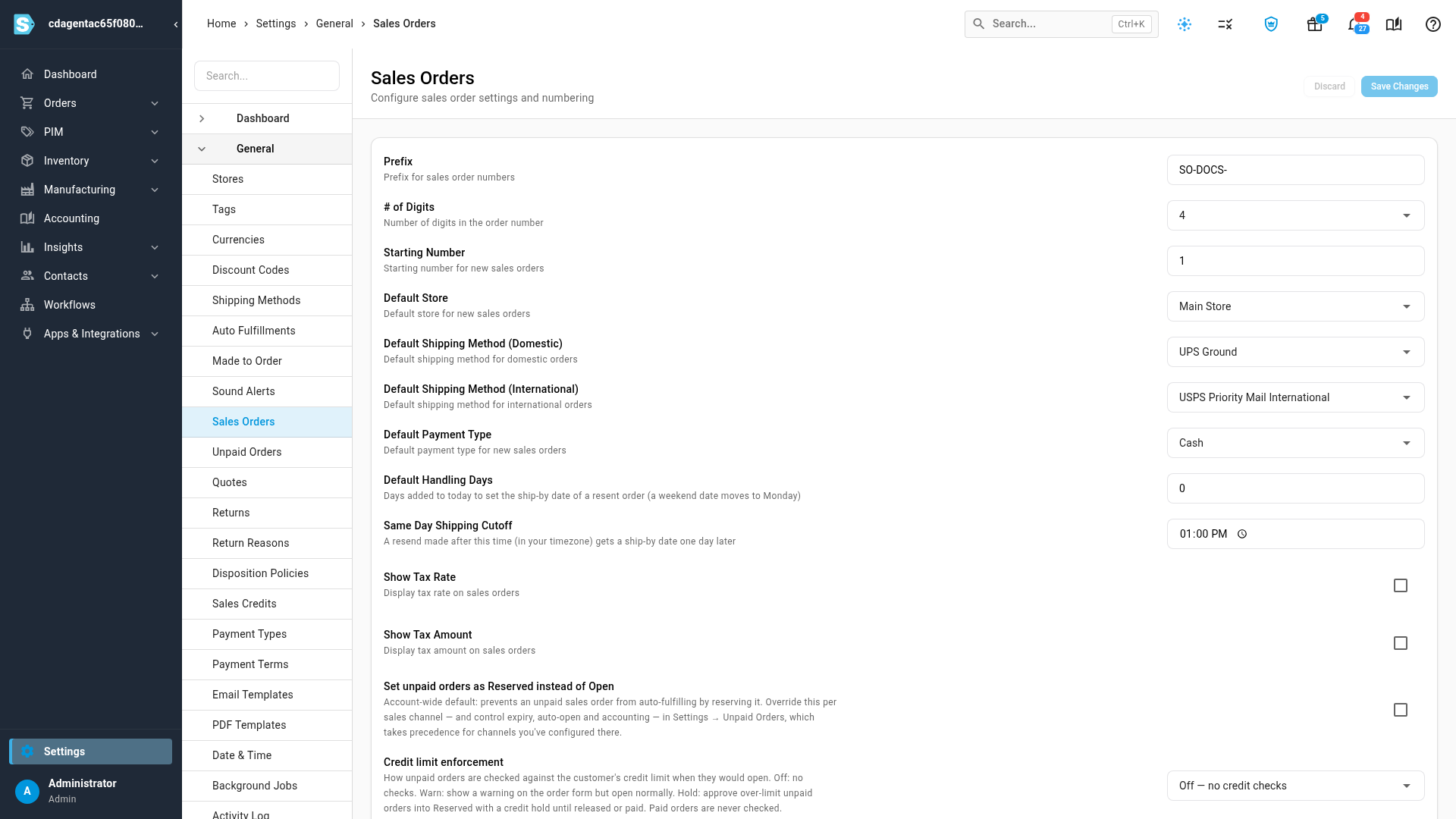
Settings → General → Sales Orders decides how the orders you create are numbered and what every new order starts with: its store, its fallback shipping methods and its payment type. It also controls how unpaid orders, customers over their credit limit and service-only orders are handled.
Before you begin
- You need permission to change settings.
- Changes apply to orders created from now on. Existing orders keep their numbers and details.
Steps
-
Click Settings at the bottom of the left sidebar.
-
Click the General card to expand it, then click Sales Orders.
-
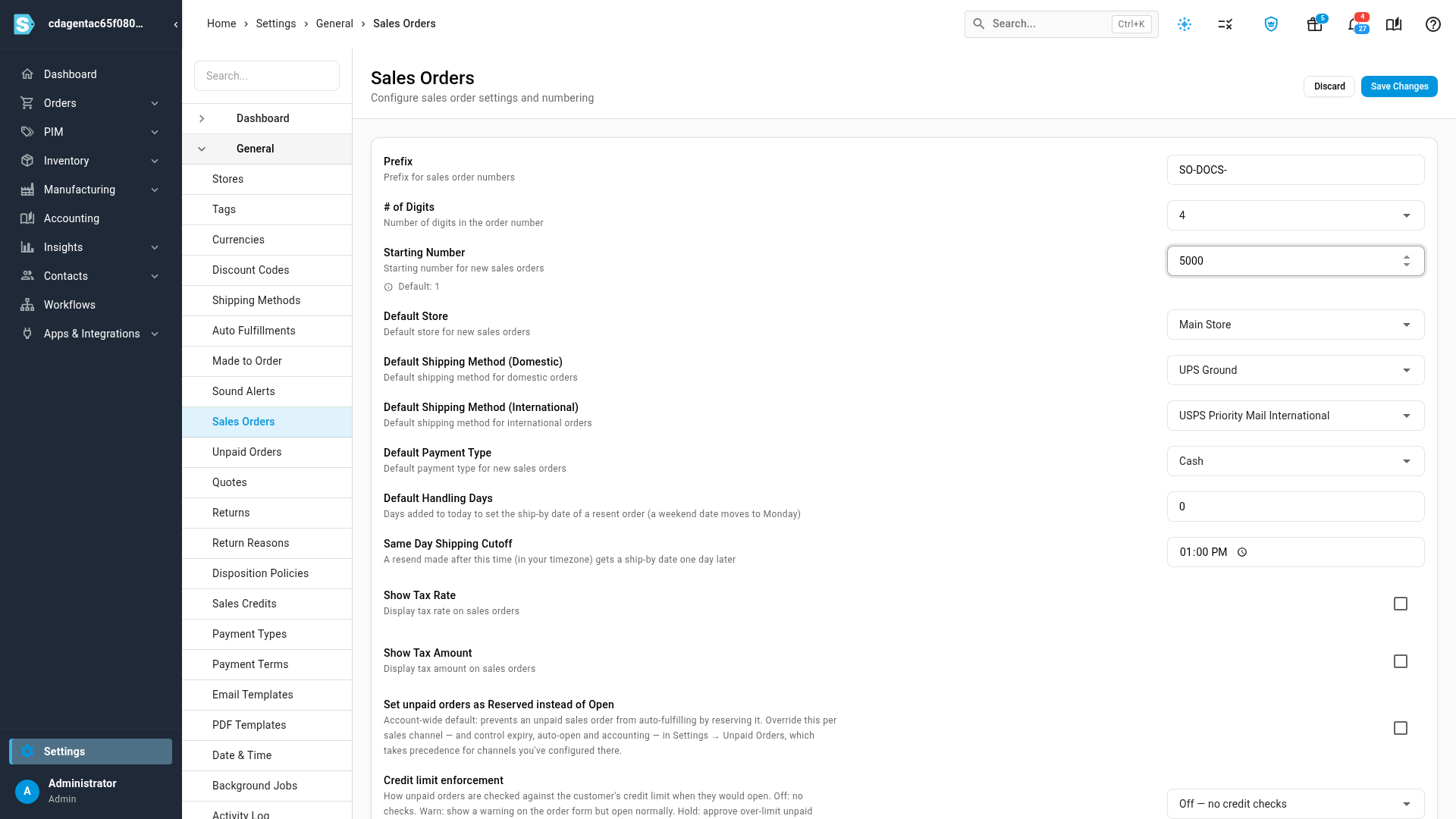
Set the numbering: Prefix, # of Digits and Starting Number.
-
Choose the Default Store, the Default Shipping Method (Domestic), the Default Shipping Method (International) and the Default Payment Type.
-
Set Default Handling Days and the Same Day Shipping Cutoff for resent orders.
-
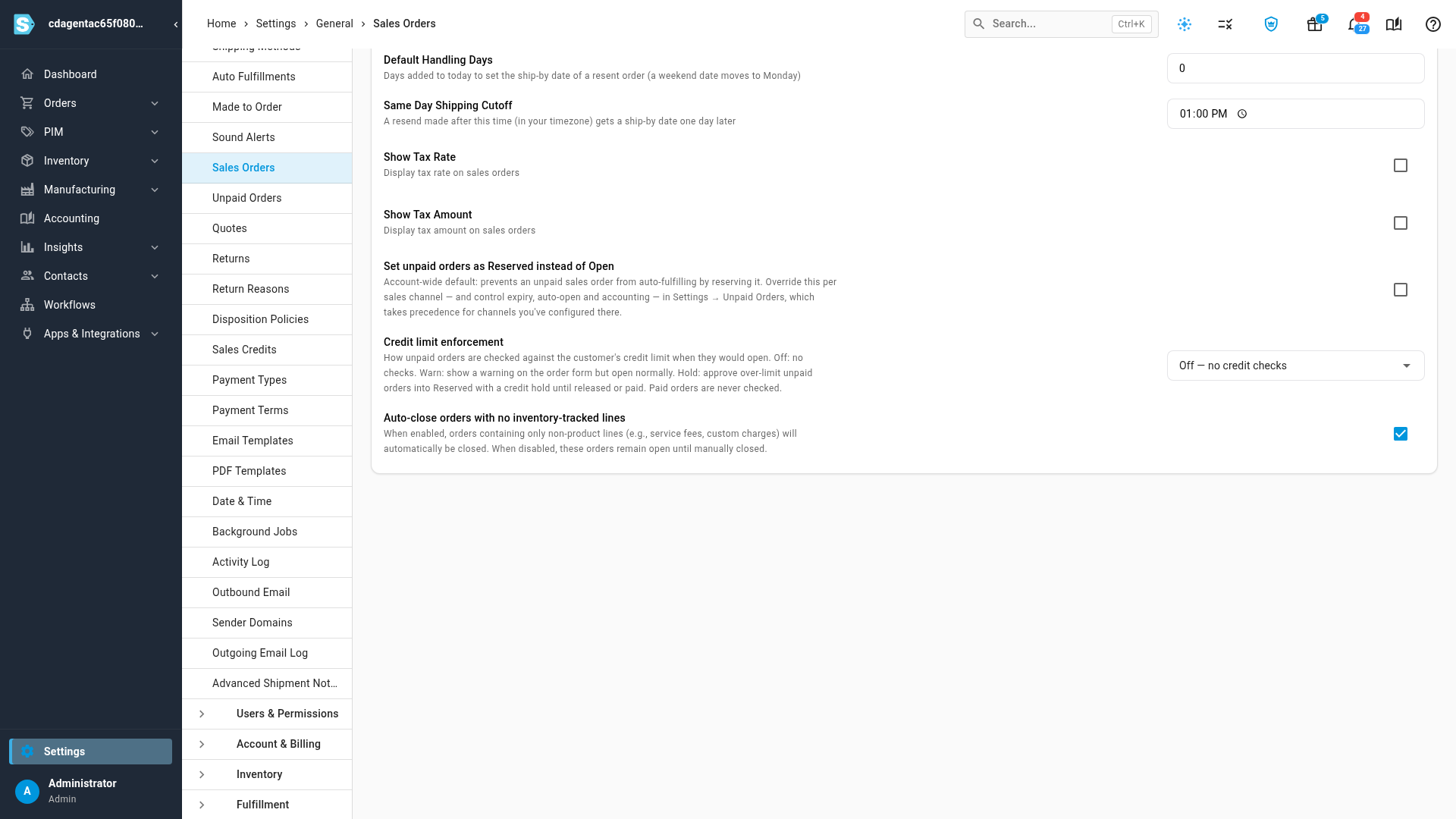
Scroll down and choose how unpaid orders, credit limits and service-only orders are handled.
-
Click Save Changes at the top right. Settings saved successfully confirms it.
Numbering
These three settings number the orders you create in SKU.io. Orders that come in from a sales channel keep the channel's own order number.
| Setting | What it does |
|---|---|
| Prefix | Text that starts every number, such as SO-. Include any separator you want. |
| # of Digits | Minimum digits after the prefix, from 4 to 8. Shorter numbers are padded with zeros, so order 42 with 4 digits is SO-0042. Longer numbers grow past it. |
| Starting Number | The lowest number the next order can get. Raise it to jump ahead, for example to carry on from your old system. |
The next number is one more than the latest order with the current prefix, but never lower than Starting Number. Change the prefix and the new series starts at Starting Number. Lowering Starting Number below your latest order has no effect, so numbers are never reused.
Defaults for new orders
| Setting | What it does |
|---|---|
| Default Store | The store a new order starts with in the New Sales Order dialog, and in sales order imports that don't name one. It's also used when an order arrives from a sales channel that has no store of its own. |
| Default Shipping Method (Domestic) | Used for an order's shipments when the order has no shipping method of its own: none was picked on the order, the customer has no default, and the sales channel sent none. Applies to orders shipping to a US address. |
| Default Shipping Method (International) | The same fallback, for orders shipping outside the US. |
| Default Payment Type | Pre-selected when you add a payment to a sales order or refund a sales credit. Payments imported from a sales channel that has no payment type of its own use it too. |
A customer's own default shipping methods, set on the customer's Settings tab, take priority over these.
Ship-by date for resent orders
When you resend items from an order, the new order gets a ship-by date:
- Default Handling Days is how many days after today it ships.
- Same Day Shipping Cutoff is a time of day, in your account's timezone. A resend made after it ships one day later.
- A ship-by date that lands on a weekend moves to the Monday.
For example, with 1 handling day and a 1:00 PM cutoff, a resend at 3:00 PM on Thursday ships on Monday. Thursday plus one day is Friday, the late resend adds a day to make it Saturday, and Saturday moves to Monday.
To resend items, see Resend and exchange an order.
Unpaid, credit-limit and service-only orders
| Setting | What it does |
|---|---|
| Set unpaid orders as Reserved instead of Open | An unpaid order is held as Reserved, so it isn't fulfilled before it's paid. This is the account-wide default. Rules for a specific sales channel under Settings → General → Unpaid Orders take priority. See Handle unpaid channel orders. |
| Credit limit enforcement | How unpaid orders are checked against the customer's credit limit when they would open. Off checks nothing. Warn shows a warning on the order form but opens the order. Hold puts an over-limit order in Reserved with a credit hold until it's released or paid. Paid orders are never checked. See Manage credit holds. |
| Auto-close orders with no inventory-tracked lines | An order with only non-product lines, such as a service fee, closes automatically. Turn it off to leave such orders open until you close them. On by default. |
Next steps
- Create a sales order: create an order that starts from these defaults.
- Record payments and store credit: add a payment, which starts on the default payment type.
Video transcript
Sales order settings decide how new orders are numbered and what they start with. To get there, open Settings at the bottom of the left sidebar. Click the General card to expand it. Its list is long, so scroll down to find Sales Orders. Click Sales Orders to open its settings page. The first three settings number the orders you create in SKU.io. Orders from your sales channels keep the channel's own number. The prefix comes first, and the number of digits pads the rest with zeros. Starting Number is the lowest number the next order can get, so raise it to jump ahead. Default Store is the store a new order starts with when you create one. Default Payment Type is pre-selected when you add a payment to an order. The two Default Shipping Method settings are a fallback. When an order has no shipping method of its own, its shipments use one of these. Orders to a US address use the domestic method, and everything else uses the international one. Default Handling Days and the Same Day Shipping Cutoff set the ship-by date when you resend items from an order. The resend ships that many days from today. If you resend after the cutoff, in your own timezone, it ships a day later. Further down, you can hold unpaid orders as Reserved, so they don't ship before payment arrives. Credit limit enforcement checks unpaid orders against the customer's credit limit. And orders with only service lines, like a fee, can close automatically. When you're done, scroll back up to the top of the page. Then click Save Changes at the top right. New orders follow your settings, and orders you already have keep their numbers.