Get alerted when a supplier ships short
When a supplier records a shipment that doesn't cover everything on the purchase order, SKU.io raises a Supplier Shipped Less Than Ordered alert. It names each short line and how many units are still to ship, so you can chase the rest or plan around it before the delivery arrives.
Before you begin
- The supplier records shipments in SKU.io: on the supplier portal, with a bulk tracking upload, or from the link in the purchase order email.
- The alert goes to the same people as the other supplier shipment alerts: people who can edit purchase orders, the Purchase Orders Edit permission (
purchase_orders.update). - To change who gets it, or send it by email or Slack, you need permission to change alert preferences.
When the alert is raised
The alert is raised each time a supplier records a shipment and some quantity on the purchase order is still unshipped afterwards. That includes dropship orders. A shipment that ships everything left on the order doesn't raise it. The usual Supplier Added a Shipment alert is raised as well, for every shipment.
The alert reads, for example:
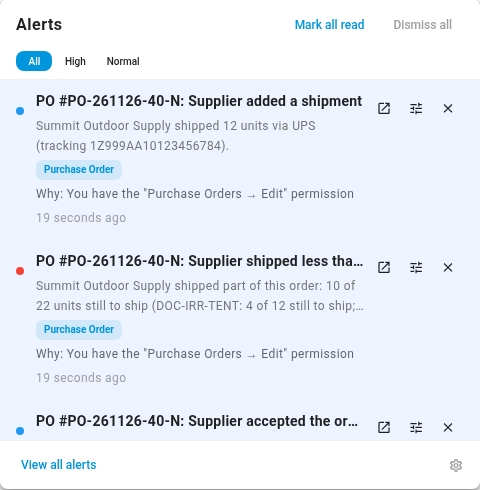
PO #PO-261126-40-N: Supplier shipped less than ordered Summit Outdoor Supply shipped part of this order: 10 of 22 units still to ship (DOC-IRR-TENT: 4 of 12 still to ship; DOC-IRR-KETTLE: 6 of 10 still to ship).
Steps
-
When the alert arrives, click the bell at the top of any page to open Alerts.
-
Find Supplier shipped less than ordered, and read which lines are short and by how much.
-
Click the alert's Go to source icon to open the purchase order. Its Shipment status reads Partially Shipped, and the Shipments tab lists what the supplier has sent so far.
-
Follow up with the supplier: message them from the purchase order to ask when the rest ships, or short-close the order if it isn't coming.
Send the alert by email or Slack
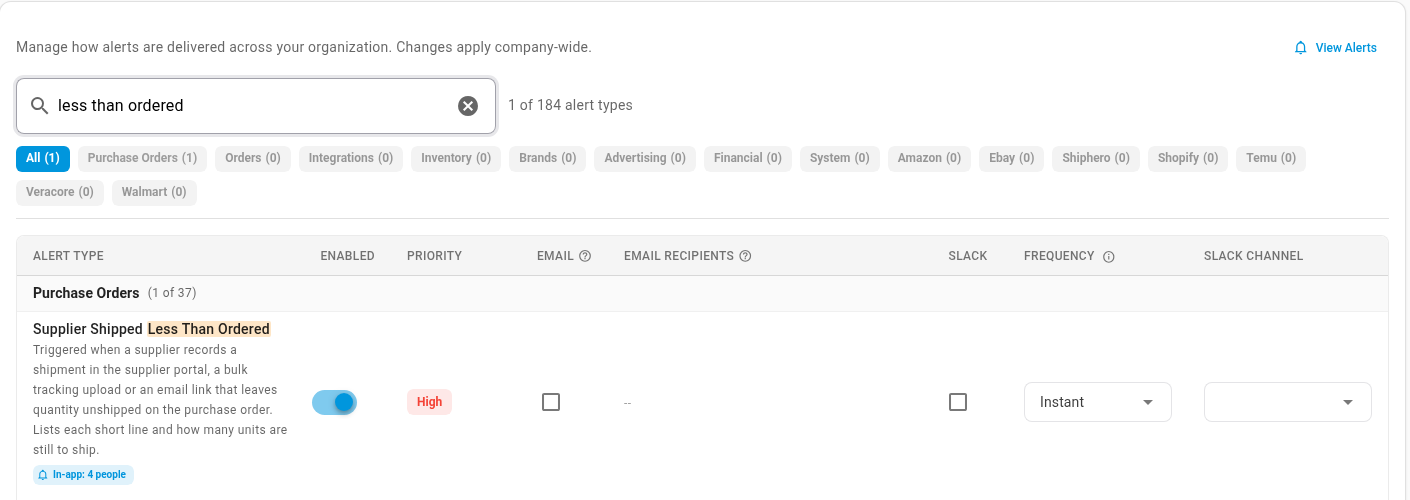
The alert is on by default, with High priority, in the Purchase Orders group. To send it beyond the in-app alerts:
- Go to Settings → Alerts & Notifications → Alert Preferences.
- Search for
less than ordered. - Tick Email and add the Email Recipients, or tick Slack and choose the Slack Channel.
- Choose a Frequency: Instant, Daily Digest or Weekly Digest.
- Click Save Changes.
For every option on that page, see Choose which alerts your team gets.
Next steps
- Collect shipping documents from suppliers: get the paperwork for each shipment.
- Send alerts to Slack: connect the channel the alert posts to.
Video transcript
When a supplier ships only part of a purchase order, you hear about it straight away. Click the bell at the top of any page to open your alerts. Supplier shipped less than ordered lists each short line, and how many units are still to ship. Click Go to source to open the purchase order. Its shipment status reads Partially Shipped, and the Shipments tab shows what the supplier has sent so far. To get it by email or Slack too, go to Settings, Alerts and Notifications, Alert Preferences. Type less than ordered in the search box to find its row. From there, tick Email or Slack and pick how often it goes out.