Message a supplier on the supplier portal
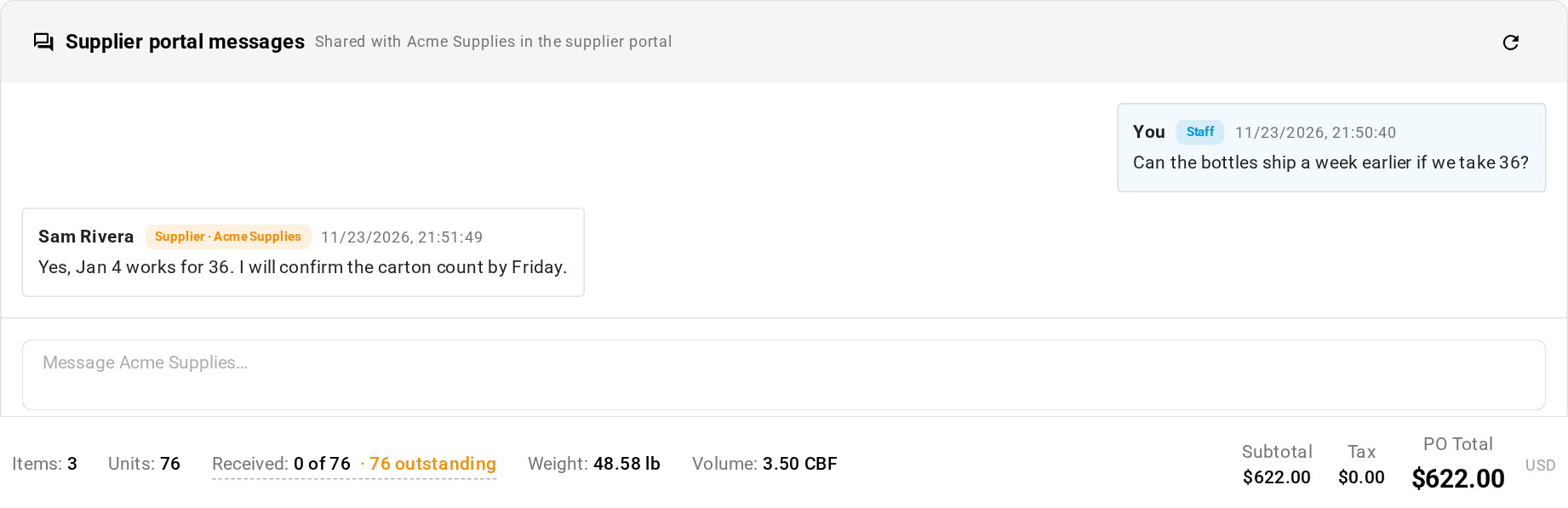
Every purchase order with a supplier on the supplier portal has its own conversation. You write on the order's Supplier Messages tab, and the supplier writes under Messages in the portal or on the order itself.
Before you begin
- The supplier is on the supplier portal. The Supplier Messages tab appears only then, or when the order already has messages.
- You need the Purchase Orders → Edit permission to send. Anyone who can view the order can read the conversation.
Steps
- Open the purchase order and click Supplier Messages. A red count means unread messages.
- Type your message. To add files, click Attach: up to 5 PDF, PNG, JPG, CSV or XLSX files, 10 MB each.
- Click Send.
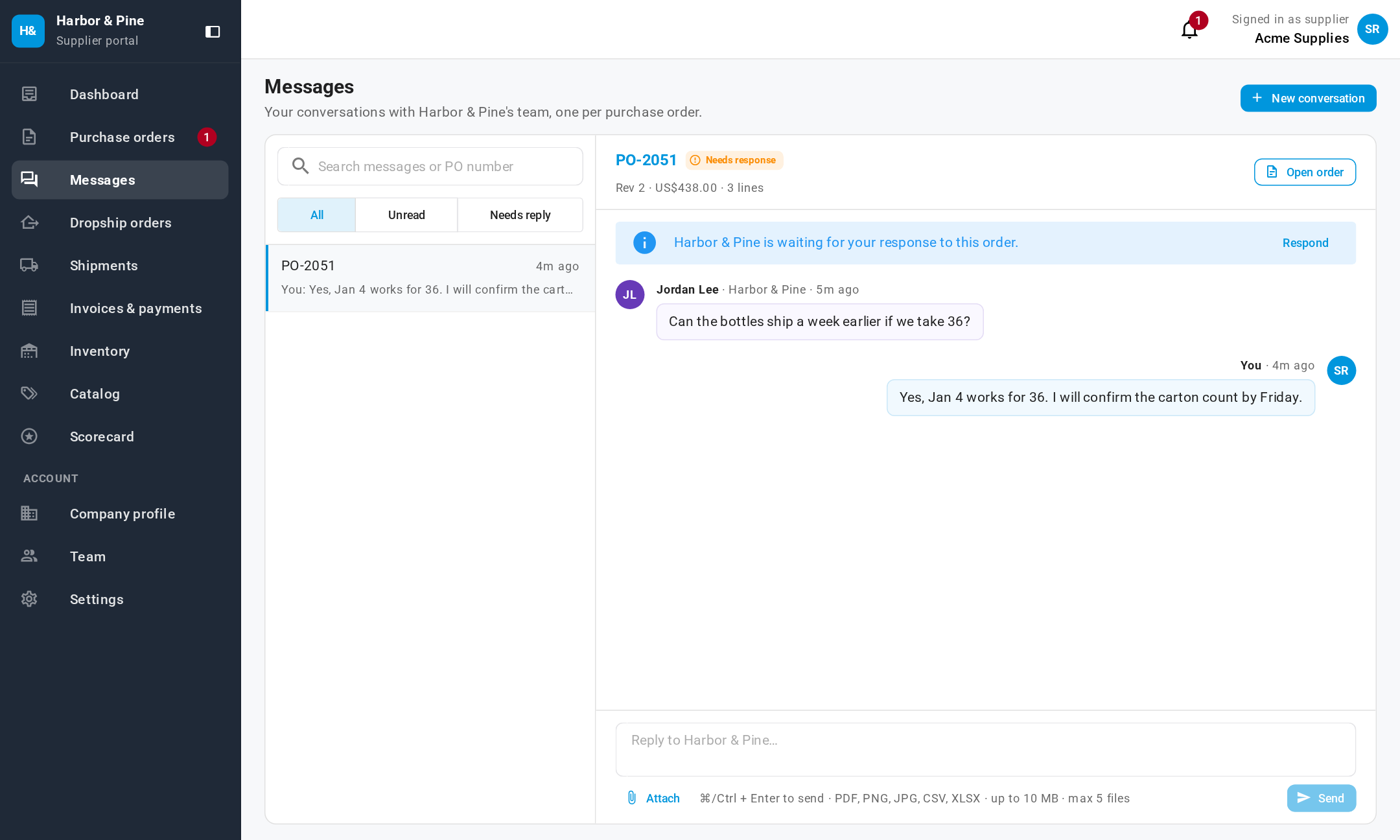
The supplier sees it in the portal, with one conversation for each purchase order:
Who is alerted
- When the supplier writes, people with the Purchase Orders → Edit permission and administrators get a Supplier Commented on a Purchase Order alert. Each person chooses in My Notifications whether it also emails them.
- When you write, the supplier's users see it on the portal's bell and as an unread count on Messages. No email is sent.
Supplier Messages or Communication?
| Supplier Messages | Communication | |
|---|---|---|
| Reaches | The supplier's portal users, in the portal | The supplier's email address |
| Replies | Arrive on the tab | Arrive when Enable Email Intake is on |
| Works for | Suppliers on the portal | Any supplier with an email address |
| Internal notes | No. The supplier sees everything here | Yes |
| Also records | Messages only | The order's events, including each answer the supplier gave |
Nothing is copied between the two. Use Communication when the supplier needs an email now, or for a note only your team sees.
Next steps
Last verified:
Was this helpful?