Review a supplier's proposed changes
When a supplier proposes changes on the supplier portal, the purchase order shows what they answered on every line. You decide each one, and nothing on the order changes until you do.
Before you begin
- The supplier is on the supplier portal and has proposed changes. The order shows a Supplier response panel.
- You need the Purchase Orders → Edit permission. Re-sending also needs permission to send the order to the supplier.
Steps
-
Open the purchase order. The order is also listed under Purchasing → Supplier Exceptions, on the Proposed changes tab.
-
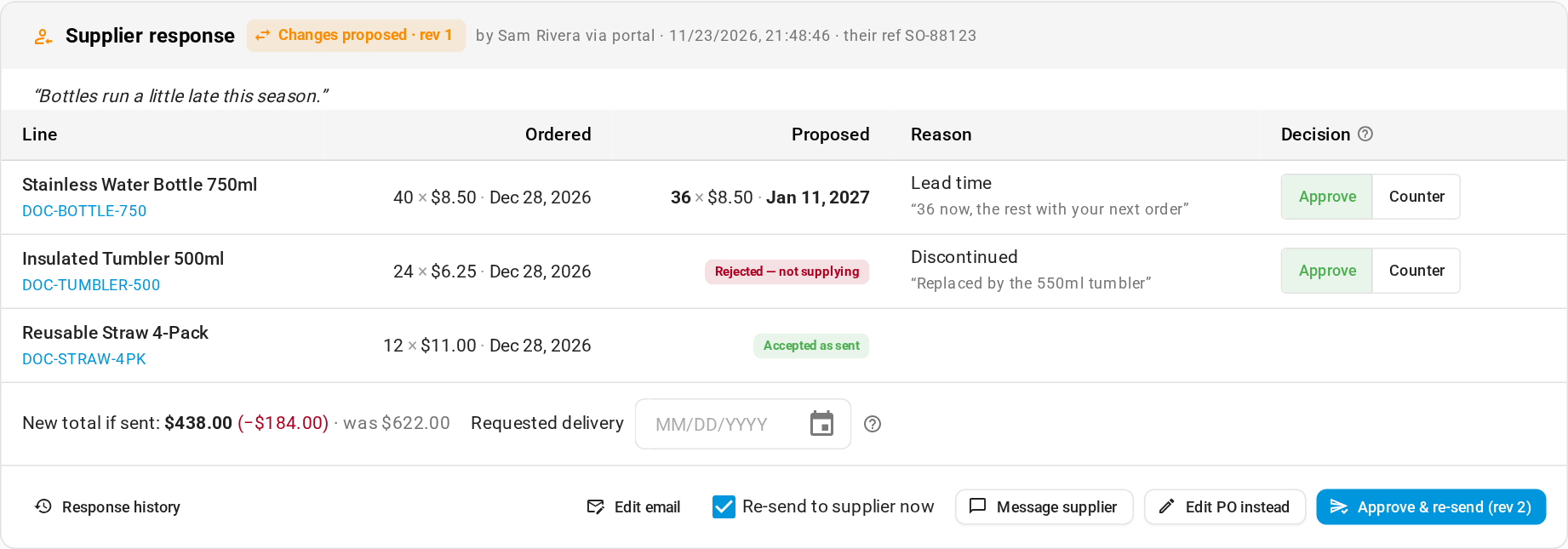
Compare Ordered and Proposed on each line, with the supplier's reason and note. Changed values are bold.
-
Choose Approve to take the supplier's proposal. Approving a line they rejected sets its quantity to 0.
-
Choose Counter to send back your own quantity or unit cost instead.
-
Leave Requested delivery empty to accept the supplier's date, or enter a date to counter it. It applies to the whole order.
-
Leave Re-send to supplier now ticked, and click Approve & re-send. With a counter, the button reads Send counter.
The order becomes the next revision, the supplier is emailed, and the banner returns to Sent to supplier — awaiting confirmation. On the portal, the supplier sees which of their proposals you took and is asked to confirm the new revision.
Other choices
- Message supplier opens the order's Supplier Messages tab, to settle a question before you decide.
- Edit PO instead lets you change the lines yourself. Then re-send from the banner that appears.
- Re-send to supplier now unticked applies your decisions without sending. The supplier stays on the old revision until you click Re-send to supplier.
- Response history lists every answer to this order.
Things to know
- A line can't drop below what you have already received. SKU.io skips that line and tells you why.
- If re-sending is refused, for example because an approval policy needs sign-off, no line changes and the proposal stays open.
- If the supplier accepted everything, there's nothing to review: the order shows Confirmed by supplier. If they rejected the order, it shows Supplier declined this order with their reason. Edit and re-send it, or cancel it.
Next steps
- Get a purchase order confirmed by the supplier, for changing a sent order yourself
- How the supplier portal works