Add shipments on the supplier portal
This page is for suppliers. Add a shipment when goods leave your dock. If you ship an order in parts, add one shipment for each part, and the order stays open for the rest.
Before you begin
- The order reads Accepted · to ship or Partly shipped. A warehouse order has to be accepted first. An order whose changes are still being agreed can't take a shipment until that's settled.
Steps
- Open the order and click Add shipment.
- Choose or type the Carrier.
- Enter the Tracking number(s), pressing Enter after each one.
- Check the Ship date and, for an order to a warehouse, enter the ETA.
- Under What's in this shipment, set Qty in this shipment for each line. It starts with everything that remains. Enter 0 for a line that ships later.
- Optionally, add a note, such as a pallet count.
- Click Create shipment. On a dropship order the button reads Confirm shipped.
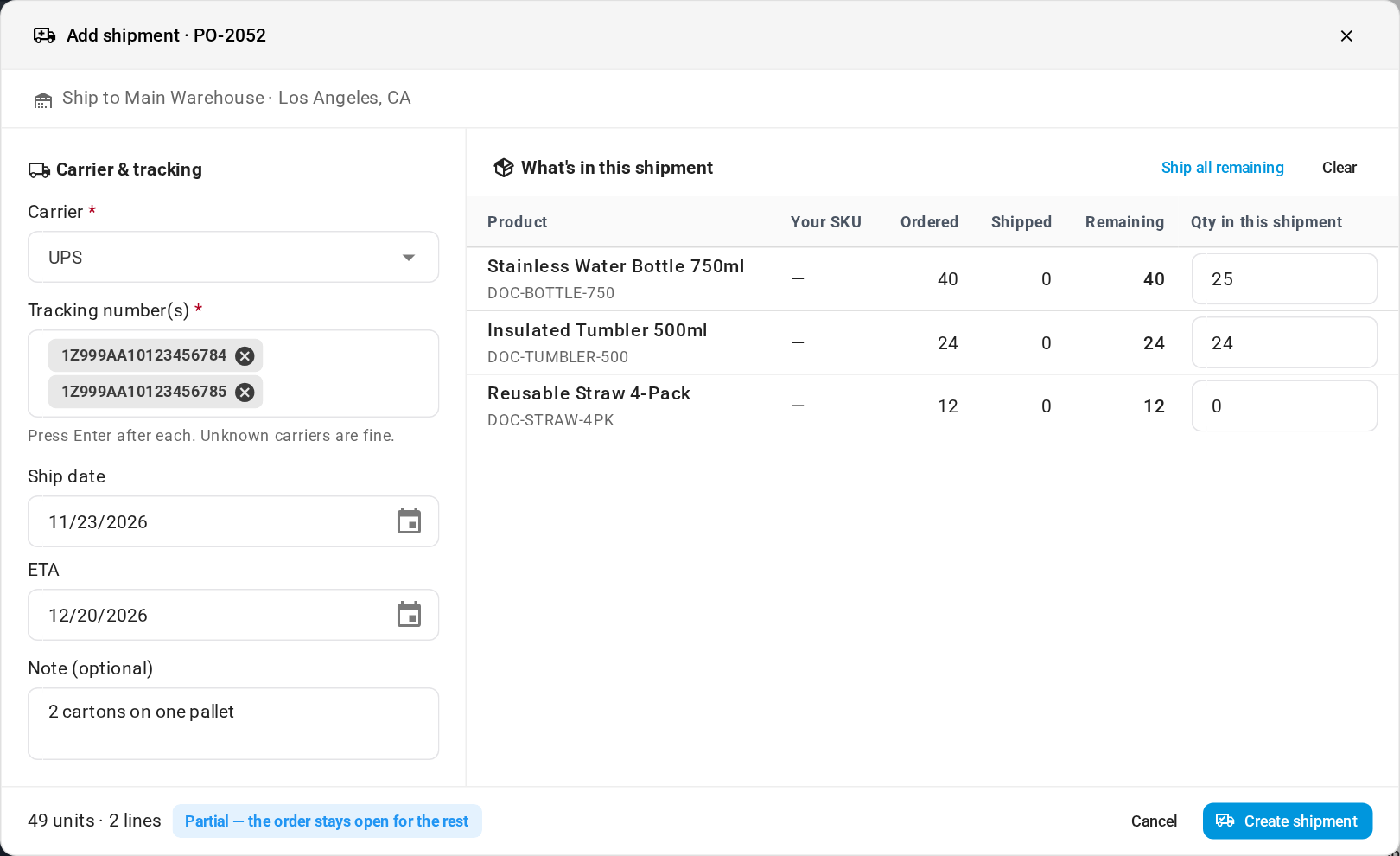
When some units remain, the dialog says Partial — the order stays open for the rest.
Ship the rest
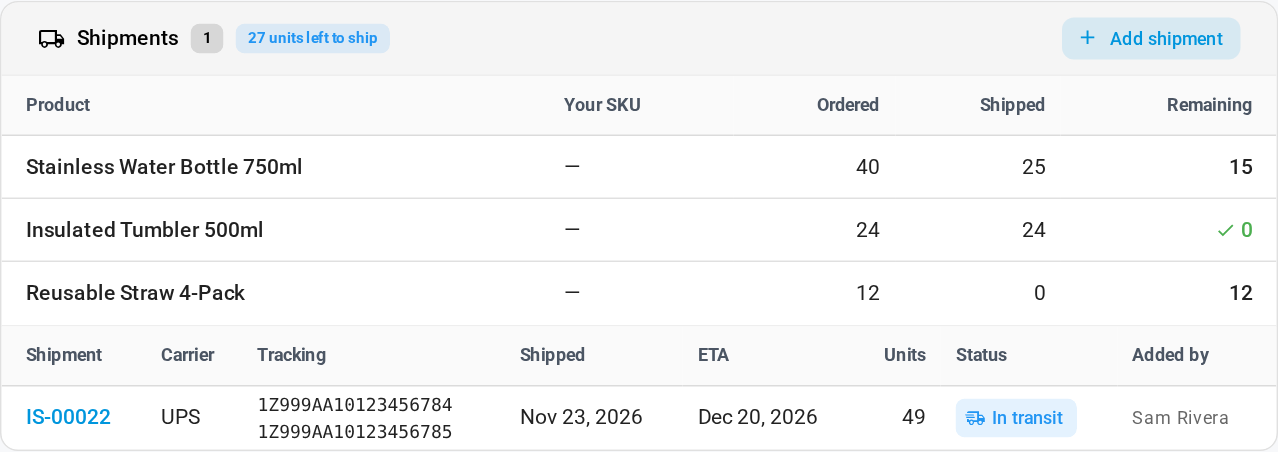
The order's Shipments card shows what is ordered, shipped and remaining on each line, and every shipment with its tracking. Click Add shipment again for the next part. You can't ship more than remains.
If a tracking number doesn't look right for UPS, FedEx, USPS or DHL, the portal warns you but still saves it.
Upload tracking for many orders
- Go to Shipments → Bulk tracking upload and click Download template.
- Fill in one row per shipment.
- Upload the CSV or Excel file and review the rows. Nothing is saved yet.
- Click Commit, which shows how many rows are valid. Rows with errors are skipped, and you can download them to fix.
| Column | Required | Notes |
|---|---|---|
po_number | Yes | The purchase order number |
tracking_number | Yes | |
carrier | Yes | |
ship_date | No | |
sku | No | Leave sku and quantity blank to ship everything remaining |
quantity | No |
A file can have up to 2,000 rows and 5 MB. A file with more than 50 rows finishes in the background.
What your customer sees
Each shipment to a warehouse becomes an in-transit inbound shipment on the purchase order's Shipments tab, marked Supplier portal, with its carrier, tracking, ETA and note. It's also in Purchasing → Inbound Shipments. They receive the goods against it. A dropship shipment goes on to the end customer's order.

Next steps
- Respond to a purchase order on the supplier portal
- Let suppliers add tracking from the PO link, for suppliers without a sign-in
- Receive stock against a purchase order, for the buyer