Record a cost entry
A cost entry records one overhead you paid: a software subscription, a month of warehouse rent, an agency invoice. Once you allocate it to the products, brands, suppliers or channels it belongs to, the Profitability and Contribution Margin reports subtract it from their margin. This page covers recording entries one at a time and in bulk.
Before you begin
- Know what the cost is for and when it was incurred. The Cost Date decides which reporting period the cost falls in until you allocate it.
- Optionally, set up the types you'll tag costs with under Settings → Financials → Indirect Cost Types, such as Software, Rent or Marketing. You can also create a type while you record an entry.
Record one cost entry
-
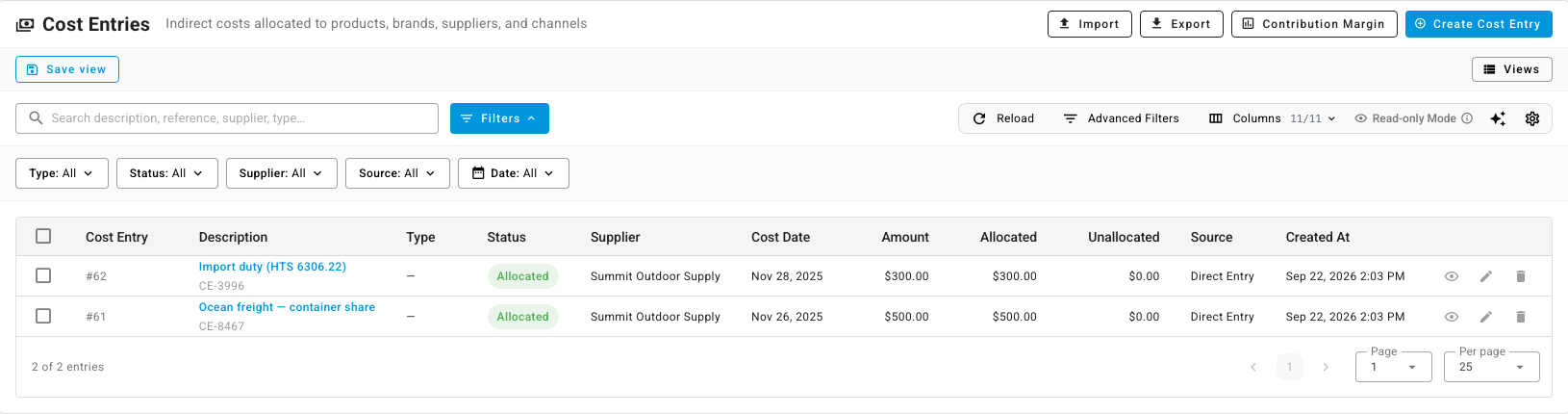
Go to Insights → Cost Entries. The list shows every entry with its Amount, how much is Allocated and Unallocated, its Status and its Source.
-
Click Create Cost Entry, or press C.
-
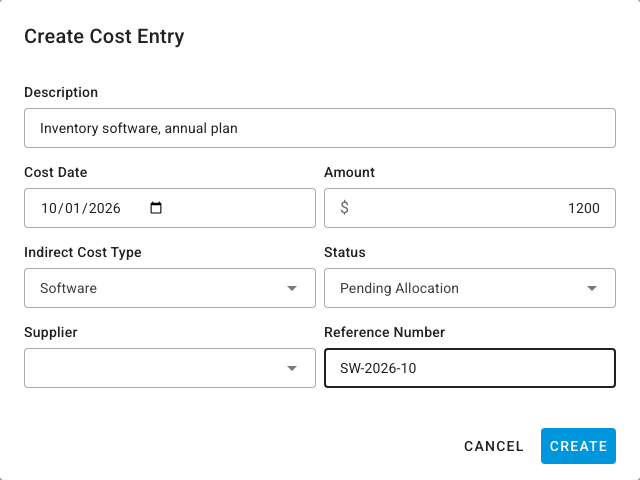
Enter a Description, for example "Inventory software, annual plan".
-
Set the Cost Date and the Amount.
-
Choose an Indirect Cost Type. To add a new one, type its name and pick Create.
-
Set the Status. Choose Pending Allocation when you're ready to allocate it, or Draft to keep working on it.
-
Optionally, pick the Supplier who billed you and add a Reference Number, such as the invoice number.
-
Click Create.
The entry appears in the list as Pending Allocation with its whole amount Unallocated. Next, allocate it, or amortize it if it covers several months.
Once its whole amount is allocated, an entry's status becomes Allocated. Part-allocated entries show Partially Allocated.
Import many cost entries
-
On Insights → Cost Entries, click Import.
-
Under Import Format, choose Cost Entries Only, or With Allocations to allocate each cost as it's imported.
-
Click Download Template. The file has the headers, sample rows and your account's own values, such as your types, suppliers and channels.
-
Fill in one row per cost. With allocations, add one row per allocation and repeat the Reference on each row of the same cost: rows that share a reference become one entry.
Column What to enter Reference Your reference for the cost. Rows with the same reference are one entry. Description Required. Cost Date Required. Type The indirect cost type. Supplier The supplier who billed you. Currency The currency of the amount. Amount Required. The entry's total. Status Draft or Pending Allocation. Left empty, the entry is a draft. Allocation Type product,brand,supplierorchannel.Allocation Target The product's SKU, or the brand, supplier or channel name. Allocation Amount How much of the entry goes to this target. Allocation Date The day this share is recognized in reports. Allocation Period Start, Allocation Period End Optional. A date range the share covers. -
Back in the dialog, drop the file in, or paste the rows, and click Next: Map Columns.
-
Check that each Your Column maps to the right field, then click Next: Validate.
-
Read the preview. It counts Cost Entries, Allocations and Errors, and lists each error against its row.
-
Click Import. Only rows without errors are imported. The rest are listed so you can fix and re-import them.
Export cost entries
Click Export to download the list with your current filters and visible columns. Choose Cost Entry Summary for one row per entry, or Cost Entry with Allocations for one row per allocation with the entry's details repeated.
An import doesn't update entries that already exist, even when the Reference matches. Don't re-import an exported file to change entries, or you'll record each cost twice. Edit existing entries from the list instead.
Costs that create themselves
Some entries arrive on their own and show the source in the Source column:
- Amazon storage fees and aged inventory surcharges, one entry per month, split across the products that incurred them.
- Amazon ad spend, one entry per day, split across the advertised products.
See Attribute storage fees and ad spend to products.
Next steps
- Allocate a cost across products
- Read the Contribution Margin report
- Analyze profitability: turn on Include indirect costs to subtract your cost entries.