Set a product's accounting & financial line type
A product carries its own accounting configuration that feeds your general ledger. Two independent pieces control this:
- Accounts — the six ledger accounts (sales, COGS, inventory, and more) this product posts to. The product's Accounting tab shows each one and where it comes from, and lets you set an override for this product alone.
- Default financial line type — the revenue line type a product's sales collapse into during revenue recognition. This is set from the sales-channel product-mapping flow, not the Accounting tab, and it must be a revenue-classified type.
This page covers both, and how each one reaches the ledger.
To send a whole category, brand, supplier or product type to its own accounts, use account rules instead of editing products one by one. New products then follow the rules on their own. Keep overrides for the few products that are genuine exceptions.
Before you begin
- Changing a product's accounts (an override, or Use rule) needs two permissions in your role: Edit under Products (
products.update) and Manage settings under Accounting (accounting.manage_settings). An override beats every account rule, so it needs the same permission as the rules. Admins have both. Without Manage settings you can still see where each account comes from, but Edit and Use rule are greyed out, and their tooltip names the permission you're missing. - Setting the default financial line type needs the Edit permission under Products, and read/write access to the Products scope. See the product permissions reference.
- The accounts you pick from must already exist. They're defined and maintained in the Accounting settings area (each has a code and a name), and are shown in the picker as
code - name. - Financial line types are also defined separately, in Settings. This page assigns an existing revenue line type to a product; it doesn't create line-type definitions.
How a product's account is chosen
For each of the six accounts, SKU.io uses the first of these that is set:
- Your override — an account set by hand on this product.
- A rule — the first matching account rule.
- The sales channel — the account set for the channel in Channel Accounting (sales, COGS and discount only).
- The company default — the account in Accounting → Settings → Nominal Code Mappings.
A rule can be told to let channel accounts win over it. See Map product accounts with rules.
Read a product's accounts
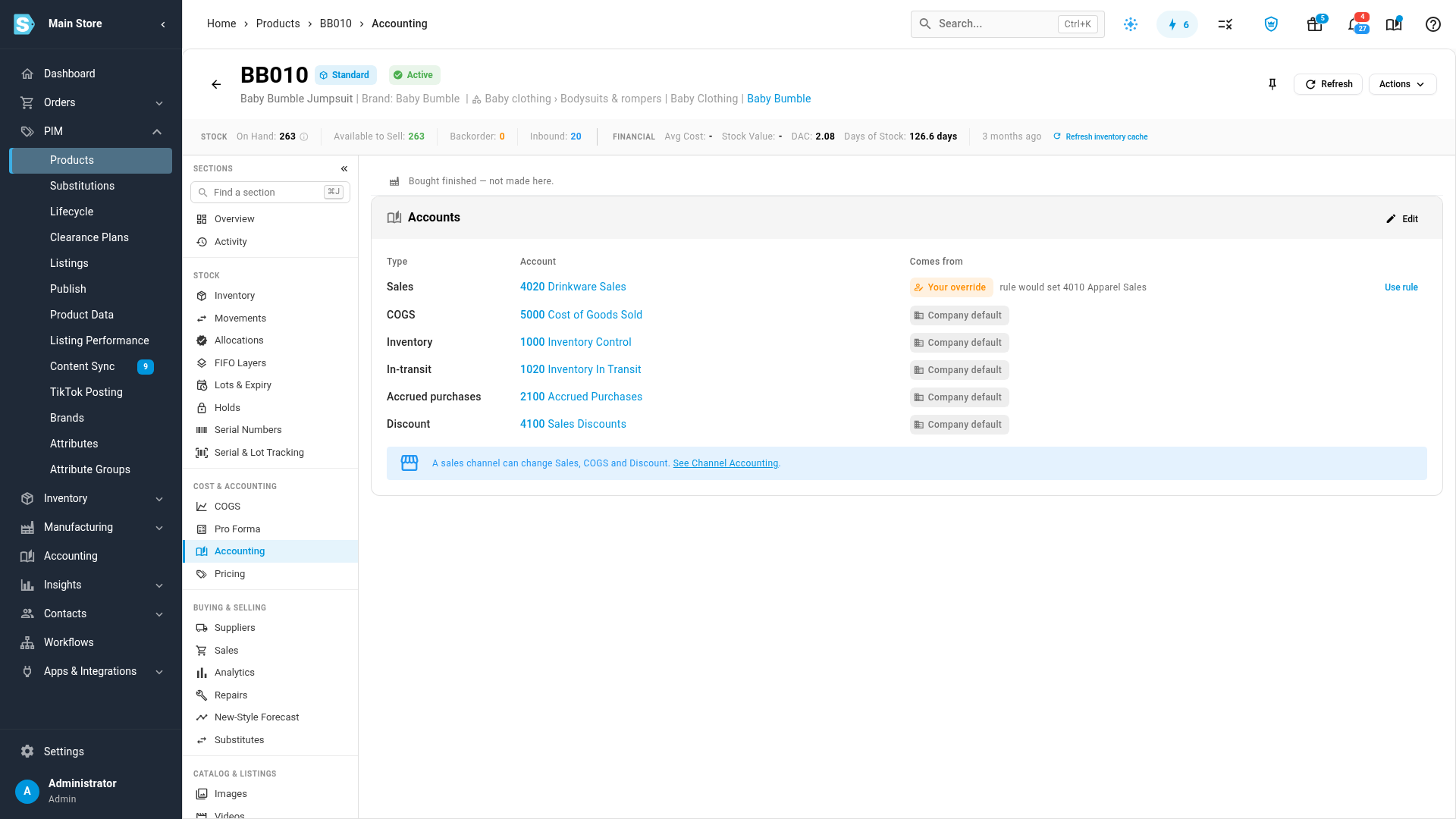
Open the product and go to the Accounting tab. The Accounts card lists the six accounts, and the Comes from column says where each one comes from:
| Comes from | Means |
|---|---|
| Your override | Set by hand on this product. It wins over every rule. |
| Rule · name | Set by that account rule. To change it, edit the rule. |
| Company default | No override or rule applies, so the company default is used. |
| Not mapped | No account is set anywhere. Postings for this account fail until you choose one. |
A sales channel can still change the sales, COGS and discount accounts for its own orders; the note under the card links to Channel Accounting. When a channel does set its own accounts, a By sales channel table under the note shows where this product's sales, COGS and discount land for that channel.
Override a product's accounts
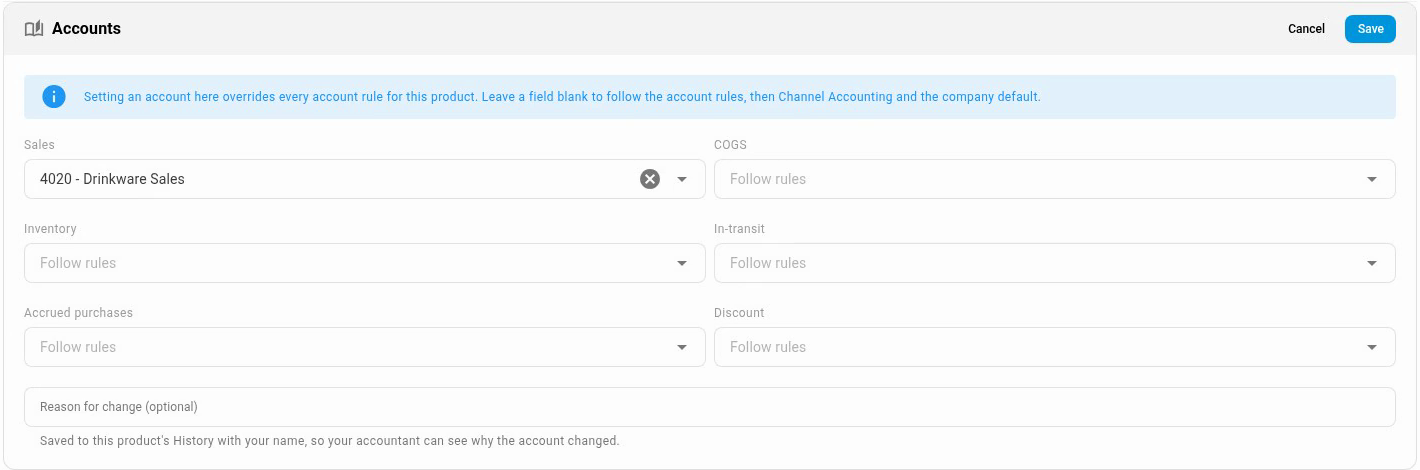
- On the Accounts card, click Edit.
- For any of the six accounts, pick an account from the searchable list. Each one is independent — set only the ones you want to override.
- To stop overriding an account, clear it (use the × in the picker). A blank field follows the rules, then the sales channel, then the company default.
- Optional: in Reason for change (optional), say why, for example "Wholesale revenue moves to its own account, approved by our accountant".
- Click Save.
The change goes on the product's History tab with your name, each account's old and new value, and your reason on a Reason line under them. That's the record your accountant can check when they ask who changed a mapping and why.
| Account | What it posts |
|---|---|
| Sales | Revenue account for this product's sales |
| COGS | Cost of goods sold when the product ships |
| Inventory | On-hand inventory asset account |
| In-transit | Value of stock in transit on inbound movements |
| Accrued purchases | Goods-received-not-invoiced accrual |
| Discount | Discount / contra-revenue account |
Go back to the rule
When a product has an override and a rule would also apply, the account shows rule would set account under it, and a Use rule button.
- Click Use rule next to the account.
- Confirm. The override is cleared, and the account follows the rule from now on.
Entries already posted keep the account they were posted with. To move entries that haven't synced to your accounting provider yet, use Re-map unsynced entries.
Accounts changed in bulk or by import
The same permission covers every way of changing a product's accounts:
- Bulk edit shows the Accounting fields and columns only to people with Manage settings under Accounting.
- A product import row that would change an account, for a person without that permission, is flagged as an error and skipped: "Changing a product's Sales account needs the Accounting → Manage settings permission." The rest of the file still imports. A cell that repeats the account the product already has isn't a change, so exporting your products and importing the file back still works.
- When an import changes an account, its History entry gives Product import as the reason.
The edit lock applies here
The Accounting tab respects the shared per-product edit lock. If another user is already editing this product, the Edit button is disabled and its tooltip names who holds the lock, and Use rule is disabled too. If someone takes over while you are mid-edit, the card drops back to read-only and your unsaved changes are discarded. See Edit a product's details for how the lock behaves.
Set the default financial line type
The default financial line type decides which revenue line a product's sales are reclassified into during revenue recognition. Unlike the accounts, it's not edited on the Accounting tab — you set it from the channel product-mapping flow using the Map as Revenue Line mode.
The chosen financial line type must be classified as revenue. Picking a cost-classified type is rejected with the validation error The selected financial line type must be a revenue type. You can also clear the value to leave the product without a default.
Steps
- Open the channel product you want to map (Shopify, Amazon, Faire, TikTok Shop, and others) and open its product-mapping panel.
- Switch the mapping mode to Map as Revenue Line.
- In the Revenue Financial Line Type picker, choose a revenue-classified type. Only revenue types are valid; a cost type is rejected.
- Click Save Revenue Mapping.
- To revert the product to normal behaviour, reopen the picker and clear the selection, then save again — this sets the default back to none.
If no matching SKU product exists yet, saving a revenue mapping auto-creates a minimal SKU product (inventory tracking disabled) to carry the setting.
What happens under the hood
Saving the mapping sets the product's default financial line type. It requires the Edit permission under Products. (The six accounts on the Accounting tab also need Manage settings under Accounting; the financial line type doesn't.) Choosing a cost-classified type shows the revenue-type error above; clearing the field removes the default.
The Revenue Financial Line Type picker and the revenue-conversion wizard are part of the channel product-mapping flow, documented in the Listings guide — coming separately. This page documents the field's meaning and its accounting effects, not the full channel UI.
How these values reach the ledger
A product carries seven accounting settings in total: the six accounts above (Sales, COGS, Inventory, Inventory In Transit, Accrued Purchases, and Discount) plus its default financial line type. They feed two different parts of accounting.
Accounts → GL posting. When this product posts to the general ledger — a sale, a shipment's COGS, an inbound receipt — SKU.io uses the account the Comes from column shows for that leg: your override, else the first matching rule, else the sales channel's account, else the company default.
Default financial line type → revenue recognition. Revenue conversion reads the product's default financial line type to reclassify sales. For each eligible sales-order line, it creates an equivalent revenue financial line of that type on the parent order and then deletes the original sales-order line (its deletion cascade cleans up fulfillment, allocations, inventory/FIFO, and cached line financials). If a product has no default financial line type, nothing is converted — the value is required for conversion to run.
A few details worth knowing about conversion:
- The revenue line's nominal code comes from the financial line type's own nominal code, falling back to the sales channel's sales nominal code — not from the product's Sales override.
- Lines that have returns or RMAs are held back and never converted, because a return line has no revenue financial line to re-point to. They're surfaced for review instead.
- Refund/credit lines on a converted line are preserved: they're re-pointed to the new revenue financial line rather than deleted with the original.
Financial line types are deduplicated behind the scenes
Financial line types are unique by name + classification in your account. If duplicates ever appear (for example from an import), SKU.io keeps the most-used one, re-points everything that referenced a duplicate — including products' default financial line type — to the survivor, and removes the rest. You never run this yourself, and running it twice changes nothing.
Next steps
- Set a product's price: the Pricing tab and tier prices, plus the product's Tax tab.
- Product detail page reference — every tab on the product page.
- Product fields & validation reference — field-level rules, including the accounting fields.
- Product permissions reference — who can edit accounting configuration.
- For how inventory value, FIFO, and COGS are calculated, see the Inventory guide and Browse FIFO layers.
Video transcript
Every product posts to six accounts, for sales, cost, stock and discounts. To see them, open the product, and then choose Accounting from its sections. The Comes from column says where each one is set. This product has its own Sales override, and an override wins over every rule. Underneath, you can see what the matching rule would set instead. Everything else comes from the company default. To change an account for this product alone, click Edit, and pick from the list. Leave a field blank, and it follows the rules, then the company default. Add a reason for the change, and it's kept in the history with your name. We'll cancel here, and send this product back to its rule instead. Click Use rule next to Sales, and then confirm the change. Sales for this product now comes from the Apparel rule. Entries that already posted keep their original account.