Add operations to a recipe
A recipe's components say what a product is made of. Its operations say what it takes to make it: steeping, mixing, packing, a machine setup. Each operation carries a time and a rate, so its cost lands on the finished goods alongside the materials. Operations are optional; a recipe without them is costed on materials alone.
Steps you use on many recipes belong in the Operations Library. Define them once there, then pick them from any recipe's Operations tab instead of retyping the time and rate each time.
Before you begin
- To tie an operation to a work center, create the work center first under Manufacturing → Work Centers. Work centers are optional, but capacity planning reads them.
Add a step to the Operations Library
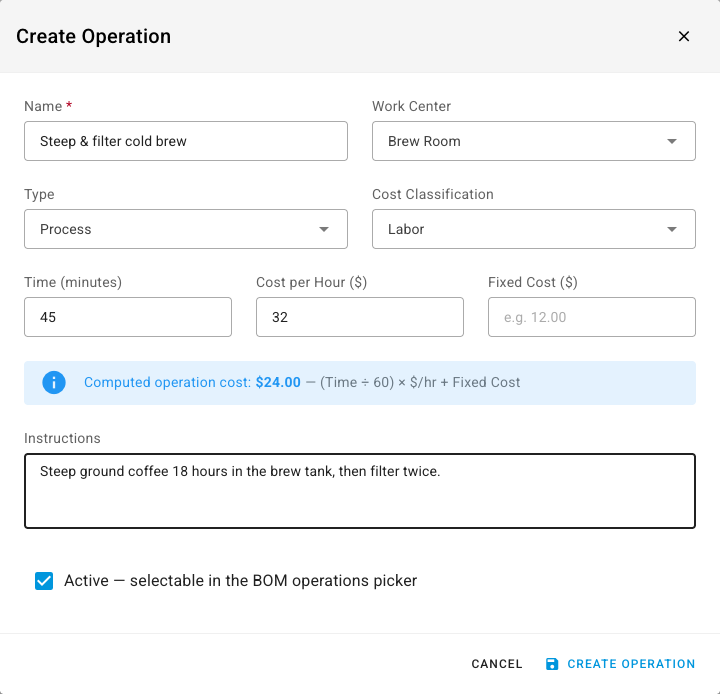
- Go to Manufacturing → Operations Library and click Create Operation.
- Enter a Name, for example
Steep & filter cold brew. - Optionally pick the Work Center where the step happens.
- Choose the Type:
- Process: time per order, the same whatever the batch size.
- Setup: one-off preparation time per order.
- Per Unit: time per unit produced, multiplied by the quantity.
- Fixed Cost: a flat amount per order with no time, such as tooling.
- Choose the Cost Classification: Labor for people's time, which also picks up the work center's overhead rate, or Machine / overhead for machine time, tooling and energy.
- Enter the Time (minutes), the Cost per Hour ($) and any Fixed Cost ($). The Computed operation cost updates as you type: (Time ÷ 60) × $/hr + Fixed Cost.
- Optionally add Instructions for the shop floor.
- Leave Active ticked so the step appears in the recipe picker, then click Create Operation.
The library lists each step with its Work Center, Type, Time (min), $ / hr, Fixed $, Classification, the computed Op Cost, and Used On: how many recipes have an operation with that name.
Add operations to a recipe
-
Go to Manufacturing → Recipes / BOMs, open the recipe, and select the Operations tab.
-
Click Add Operation.
-
Click the Name field. Library steps are listed; pick one and its work center, type, time, rate and cost class fill in.

-
Adjust any value for this recipe. The Cost column shows the step's cost.

-
Repeat for each step, then click Save.
Steps run in the order listed. The Library link above the table opens the Operations Library.
Save a new step to the library from a recipe
You can also type a new name straight into a recipe row. When you do, a bookmark button appears beside the name. Click it to save that row as a library step so other recipes can pick it.
How library changes reach recipes
A library step is a starting point, not a live link. Picking it copies its values onto the recipe, and the recipe keeps those values. Editing the library step later doesn't change recipes that already use it, and a recipe's own edits never change the library.
To retire a step without losing it, open its menu in the library and choose Deactivate. It disappears from the recipe picker but stays in the library. Delete removes it for good; recipes that copied it keep their copy.
Next steps
- Record operations and labor time: time each step on a manufacturing order.
- Check capacity: whether your work centers have the hours a plan needs.
- Create a recipe (bill of materials): the components and settings a recipe starts with.