Schedule and prioritize production
The Production Scheduler puts your open manufacturing orders in order. A Priority Queue sets which runs go first, and a Timeline lays each order across the days it's scheduled for, so you can see clashes, gaps and the backlog that still has no date.
Before you begin
- The orders you want to schedule are Draft, Confirmed, In Progress or Partially Completed. Completed, closed and cancelled orders don't appear.
Give an order dates and a priority
- Open the manufacturing order and click Edit.
- Set Scheduled Start, and Scheduled End if you know it.
- Set Priority. Lower numbers run first.
- Click Save.
You can change the dates and priority at any stage, including after the order is confirmed. The outsourcing dialog has the same Scheduled Start and Scheduled End fields for orders a contractor builds.
Read the scheduler
Go to Manufacturing → Scheduler.

The filters set what you see:
- Start Date and End Date: the days on the timeline. The default is today plus the next two weeks.
- Status: limit to some active statuses. Empty shows all of them.
- Warehouse: orders that produce in, or deliver to, the warehouses you pick.
- Show Unscheduled: on by default, so orders with no start date appear in the queue as backlog.
Click Refresh after changing the dates.
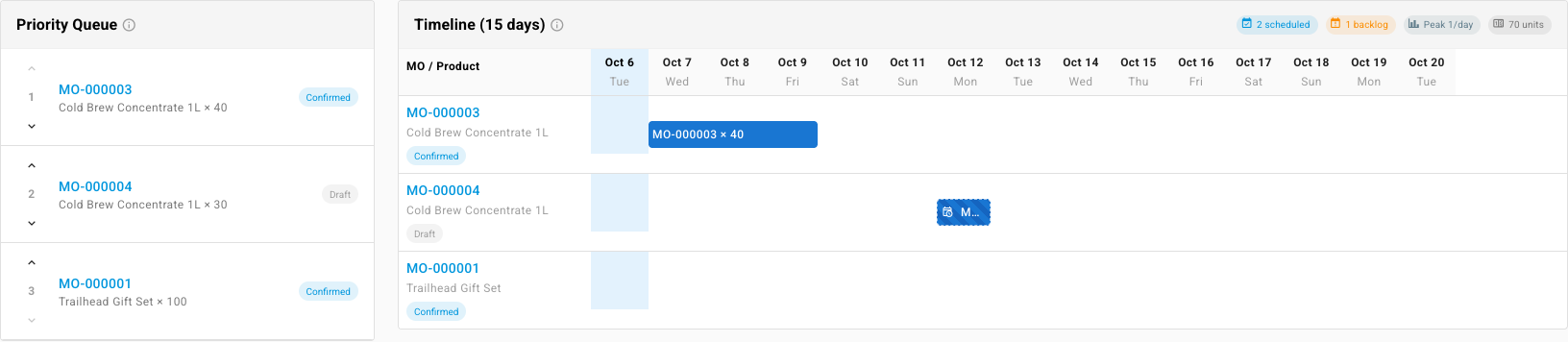
Priority Queue, on the left, lists the orders in run order with their product, quantity and status.
Timeline, on the right, has a column per day, with today shaded. Each order is a bar from its scheduled start to its scheduled end. An order with a start but no end gets a hatched bar marked no end. Click a bar or an order number to open the order.
The chips above the timeline sum up the window:
| Chip | Counts |
|---|---|
| scheduled | Orders with a start date in the window |
| backlog | Orders with a priority but no start date |
| in progress | Orders in progress or partially completed |
| Peak N/day | The most orders running on any single day |
| units | The planned units across the scheduled orders |
Peak N/day counts orders, not hours. It's a quick sense of load, not a capacity check.
Reorder the queue
- In Priority Queue, use the up and down arrows beside an order to move it.
- Click Save Priority Order. SKU.io renumbers the queue from 1 in the order shown.
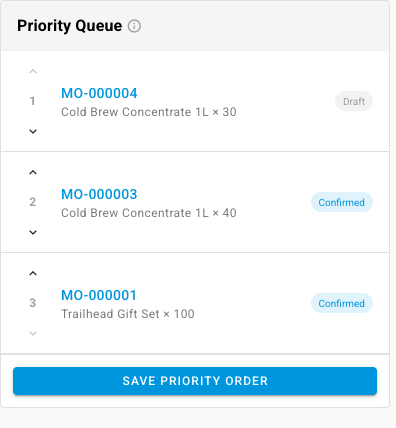
If you leave without saving, the old order stays.
Check capacity and working days
The scheduler works in calendar days and doesn't check how many hours each work center has. To compare planned work against work-center hours and working calendars, use Check capacity in Planning. Its planning calendars set working days and holidays for planning runs.
Next steps
- Monitor production from the Manufacturing overview: late orders and this week's runs at a glance.
- Build with a manufacturing order: confirm, start and record each run.
- Run a planning cycle: let planning suggest when each order should start.