Act on manufacturing suggestions
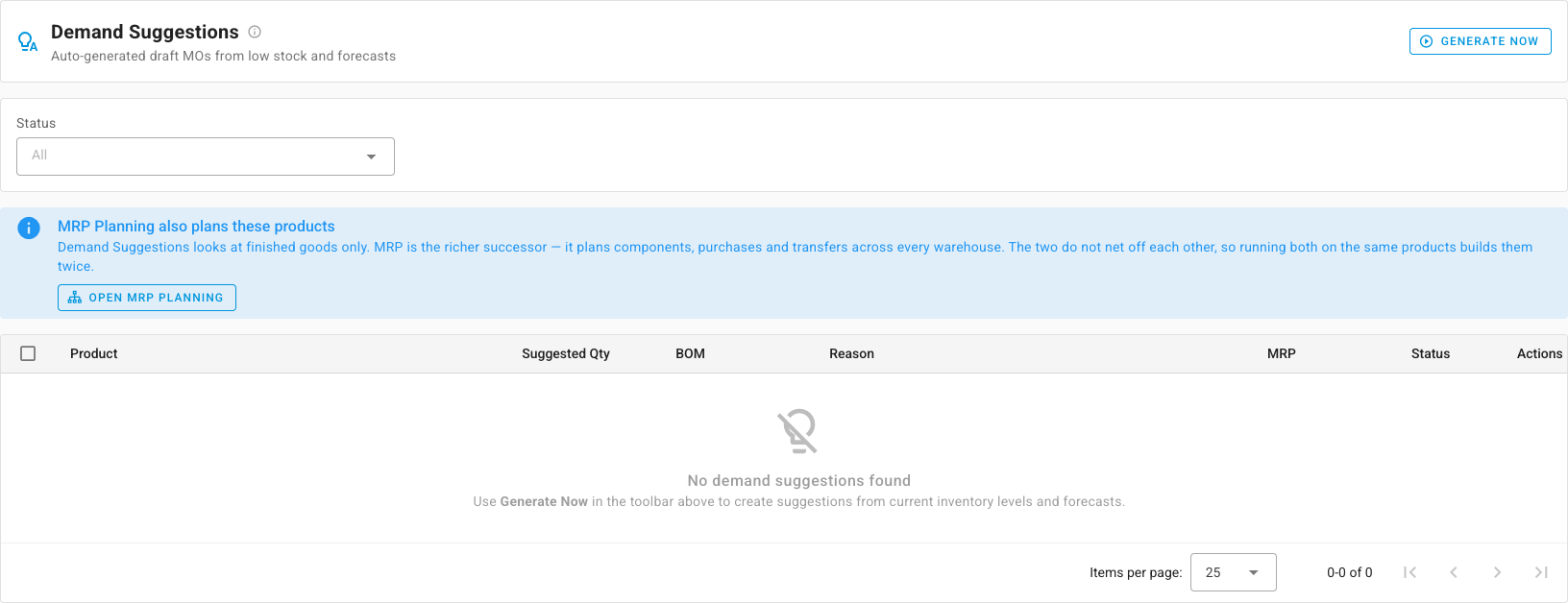
Manufacturing → Suggestions answers "what should we build next?" for finished goods. SKU.io looks at each manufactured product's recent sales, the stock you have and what's already coming, and suggests a build quantity where you're running low. You review the list, adjust quantities, and confirm the ones you want. Each confirmed suggestion becomes a draft manufacturing order.
Suggestions refresh every night at 02:00 and whenever you click Generate Now.
Before you begin
- The product has an active default recipe with at least one component.
- The product has sales in the last 30 days, or a minimum stock level. Without either, there's nothing to suggest from.
How a suggested quantity is worked out
For each product, SKU.io works out its net available stock: what's available, plus what's inbound or in transit, less what's backordered. It then takes the larger of two needs:
- Cover for sales: average daily sales over the last 30 days × (7 days of cover + the recipe's Mfg Lead Time), less net available.
- Minimum stock: the product's minimum stock level, less net available.
If either is above zero, you get a suggestion for that quantity. The Reason column spells out the sum, for example "Sells 4/day, 7d target + 2d leadtime = 36 needed. 12 net available." or "Below min stock level of 50 (20 net available)."
Suggestions look at finished goods only. Whether you have the components to build them is checked on the manufacturing order once you confirm it. See Handle component shortfalls.
Review and act on suggestions
-
Go to Manufacturing → Suggestions.
-
Click Generate Now to refresh the list from current stock and sales. Pending suggestions are replaced; ones you already confirmed or dismissed are kept.
-
Read each row: the Product, the Suggested Qty, the BOM it will build from, the Reason, and whether the product is also planned by MRP.
-
To change a quantity, click the pencil next to Suggested Qty, type the new number and click the tick.
-
To build it, click the confirm icon in Actions. SKU.io creates a draft in-house manufacturing order for the suggested quantity, in the warehouse that already stocks the product. The row's action changes to View MO.
-
To skip it, click the dismiss icon. No order is created.
To act on several at once, tick their rows and use Confirm Selected or Dismiss Selected.
Use the Status filter to see Pending, Confirmed or Dismissed suggestions.
If you also use Planning (MRP)
Suggestions and Material Requirements Planning can both plan the same product, and they don't net against each other. Confirming both builds it twice. The banner at the top of the page says so, and the MRP column marks each product:
- Planned in MRP: the product has a planning policy, so MRP already plans its supply. Confirming asks you to confirm the second build first.
- Not in MRP: only suggestions plan it.
MRP plans components, purchases and transfers across every warehouse as well as finished goods. If you use it, let it plan those products and use suggestions for the rest.
Next steps
- Build with a manufacturing order: confirm and run the draft a suggestion creates.
- Schedule and prioritize production: give the new order dates and a place in the queue.
- Forecast demand and replenish stock: the same idea for products you buy instead of build.