Decorate a sales order line
When a customer orders a product with their logo on it, you record the decoration on the sales order line itself: the method, where it goes, the artwork and the plain item it's made from. SKU.io prices the decoration as you enter it, and when you're ready to produce, turns each decoration into a decoration order. That's a manufacturing order that consumes the blank and the thread or ink and makes the decorated product, so the line ends up with a real cost instead of an estimate.
Before you begin
- Turn on Made to Order, and set up your methods, placements and cost rules. See Set up made-to-order decoration.
- You need permission to edit sales orders, and the order must still allow changes to its lines.
- Decide which product is the blank: the plain item that gets decorated. If the product you sell has an active recipe, SKU.io can use its first component instead.
Add a decoration to a line
-
Open the sales order.
-
Under the product on the line you want decorated, click Add decoration.

-
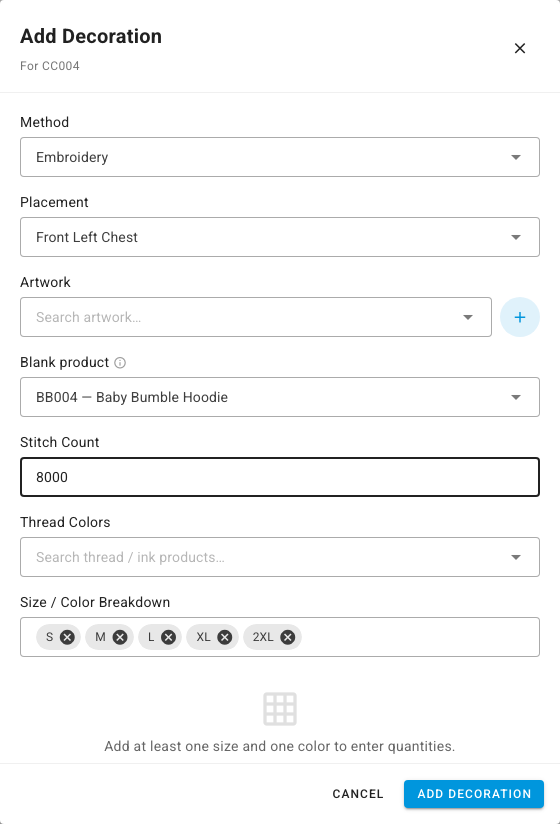
In Add Decoration, pick the Method and the Placement. Choose Custom as the placement to describe a position of your own.
-
Optionally pick the Artwork, or click the plus button to add new artwork.
-
In Blank product, search for and pick the plain item the decoration order consumes. Leave it empty to use the first component of the product's recipe. A product without a recipe needs a blank.
-
Fill in the details for the method:
- Stitch Count, for embroidery. It's required.
- Ink Colors Count, for screen print.
- Thread Colors, to pick the thread or ink products the decoration uses up. Search by SKU or name.
- Size / Color Breakdown, to split the line's quantity by size and color once you've picked colors.
-
Choose the Setup Type: New Setup for first-time artwork, or Repeat for artwork you've run before. Tick Digitization required if the artwork still needs converting for the machine, and add any Notes.
-
Click Add Decoration.
The decoration appears on the line as a chip named after its placement, with a Pro-forma line showing the estimated decoration cost per unit from your cost rules. To add a second decoration, such as a sleeve print, click Add beside the chip.

To change a decoration, click its chip. To remove it, click the cross on the chip.
Create the decoration orders
-
When the order has at least one decorated line, click Create decoration orders above the lines.

-
SKU.io starts the work in the background and confirms Decoration orders started — track progress in the job tray. The lines refresh when it finishes.
Each decoration that doesn't have an order yet gets one decoration order. It's a draft manufacturing order that:
- Makes the line's product, for the line's quantity less anything canceled or returned.
- Consumes one blank per unit, plus the thread or ink products you picked.
- Delivers the decorated stock to the line's warehouse, or your default warehouse when the line has none.
- Is sent to your decorator when you have a decorator warehouse run by a contractor. SKU.io outsources the order to that contractor, with a service fee from the decoration's estimated cost.
Click Create decoration orders again after you add more decorations. Decorations that already have an order are skipped.
Once a decoration has an order, it's locked. Editing or removing it shows This decoration is locked by manufacturing order, followed by the order number. Cancel the decoration order first if the decoration has to change.
See the decoration order and its actual cost
- On the sales order, click the decoration's chip.
- In Edit Decoration, look under Estimated Cost. Decoration order links to the order and shows its status, and Actual Cost shows what the build cost.
Actual Cost shows a dash until you record production on the decoration order. Then it shows the cost of the blank, the consumables and the labor that went into it.
Click the order number to open the decoration order. Its Created From field links back to the sales order, and the summary at the bottom shows the estimated cost before you build.

Confirm, start and record production on it like any other manufacturing order. See Build with a manufacturing order.
If a decoration order can't be created
- No blank product is configured: the decoration has no blank and the product has no active recipe. Click the chip, pick a Blank product, and try again.
- No remaining quantity to produce: every unit on the line has been canceled or returned, so there's nothing to decorate.
Next steps
- Set up made-to-order decoration: methods, placements and the cost rules behind the estimate.
- Build with a manufacturing order: confirm the decoration order and record production.
- Manufacture with a contract manufacturer: how outsourced orders and their service fee work.