Notify buyers when stock returns
When a product is out of stock and can't be backordered, a buyer on the Customer Portal can ask to be told when it's back. SKU.io emails them as soon as you have stock again, so they can come back and order instead of checking the catalog every day.
How it works
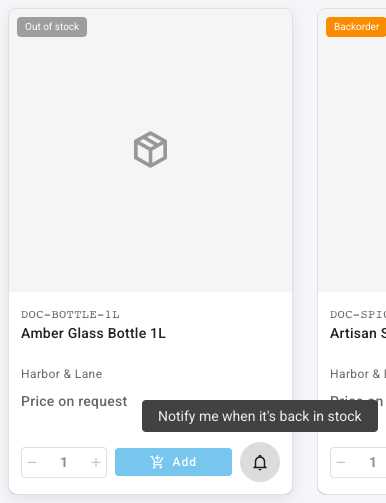
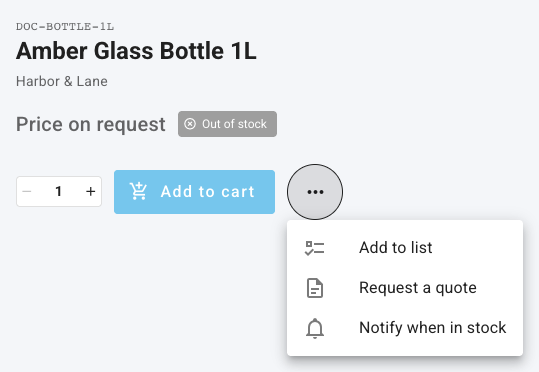
- Where buyers see it. While a product is out of stock and the buyer can't backorder it, its catalog card shows a bell button next to Add, and the ⋯ menu on its product page shows Notify when in stock. In-stock products and products the buyer may backorder don't offer it, because the buyer can order them now.
- Variations. On a product with variations, the alert is for the variation the buyer has selected on the product page, not for every variation.
- When the email goes out. SKU.io checks every few minutes for products buyers are waiting on. As soon as a product's available stock across your warehouses rises above zero, every buyer waiting on it gets one email.
- What the email says. The subject is Back in stock: followed by the product name. The email names the product and its SKU, and says it can be ordered again on the portal.
- One email per request. After the email, the request is done. If the product sells out again and the buyer wants another alert, they ask again.
- Buyers can change their mind. A buyer can stop an alert at any time, from the catalog card or the product page.
Before you begin
- The product is visible on the portal and in the buyer's catalog. See Restrict what buyers see with portal catalogs.
- Backorders are off for that product and account. When a buyer is allowed to backorder, the product shows Backorder instead of Out of stock, and they order it straight away. See Choose which products offer alerts.
Ask for an alert (buyer)
Share these steps with your buyers. They run them on the portal, from the catalog or from a product's page.
From the catalog
-
Click Catalog. A product that can't be ordered right now carries an Out of stock label, and its Add button is unavailable. Hovering over Add explains why: "Out of stock and not available for backorder."
-
Click the bell button next to Add.
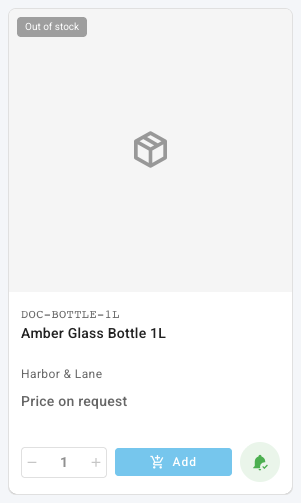
What you'll see: the message "We'll email you when it's back in stock", and the bell turns green with a tick. The email goes to the address the buyer signs in with.
From the product page
-
Click the product to open its page. Add to cart is unavailable. If the product has variations, pick the variation first.
-
Click the ⋯ button next to Add to cart, then Notify when in stock.
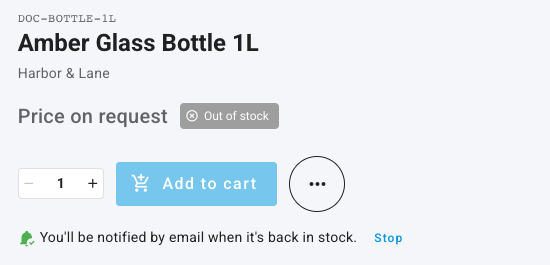
What you'll see: the line "You'll be notified by email when it's back in stock." appears under Add to cart, with a Stop link.
Stop an alert
- On the catalog card, click the green bell. Its tooltip reads "You'll be notified when it's back in stock — click to stop".
- On the product page, click Stop.
What you'll see: the message "You won't be notified about this product".
Choose which products offer alerts
Alerts follow your backorder settings. A buyer who can backorder a product doesn't need an alert for it, so Notify when in stock appears only where backorders are off. Three settings decide that, and the most specific one wins:
| Setting | Where | Choices |
|---|---|---|
| Allow backorders on the product | The product's Pricing tab, B2B Portal card. Click Edit, choose, then Save. | Inherit (account / portal default), Yes, No |
| Backorders on the customer | The customer's Settings tab. Click Edit, choose, then Save. | Use portal default, Always allow for this customer, Never allow for this customer |
| Allow backorders in the customer portal | Contacts → Customers → Portal → Settings | On or off, for every account that doesn't override it |
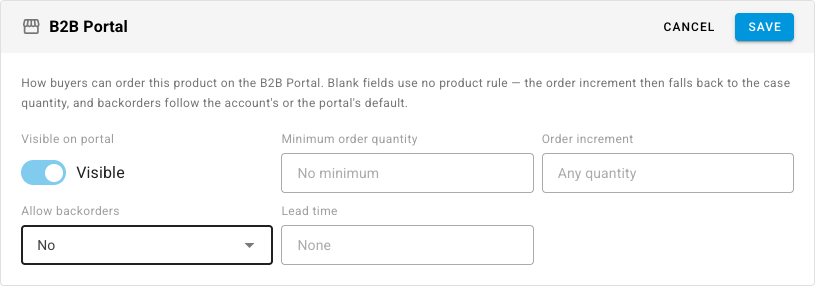
For example, to offer alerts on one product while every other product stays open to backorders, set Allow backorders to No on that product only.
See who is waiting for a product
- Open the product and go to its Pricing tab.
- On the B2B Portal card, look at Buyers waiting. It reads None, or the number of buyers who asked for an alert.
- Click the number to see the list. Each entry shows the buyer's name and email, the customer account they buy for, and the date they asked. Click the account name to open that customer.
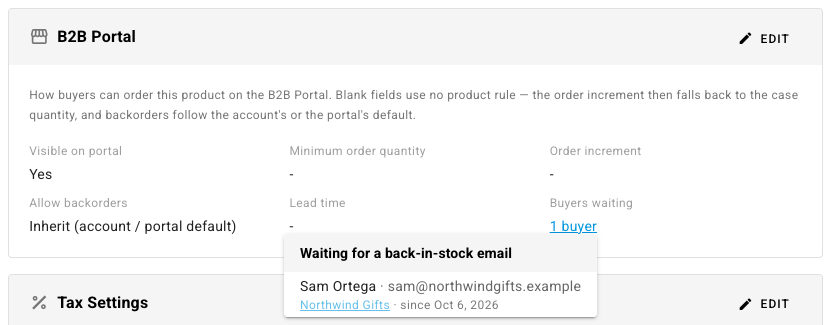
The list shows buyers who haven't been emailed yet. Once the email goes out, or the buyer stops the alert, they drop off it. You need the portal.manage permission to see Buyers waiting.
Next steps
- How the Customer Portal works — what buyers see, including how stock is shown.
- Saved lists and reorders on the portal — the same ⋯ menu also adds a product to a list.
- Sell in case quantities on the portal — make buyers order a product in whole cases.