Set a shipment's shipping cost
When a shipment's shipping cost doesn't come back from a carrier or 3PL, or comes back wrong, set it yourself on the sales order. SKU.io keeps one Shipping Cost line on the order matching it, so your profit and accounting see the real cost. This works on closed orders too.
Before you begin
- You need permission to update sales orders.
- The shipment isn't voided, and the order isn't cancelled.
Steps
-
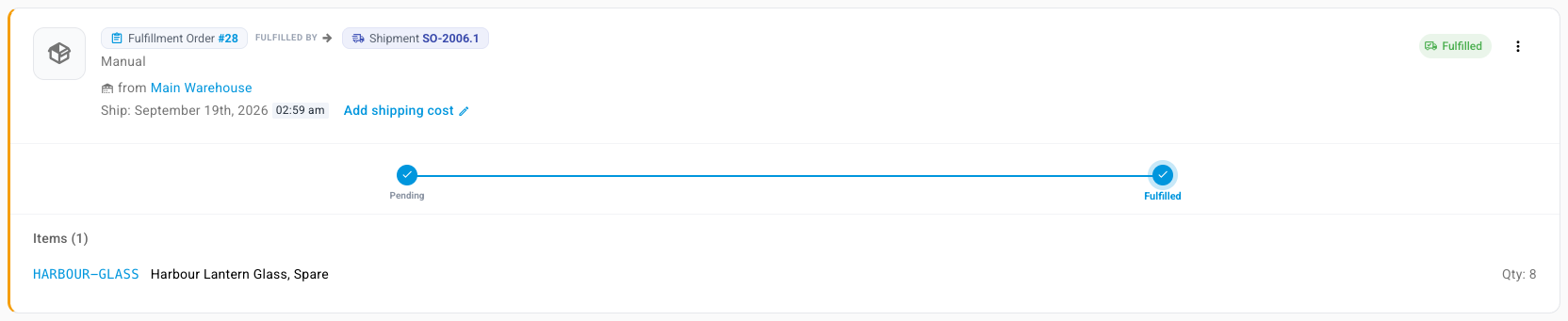
Open the sales order and go to the Fulfillment tab. On a closed order, choose Fulfilled under Status to see its shipments.
-
On the shipment, click Add shipping cost. If it already has a cost, click the pencil next to Cost. You can also choose Set shipping cost or Edit shipping cost from the shipment's ⋮ menu.
-
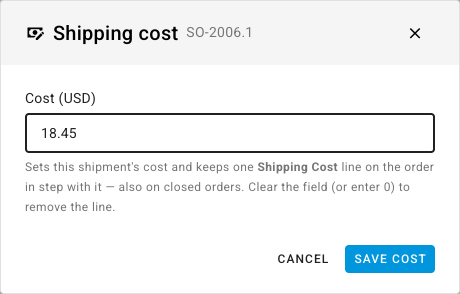
In Cost, enter what the shipment cost, in the order's currency.
-
Click Save cost.
What you'll see: the shipment shows its cost, and the order has one Shipping Cost line for it, spread across the shipment's products by their cost. The change reaches your accounting the same way any other line change does.
To remove the cost, clear the field or enter 0, then save. SKU.io removes the Shipping Cost line.
The Shipping Cost field on the shipment's own page does the same thing.