Reconcile a month with the monthly tie-out
The monthly tie-out answers one question for a month: does the money tie out, from the order all the way to your books? It takes every order placed in the month and follows it downstream, to its invoice, its shipment, its payment, its entry in your SKU.io ledger and the matching document in each QuickBooks Online or Xero connection. It does the same for the month's marketplace payouts and for the cost of goods on each shipment.
Every place the money doesn't match becomes a row with its cause in plain words. Where SKU.io can fix the cause, the row has a button that does it. Where the difference is real and fine, you accept it with a reason, and that reason stays on record.
Before you begin
- The tie-out reads your SKU.io ledger, so Accounting must be set up. It covers months from your accounting start date up to the current month.
- You need permission to view Accounting to read the tie-out. Fixing a row needs the
permission of the action behind it: syncing and generating entries need the Accounting
Sync permission (
accounting.sync), and invoice fixes need the sales invoice permissions. A button you can't use is greyed out, and its tooltip says why. - The QuickBooks and Xero stages appear only for the connections you have. Without one, the chain stops at your ledger and says how to connect your books.
Open the tie-out for a month
-
Go to Accounting. In the sections list, under Period End, click Reconciliation, then Tie-out.
-
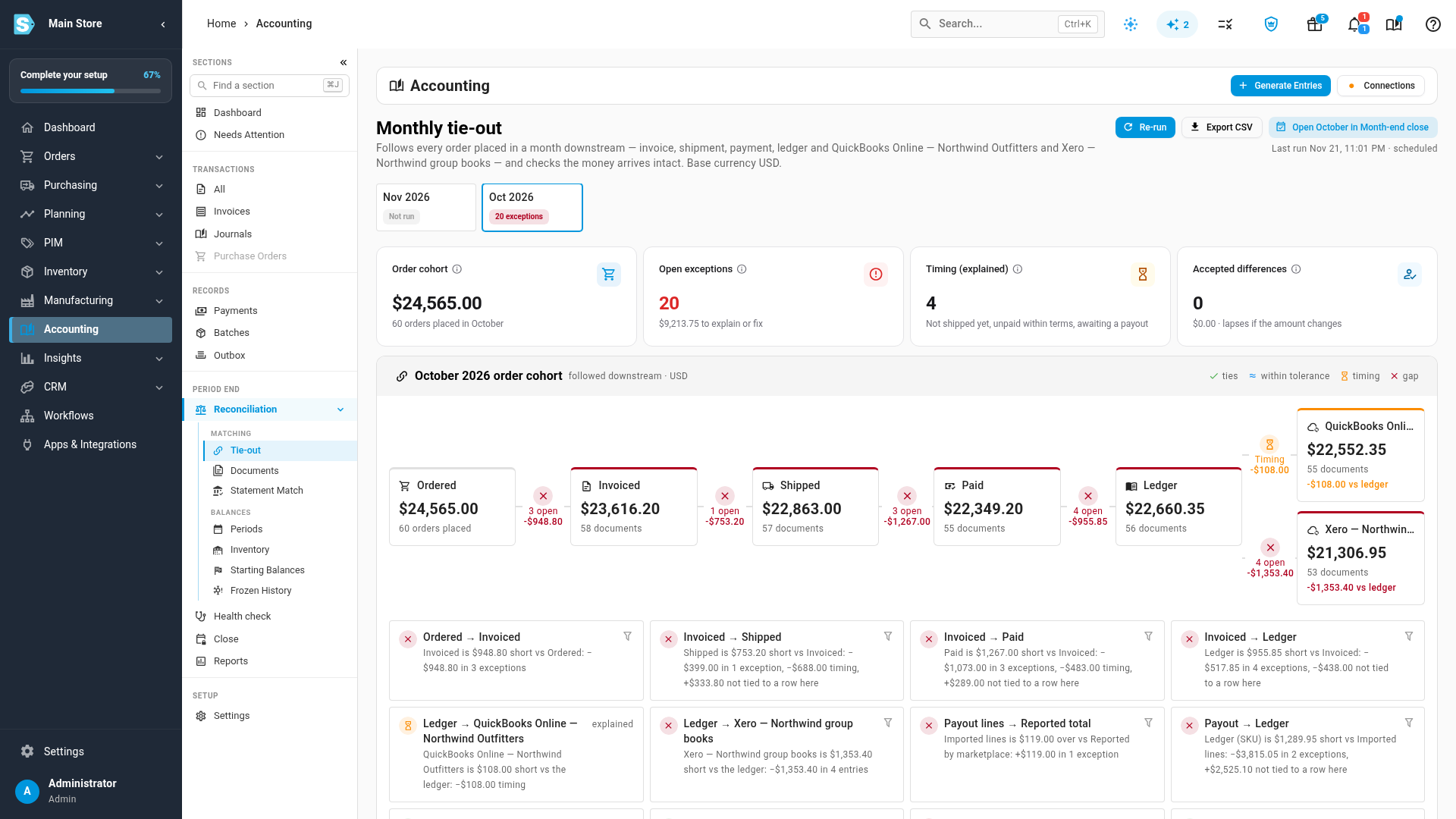
In the month strip, click the month you want. Each month's chip shows how it stands: the number of open exceptions, Ties, Not run or Running…. Months before your accounting start date are greyed out.
-
If the month shows Run the tie-out, click it. The run takes a minute or two and shows in the job tray; the page fills in when it finishes. SKU.io also runs the previous month for you on the 1st of each month, so the month you're closing is usually ready.
Read the month's summary
The four cards at the top sum up the month:
| Card | What it tells you |
|---|---|
| Order cohort | The total of every order placed in the month, and how many orders that is. Cancelled orders, drafts and quotes are left out. |
| Open exceptions | Differences that need you: fix them or accept them. |
| Timing (explained) | Differences that clear on their own: an order that hasn't shipped yet, an invoice that isn't due yet, a sale waiting for its marketplace payout, an entry still syncing. They need nothing from you. |
| Accepted differences | Differences someone has accepted with a reason. An acceptance lapses if the amount changes. |
Under Last run, next to the buttons, you can see when the numbers were read.
Follow the order chain
-
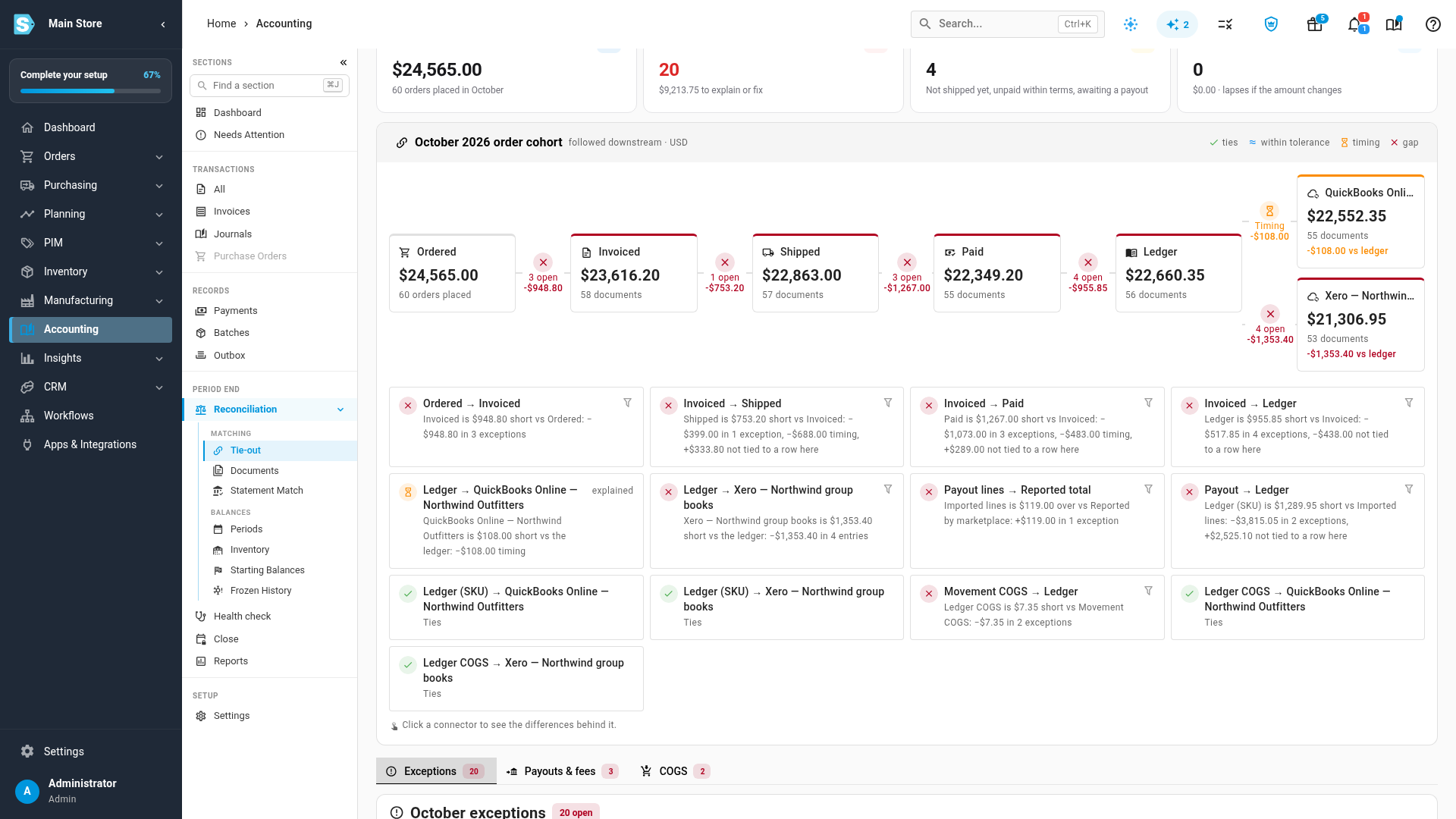
Read the order chain from left to right: Ordered, Invoiced, Shipped, Paid, Ledger, then one card for each QuickBooks or Xero connection. Each card shows the stage's total for the month's orders and how many documents it counts.
-
Read the marker between two stages:
- A tick: the two stages tie.
- ≈: the stages differ only by what your tolerance allows, or by differences you've accepted.
- An hourglass: the difference is timing only.
- A red cross: there's a gap, with the number of open exceptions and their amount.
-
Read the cards under the chain. There is one for each pair of stages, including the payout and COGS pairs. Each one splits the pair's difference into parts that add up: the open exceptions, timing, accepted differences, rows fixed since the last run, and anything not tied to a row on that pair (usually a difference carried over from an earlier stage).
Work the differences
-
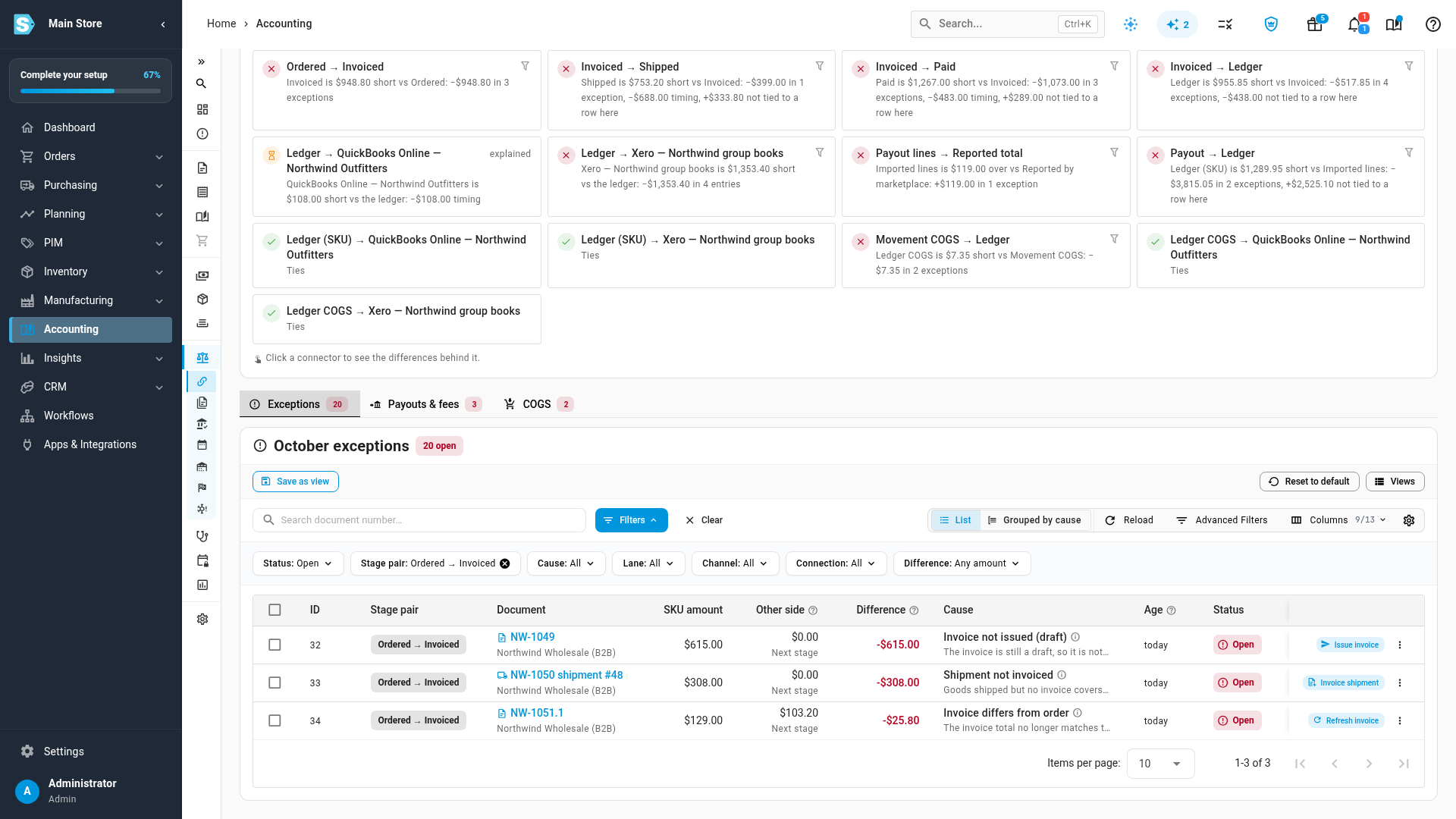
Click the red cross (or the filter icon on a pair's card) for the gap you want to work. The exceptions table filters to that stage pair, and the filter shows as a chip.
-
To give the table more room, collapse the sections list with the double arrow at its top.
-
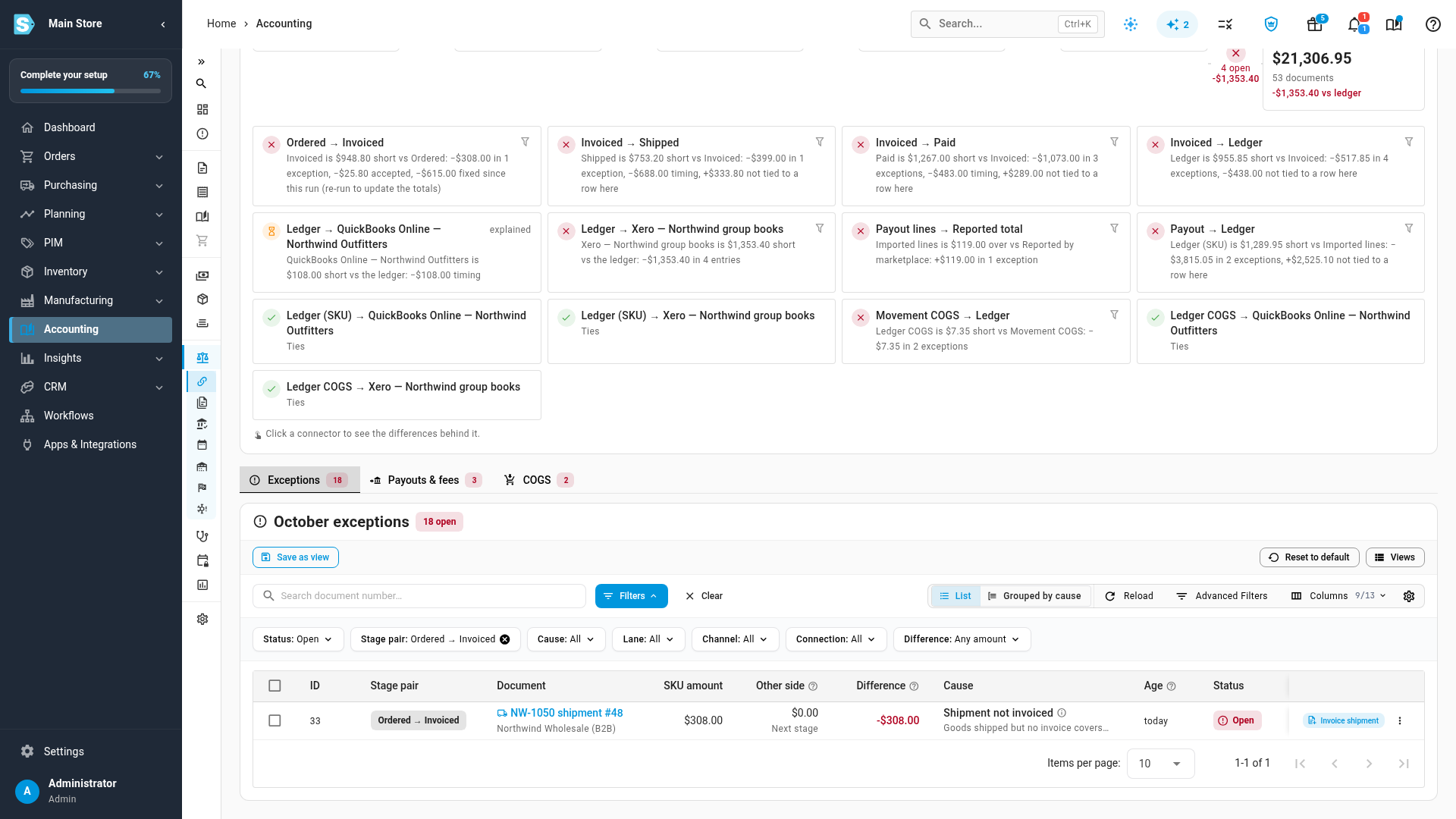
Read each row. It shows the stage pair, the document (click it to open it), the amount on each side, the Difference, the Cause with a one-line explanation, how long it's been open and its Status: Open, Accepted, Resolved or Timing.
-
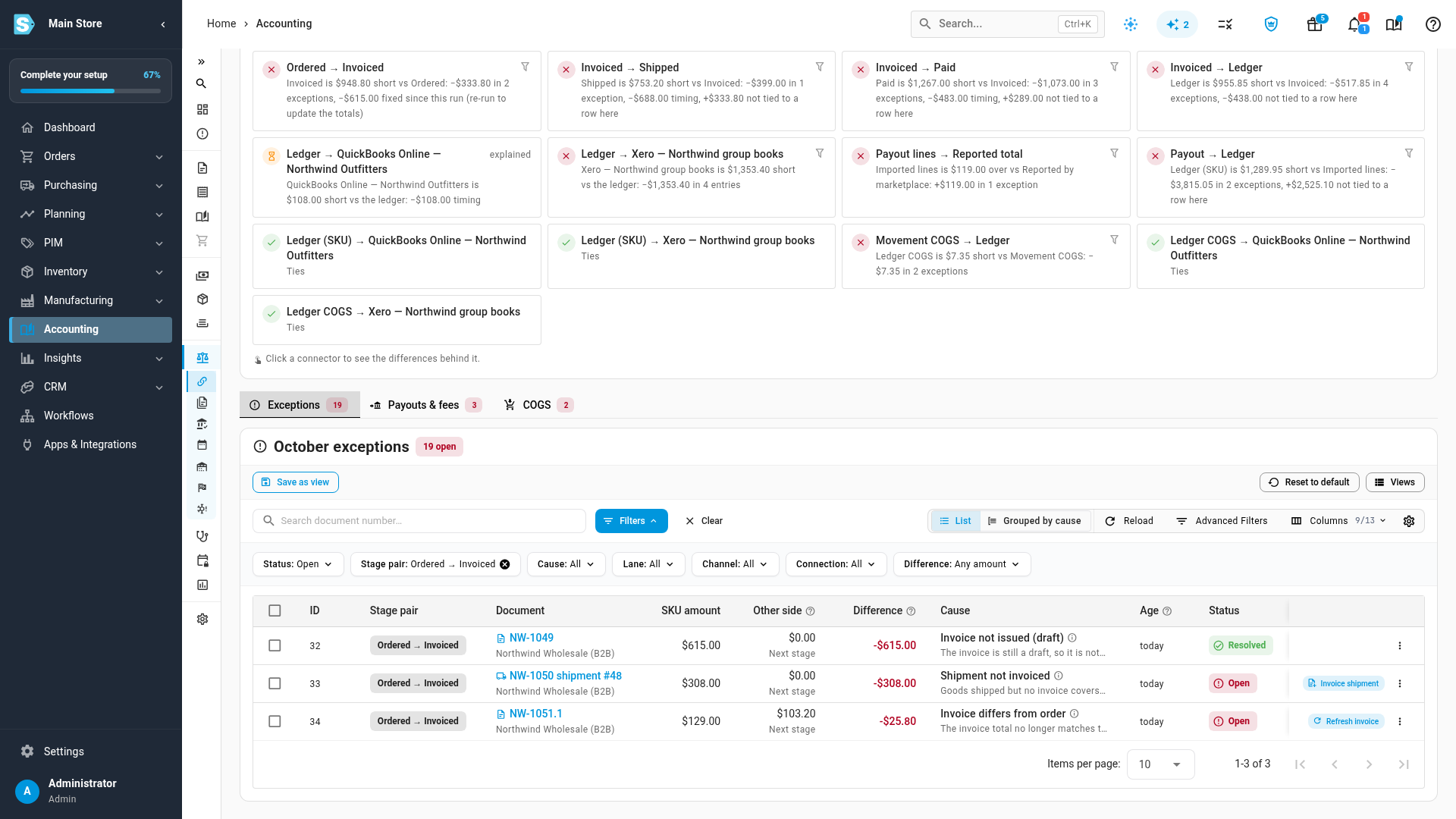
To fix a row, click the button at its end. The button names the fix: Issue invoice, Invoice shipment, Refresh invoice, Generate entry, Retry generation, Refresh entry, Sync now, Retry sync, Re-push, Rebuild entry and so on. The row is checked again straight away and reads Resolved when the document now ties. A fix that runs in the background, such as a sync, shows Fix in progress until the next run picks it up.
Rows with no button need you to look at the document itself, for example an invoice that's overdue and unpaid. The row menu (⋮) opens the document or its ledger entry.
-
To accept a difference that's real and fine, open the row menu (⋮) and choose Accept difference…. Type why you accept it, then click Accept difference.
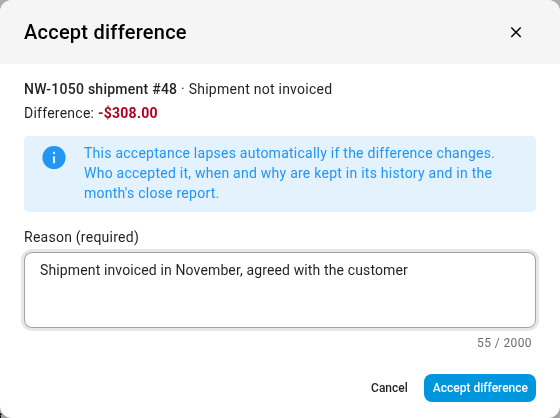
The row moves to Accepted and leaves the default Open view. To see who accepted it, when and why, set Status to Accepted and turn on the Decision column under Columns. If the difference changes later, the acceptance lapses and the row opens again. To undo an acceptance, choose Revoke acceptance in the row menu.
Until you re-run the month, the pair's card keeps the last run's totals and names what changed since: here, the accepted difference and the row fixed since the run.
-
To see everything that happened to a row (found, fix requested, fix failed, resolved, accepted, revoked, lapsed), choose History in its row menu.
Work many rows at once
- Select rows with their checkboxes. The bar above the table offers Fix N for the rows that have a fix, and Accept N… to accept them all with one reason. The bulk fix runs in the job tray.
- Click Grouped by cause to see one group per cause, with its count and total. A group whose cause has a fix offers Fix all N; the others offer Accept all N….
- Use the filters (Status, Stage pair, Cause, Lane, Channel, Connection, Difference) and the search box to narrow the list, and Save view to keep a filter you use every month.
- Click Export CSV to download the rows under the current filters.
Check payouts and COGS
Two more lanes sit beside Exceptions, each with its own count of open rows:
- Payouts & fees lists the marketplace payouts deposited in the month, by channel: payouts, gross sales, refunds, fees, other, the net deposit, how many are posted, and how many reached each provider. Its differences cover a payout whose lines don't add up to the marketplace's total, a payout never imported, transaction types with no account mapping, and a deposit that was never posted.
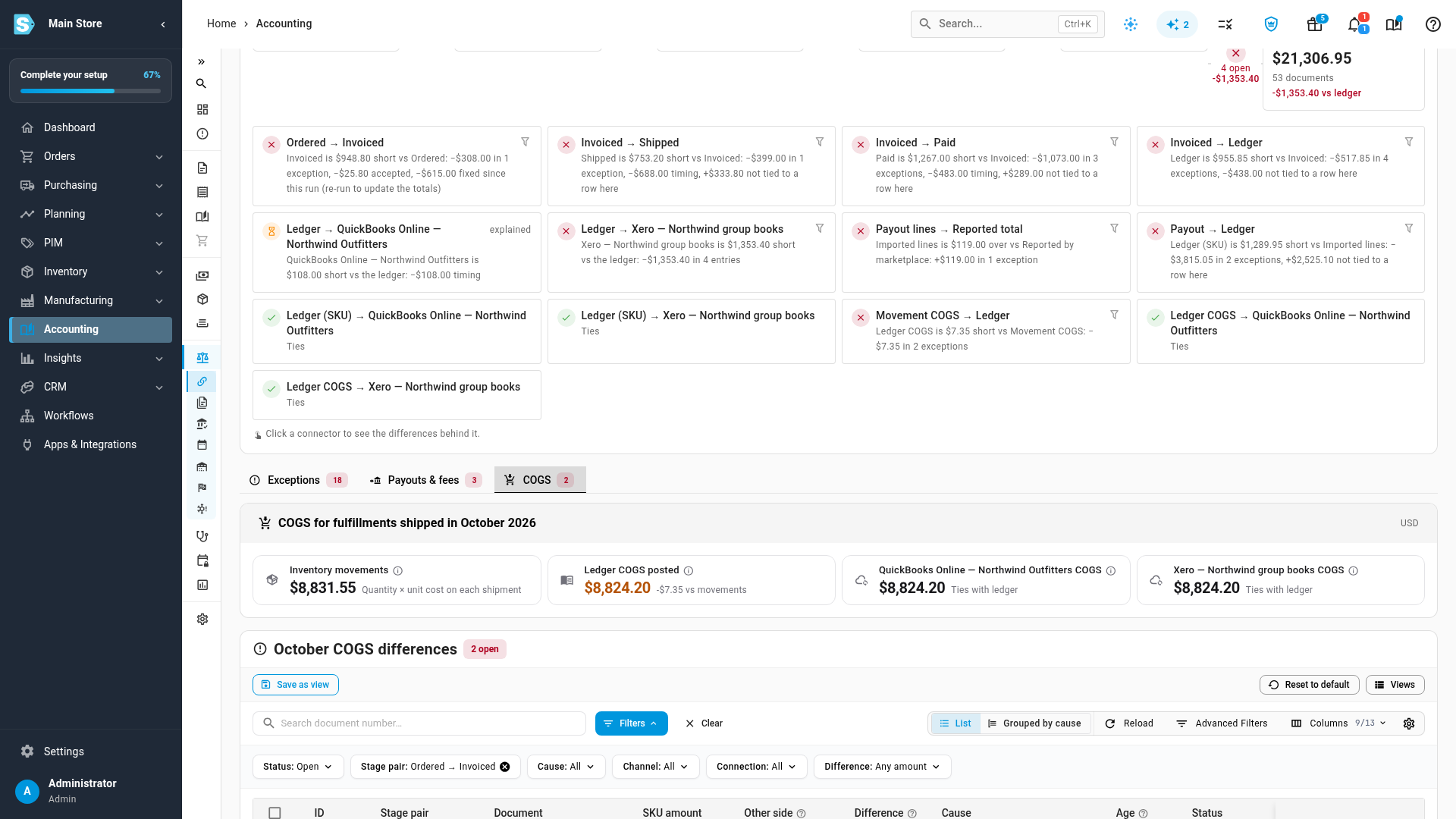
- COGS compares the cost on each shipment made in the month (Inventory movements) with the cost in your ledger (Ledger COGS posted) and in each provider. Its differences include a cost that changed after the entry posted (fix: Refresh entry) and a shipment made with no stock behind it.
Payouts are counted by the date they were deposited, and shipments by the date they shipped. The order chain counts orders by the date they were placed, so an order placed in September and paid in October belongs to September.
Re-run the month
When you've worked the list, click Re-run at the top of the page. The month is read again in the job tray, and the page refreshes when it finishes. Rows whose document now ties are marked Resolved, and the stage totals catch up with the fixes you made.
The tie-out in your month-end close
- The close checklist for the month has a row called Month ties out, in the Sync & reconciliation group. It runs when you start the close and on each Re-check, and passes when no difference is left open. Accepted differences don't count against it. Its arrow opens the tie-out for that month. From the tie-out, Open month in Month-end close goes the other way.
- The month's report pack includes a Tie-out report: the stage totals, each pair's difference, and every accepted difference with who, when and why. It's saved with the rest of the pack when you close the month.
- Once a month is closed, its tie-out is read-only and shows the run captured at close. To change it, reopen the month in Month-end close. While a month is being closed, runs, fixes and decisions wait until the close finishes.

Set the tolerance and whether differences block the close
Go to Accounting → Settings → Close and find Monthly tie-out:
- Tie-out tolerance: per document, per step, in your base currency. A difference this small or smaller counts as tied (≈), so currency rounding doesn't become an exception. It starts at 0.05. Set 0 to flag any difference.
- Open tie-out differences block the close: off, Month ties out is a warning you
acknowledge. On, a month with open differences can only close with a reason and the
Accounting Period Override permission (
accounting.period.override). Accepted differences never block.

Next steps
- Fix a failing check
- What stops a close, and what only needs a tick
- Prove a month's settlements are complete
- See why entries haven't reached your provider
- Close a month
Video transcript
Before you close a month, check that its money ties out, from the order all the way to your books. Open Accounting from the main menu, on the left of the screen. In the sections list, under Period End, click Reconciliation, and then click Tie-out. The month strip across the top picks the month. October is selected, and it has twenty open exceptions.
The four cards sum up the month. The order cohort is every order placed in October. Open exceptions are the differences that need your attention. Timing differences clear on their own, like an order that hasn't shipped yet. Accepted differences are ones someone has already explained.
Below, the order chain follows those orders downstream. It goes from ordered and invoiced, through shipped and paid, to your ledger, and then to each QuickBooks or Xero book you connect. Between two stages, a red cross marks a gap, an hourglass marks timing, and a tick means they tie.
Click a red cross in the chain to see what's behind the gap. Here, it's the one between Ordered and Invoiced. The table below filters to that pair. To give it more room, collapse the sections list. Each row names the document, the amount on each side, and the reason for the difference, in plain words.
When a difference has a fix, the button on its row runs the fix. This invoice is still a draft, so click Issue invoice. The row is checked again on the spot. Its status changes to Resolved, and the fix is done.
Some differences are real, and fine. This invoice's price changed after the order was placed, as agreed with the customer. To accept it, click the three dots at the end of its row, and then choose Accept difference. A dialog opens, with the amount and a box for your reason. Type why you accept the difference, and then click Accept difference to save your decision. The row leaves the open list. Your name, the date and your reason stay with the row. If the amount changes later, the acceptance lapses, and the row opens again.
The same check runs on two more lanes. Open Payouts and fees to see the month's marketplace deposits by channel, from gross sales down to the net deposit. Then open COGS, to compare the cost of each shipment with the cost posted in your ledger, and in your books.
When you've worked through the list, click Re-run to read the month again. It runs in the job tray, and the page refreshes when it finishes. Your closing checklist shows the result too, in the row called Month ties out.