Chase transfers stuck in transit before you close
When you ship a warehouse transfer, its stock leaves the sending warehouse and its value moves into your Inventory In Transit account. Receiving it at the other end moves the value back into stock. A transfer that ships and is never received keeps its value in Inventory In Transit for good: the account keeps growing, and the receiving warehouse shows less stock than it really holds.
Treat transfers as a control: each month, look at what's still in transit and chase any transfer that's been on the road longer than it should be. The close checklist's No transfers stuck in transit check finds them for you. For how a transfer moves stock and value, see how transfers work.
Before you begin
- Settling a transfer means receiving it or closing it, so you need permission to receive or close warehouse transfers.
- To close a transfer short, a Receiving Discrepancies account must be mapped in Accounting → Settings → Nominal Code Mappings.
Steps
-
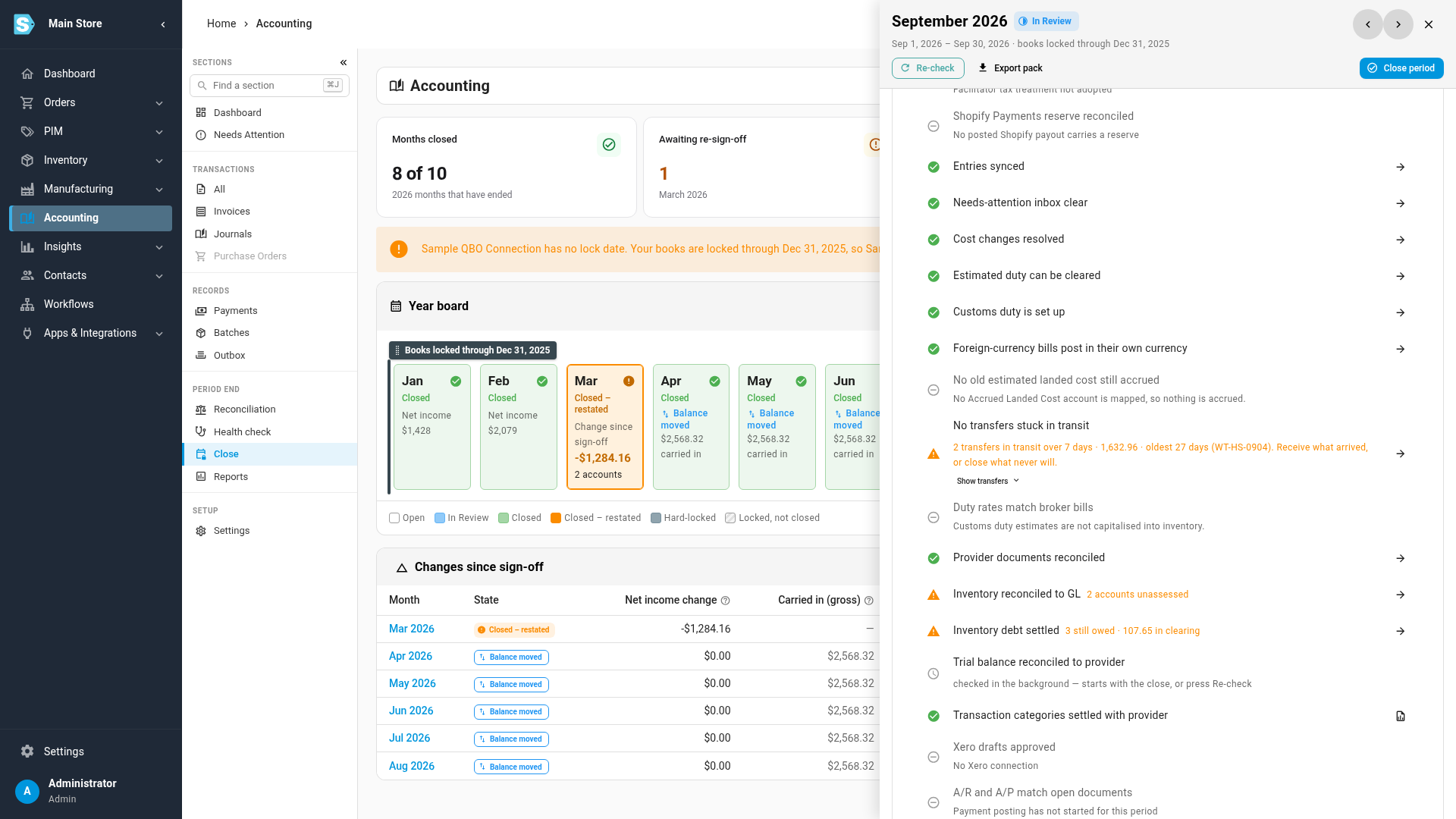
Go to Accounting → Close and click the tile of the month you're closing on the Year board. Its drawer opens on the right, with the Close checklist.
-
Find No transfers stuck in transit, in the Sync & reconciliation group. A green tick means every transfer shipped more than 7 days before the month end had been received by then. An amber row names how many hadn't, adds up their value still in Inventory In Transit, and names the oldest.
-
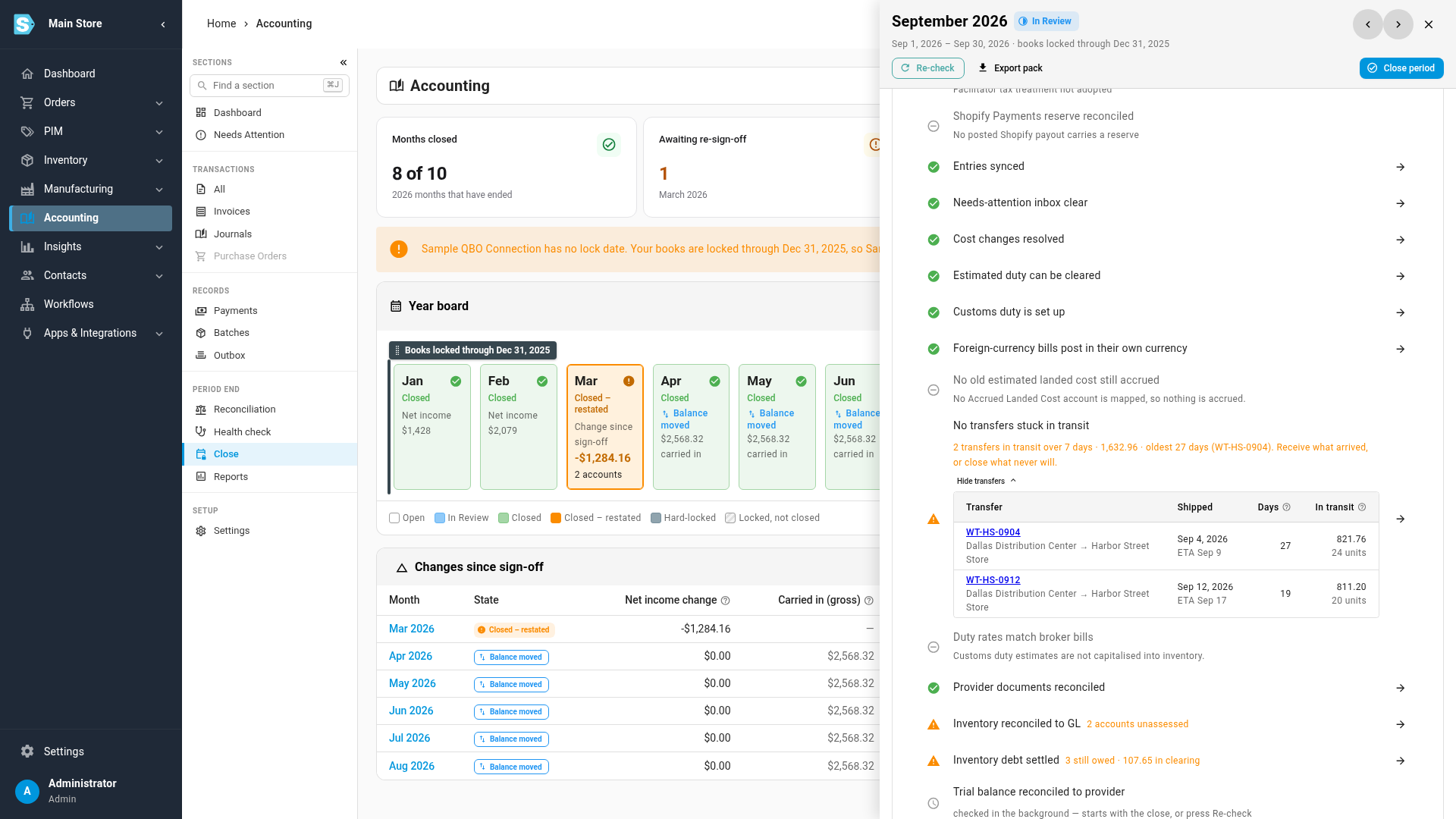
Click Show transfers under the row. For each transfer it lists the route, the day it shipped (and its ETA, when it has one), the Days it had been in transit at the month end, and the units and value still In transit. A partly received transfer counts only the units that hadn't arrived.
-
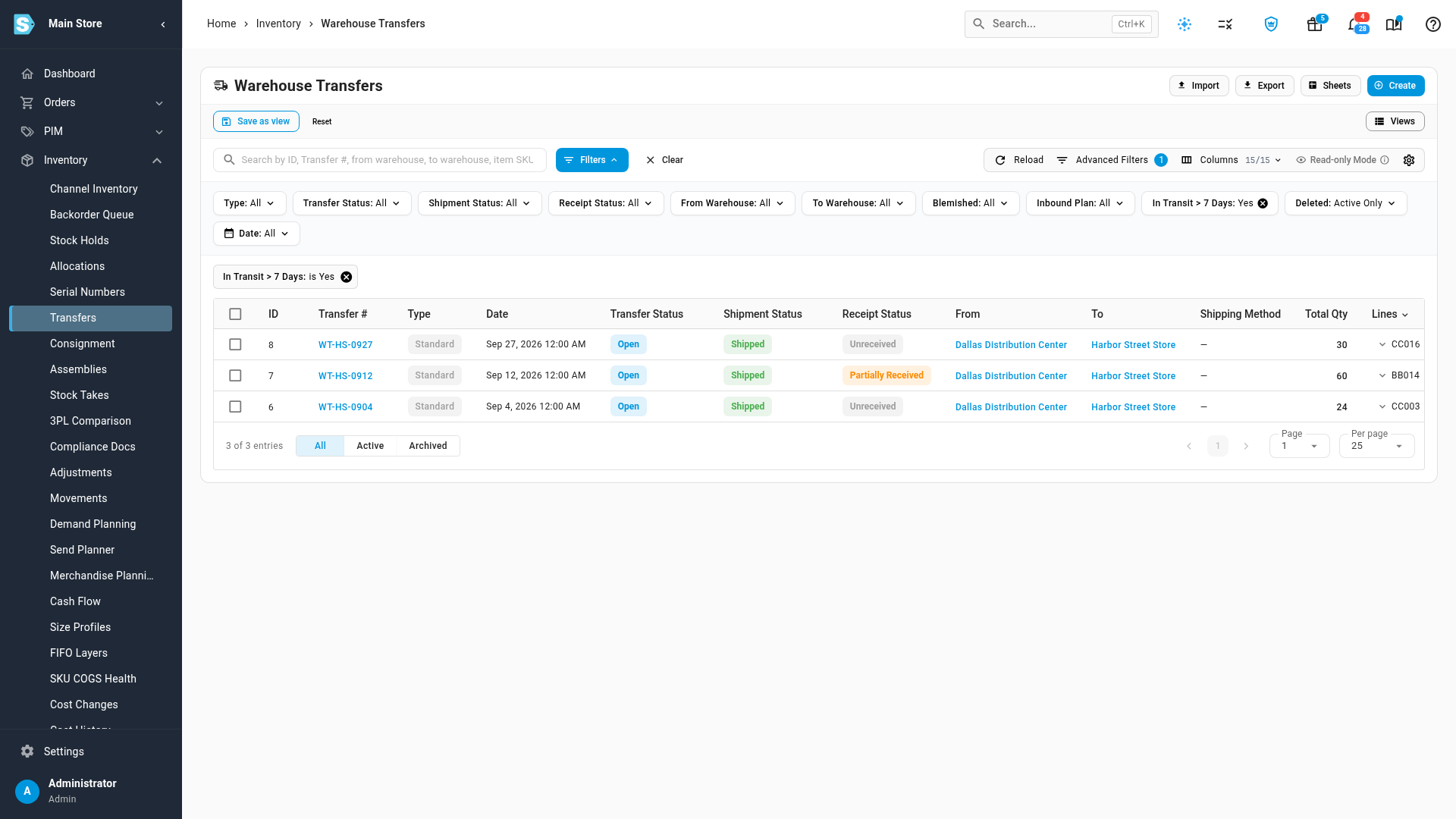
Click the arrow at the end of the row. Inventory → Transfers opens, filtered to In Transit > 7 Days. The list counts from today, so it can also show transfers that went overdue after the month ended.
-
Click a transfer number to open it, and settle it the way that matches what happened:
What happened What to do The goods arrived, and nobody recorded the receipt Click Receive and enter what came in, dated the day it arrived. See receive a transfer. Some or all of the goods will never arrive Open Actions and choose Close with Receiving Discrepancy. It writes off the units that never arrived, so they leave Inventory In Transit. See close and cost a transfer. The goods are genuinely still on the way Leave it. The row is a warning; acknowledge it at the close. 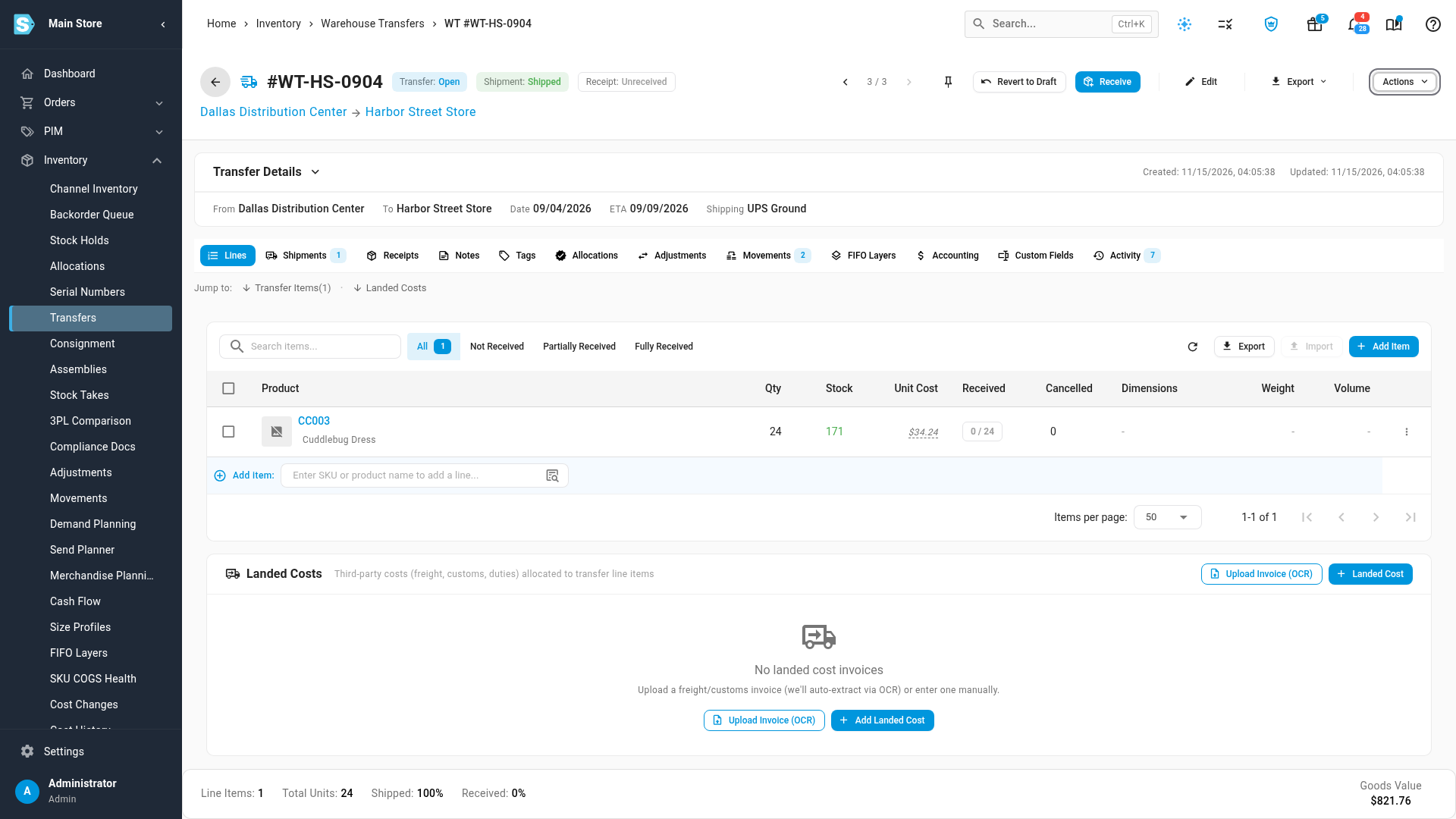
-
Repeat for each transfer. Then go back to Accounting → Close, open the month and click Re-check. When nothing is left past your limit, the row turns green.
The row is a warning, so you can close over it once you acknowledge it. A transfer on a long road, such as sea freight between countries, isn't wrong. Acknowledge it only when you know where the goods are.
Change the limit
The limit is Flag Transfers In Transit After (Days) in Settings → Inventory → Warehouse Transfers. It's 7 days by default. Enter a whole number of days, from 1 to 365, and click Save. The close check and the Transfers list's In Transit > 7 Days filter both use it, and the filter's name shows your number.
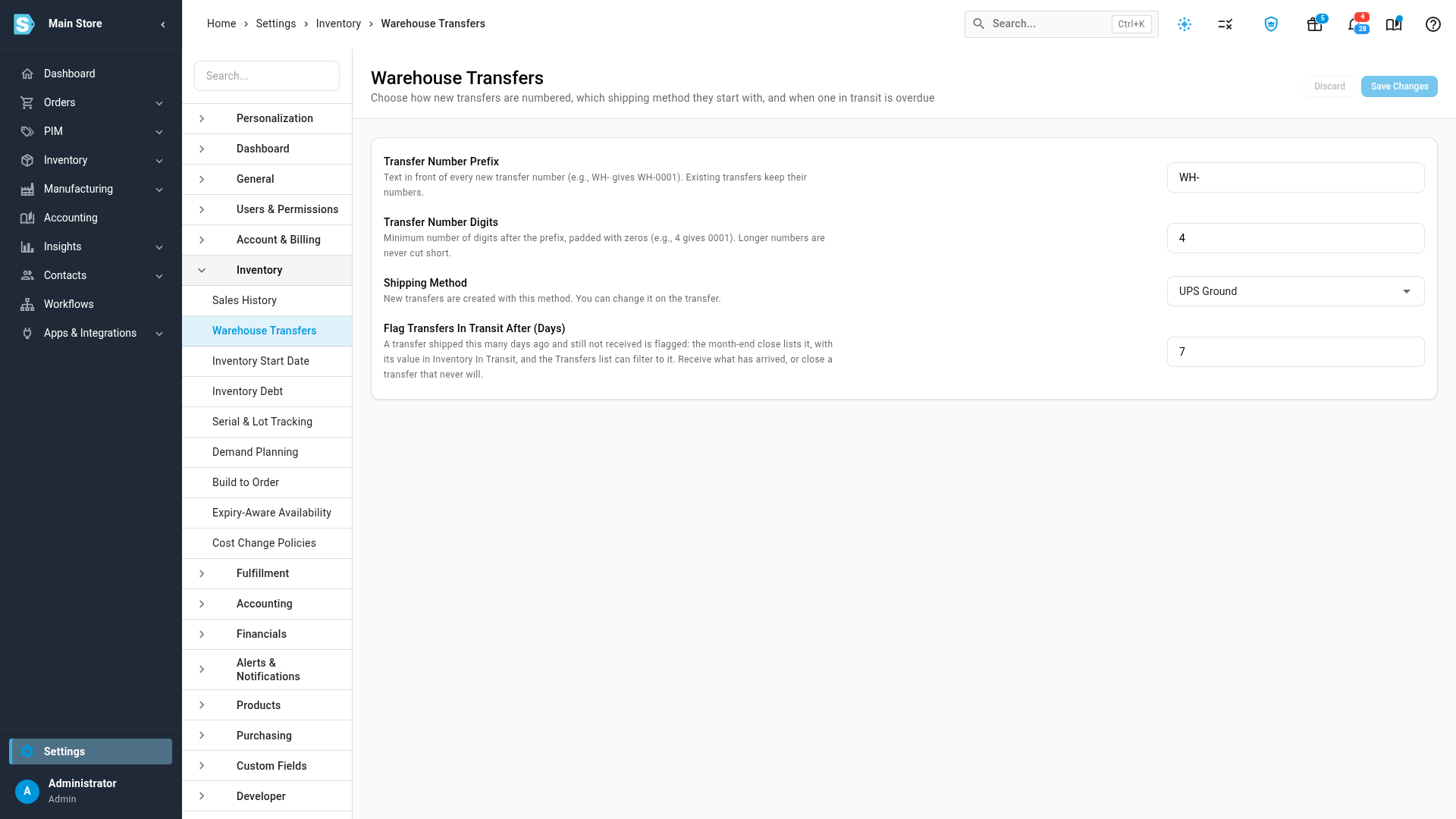
A new limit applies the next time the checks run. Click Re-check on a month in review to see it.
How the month end is judged
The check looks at each transfer as it stood at the end of the month, not as it stands today:
- A transfer received after the month end still counts for that month, even if you entered the receipt with an earlier date than another one.
- A transfer you closed before the month end doesn't count. One closed after it still counts for the units that hadn't arrived by the month end.
So re-checking an old month after you've caught up doesn't make it look cleaner than it was.
What the row leaves out
- Transfers to Amazon FBA or AWD, Walmart WFS, TikTok FBT and virtual warehouses. The marketplace receives those, not you, and its receiving often takes weeks. Check them on their inbound shipments instead.
- Transfers shipped inside the limit. A transfer that left three days before the month end is normal timing, not a problem.
- Drafts. A draft transfer hasn't shipped, so nothing is in transit.
For the row's exact wording, see the close checks.
Next steps
- Fix a failing check: the loop for every other row on the checklist.
- How transfers work: shipping, receiving and Inventory In Transit.
- Receive a transfer: record what arrived.
- Close and cost a transfer: close a transfer short.
- Close a month: sign the month off.
Video transcript
Before you close a month, check for transfers that shipped from one warehouse and never arrived at the other. Open Accounting from the main menu, on the left. In the sections list, find Period End, and click Close. Click the tile for the month you are closing. Its drawer opens on the right, with the checklist inside. Scroll down the checklist to the row called No transfers stuck in transit. It's a warning, so it never stops the close, but it asks you to look. Here, two transfers were shipped more than seven days before the month ended, and hadn't arrived. The row adds up what they are worth, still sitting in Inventory In Transit, and names the oldest. Click Show transfers, just under the row, and the list of transfers opens. Each one shows the warehouse it left and the one it was going to, and the day it shipped. Next to that is how many days it had been on the road when the month ended. Then the units, and the value, that were still out. This second one was partly received, so only the twenty that never arrived count toward the total. Click the arrow at the end of the row, and the Warehouse Transfers page opens, filtered to transfers in transit over seven days. It counts from today, so it also picks up anything that went overdue after the month ended. Click a transfer number to see it in full. If the goods arrived and nobody booked them, click Receive, and enter the quantity that came in. If some will never arrive, click Actions, then Close with Receiving Discrepancy. That writes off the missing units for good. You can change the limit yourself, in Settings, under Inventory, then Warehouse Transfers. The field is called Flag transfers in transit after days. Seven is the default, and you can set anything up to a year. Set it longer if your goods travel by sea, then click Save Changes.