Make sync problems block the close, and give each one an owner
Many accounting firms close a month only once everything is in the books: every entry has reached Xero or QuickBooks, and every sync error is fixed. By default, SKU.io treats both as warnings: the month can close once you acknowledge them. Turn on Unsynced or failed entries block the close and the month can't close while its entries are failing or still waiting to sync, unless someone allowed to override gives a written reason. Give each problem an owner and a due date, and every owner gets a daily email of what is still theirs.
A clean sync queue doesn't prove the books reconcile. Keep using the reconciliation checks for that: this setting makes sure nothing is left unsent or undecided.
Before you begin
- To change the setting, you need the Accounting → Manage Settings permission on the Roles screen. To assign entries, you need Accounting → Sync. See who can do what.
- To close a month over these checks, you need Accounting → Period Override.
- The owners you choose are people in your account. Deactivated users can't own entries.
Turn the setting on
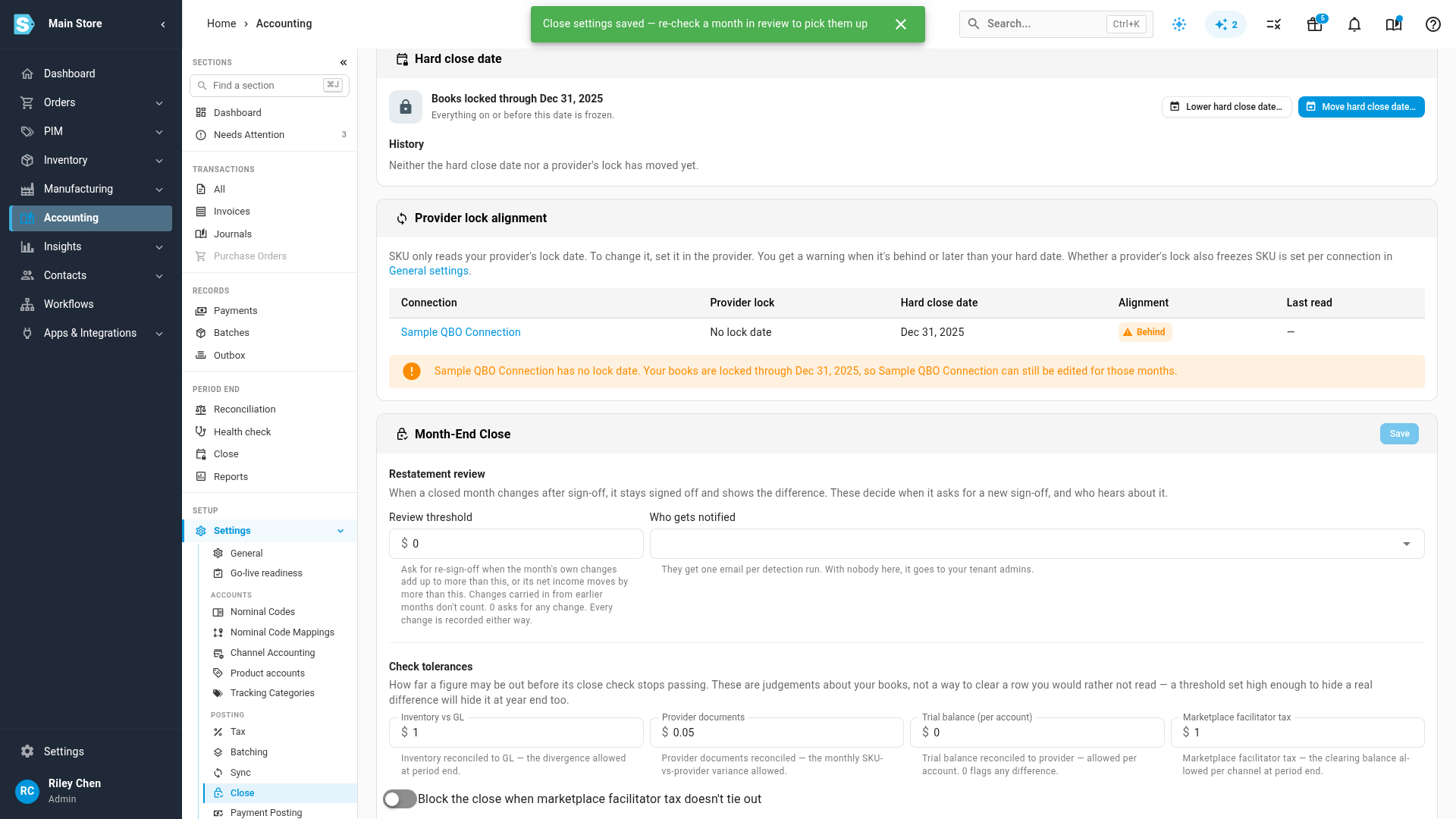
- Go to Accounting, then Settings → Close.
- Under Reconciliation policy, turn on Unsynced or failed entries block the close.
- Click Save.
From now on, two rows on a month's checklist are blocking checks:
- Needs-attention inbox clear: entries dated in the month that failed to sync, hit a conflict, were deleted in your provider, or need a decision.
- Entries synced: entries dated in the month that haven't reached your provider yet. An entry queued to sync in the last 15 minutes doesn't count: it's still on its way.
Months already closed are not affected.
Give each problem an owner
-
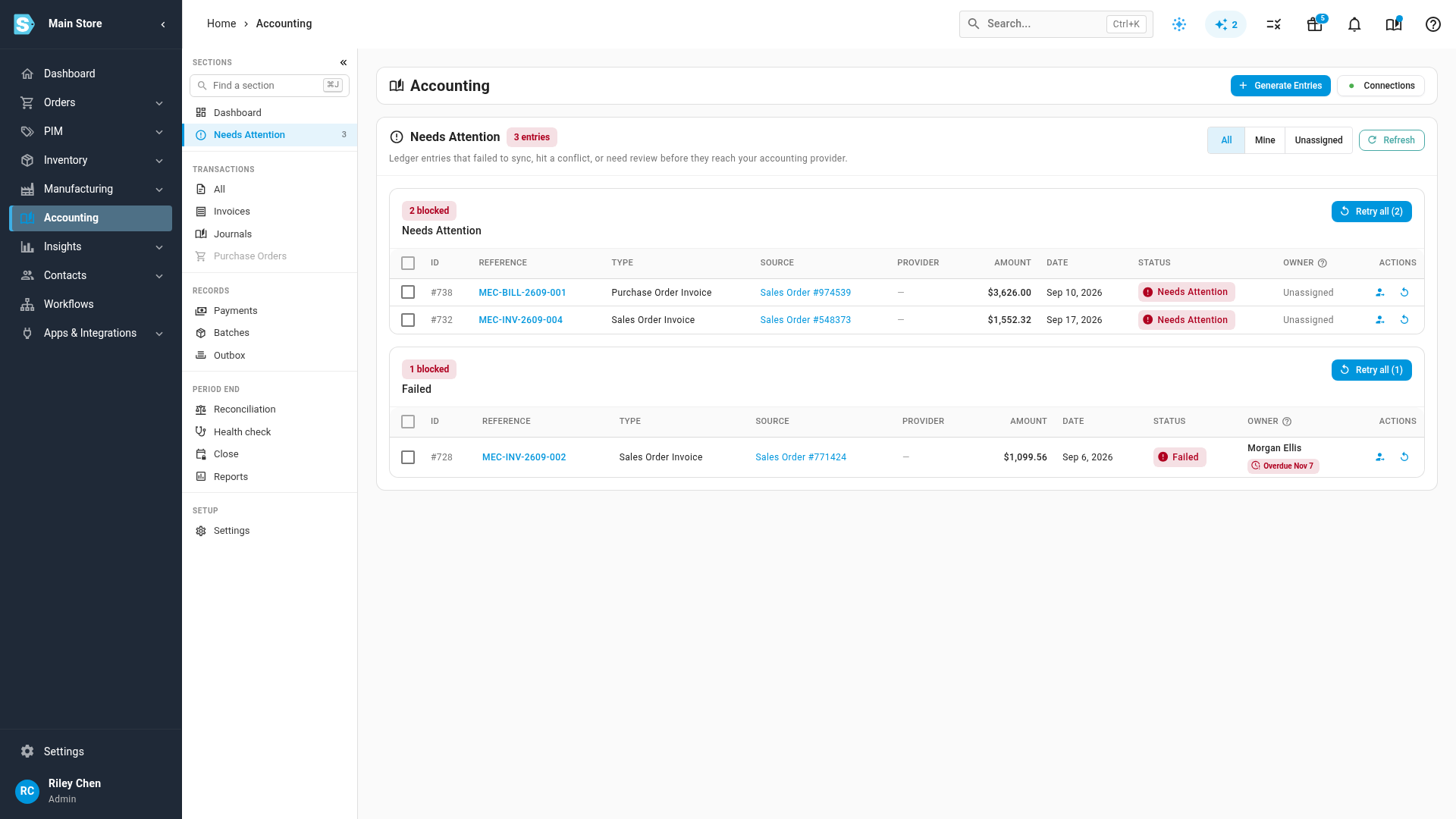
Go to Accounting → Needs Attention. Entries that failed to sync, hit a conflict or need a decision are grouped by cause.
-
The Owner column shows who is fixing each entry. An entry nobody owns reads Unassigned. A due date shows as a chip, and turns red with Overdue once it has passed.
-
Tick the entries you want to hand out. To pick every entry in a group, tick the box in the group's header row.
-
Click Assign selected.
-
In Owner, pick the person who will fix them. In Due date, pick when they are due.
-
Click Save. The Owner column fills in straight away.
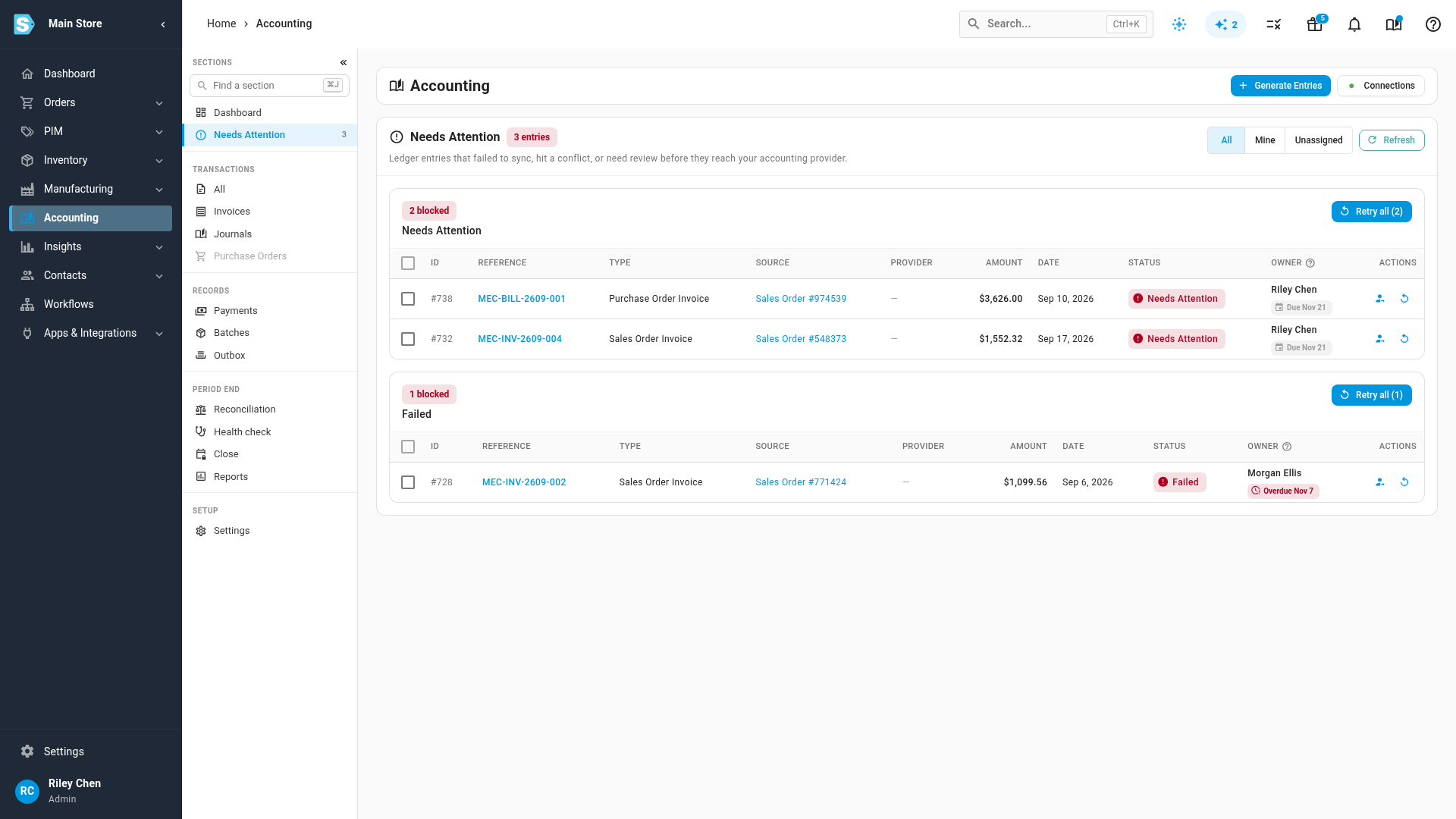
To change one entry, click the assign icon at the end of its row. When you assign several entries at once, a field you leave empty keeps what each entry has now, so you can set a due date without changing anyone's owner. To take an owner off, pick Nobody (unassigned); to remove a due date, tick No due date.
Each owner's own list
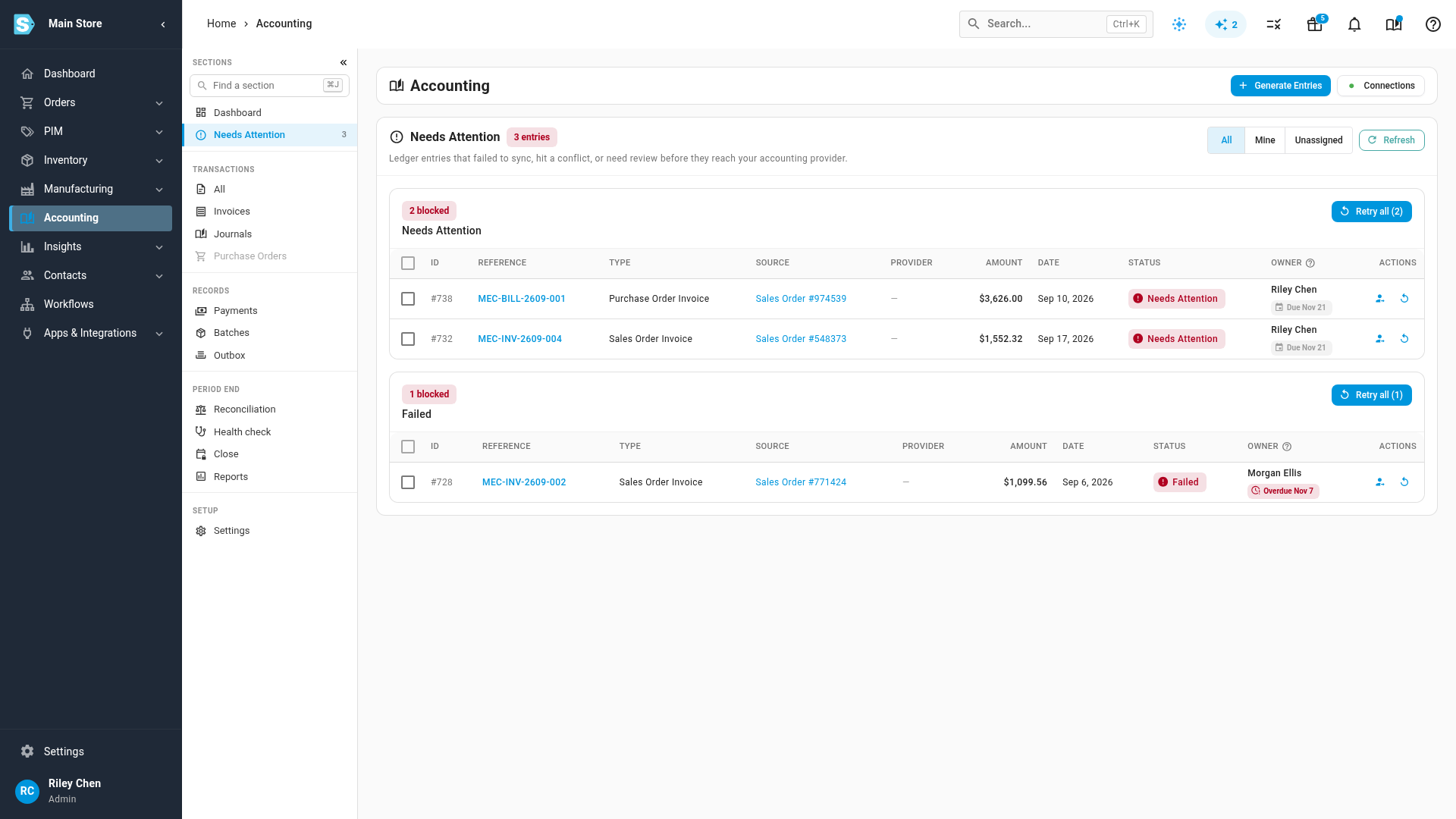
Every day, each owner gets an email listing the entries still assigned to them, overdue ones first. Its link opens Needs Attention with Mine selected, so they see only their own entries. Unassigned shows what nobody has picked up yet, and All shows everything.
The email stops once none of a person's entries need attention. Each person can turn the email or the in-app alert off under Sync Problems Assigned to You in their own notification settings. Nobody else, and no shared inbox, gets a copy.
An entry stays on its owner's list until it is fixed. When it syncs, it leaves Needs Attention and the list, and if it fails again later, it keeps its owner.
At the close
-
Go to Accounting → Close and click the month's tile on the Year board.
-
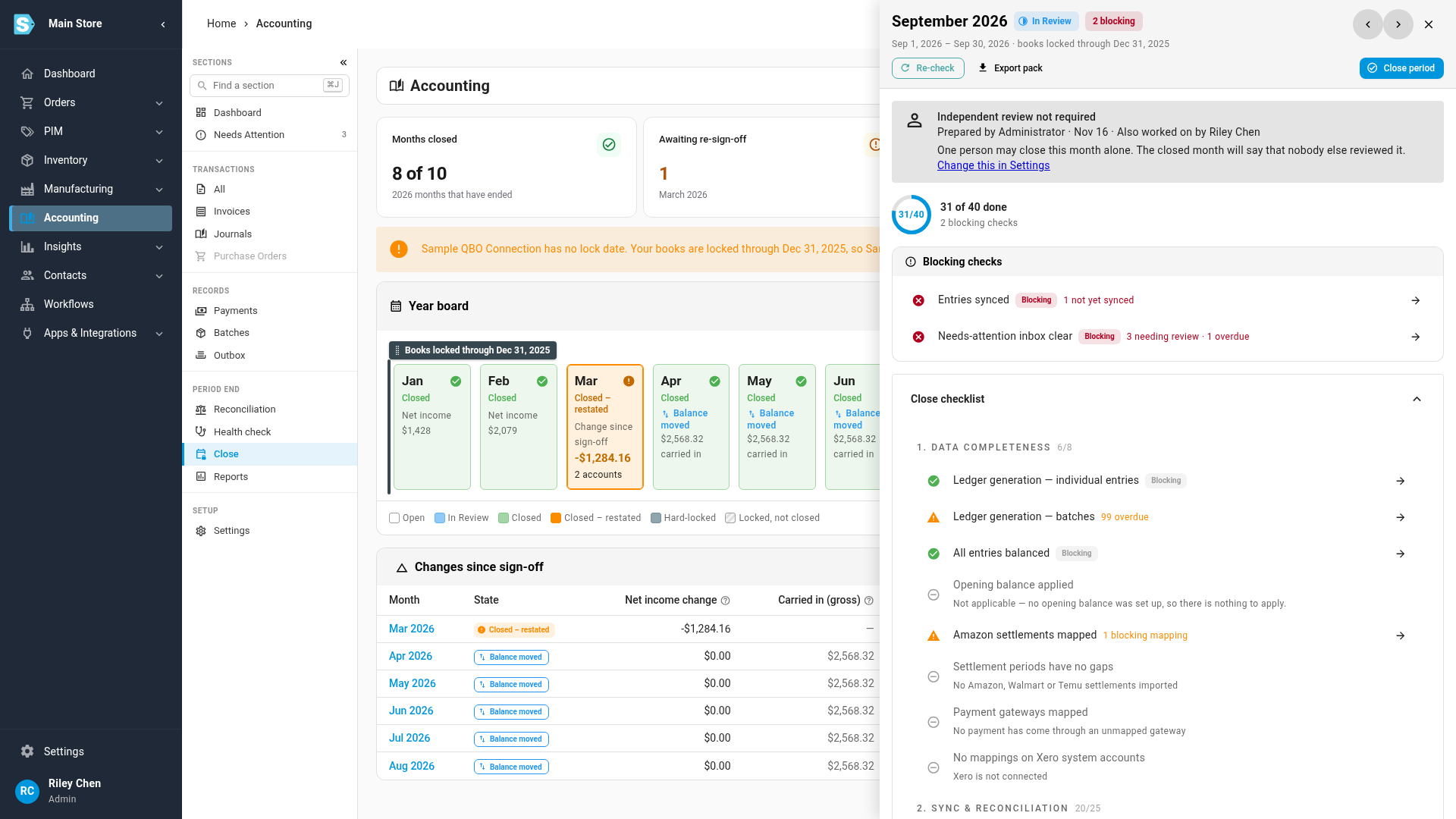
With the setting on, two rows can show a red Blocking chip:
- Needs-attention inbox clear, while the month has entries in Needs Attention. It reads, for example, 3 needing review · 2 unassigned · 1 overdue.
- Entries synced, while entries dated in the month haven't reached your provider. It reads, for example, 1 not yet synced, and adds how many were queued in the last 15 minutes and aren't counted.
-
Fix the failed entries, and give the waiting ones time to sync. Then click Re-check. Each row passes once nothing dated in the month is left in it.
See why entries haven't reached your provider explains what holds an entry back.
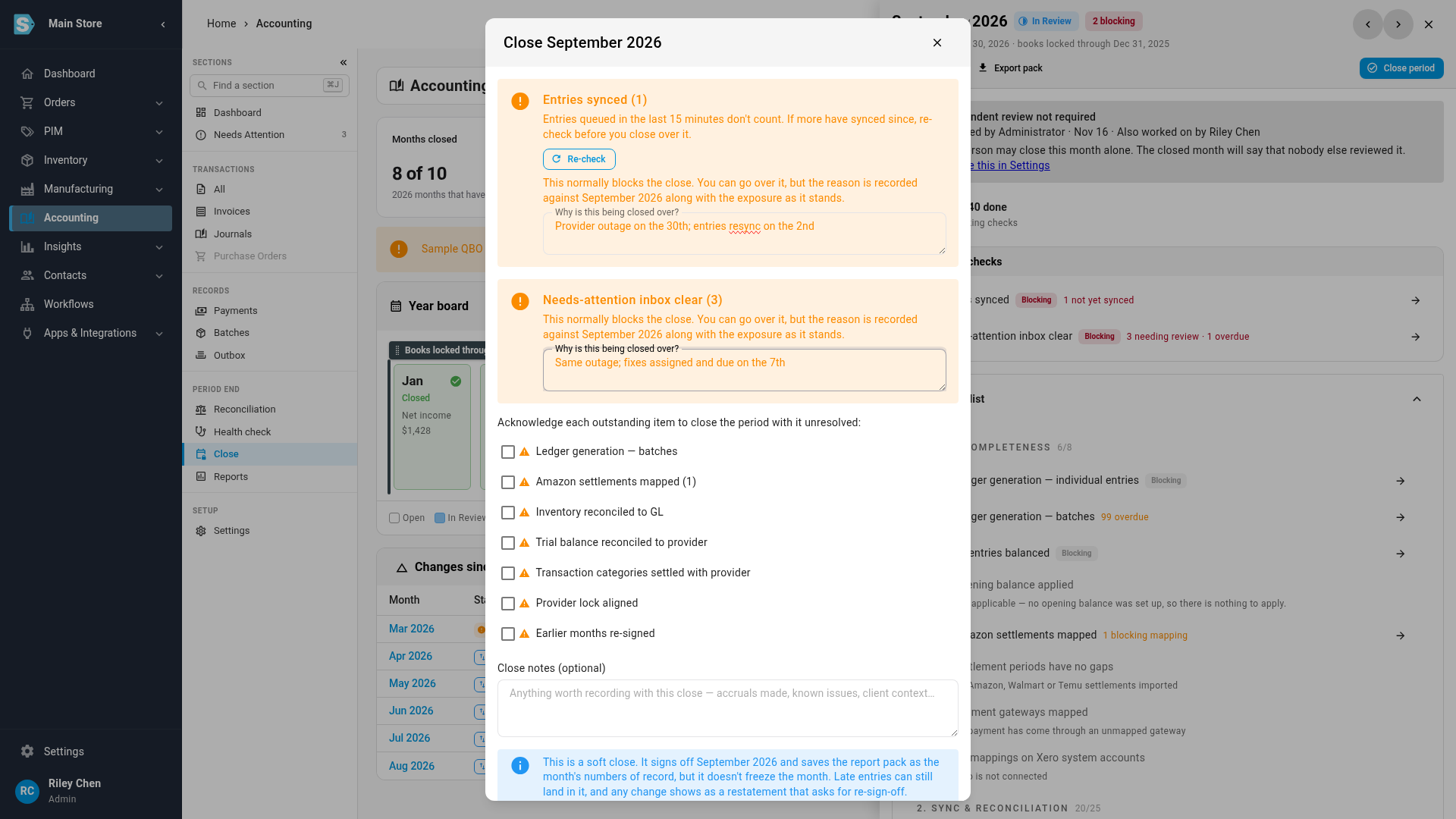
If the month has to close first, click Close period. The close dialog asks Why is this being closed over? for each blocking row, and every reason is required. Entries may have synced since the checklist last ran, so the Entries synced block offers Re-check before you close over it. Each reason is recorded against the month, with the counts at that moment: how many entries were unresolved, unassigned and overdue, and how many hadn't synced. Closing over a check fixes nothing: the entries stay where they are until someone fixes them or they sync.
With the setting off
Nothing changes from how the close has always worked. Entries synced and Needs-attention inbox clear are warnings: the month can close once you tick them in the close dialog. Owners, due dates and the daily email work either way.