Import and export freight rates
When your forwarder sends a rate card, you can load it into SKU.io from a spreadsheet instead of adding each rate by hand. You can also export your rates, change them in a spreadsheet and import the file back. The export and the import use the same columns, so an exported file imports with no changes. This guide covers both, column by column.
To add or change a single rate, see Set up freight rates.
Before you begin
- To import, you need permission to add freight rates (
freight_rates.create) and to change them (freight_rates.update). Archiving a rate from a file also needs thefreight_rates.deletepermission. Without the add permission, you don't see Import. - Each supplier and product your file names must already exist in SKU.io.
- Use a CSV, TSV or Excel file, or paste the rows.
Steps
- Go to Settings → Purchasing → Freight Rates.
- Click Import. The Import Freight Rates dialog opens on Upload.
- Click Download Template for a file with the right headers and three sample rows.
- Fill in your rates, one row per rate, and save the file.
- Drag the file onto the dialog, or click Choose File.
- Click Next: Map Columns.
- Check that each of Your Column maps to the right field under Maps To.
- Click Next: Validate.
- Check the counts and any rows with errors.
- Click Import N Freight Rates.
- When the import finishes, click Close.
The rates list reloads with your new and changed rates.
Upload the file
The Upload step offers three ways in:
- Download Template gives you an Excel file with every column and three sample rows: a supplier rate of 11.8% of goods value, ocean from CN to US; a lane rate of 4,200 USD per container, ocean from CN to US, for 2026; and a default air rate of 4.5 USD per kg with a minimum of 150. Replace the samples with your own rates.
- Choose File, or drag a CSV, TSV or Excel file onto the dialog.
- Paste CSV/TSV data. Paste the rows, with the header row first. Choose the Column separator: Auto, Comma, Tab or Semicolon.
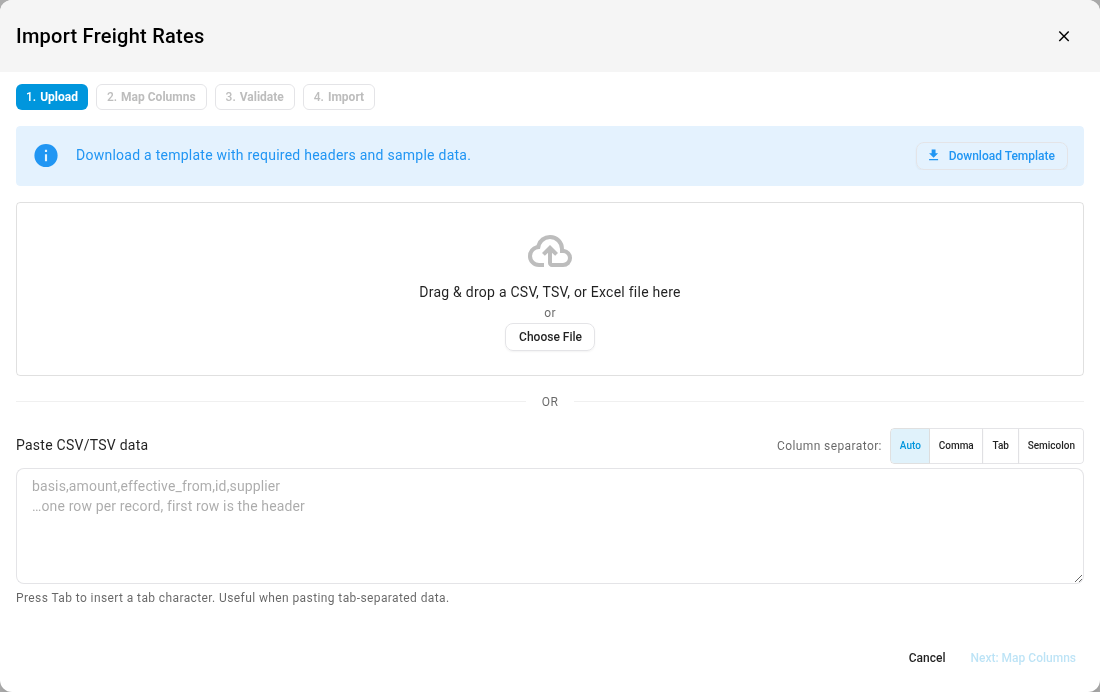
Next: Map Columns stays greyed out until there is data to read.
Map the columns
Headers that match a field name exactly, such as Transport Mode or Effective From, map themselves. The template's headers all do. For any other header, choose the field it holds in Maps To, or choose to skip the column. Basis, Rate and Effective From are required, so they're marked with an asterisk.
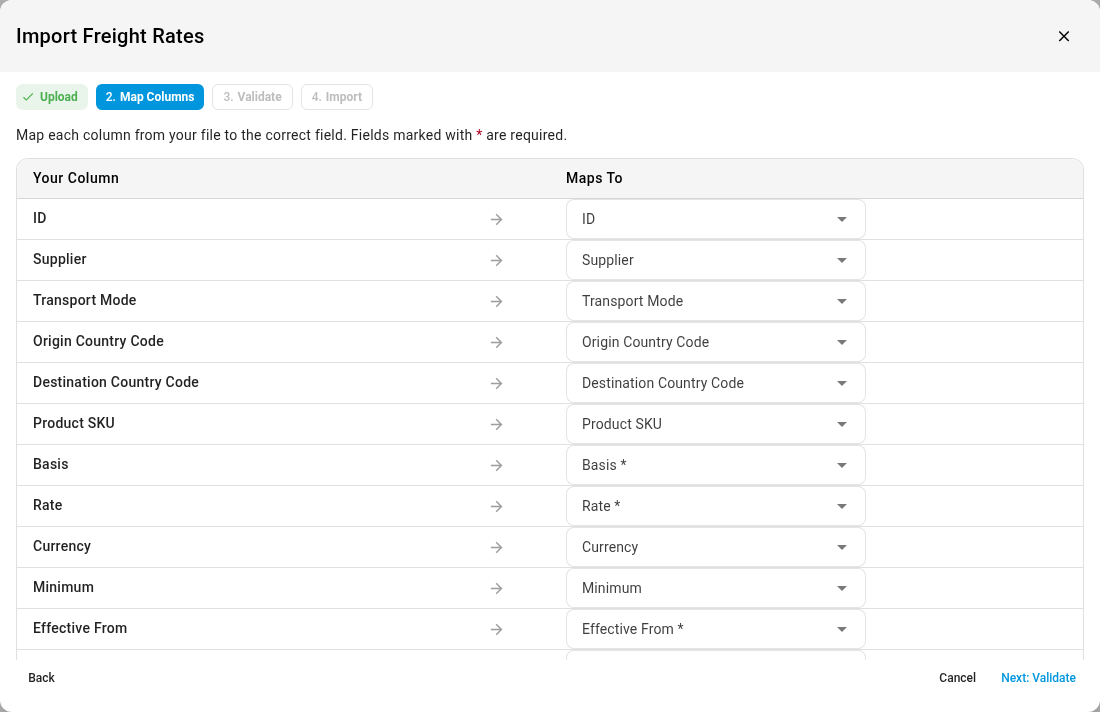
The Mapped Data Preview shows your first five rows as SKU.io reads them. If a required field isn't mapped, you see Missing required mappings with the fields you still need.
Validate
SKU.io checks every row in the background. You can follow it in the job tray. When it's done, the cards count the New rates, the Updates to existing rates, the Unchanged rows and the Errors. Filter the rows with All, Valid and Errors to read each row's problem.
Rows with errors are skipped. The rest import, so you can fix the bad rows afterwards and import just those. To start again, click Discard Import.
Import
Click Import N Freight Rates, where N is the number of valid rows. The import runs in the background. When it's done, you see how many rates were created, updated and unchanged, and how many failed. SKU.io checks your permissions again for each row as it imports, so a row can fail here even though it passed validation.
Open freight estimates that use a changed rate are recalculated in the background. Estimates already booked at receipt keep what they booked.
How a row finds the rate it updates
For each row, SKU.io looks for an existing rate in this order:
- ID filled in: the row updates the rate with that ID. An ID that doesn't exist is an error.
- ID blank: the row updates the rate with the same Supplier, Product SKU, Transport Mode, Origin Country Code, Destination Country Code and Effective From.
- No match: the row creates a new rate.
On an update, a column your file leaves out entirely keeps the stored value. A blank cell in a column your file does include clears that value. A row that matches its stored rate exactly counts as Unchanged, and nothing happens to it.
Columns
The headers are the field names below, in the same order as the export and the template. Type the accepted values in lower case, as listed. Capitals don't matter.
| Column | Required? | Format | Accepted values and notes |
|---|---|---|---|
| ID | No | Whole number | The rate's ID, as in the ID column on the rates list. Leave it blank for a new rate, or to match by scope and start date. |
| Supplier | No | Text | A supplier's name, as it's spelled in SKU.io. Capitals don't matter. Blank means any supplier. |
| Transport Mode | No | Text | ocean, air, truck, rail or courier. Blank means any mode. |
| Origin Country Code | No | 2 letters | The country goods ship from, such as CN. Blank means any origin. |
| Destination Country Code | No | 2 letters | The country you receive into, such as US. Blank means any destination. |
| Product SKU | No | Text | A product's SKU, for a rate that applies to one product. Blank means all products. |
| Basis | Yes | Text | What the rate is charged on. See Basis values. |
| Rate | Yes | Number, 0 or more | For percent_of_goods, a percentage: 11.8 means 11.8%, up to 1,000. For any other basis, an amount in the row's currency per kg, CBM, unit, shipment or container. |
| Currency | No | 3 letters | A currency code, such as USD. Blank means your default currency. A percentage rate ignores it. |
| Minimum | No | Number, 0 or more | The least the rate charges on one shipment, spread across its lines. Blank means no minimum. |
| Effective From | Yes | YYYY-MM-DD | The day the rate starts. Excel date cells also work. |
| Effective To | No | YYYY-MM-DD | The day the rate ends. Must be on or after Effective From. Blank means no end date. |
| Note | No | Text | Up to 2,000 characters. |
| Archived | No | 1 or 0 | 1, true or yes archives the rate. 0, false or blank keeps it active, or restores an archived rate. The export writes 1 or 0. A file without this column keeps each rate's current state. |
| Source | No | Text | In the export for reference only: manual, learned or imported. The import ignores it. New rates come in as Imported, and an updated rate keeps its own source, including whether a learned rate keeps itself up to date. |
Supplier, Product SKU, Transport Mode, Origin Country Code, Destination Country Code and Effective From together identify a rate when the ID is blank.
Basis values
Type the value in the Basis column, not the name you see on screen. Spaces and hyphens work in place of underscores, so per kg is fine.
| Type in the file | Shows on screen as |
|---|---|
percent_of_goods | % of goods value |
per_kg | Per kg |
per_cbm | Per CBM |
per_unit | Per unit |
per_shipment | Per shipment |
per_container | Per container |
The on-screen names, such as "% of goods value", don't work in the file.
Row errors
A row with any of these problems is skipped, and the rest of the file still imports.
| Error | What to do |
|---|---|
| Freight rate with ID '…' not found. | Check the ID against the rates list, or blank it to match by scope and start date. |
| Supplier '…' not found. | Spell the supplier as it is in SKU.io, or add the supplier first. |
| Product '…' not found. | Check the SKU, or add the product first. |
| Currency '…' not found. | Use a currency code your account has. |
| The transport mode must be one of: ocean, air, truck, rail, courier. | Use one of those values, or leave the cell blank. |
| The basis must be one of: … | Use a value from Basis values. |
| The effective from is not a date. Use YYYY-MM-DD. | Write the date as, for example, 2027-01-01. The same applies to Effective To. |
| A percentage of goods cannot be more than 1,000. | Check the Rate. 11.8 means 11.8%. |
| The end date must be on or after the start date. | Fix Effective To. |
| This rate (same supplier, product, mode, lane and start date) is in the file more than once. | Keep one row for each rate, or add the ID to tell them apart. |
| These dates overlap freight rate #N (… to …). Close that rate or change the dates. | Two live rates with the same scope can't cover the same days. Give the older rate an Effective To, in the same file if you like, or change this row's dates. |
| Freight rate #N was used by estimates booked at receipt. Import a new version with a later start date instead of changing … | See Rates used by booked estimates. |
| You need permission to add freight rates. (or archive, or change) | Ask an admin for the permission the message names. |
Closing an old rate in the same file
The overlap check uses the dates your file gives the other rate. So to replace a rate, you can put two rows in one file: the old rate with an Effective To, and the new rate starting the next day. Archived rows (Archived = 1) skip the check.
Rates used by booked estimates
Once goods have been received at a rate, its figures can't change, because the estimates booked at receipt used them. A row that changes such a rate's Basis, Rate, Currency, Minimum, Effective From or what it applies to gets an error.
Instead, add a new row with no ID and a later Effective From, and give the old rate an Effective To the day before. You can still change a booked rate's Effective To, Note and Archived in place. To do it on screen instead, see When a rate saves as a new version.
Export your rates
- Go to Settings → Purchasing → Freight Rates.
- Filter or search the list to the rates you want. The All, Active and Archived buttons under the list decide whether archived rates are included.
- Click Export.
You get a CSV file named freight-rates- and today's date, with the columns above, and you see Export completed. To export only some rates, tick them and click Export in the bar above the list, then choose Selected or All.
Up to 1,000 rates download straight away. A bigger export runs in the background: you see Export started. Track it in the job tray., and you download the file from the job tray when it's ready.
Cells that start like a spreadsheet formula are made safe in the export, so the file opens without running anything.
Next steps
- Set up freight rates
- Use learned freight rates, to work rates out from your freight bills instead of typing them
- Import landed cost bills, to bring in the freight bills that learned rates come from
Video transcript
You can load a freight rate card from a spreadsheet instead of adding each rate. To start, go to Settings, which sits at the very bottom of the sidebar. In the settings menu, open the Purchasing group. Then choose Freight Rates from that group, and wait while the list of rates loads. Click Import, above the list of rates. The importer starts on its upload step. To start from the right columns, download the template. It has every column and three sample rates. Then drop your file here, or paste the rows, with the header row first. Then click Next: Map Columns, at the bottom of the dialog. Headers that match a field name map themselves. Basis, Rate, and Effective From are required, and are marked with a star. Check the preview, then click Next: Validate. Each row is then checked for errors and warnings, which can take a moment or two. Validate sorts the rows into new rates, updates, errors and warnings. Rows with errors are left out, so fix them in your file first. When everything looks right, click Import, and the rates are created. Importing takes a moment too, and then a short summary appears. It shows how many rates were created or updated. When you click Close, the imported rate joins the list. It starts on the date you gave it in the file. You can edit it later, like any other rate. To export, filter the list to the rates you want, then click Export. You get a file with the same columns, to edit and import back.