Ship international orders in a label batch
A label batch can buy labels for orders going to other countries alongside your domestic orders. For every order whose ship-to country is different from the warehouse's country, SKU.io builds a customs declaration and sends it with the rate request. When a product is missing a customs value, the order waits under Needs attention until you fill it in. You fill in each product once, for every order it's in, and SKU.io can save the values on the product so later batches don't ask again.
Before you begin
- A label account that sends customs forms is connected. EasyPost, Shippo, ShipStation, Starshipit, Shippit, Shiptheory and ShipRush all send customs forms. Shippo ships from US warehouses only. ShipStation declares customs in US dollars, converting other currencies with the order's exchange rate. A Shippit international order also needs the recipient's own phone number on its ship-to address. Amazon Buy Shipping and Ship with Walmart labels are domestic only. See Buy shipping labels in a batch for connecting an account.
- Your products have HTS codes and countries of origin, or you're ready to add them. Each product's own HTS code and country of origin are used first. When the product has none, its product type's Duty defaults are used (see Record a product's HS code and country of origin). Anything still missing is filled in during the batch.
- The orders have prices. Each line's customs value is its price on the order, after discounts. A free line (a gift, or a 100% discount) can't be declared at $0, so you enter a value for it.
- Your role has the Fulfillment Orders Ship permission (
fulfillment_orders.ship) to fill customs and buy labels. Saving a value to the product also needs permission to edit products. Without the Ship permission, the Fill customs dialog opens read-only.
Steps
-
Go to Orders → Fulfillments, and click the Orders tab.
-
Tick the orders you want to ship, domestic and international together, and click Create label batch in the bar above the list. You can also start from New batch on the Label Batches tab.
-
Leave Get rates right after creating switched on, and click Create batch & get rates. Domestic orders are rated as usual. International orders are rated with their customs declarations.
-
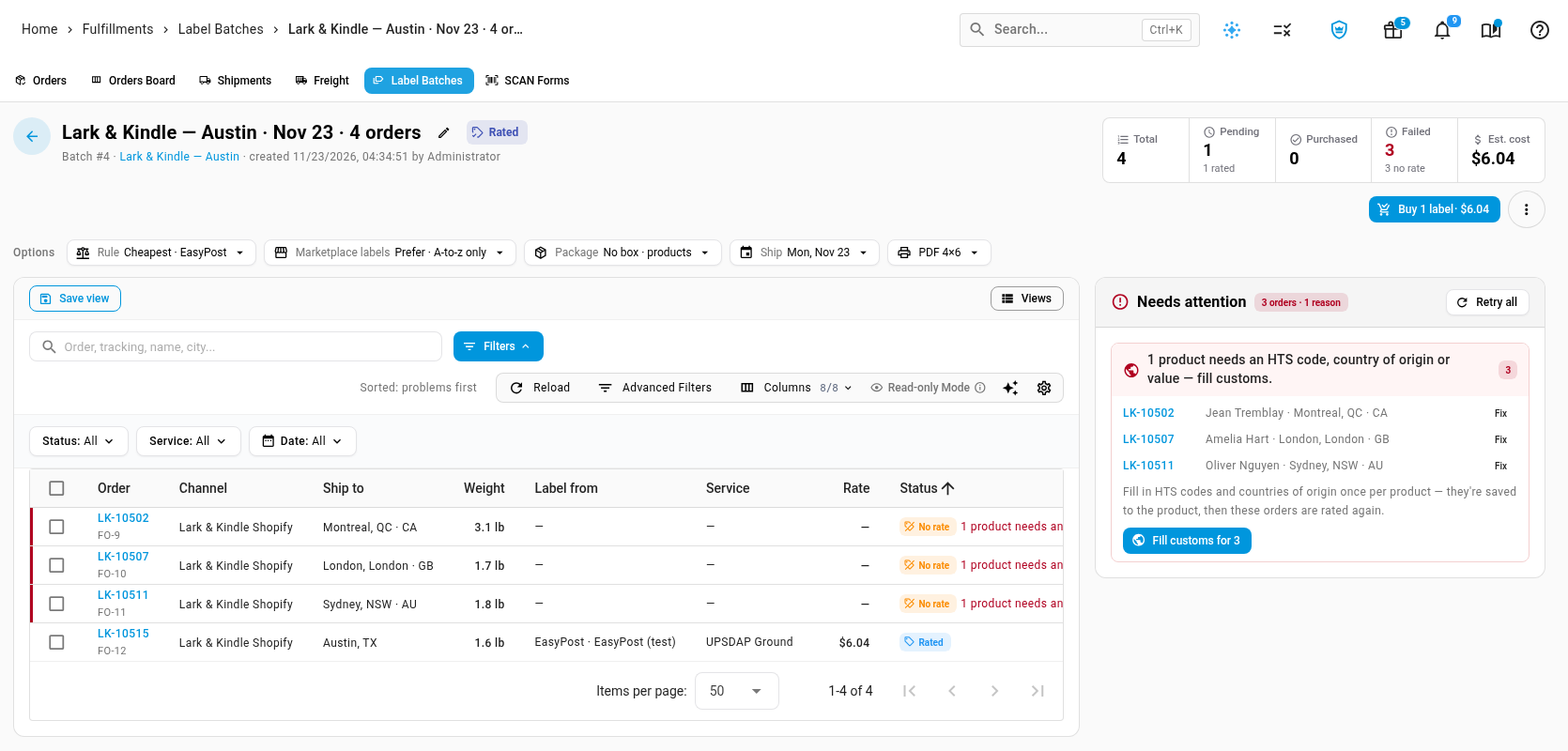
Look under Needs attention. Orders with a missing HTS code, country of origin or value are grouped there with the reason, for example 1 product needs an HTS code, country of origin or value — fill customs. Click Fill customs for 3 (the number is how many orders are in the group).
-
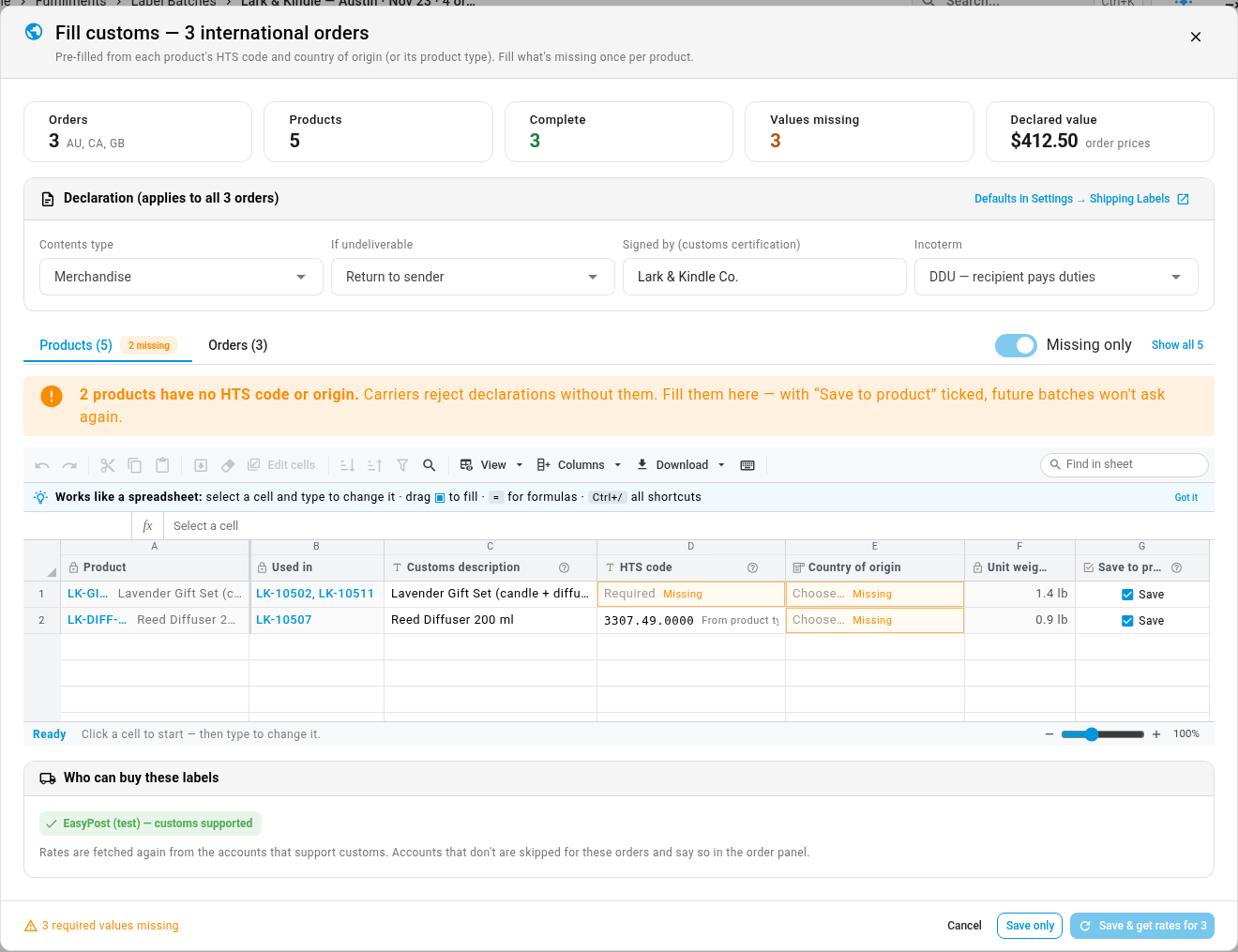
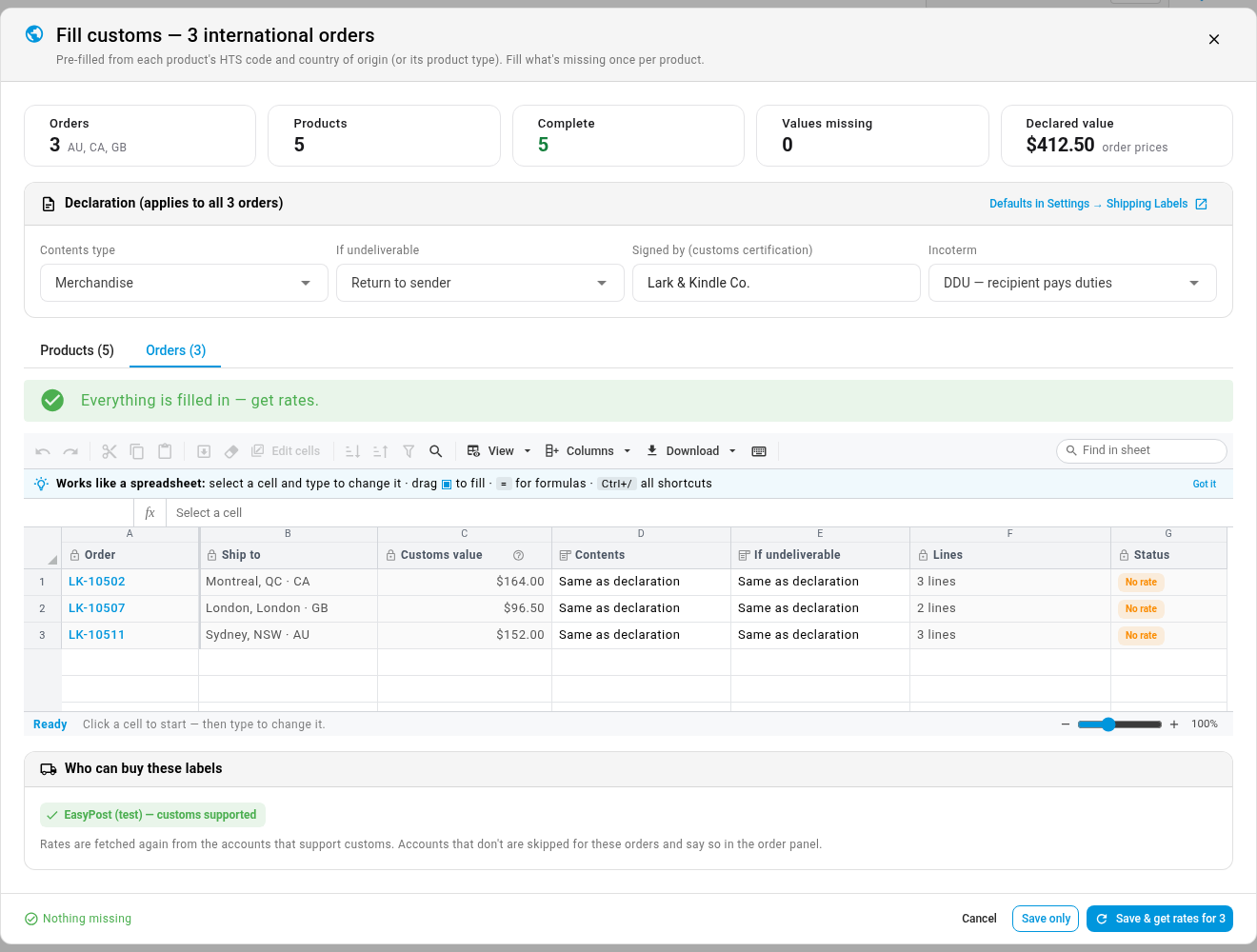
Check the Declaration card. It applies to every order in the dialog and starts from your defaults: Contents type, If undeliverable, Signed by (customs certification) and Incoterm.
-
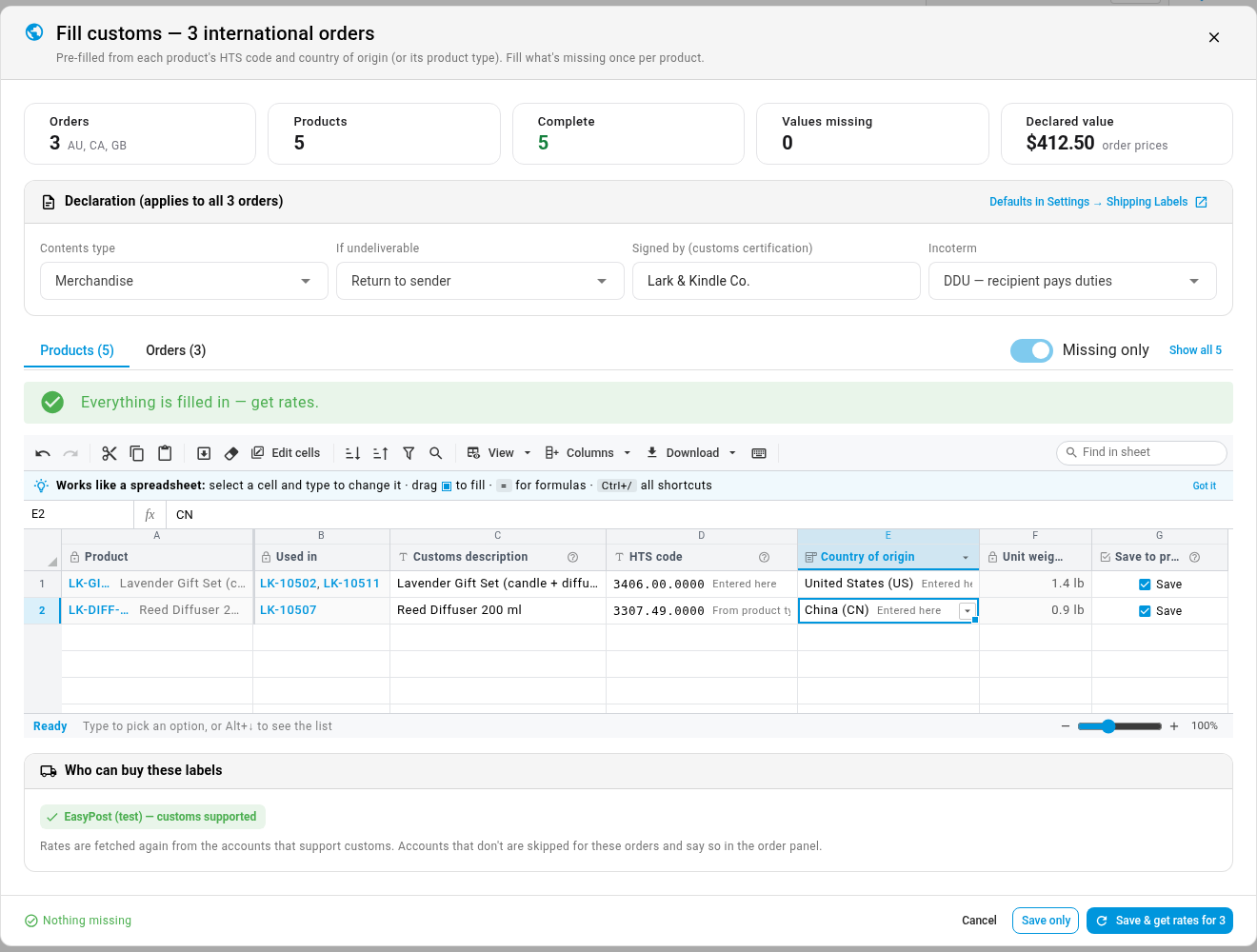
On the Products tab, fill in each value marked Missing. Click a cell and type the HTS code, or type a few letters of the country of origin and press Enter. Missing only is on, so only the products that need something are listed.
-
Leave Save to product ticked to save the values on the product, so later batches don't ask again. Untick it to use the values for these orders only.
-
Optionally, click the Orders tab to check each order's Customs value, change one order's contents type or undeliverable choice, or enter a value that's needed. See Check each order on the Orders tab.
-
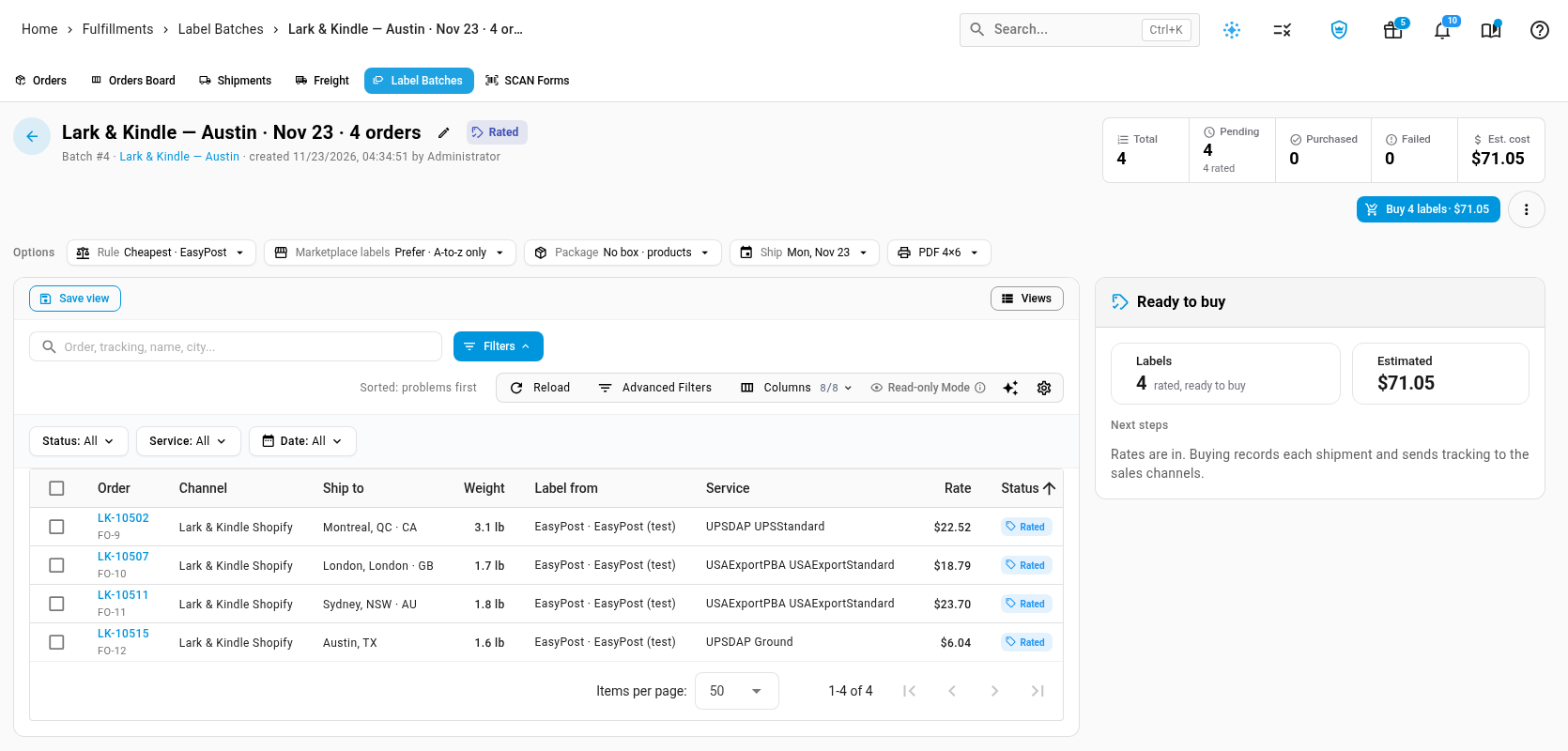
Click Save & get rates (for example Save & get rates for 3). The dialog closes, and the international orders are rated again with their customs. Save only keeps your changes without rating.
-
Buy and print the labels as you would for any batch. See Buy shipping labels in a batch.
What goes on the declaration
| Part | Where it comes from |
|---|---|
| Customs description | The product name. You can change it on the Products tab. Carriers take 50 characters. |
| HTS code | The product's HTS code, else its product type's default. Enter 6 to 10 digits; spaces and dots are fine. |
| Country of origin | The product's country of origin, else its product type's default. |
| Value | The order's line prices after discounts, in the order's currency. |
| Weight | The product's weight. |
| Contents type, if undeliverable, signer, incoterm | The Declaration card, which starts from your defaults. |
Under each value on the Products tab, a caption says where it came from: From product, From product type (with the type's name), Entered here or Missing. A product used in several orders has one row, so a value you enter applies to all of them.
When a label has more than one box, each box declares its own contents when SKU.io knows them. Otherwise the first box carries the full declaration.
Check each order on the Orders tab
The Orders tab has one row per order:
- Customs value is the order's total declared value, in the order's currency. Sort by it to spot an order close to a country's duty-free (de minimis) limit.
- Contents and If undeliverable start as Same as declaration. Change them to use a different choice for one order.
- AES ITN appears when a US export has more than $2,500 under one HTS code, which needs an Internal Transaction Number from AESDirect. Exports to Canada never need one.
- Lines opens the order's lines. A line with no price needs a unit value, entered under the grid, before it can be declared.
See who can buy the labels
Who can buy these labels, at the bottom of the dialog, lists each label account in the batch. An account that sends customs reads customs supported. One that doesn't, such as Amazon Buy Shipping, reads Domestic labels only and is skipped for international orders. In an order's rate list, those accounts say domestic labels only.
When no label account in the batch can send customs, the group reads International — no account sends customs, and the dialog shows None of your label accounts sends customs forms, with Connect a label account and Remove 3 from batch (the number is how many orders it removes). Connect one of the accounts above, add it to the batch, and get rates again. Or remove the orders, which stay open, and ship them another way.
Change one order's customs later
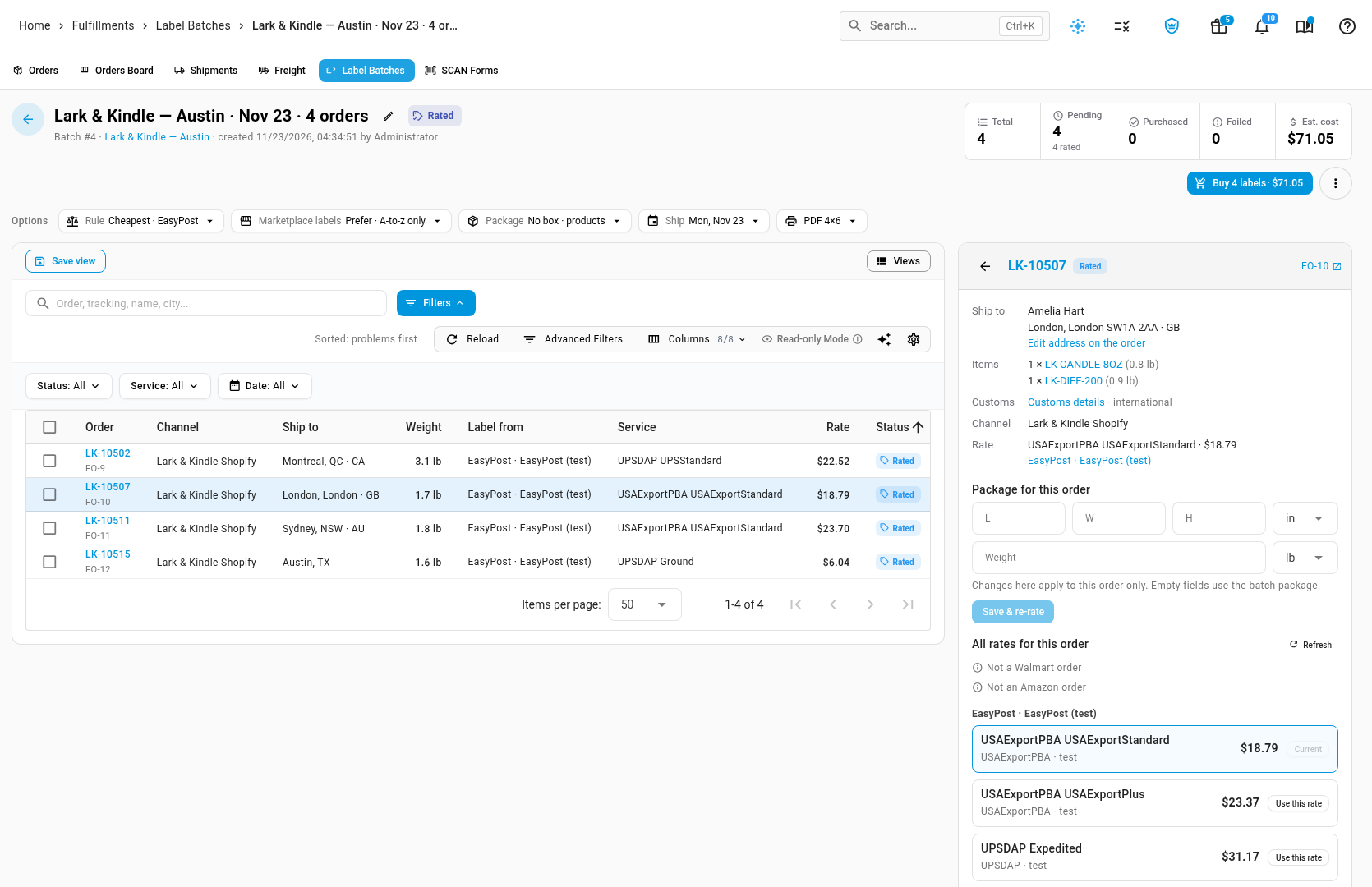
Click an international order in the batch to open its panel. Next to Customs, click Customs details (or Fill customs while a value is still missing). The same dialog opens for that order.
Buy one international label from the order
The Buy label dialog on a fulfillment order uses the same customs. When the order ships abroad and a value is missing, the rates area shows This order needs customs info with a Fill customs button. Fill in the values, and the rates load again.
Set your customs defaults
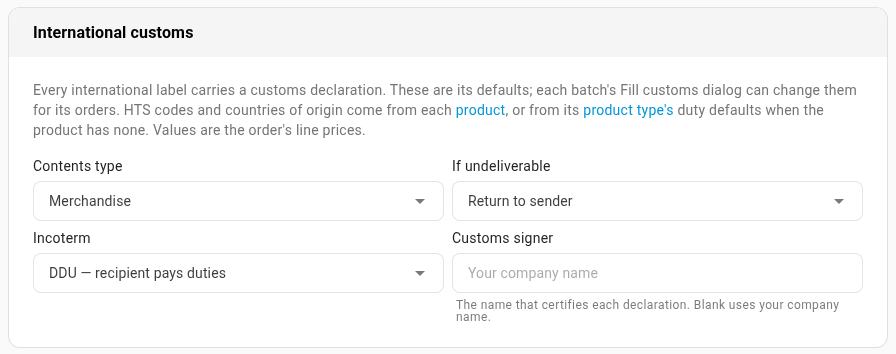
Go to Settings → Fulfillment → Shipping Labels, and find the International customs card:
- Contents type: Merchandise, Gift, Sample, Documents, Returned goods or Other (Other asks you to explain the contents).
- If undeliverable: Return to sender or Abandon.
- Incoterm: DDU — recipient pays duties or DDP — we pay duties.
- Customs signer: the name that certifies each declaration. Leave it blank to use your company name.
Click Save Changes. Each batch's Declaration card starts from these, and you can change them there for one batch.
Next steps
- Buy shipping labels in a batch
- Record a product's HS code and country of origin
- Buy labels in a batch with Shippit
- Create USPS SCAN forms
Video transcript
To ship international orders in one go, open Orders, then choose Fulfillments. Click the Orders tab at the top of the page, which lists your open orders. Tick the orders you want to ship, or use the box at the top to tick them all. Domestic and international shipments can share one batch.
In the bar above the list, click Create label batch, and a short form opens. Keep Get rates right after creating switched on, so the rates start at once. Then click Create batch and get rates.
SKU.io rates each international order with a customs declaration. It builds it from each product's HTS code and country of origin, and the order's line prices. The domestic order is rated as usual. Orders missing a customs value are grouped under Needs attention.
Click Fill customs to open the customs dialog for these orders. The strip at the top counts the orders, the products, the values still missing, and the declared value. The declaration applies to every order in the dialog. It sets the contents type, what happens to an undeliverable parcel, who signs, and who pays the import duties. These start from your defaults in Settings.
The Products tab lists each product once, across every order. Missing only is on, so you see just the products that need something. Under each value, a caption says where it came from, like the product type. Click a cell marked Missing in the HTS code column, type the code, and press Enter. For the country of origin, type the first few letters of the country, and press Enter to pick the match. Do the same for every product that still shows Missing. With Save to product ticked, the values are saved on the product, so you won't be asked for them again.
The Orders tab shows each order's customs value, in the order's currency. Sort by it to spot an order close to a country's duty-free limit. You can also change the contents type, or the undeliverable choice, for one order.
Who can buy these labels lists the label accounts that can send customs forms. Then click Save and get rates, at the bottom right of the dialog.
SKU.io saves your values, and rates the international orders again, with their customs attached. Every order now shows its price. The whole batch is ready to buy.
To check one order's customs later, click the order to open its panel. The Customs details link opens the same dialog, for just that order. When the rates look right, buy and print the labels as you would for any batch.