Connect ShipStation for freight
If you already book LTL through ShipStation, connect that ShipStation account to SKU.io. Your ShipStation freight rates then appear next to Warp's when you get a freight quote. Booking, tracking, documents and cancelling all work from the order, and you book at the rates of your own freight account.
ShipStation books freight through Worldwide Express or Unishippers, so one of those accounts must be connected in ShipStation (in ShipStation: Freight → Connect Your Account). Without one, SKU.io still saves the connection, but shows No freight account is connected in ShipStation… and won't quote with it.
Before you begin
- A ShipStation account with a Worldwide Express or Unishippers freight account connected.
- Your role needs the Integrations Edit permission.
- A ShipStation V2 API key. In ShipStation, go to Settings → Account → API Settings, and under V2 API click Generate API Key, then copy the key.
- ShipStation freight is LTL only. For full truckload or box truck rates, use another freight account, such as Warp.
Connect ShipStation
- In SKU.io, go to Settings, then under Fulfillment choose Freight. You can also open Apps & Integrations, find ShipStation Freight under Freight, and click Connect.
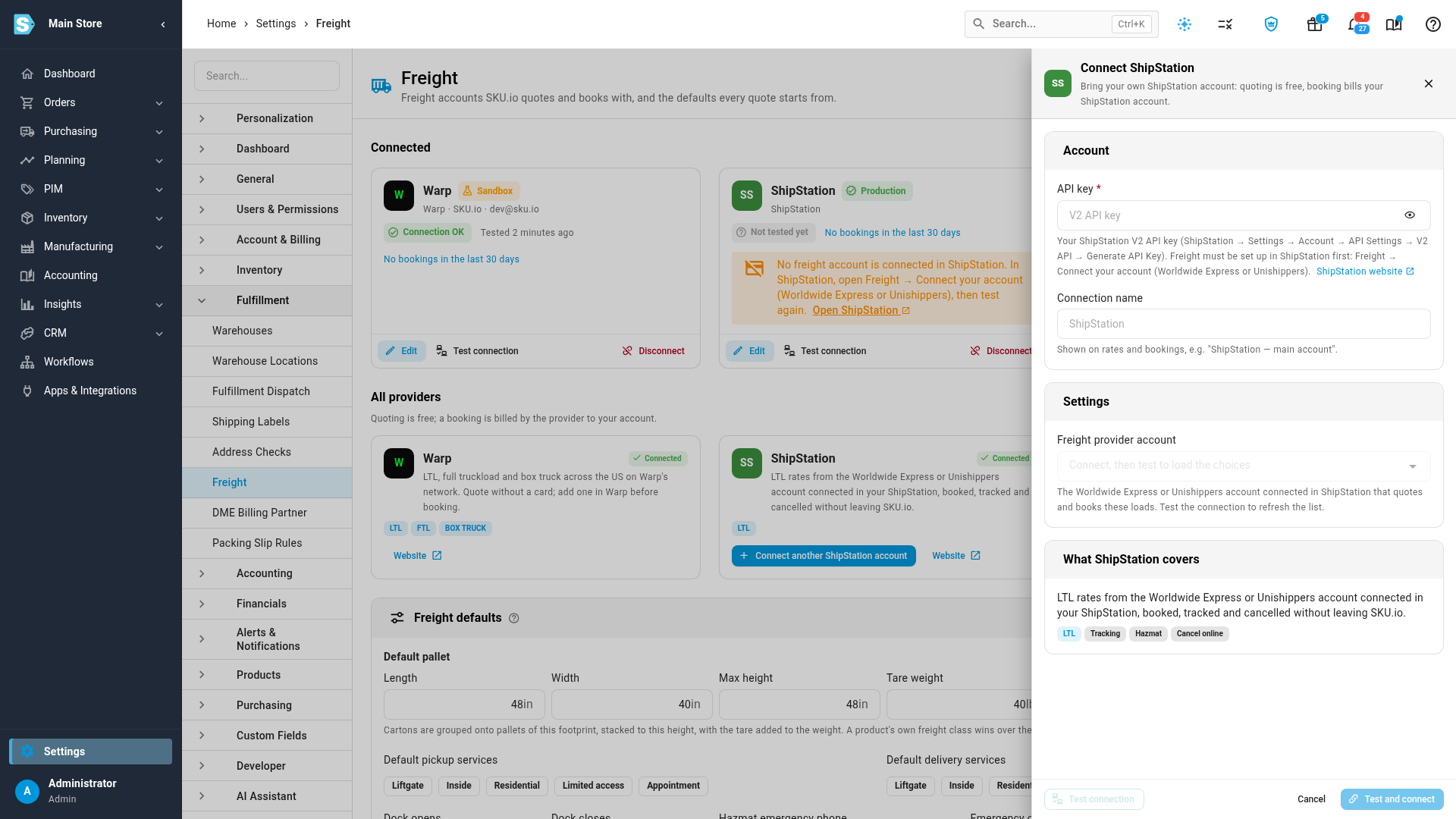
- Under All providers, click Connect ShipStation. Once one ShipStation account is connected, the button reads Connect another ShipStation account.
- Paste the key into API key. Optionally, give the connection a Connection name, which is shown on rates and bookings.
- Click Test and connect. SKU.io checks the key with ShipStation, saves the connection and loads your freight provider accounts. If ShipStation rejects the key, you see ShipStation didn't accept this key and nothing is saved.
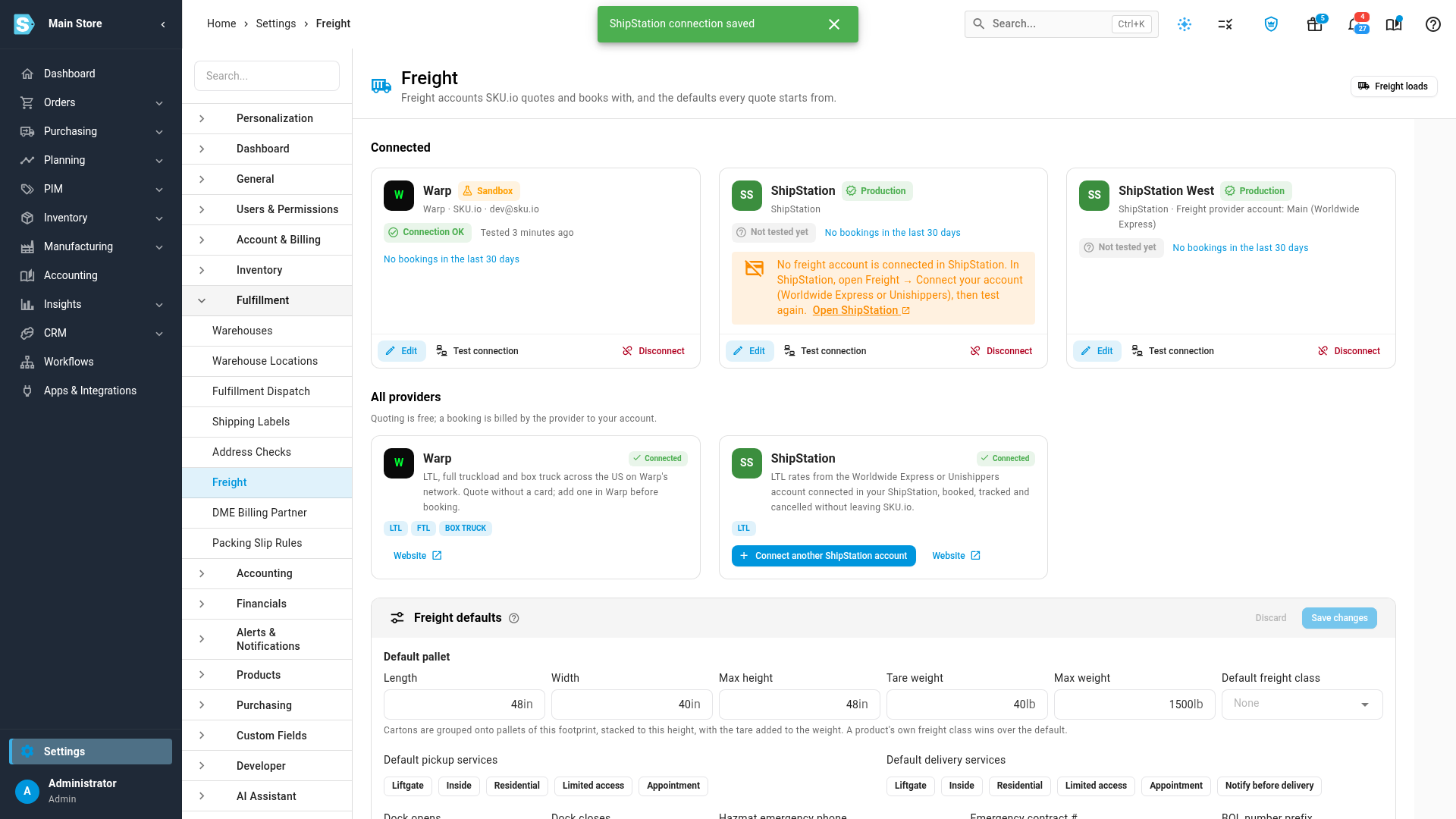
The connection appears under Connected.
Pick the freight provider account
ShipStation quotes and books with one freight provider account per connection.
- On the connection, click Edit.
- In Freight provider account, pick the Worldwide Express or Unishippers account to quote and book with. If the list is empty, click Test connection to refresh it.
- Click Save connection.
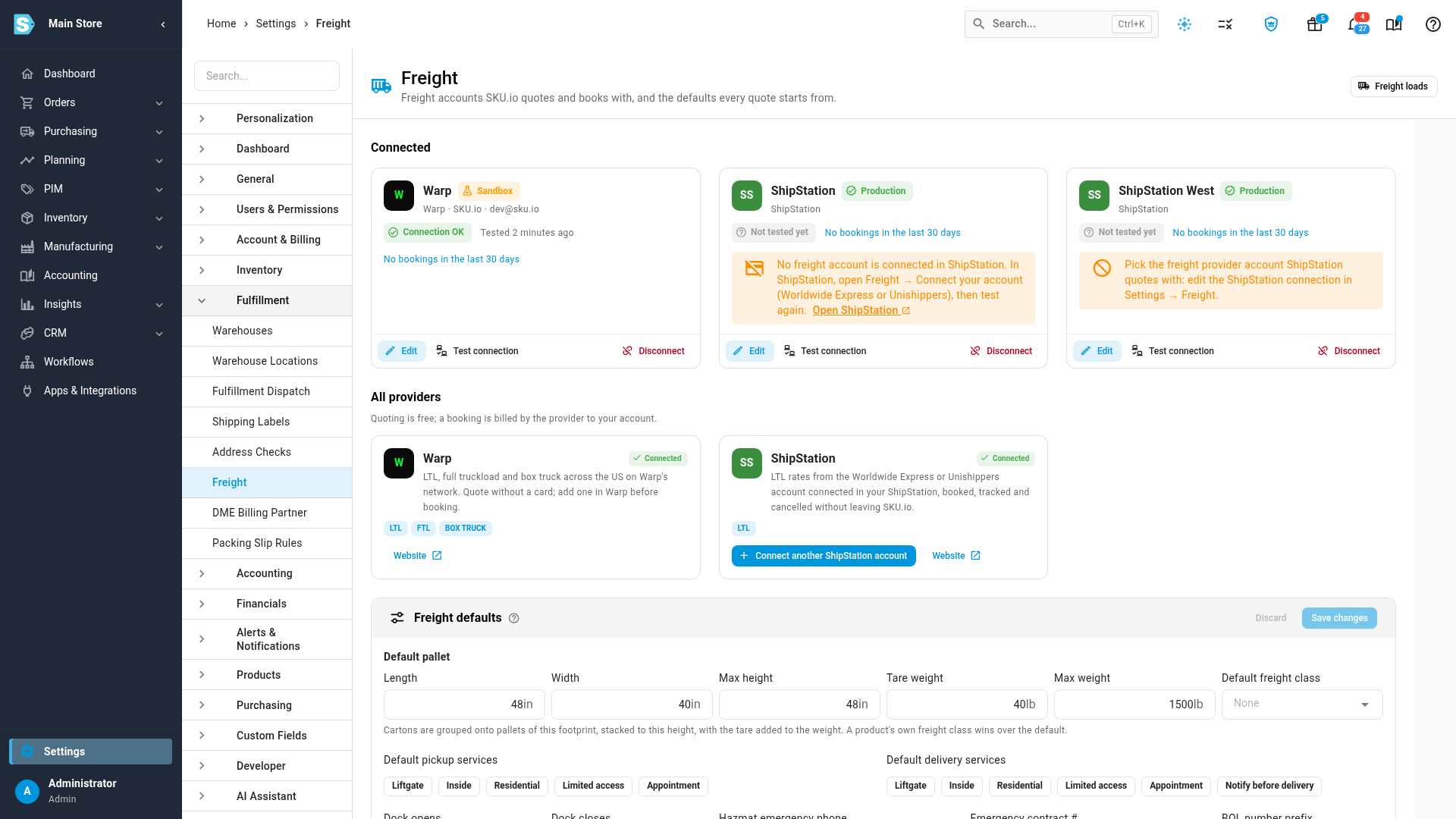
Until an account is picked, the connection shows Pick the freight provider account ShipStation quotes with and doesn't quote. If it shows No freight account is connected in ShipStation, connect Worldwide Express or Unishippers in ShipStation (Freight → Connect Your Account), then click Test connection on the connection and pick the account.
Quote and book through ShipStation
Nothing else changes. When you get a freight quote, ShipStation's rates appear in the same table as Warp's, labelled with the carrier and the freight provider. Booking, tracking, documents and cancelling work the same way, and the booking writes the bill of lading, PRO and carrier to the shipment.
If a booking isn't confirmed
If SKU.io doesn't hear back from ShipStation when you book, the load shows as Booking unconfirmed. Click Check booking. When SKU.io can prove what happened, it shows the load as booked, or lets you book again. When it can't tell yet, it asks you to look in ShipStation (Freight) before you book again, so you never book two trucks for one load.
More than one ShipStation account
You can connect several ShipStation accounts, each with its own freight provider account. Under Freight, use Connect another ShipStation account. Rates show which connection they came from.
Next steps
Video transcript
If your business already books LTL freight in ShipStation, you can connect it in Freight settings. Its rates come from the Worldwide Express or Unishippers account linked there, and it's LTL only. With one account already connected, click Connect another ShipStation account. Paste your ShipStation V2 API key, and the help under the field shows where to find it. Once the key is in, click Test and connect. SKU.io checks the key, and loads the choices for the freight provider account. If ShipStation has no freight account connected, the connection still saves, but it shows this warning, and it won't quote. Connect Worldwide Express or Unishippers in ShipStation, then test again. When a connection says Pick the freight provider account, it needs one more step. Click Edit on that connection to change its settings. In Freight provider account, choose the account to quote with, such as Main on Worldwide Express. Then click Save connection, and it's ready to quote. Now ShipStation's rates appear beside Warp's when you get a freight quote. Booking, tracking, documents and cancelling work the same way. To add another ShipStation account, use Connect another ShipStation account.