Set up products for freight
A freight quote builds its pallets from the products on the order, and takes each pallet's freight class, NMFC item, stacking rule and hazmat details from those products. Setting them on the product once means every quote and bill of lading gets them right. A freight class that's lower than the product's density suggests is the most common reason a carrier re-classes a load and bills more than the quote.
Before you begin
- The product needs its weight and dimensions (or its case's) in Shipping → Product Dimensions or Case Shipping Details. A quote counts a product with no weight as 0 lb, and a load with a 0 lb unit can't be quoted.
- Your role needs permission to edit products.
- For hazardous products, have the safety data sheet to hand.
Set one product's freight details
- Open the product and choose Shipping.
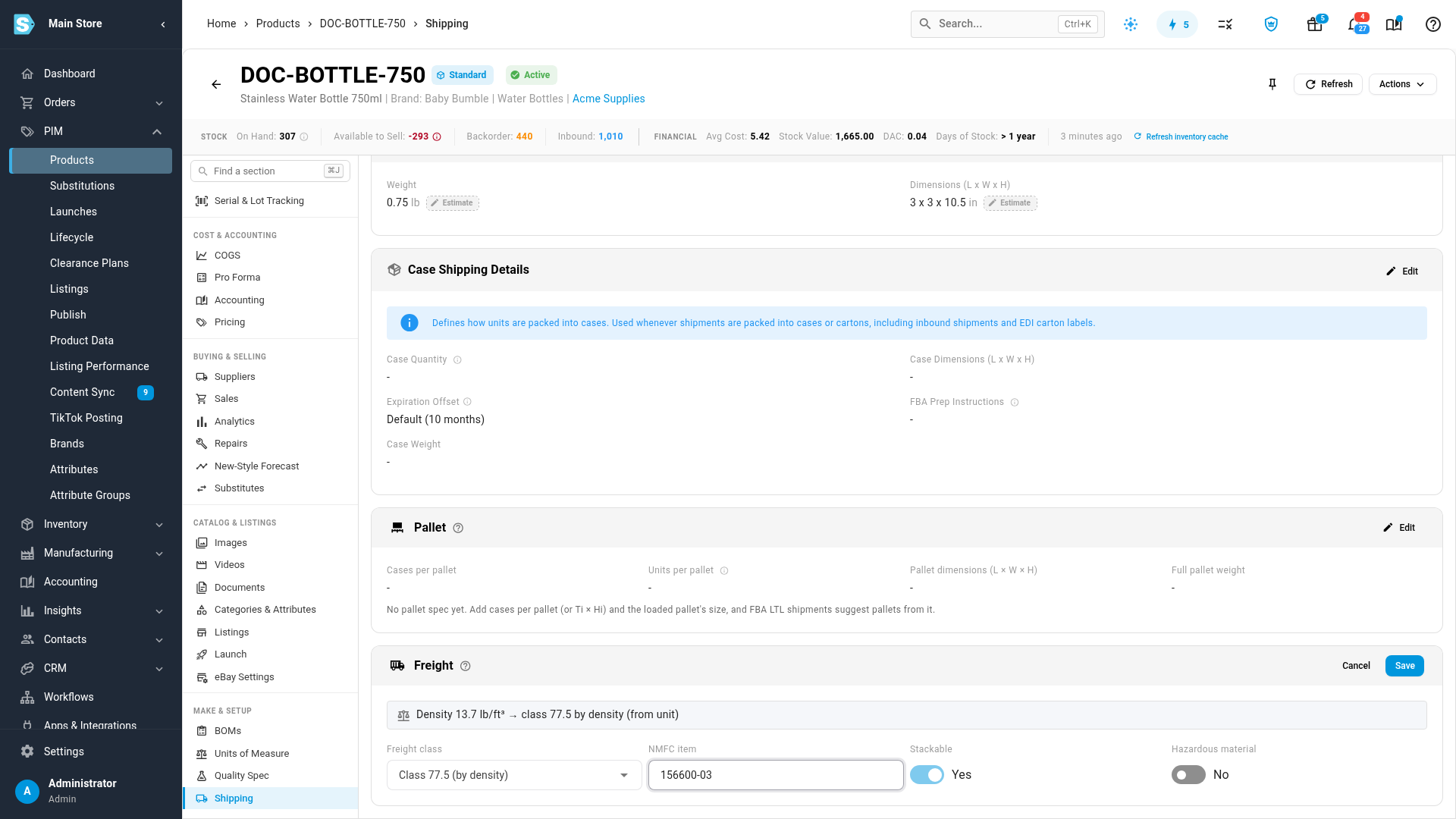
- Scroll to the Freight card. Its first line shows the product's density and the class that density suggests, for example Density 13.7 lb/ft³ → class 77.5 by density (from unit). It uses the case's weight and size when the product has them.
- To take the suggestion, click Use class. It saves straight away.
- To change anything else, click Edit.
- In Freight class, pick the class (50 to 500). The suggested class is marked (by density).
- In NMFC item, enter the item number, if you know it, such as
156600-03. - Turn off Stackable if carriers must not stack other freight on top of this product.
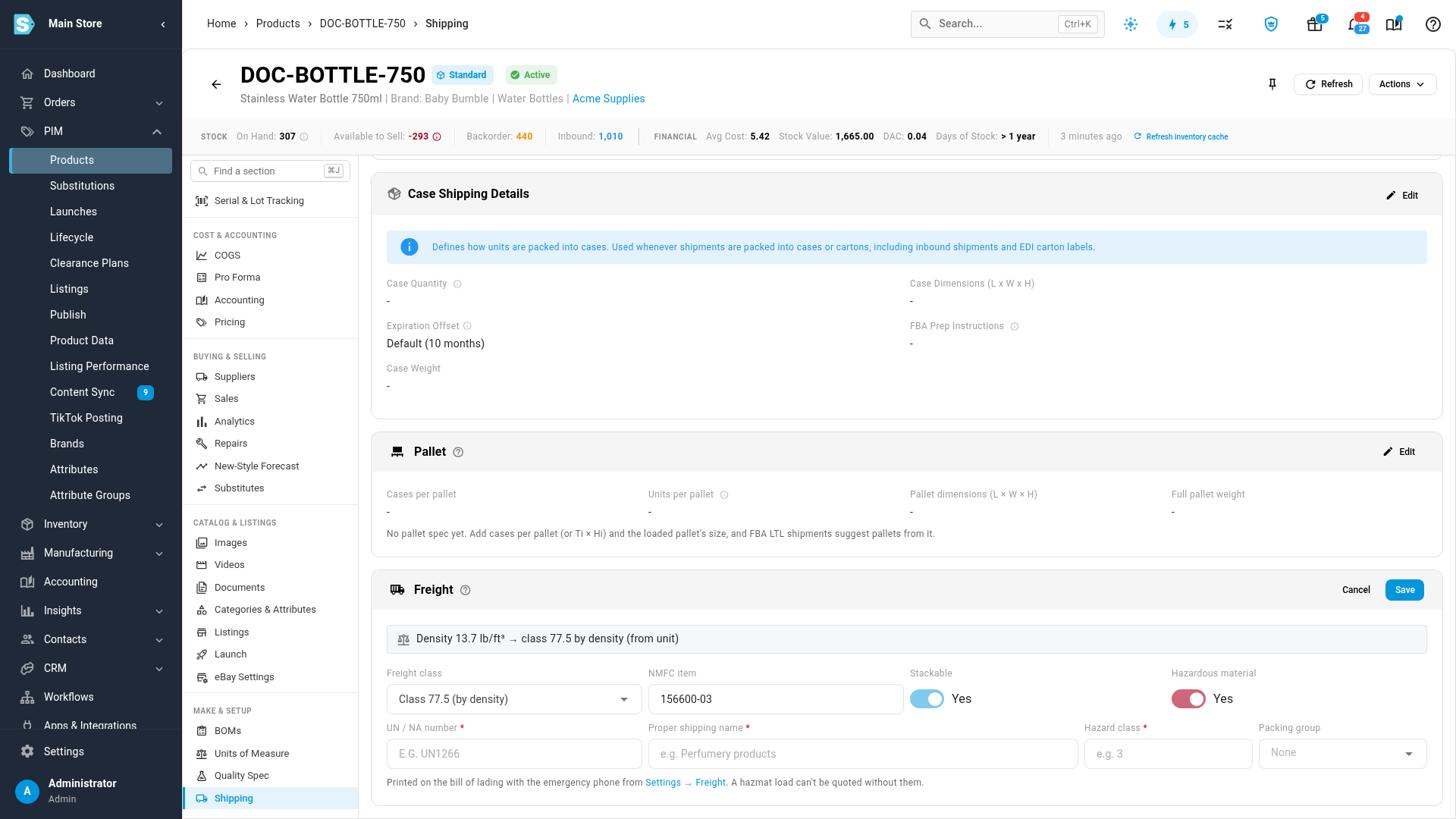
- For a hazardous product, turn on Hazardous material, then fill in:
- UN / NA number: UN or NA and four digits, such as
UN1266 - Proper shipping name, such as Perfumery products
- Hazard class, such as
3 - Packing group (I, II or III), when it has one
- UN / NA number: UN or NA and four digits, such as
- Click Save.
The bill of lading prints the hazmat details with the 24-hour emergency phone from Settings → Freight. A load with a hazmat product can't be quoted until its UN number, shipping name and hazard class are filled in, and the emergency phone is set.
Turning Hazardous material off clears all four hazmat fields.
How quotes use these details
- Each pallet takes the highest freight class among its products, so a mixed pallet is never under-classed. The quote shows it as from products.
- Hazmat products go on their own pallet.
- A pallet is stackable only if every product on it is.
- The NMFC item fills in when every product on the pallet shares one.
You can still change any of these on a single quote.
Set many products at once
- Bulk edit: select products on the Products list and open bulk edit. The Freight group has the same fields: Freight Class, NMFC Item, Freight Stackable, Hazmat, UN Number, Proper Shipping Name, Hazard Class and Packing Group. See Bulk-edit products.
- Import: a product import takes the same eight columns. A blank cell leaves the saved value alone, and Hazmat set to No clears the hazmat fields. The column-by-column rules are in Importable product columns → Freight columns.
- Export: a product export writes the same columns under the same headings, so an exported file imports back unchanged. See Export products.
Next steps
Video transcript
Freight quotes take each product's freight class and hazmat details from the product itself. Open a product, and choose Shipping from its list of sections on the left. The Freight card is at the bottom. SKU.io works out the product's density from its weight and size, and the freight class that density suggests. A class lower than the density suggests is the most common reason for a carrier's re-class charge. Click Use class to take the suggestion. Click Edit to change the rest of the details. Add the NMFC item number if you know it. Turn off Stackable if carriers must not stack other freight on top. For a hazardous product, turn on Hazardous material. Then fill in its UN number, proper shipping name and hazard class, from its safety data sheet. Quotes and the bill of lading use them, and a hazmat load can't be quoted without them. This bottle isn't hazardous, so turn Hazardous material back off, and click Save. To set freight details on many products at once, use bulk edit, or the Freight columns in a product import.