Work the Freight list
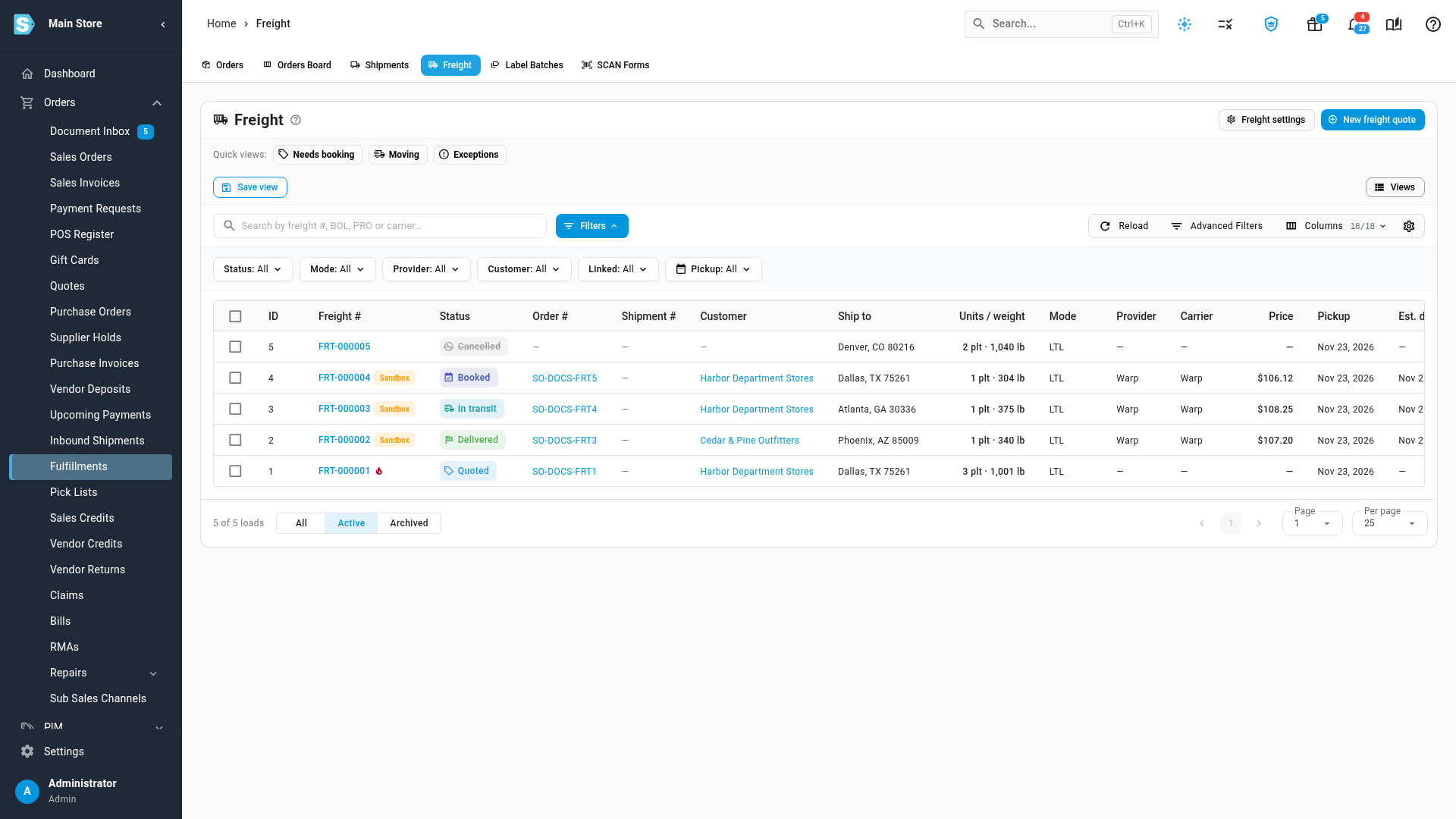
The Freight list holds every freight load: quotes waiting to be booked, trucks on the road and delivered loads. Use it to find what needs you, print bills of lading for a day's pickups in one go, and keep the list tidy.
Before you begin
- Your role needs the View freight permission. Archiving needs Get freight rates, and cancelling or linking needs Book freight.
Open the list
Go to Orders → Fulfillments and choose the Freight tab.
Each row is one load: Freight #, Status, Order #, Shipment #, Customer, Ship to, Units / weight, Mode, Provider, Carrier, Price, Pickup, Est. delivery, BOL #, PRO #, Created and Created by. Sandbox loads carry a Sandbox chip, and hazmat loads a flame icon. Use Columns to show or hide columns.
Freight settings opens Settings → Freight, and New freight quote starts a blank quote.
Find loads
-
Quick views:
- Needs booking: quoted loads waiting to be booked
- Moving: Booked through Out for delivery
- Exceptions: carrier exceptions, and bookings SKU.io couldn't confirm
Click a quick view again to clear it.
-
Search by freight #, BOL #, PRO # or carrier.
-
Filters: Status, Mode, Provider, Customer, Linked (to an order or shipment, or not) and Pickup date. Advanced Filters adds more, such as SCAC, price, weight, hazmat, sandbox bookings, and estimated delivery, booked and delivered dates.
-
Save view keeps a set of filters for next time. See Tables & saved views.
Act on several loads
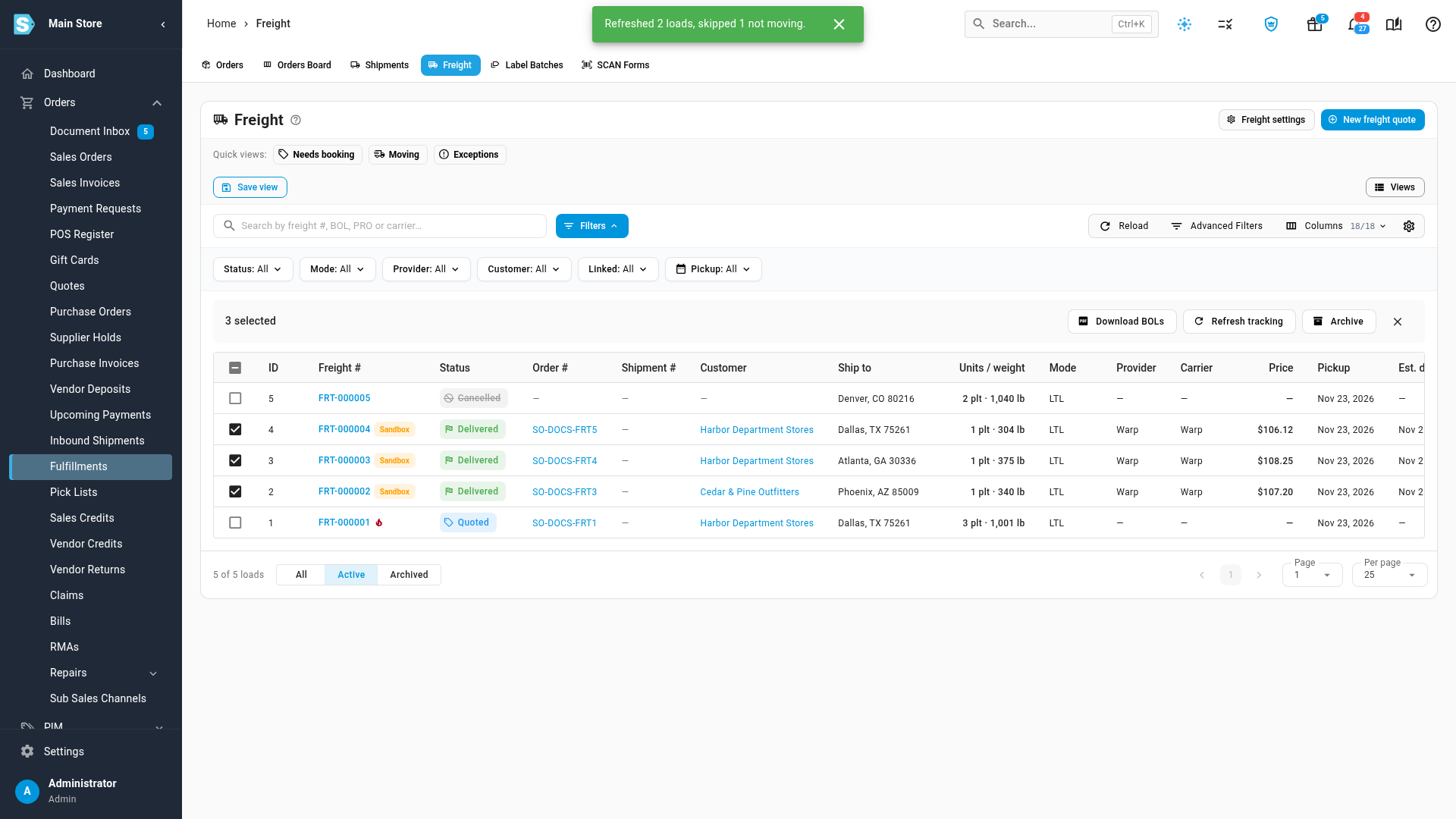
Tick the loads, then use the bar above the table:
| Action | What it does |
|---|---|
| Download BOLs | Downloads one PDF with the bill of lading of every selected load |
| Refresh tracking | Asks the provider for the latest tracking on every selected load that's booked or moving |
| Archive | Hides the selected loads from the active list (see below) |
| Restore | Brings archived loads back |
Act on one load
Right-click a row, or use its menu, for Open, View order, View shipment, Re-quote (unbooked loads), Book… (quoted loads), Download BOL, Refresh tracking, Link to shipment, Cancel booking or Cancel quote, and Archive.
Archive loads
Archive loads you're done with, such as delivered loads or cancelled quotes. Select them, click Archive, and confirm. Archived loads leave the active list but stay searchable: switch the toggle under the table from Active to Archived or All. A booked load keeps tracking while archived.
Next steps
Video transcript
Every load you quote, book or deliver lives on one list, so nothing slips between the first quote and the truck. To open it, go to Orders in the main menu, and then choose Fulfillments. Choose the Freight tab at the top of the page. Each row is one load, with its status, customer, carrier, price and pickup date. Quick views narrow the list to the loads that need attention. Moving shows loads from Booked through Out for delivery. Needs booking shows quotes that still need a truck. Click the same view again to see every load. Search by freight number, bill of lading, PRO number or carrier. You can also filter the list by status, mode, provider, customer or pickup date. Tick the loads you want to work on together, and a bar of actions appears above the list. The download button saves every selected bill of lading together, in one file. Refresh tracking asks the provider for the latest news on each moving load. When you're finished with a load, such as a quote that was cancelled, tick it on its own. Then click the archive button above the list, and confirm in the dialog that opens. The load leaves the active list, which keeps the list tidy. To see archived loads again, turn on Archived, where they stay searchable with their tracking.