Amortize a prepaid cost
You pay for a year of software in October, but the cost belongs to every month from October to September. Amortizing a cost entry spreads it across those periods. SKU.io builds a schedule of periods and recognizes each period's share once that period ends, so the Profitability and Contribution Margin reports show the right amount in each month.
Like every cost entry, amortization is for reporting. It doesn't post journal entries to your ledger.
Before you begin
- Record the cost entry for the full amount you paid.
- Know the one product, brand, supplier or sales channel the cost belongs to. A schedule allocates to a single target.
- An entry can have one schedule. The schedule covers whatever is still Unallocated.
Amortize from the Allocate wizard
-
Go to Insights → Cost Entries and open the entry.
-
Click Allocate, choose Direct Entities, and click Next.
-
Tick exactly one target, for example a sales channel, and click Next. Amortize needs a single target. With more than one, or with Document Lines, it's unavailable and a tooltip says why.
-
On Distribution Method, click Next.
-
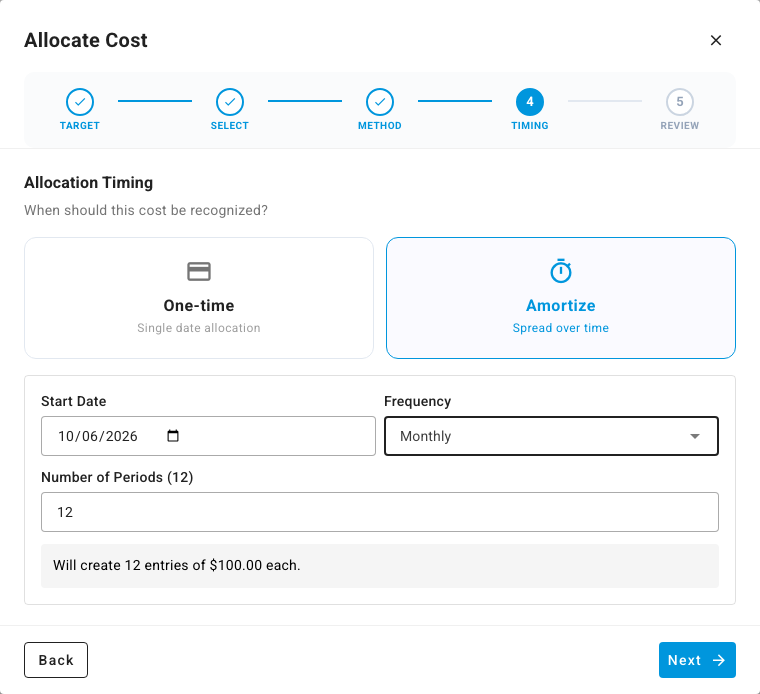
Under Allocation Timing, choose Amortize.
-
Set the Start Date and the Frequency: Daily, Weekly, Monthly, Quarterly or Annually.
-
Enter the Number of Periods. The box below confirms the split, for example "Will create 12 entries of $100.00 each."
-
Click Next, check the Review Allocation summary, and click Confirm Allocation.
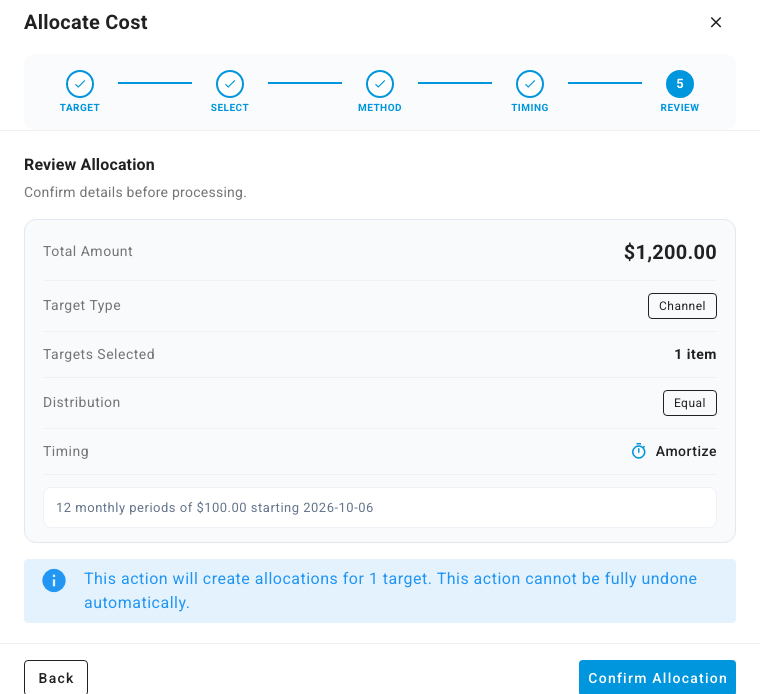
The wizard always splits the amount evenly. To weight it toward the start or the end, use Amortize instead.
Amortize with a front- or back-loaded split
-
Open the entry and click Amortize. The Create Amortization Schedule dialog opens.
-
Set the Start Date, the number of Periods and the Frequency.
-
Choose the Method:
Method How the amount is split Straight Line Equal amounts in every period. Front Loaded Larger amounts early, shrinking each period. Back Loaded Smaller amounts early, growing each period. -
Under Allocate To, choose Product, Brand, Supplier or Sales Channel, then pick the target.
-
Click Create Schedule.
Read the schedule
The entry's Amortization tile shows how many periods are processed, such as 0/12, and the amount per period. Below the allocations, Amortization Schedule lists every period with its dates, Amount, Status and Processed At.
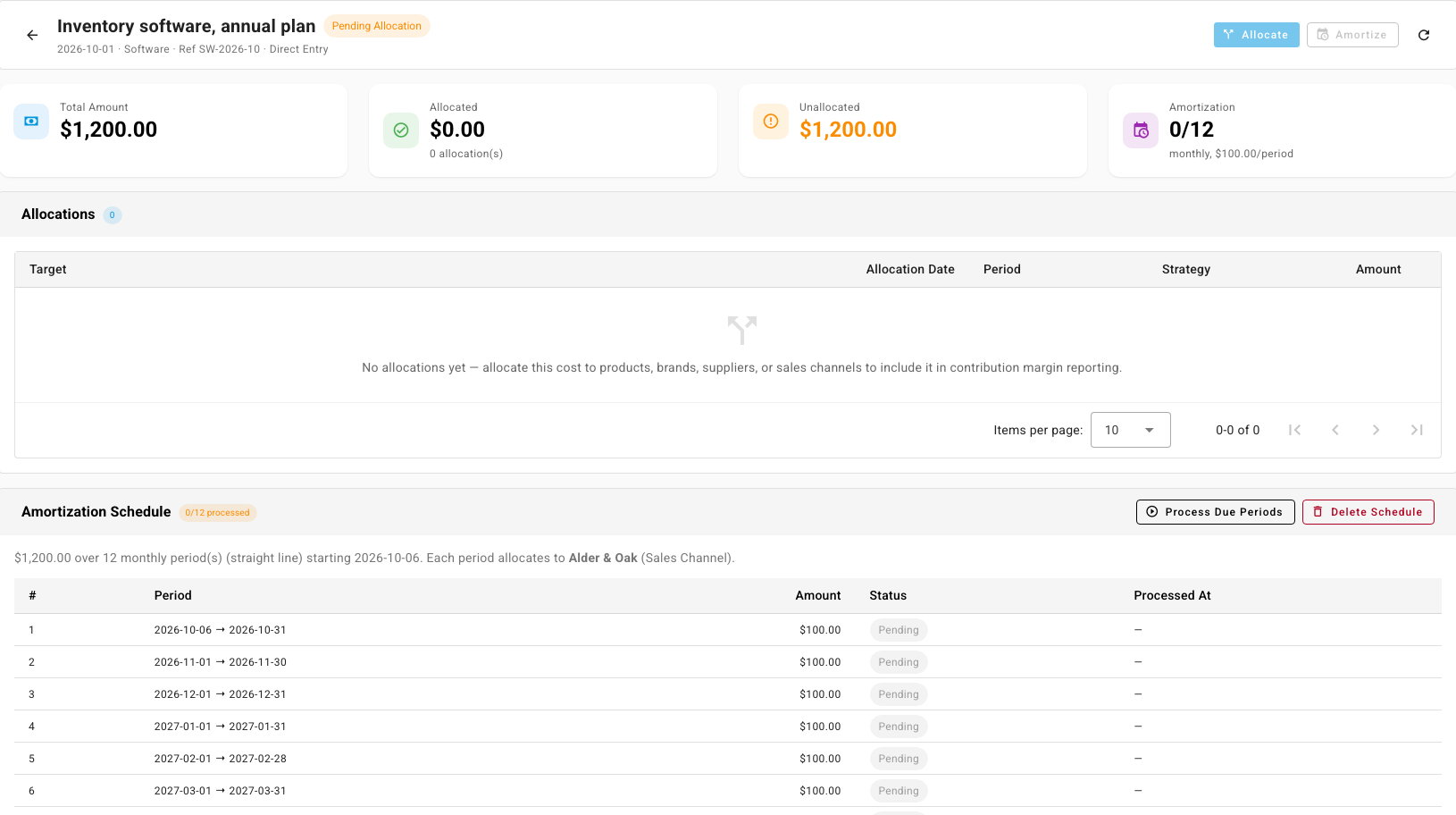
The first period runs from the start date to the end of that month, and later monthly periods run from the 1st to the last day of each month.
A period is processed once it has ended: SKU.io creates that period's allocation, covering the period's dates, and marks it processed. Reports count it in the period it covers, not the day it was processed. This runs every day on its own. To catch up straight away, for example after back-dating a schedule, click Process Due Periods. Periods that haven't ended yet stay Pending, so a schedule never puts next month's cost in this month's report.
Change or remove a schedule
You can't edit a schedule. To change it, click Delete Schedule and create a new one. Deleting also removes the allocations already created from processed periods, and the entry's status is recalculated. You can't delete one of those allocations on its own.
Next steps
- Allocate a cost across products
- Read the Contribution Margin report
- How purchases reach your books: how prepaid vendor deposits are held on the balance sheet, which is a separate, accounting-side feature.