Explain a cost entry with source lines
A cost entry booked from a vendor bill is often one big number, such as a month of warehouse storage. Source lines record the charges behind that number: what the vendor billed per product, the account fees, and the references you can't match. They explain why part of the entry is Unallocated, and show where each allocation came from.
Before you begin
- Open the cost entry. Source lines can be added to any entry, with or without a bill.
- Have the vendor's detail, such as a storage report, as a spreadsheet.
What the lines are
Each line is one charge. Its Charge Type says what kind of charge it is, and its Basis says where the amount came from.
| Charge Type | What it is | Can it be allocated to a product? |
|---|---|---|
| Product charge | A charge for a product SKU.io recognizes. | Yes. |
| Unknown reference | A vendor SKU or code that matches no product. | Yes, once you map it to a product. |
| Account fee | A fee no single product caused, such as a base fee. | No. It stays unallocated. |
| Rounding | The small difference left by rounding a split to the cent. | No. |
| Adjustment | A credit or correction. | No. |
| Other | Anything else. | No. |
| Basis | What it means |
|---|---|
| Invoice line | The vendor printed this amount on the document. |
| Estimated split | Your split of an invoice charge, not an amount the vendor printed per line. |
| Computed | Worked out to balance the lines to the invoice, such as rounding. |
| Manual | Entered by a person. |
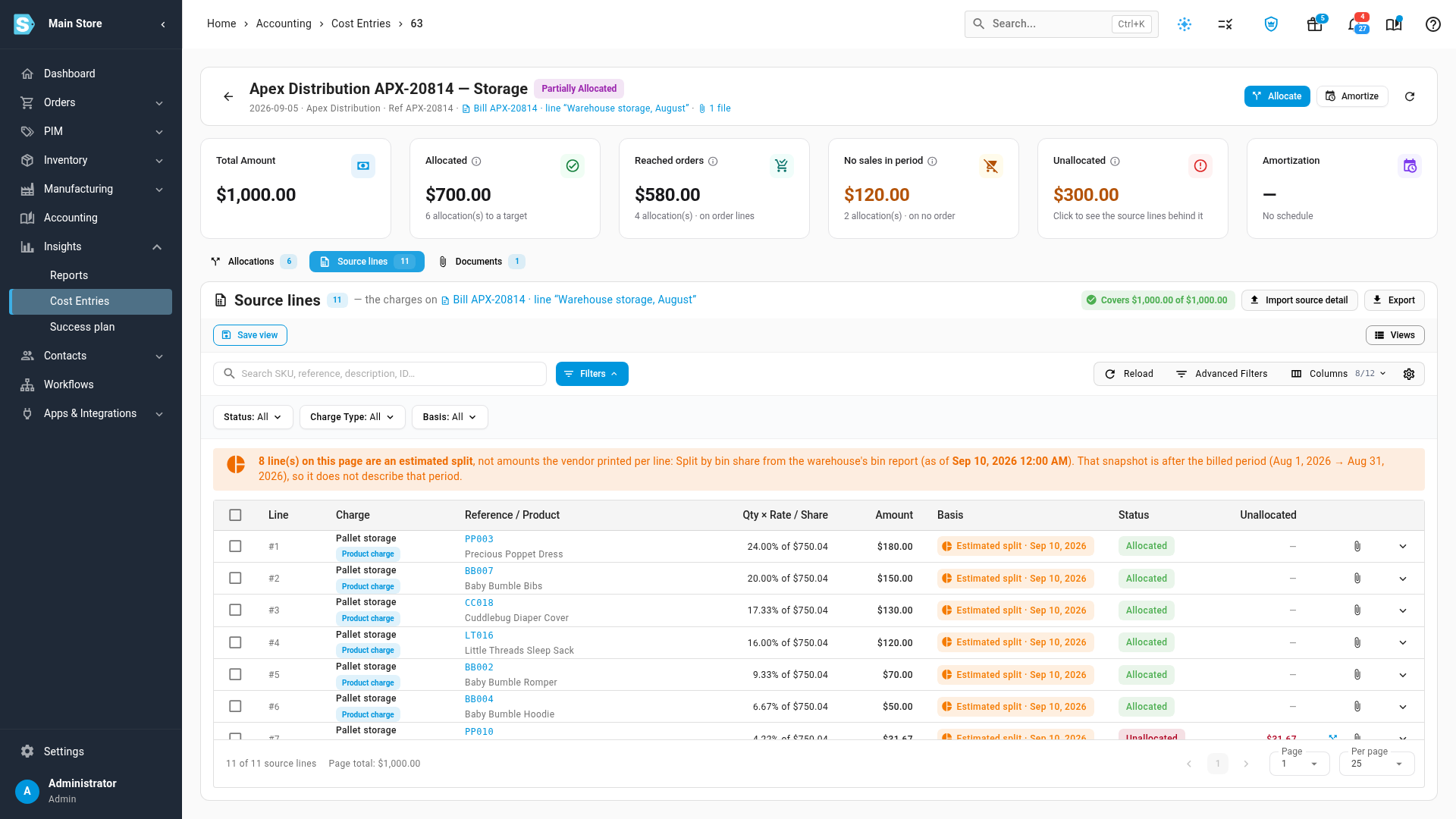
An estimated split can rest on a snapshot taken after the billed period, such as today's bin counts for last month's storage. The table warns you when it does, because that snapshot doesn't describe the billed period.
Import the source detail
-
Open the entry's Source lines tab and click Import source detail.
-
Click Download Template, or use your own file. Add one row per charge. Columns are listed in Import file columns.
-
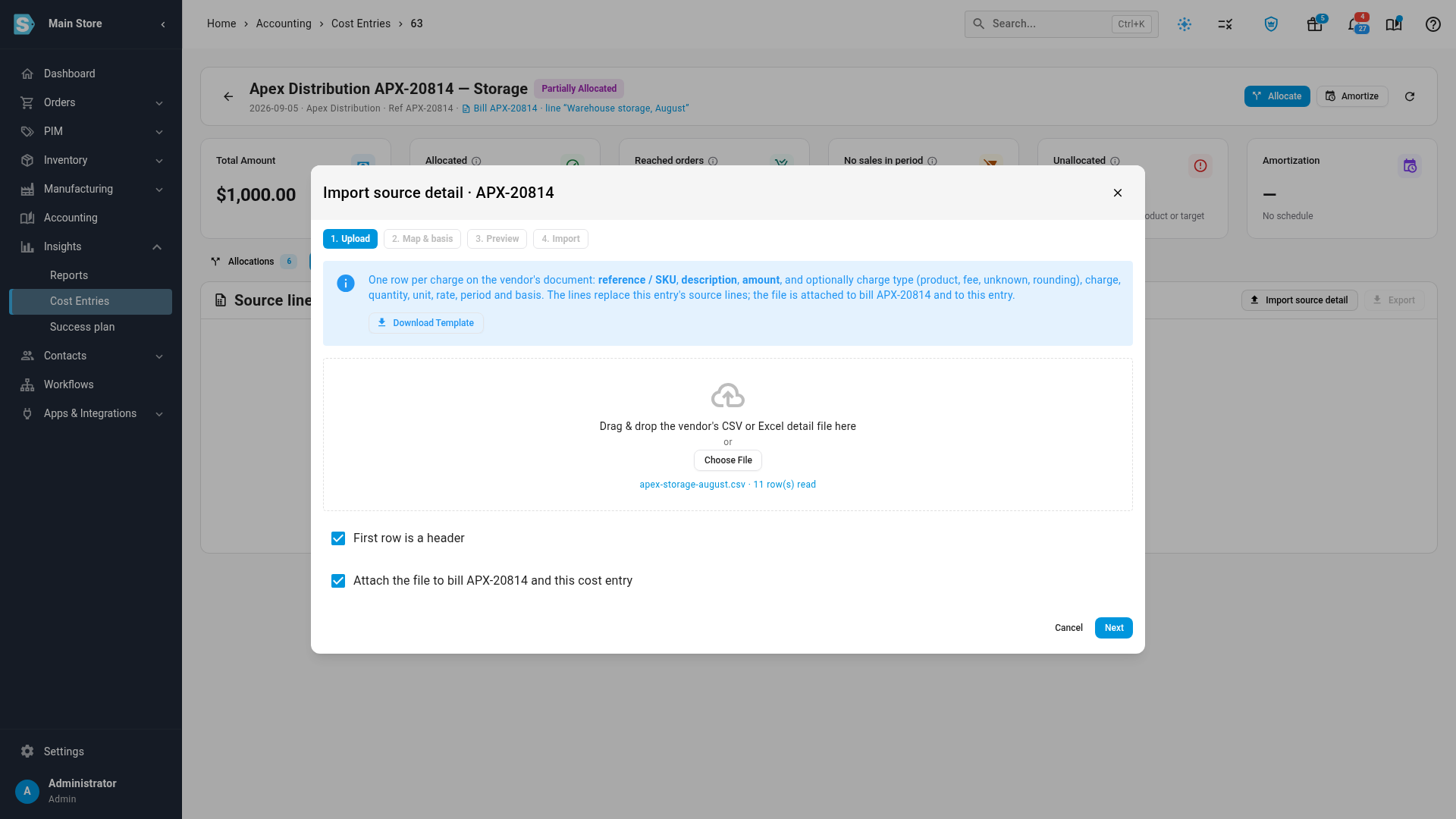
Click Choose File. Keep Attach the file ticked to keep a copy with the entry, and with its bill if it has one. Click Next.
-
On Map & basis, check that each File column imports as the right field. Amount must be mapped.
-
Under Basis of the amounts, set the Basis for rows that leave it blank. Add a Basis note and Snapshot date if the amounts are an estimate.
-
Under Allocations, choose what happens to the product lines:
Option What it does Link to existing allocations Links each product line to this entry's allocation for the same product and amount. Creates nothing, so nothing on your orders changes. Create allocations Links where it can, then allocates each remaining product line with an amount above zero to its product. Record lines only Stores the lines and links nothing. Allocate later. 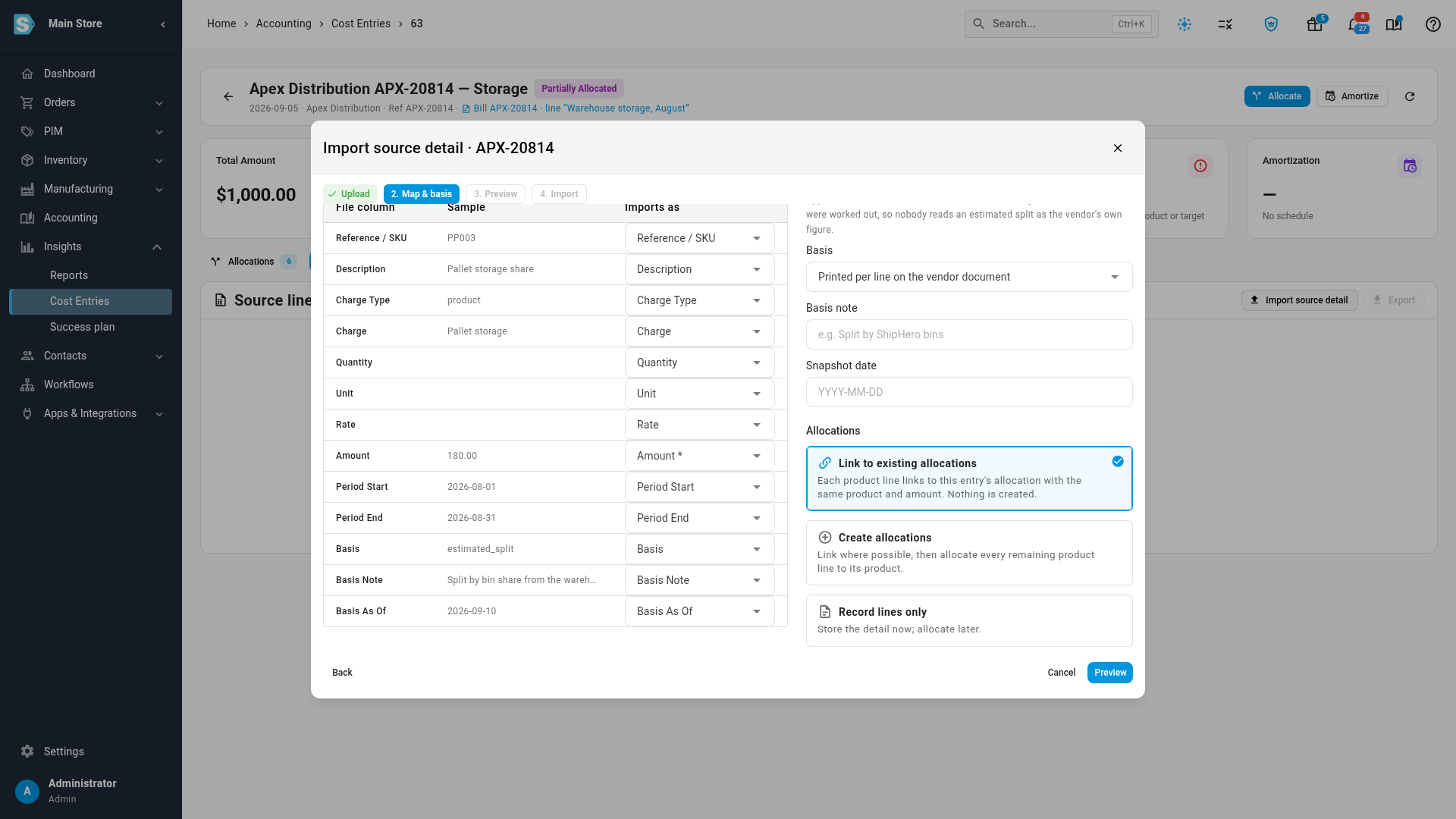
-
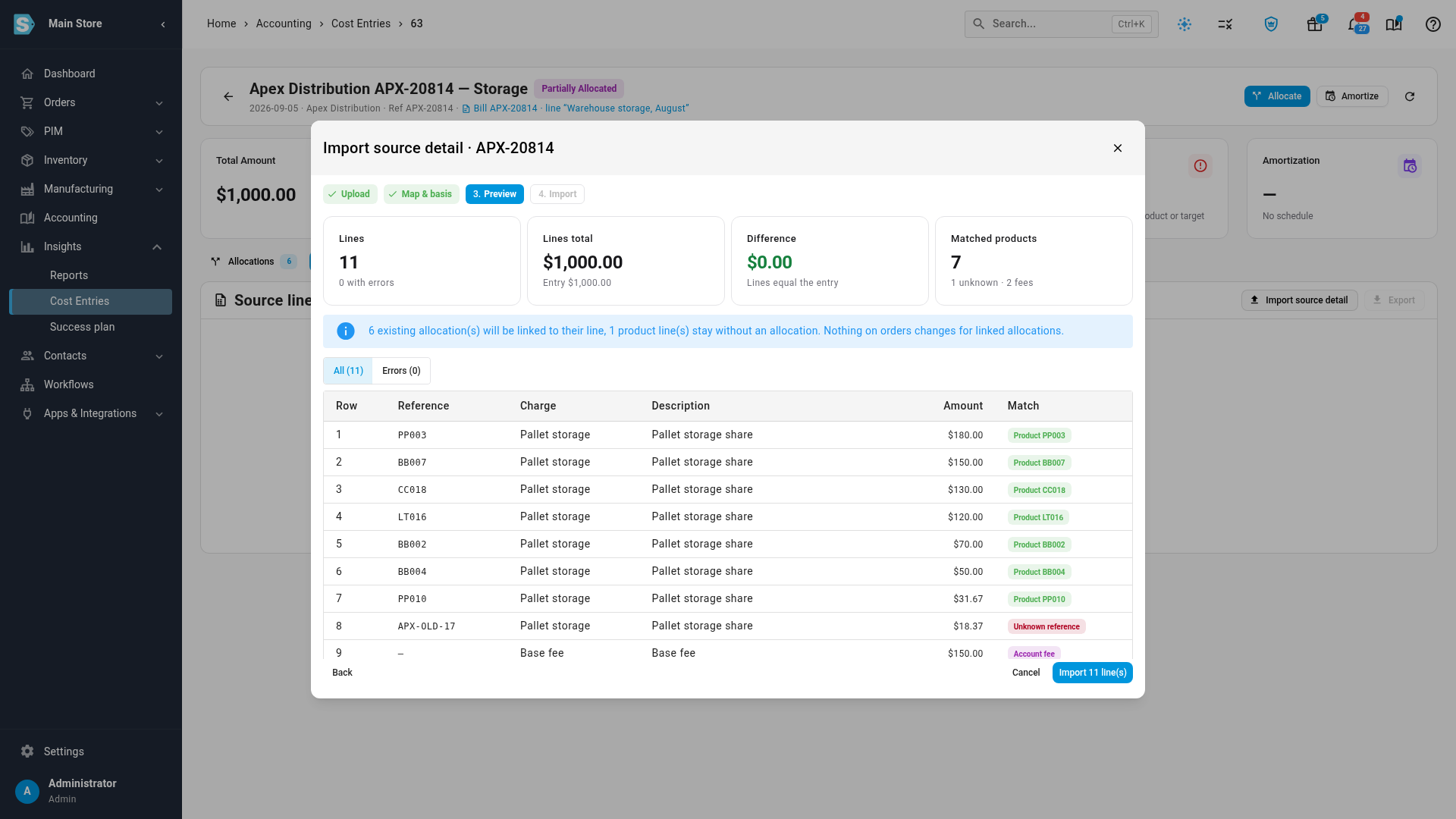
Click Preview. Check that Difference shows Lines equal the entry, and read how many allocations will be linked or created. Nothing is saved yet.
-
Click the import button, such as Import 11 line(s), then Done.
Each import removes the entry's existing source lines first. Existing allocations stay, but lose their link to a line. With Record lines only they stay unlinked. Files attached by earlier imports stay on the entry.
Import file columns
The file can be .csv, .txt, .xlsx or .xls, with up to 20,000 lines. Excel files are read from
the first sheet only. Text files can use commas, tabs or semicolons. A file you attach can be up to
20 MB. The import runs while you wait.
Only Amount is required.
| Column | Required | Format | Notes |
|---|---|---|---|
| Reference / SKU | No | Text, up to 191 characters | The vendor's SKU or code. Matched to your product SKUs, ignoring case. Archived products match too. |
| Description | No | Text, up to 500 characters | Left blank, it's built from the charge and the reference. |
| Charge Type | No | See below | Left blank, it's a product charge when the row has a reference, otherwise Other. |
| Charge | No | Text, up to 191 characters | The invoice charge this line belongs to, such as Pallet storage. |
| Quantity | No | Number | A value that isn't a number is left blank, without an error. |
| Unit | No | Text, up to 32 characters | Such as SKU or month. |
| Rate | No | Number | A value that isn't a number is left blank, without an error. |
| Amount | Yes | Number | $ and commas are fine. (100) means negative 100. Negative amounts and zero are allowed. |
| Period Start, Period End | No | Date | The billed period. The end can't be before the start. |
| Basis | No | See below | Left blank, it uses the Basis you chose in the wizard. |
| Basis Note | No | Text, up to 500 characters | Left blank, it uses the wizard's Basis note. |
| Basis As Of | No | Date | The snapshot date. The wizard calls it Snapshot date. |
Values you can enter, in any case:
| Column | Enter | Becomes |
|---|---|---|
| Charge Type | product, product charge, product_charge, sku | Product charge |
fee, account fee, account_fee | Account fee | |
unknown, unknown sku, unknown reference, unmatched_reference | Unknown reference | |
rounding | Rounding | |
adjustment, credit | Adjustment | |
other | Other | |
| Basis | invoiced | Invoice line |
estimated_split | Estimated split | |
computed | Computed | |
manual | Manual |
The product list decides the final type. A product charge whose reference matches no product becomes Unknown reference, and so does one with no reference. An unknown reference that does match a product becomes Product charge.
When rows have errors
The import is all or nothing. Any row with an error blocks it, and the preview opens on the rows to fix. Correct the file and preview again. You'll see these messages:
| Message | What to do |
|---|---|
Amount is required and must be a number. | Fix the row's amount. |
Charge type 'x' is not recognised — use product, fee, unknown, rounding, adjustment or other. | Use a value from the table above. |
Basis 'x' is not recognised — use invoiced, estimated_split, computed or manual. | Use a value from the table above. |
Period start 'x' is not a date. | Enter a real date. The same message covers Period end and Basis as of. |
The source lines total x, more than the cost entry amount y. | Lines can add up to less than the entry, but not more. |
See why an amount is unallocated
-
Click the Unallocated card at the top of the entry. The Source lines tab opens, filtered to Not fully allocated.
-
Read the row above the table. It splits the unallocated amount by reason, and ends with how much the lines explain, such as Explained $300.00 of $300.00. Click a reason to filter to it.
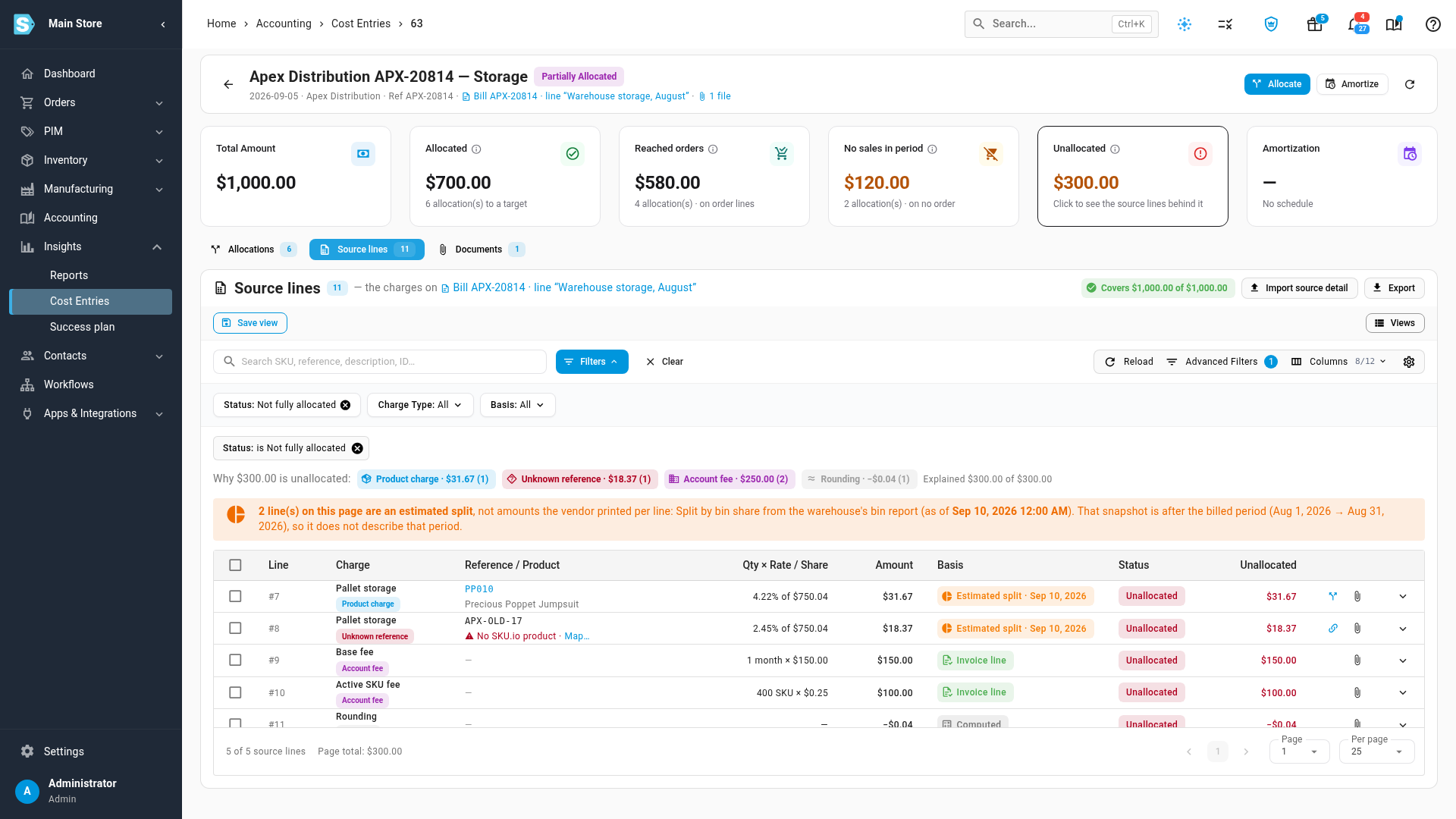
A Not explained chip means the lines don't cover the whole entry, or allocations were made without a source line. Those allocations don't count against any line, so the line stays unallocated.
Each line's Status is Allocated, Partly allocated or Unallocated, based on the allocations linked to it. On Allocations, the Source Line column shows the line each allocation came from. Click it to open that line. A line's expanded row links back to its allocation.
Allocate a line to a product
-
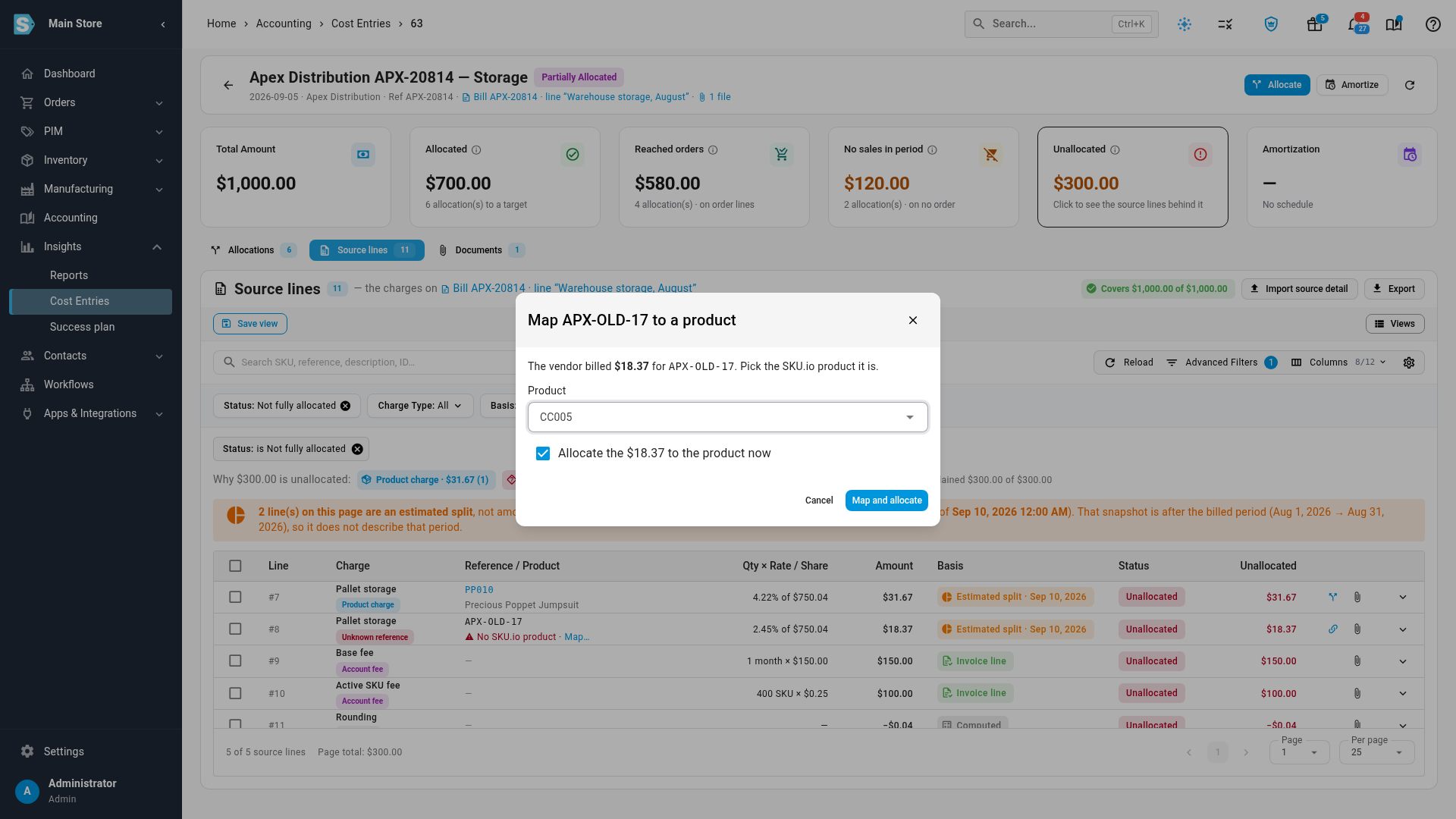
On a Product charge line that isn't fully allocated, click the allocate icon at the end of the row. For an Unknown reference, click Map… instead. You can also right-click the row.
-
In the dialog, pick the Product.
-
Keep Allocate the amount to the product now ticked, and click Map and allocate.
The line becomes a product charge and shows Allocated, and the entry's Allocated and Unallocated totals update. Only this line changes. Other lines with the same reference stay as they are.
Export the lines
Click Export on the Source lines tab to download the lines in the table as an Excel file. It follows your current filters and sort. To export part of the list, tick rows and choose Selected Only or All Filtered in the bar that appears.
| Column | What it holds |
|---|---|
| Line | The line's number. |
| Charge | The invoice charge. |
| Charge Type | The line's type. |
| Reference | The vendor's SKU or code. |
| Product SKU | The product it's matched to. |
| Description | The line's description. |
| Quantity, Unit, Rate | The vendor's quantity, unit and rate. |
| Amount | The line's amount. |
| Allocated, Unallocated | How much of it is allocated, and how much isn't. |
| Status | allocated, partial or unallocated. |
| Period Start, Period End | The billed period. |
| Basis, Basis Note, Basis As Of | Where the amount came from. |
| ID | The line's ID. |
The export's columns differ from the import's, and Basis holds the on-screen label. To change the lines, edit your original file and import it again.
Keep other files with the entry
Use the Documents tab to keep the invoice PDF, emails or any other file with the entry. A file attached by an import appears here, and on the bill's Documents tab if the entry has a bill.
Next steps
Video transcript
A vendor bill often lands as one big number. Source lines record the charges behind that number. To add them, open the Insights menu, then choose Cost Entries. Every entry you've recorded is listed on this page. Click the entry you want to explain, and let its page load. Then open the Source lines tab, which holds the charges behind the entry. This one has no detail recorded yet. Click Import source detail, and choose the vendor's file. Keeping Attach the file ticked stores a copy with the entry. Click Next, and check how each column maps. Link to existing allocations ties each product line to the allocation it explains. It creates nothing, so your sales orders don't change. Click Preview to see the outcome before anything is saved. Difference should read Lines equal the entry. The banner says how many allocations will link. Click Import to save the lines, wait for the result, then click Done to close the dialog. Every charge now sits on the entry, with its basis beside the amount. Basis says where the amount came from, such as an estimated split. Click Unallocated to see the reasons behind that figure. The reasons above the table add up to the amount. Here the reasons are a product charge, an unknown reference, account fees and rounding. An unknown reference is a vendor code with no product. To fix one, click Map at the end of its reference. Search for the real product behind this code. When the match appears in the list, pick that product. Keep the box ticked to allocate the full amount. Click Map and allocate to finish the job. The line is allocated, and Unallocated drops by the same amount. Export downloads the lines in the table, with your filters applied.