Work the Ledger Outbox
Every time you create or change something that affects your books, such as a receipt, a bill or a shipment, SKU.io queues it in the Ledger Outbox and turns it into an accounting entry about a minute later. Most rows pass through unnoticed. The outbox is where you look when the accounting dashboard shows a backlog, or a close check says entries are missing, to see what's waiting, what failed and why.
Before you begin
- You can view the accounting ledger. Retrying rows needs permission to manage it.
- Automatic accounting is on. While it's off, rows wait in the outbox as Pending.
Open the outbox
-
Go to Accounting → Outbox. You can also click Outbox backlog on the accounting dashboard.
-
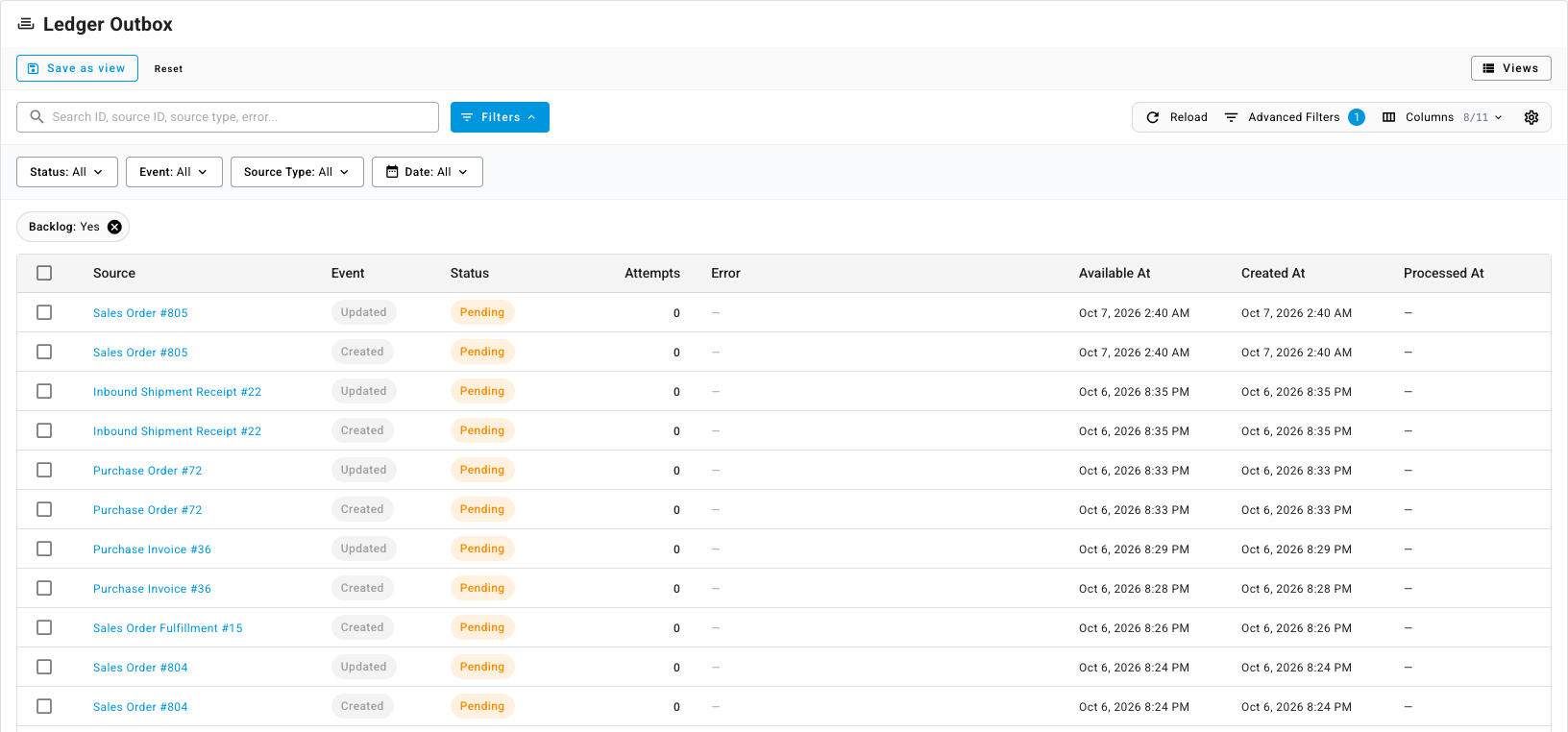
The list opens with a Backlog: Yes filter chip: everything the outbox still owes work for. That's pending and in-progress rows, plus failures no newer attempt has replaced. It's the same number as the dashboard's Outbox backlog. Remove the Backlog chip to see the full history.
Each row is one change to one document:
| Column | What it shows |
|---|---|
| Source | The document that changed, such as a purchase invoice or a fulfillment. Click it to open the document. |
| Event | Created, Updated or Deleted. |
| Status | Where the row is (see below). |
| Attempts | How many times SKU.io has tried to turn it into an entry. |
| Error | Why the last attempt failed. |
| Available At, Created At, Processed At | When the row is next due to run, when it was queued, and when it finished. |
Columns adds the hidden ones: ID, Source Type, Source ID and Bypass Floor.
| Status | Meaning |
|---|---|
| Pending | Queued, and waiting for the next pass. |
| Processing | Being turned into an entry now. |
| Processed | Done. The entry was created or updated. |
| Skipped | Nothing to post, for example a change that doesn't affect the books. |
| Superseded | A newer change to the same document replaced this one, so only the newer row runs. |
| Failed | The entry couldn't be built. The Error column says why. |
Filter by Status, Event, Source Type or date, or search by ID, source ID, source type or error text.
Fix failed rows
-
Click the Status filter and choose Failed. The status filter replaces the Backlog chip.
-
Read the Error column. Hover over a long error to read all of it.
-
Right-click the row and choose View Source Document, or click the Source link, and fix the cause. Common causes are an account that isn't mapped, a document dated in a locked period, or an entry that wouldn't balance.
-
Come back to the outbox and retry:
- One row: right-click it and choose Retry.
- Several rows: tick them, keep Selected Only, and click Retry Failed.
- Everything that matches your filters: tick any row, switch to All Filtered, and click Retry Failed.

-
Confirm. Retrying puts the failed rows back in the queue and skips any row that isn't failed. A row whose cause is still there fails again.
On the accounting dashboard, Review … failed opens Outbox failures, a shorter list that labels each failure with a Likely cause, such as Account not mapped, Locked period or Missing record, with a hint on what to do. Retry rows there one at a time, or click Retry all.
Rows marked Bypass
A Bypass chip marks a row queued when someone regenerated entries and chose to include history from before your ledger's start. Those rows rebuild that older history on purpose. Rows queued by everyday changes never touch it. The Bypass Floor column is hidden by default; turn it on from the column selector.
Next steps
- Read the accounting dashboard — the backlog and failure counts.
- Fix a failing check — when the outbox holds up a month-end close.
- Fix entries posting to the wrong account