Set your company profile
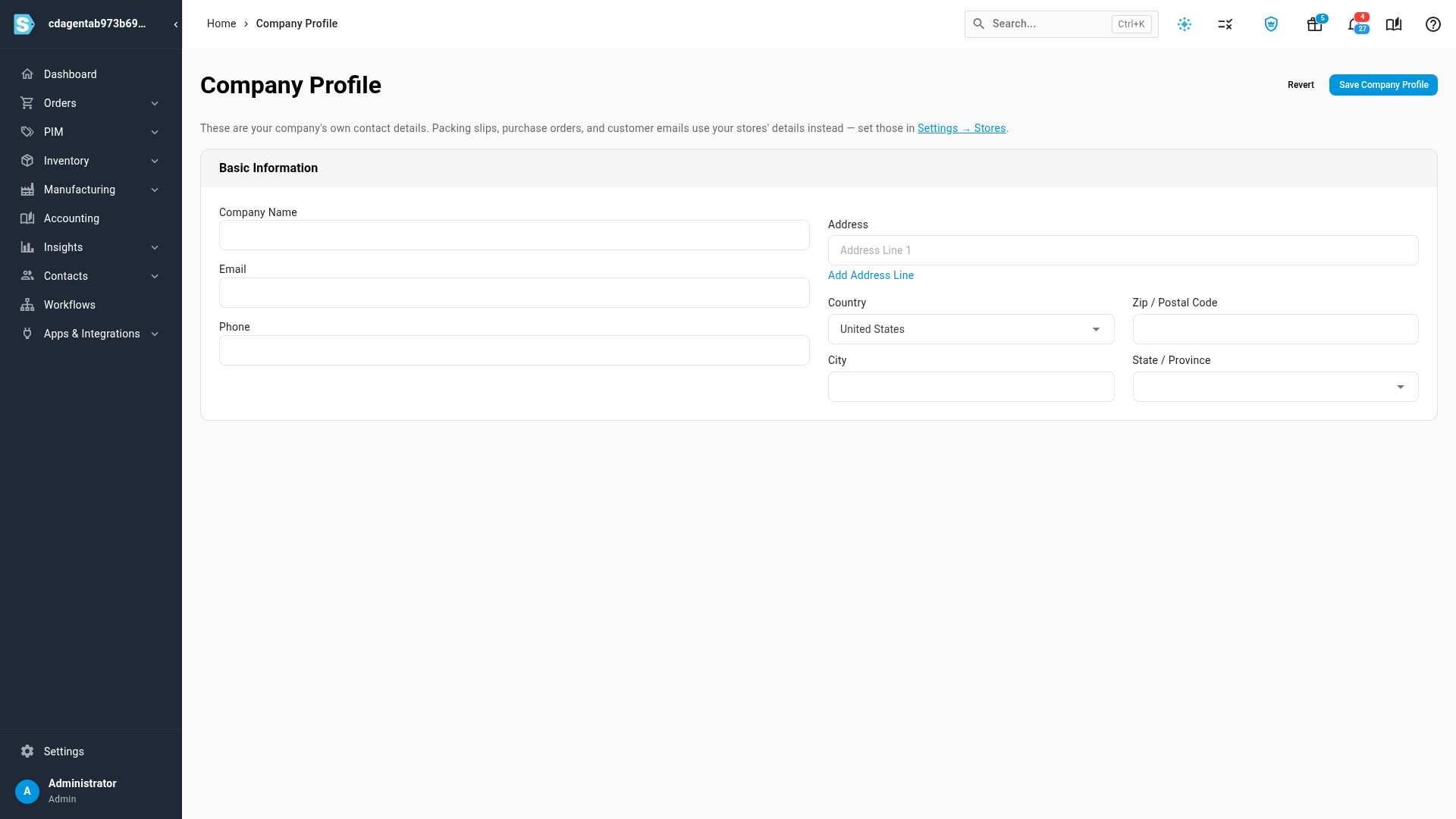
The Company Profile holds your own company's name and contact details: the business that owns this SKU.io account. Fill it in once when you set up your account, and update it when your details change.
Packing slips, purchase orders, invoices, and customer emails show the details of the store an order belongs to, not the company profile. To change the name, logo, address, or email your customers and suppliers see, edit your stores instead. See Set up your stores.
Before you begin
- You need to be an Admin to change the company profile. Anyone else can open the page and read it, but every field is locked and Save Company Profile stays unavailable. A notice at the top of the page says so.
Steps
-
Click your name at the bottom of the left-hand navigation, then choose Company Profile.
-
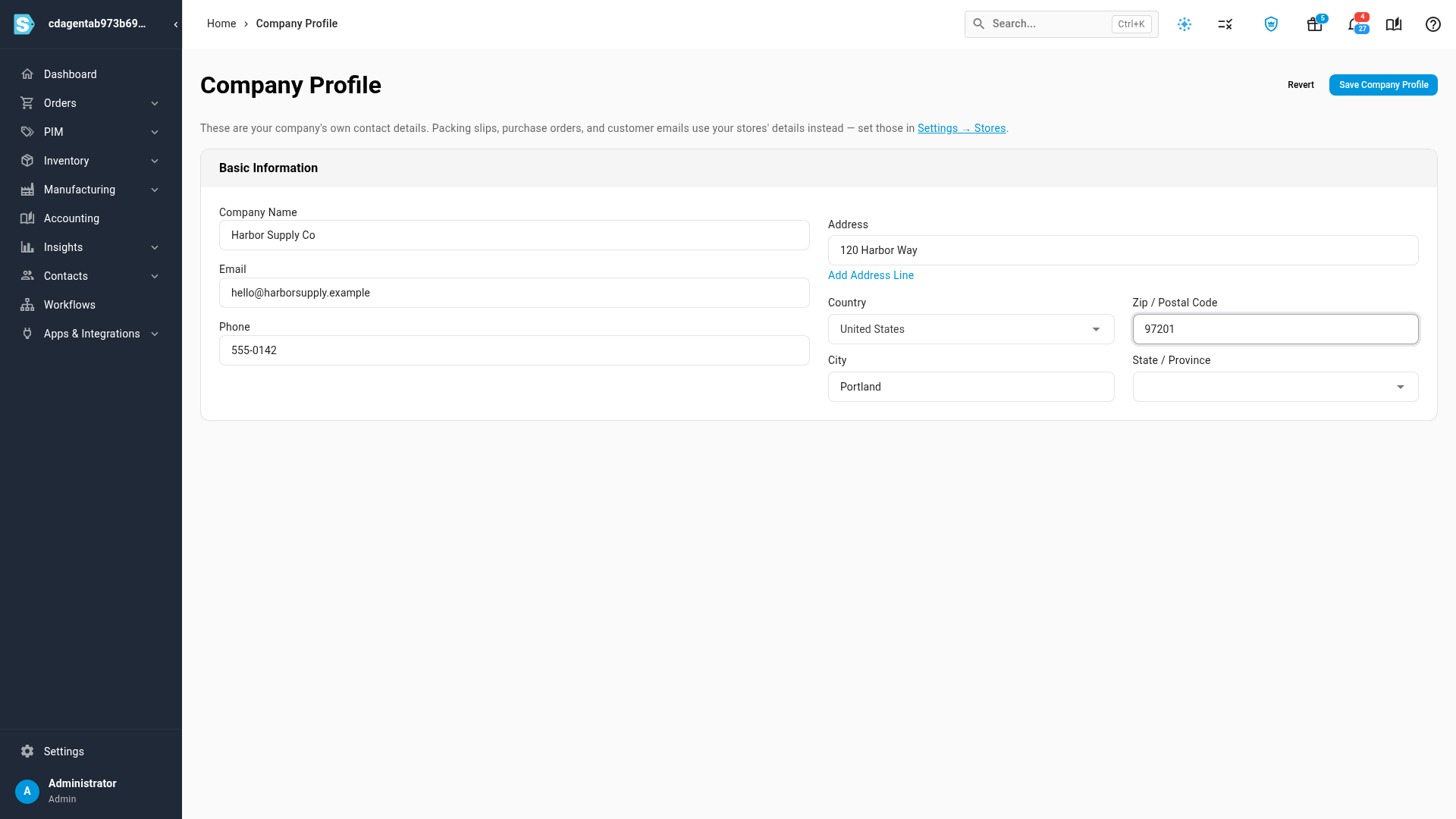
Under Basic Information, enter your Company Name.
-
Enter the company's Email and Phone.
The email must be a valid address. The phone accepts digits and the characters
+ - ( ) / * #. -
Under Address, enter the first line of your address. To add a second or third line, click Add Address Line.
-
Check the Country (it starts as United States), then fill in City and Zip / Postal Code. When you leave the zip field, SKU.io fills in the State / Province, and the city when it's empty, for zip codes it recognizes. Choose the state yourself if it doesn't.
-
Click Save Company Profile.
A message confirms the profile was updated.
Until you change something, Save Company Profile stays unavailable. To throw away changes you haven't saved, click Revert.
Next steps
- Set up your stores: the name, logo, and contact details your documents and customer emails show.
- Create and manage users: see who on your team is an Admin.
Video transcript
Your company profile holds your own business's name and contact details. To open it, click your name at the bottom of the left-hand sidebar, and then choose Company Profile from the menu. The page opens on Basic Information. Under Basic Information, enter your company's name. Then add the email address for the business. Next comes the phone number people can call. Use the main contact details for the whole company. Next, add your street address on the first line. If you need a second line, click Add Address Line below the field. Then fill in the city, and the zip or postal code. The country is already set, and you can change it from the list. When you're done, click Save Company Profile. Only an administrator can save these details. Packing slips and customer emails use your stores' details instead, which you set in Settings, under Stores.