Submit an order that is waiting to be sent
Some orders never leave for the warehouse by themselves. When that is the only thing holding an order back, the order's Fulfillment tab says so in a banner and gives you a Submit now button. This guide covers the two banners, and how to send every waiting order in one go when you switch Auto Dispatch on for a warehouse.
An order waits for you in two cases:
| Banner on the Fulfillment tab | Why the order is waiting |
|---|---|
| Waiting for you: Auto Dispatch is off for warehouse. | The order came from a sales channel, but Auto Dispatch is switched off for the warehouse it ships from. |
| Entered by hand: SKU.io won't send this order to warehouse automatically. | Someone created the order in SKU.io instead of it arriving from a sales channel. Orders entered by hand are never sent automatically, whether Auto Dispatch is on or off for the warehouse. |
A banner appears only when submitting is the one thing left to do, and only where the order page can submit the order. You won't see one at a warehouse a sales channel ships from (such as Amazon FBA for an Amazon order, or AWD), at a supplier's warehouse, or when the warehouse's shipping provider is Manual: there you record the shipment yourself, as in Fulfill a sales order. If something else is holding the order (it is on hold, a line isn't linked to a product, stock is short, the shipping address is incomplete), fix that first. The banner appears once it is cleared.
Before you begin
| Requirement | Why it's needed |
|---|---|
The permission to submit fulfillment orders (fulfillment_orders.submit) | Submit now is greyed out without it. Hover over the button to see why. |
| The order is Open | A Draft order shows no banner. Approve it first. |
To send several orders from settings: the Fulfill sales orders permission (sales_orders.fulfill) | Without it you can still save the setting, but the send button is greyed out. |
Submit one waiting order
-
Go to Orders → Sales Orders and open the order.
-
Open the Fulfillment tab.
-
Read the banner above the fulfillment cards. It names the reason the order is waiting.

-
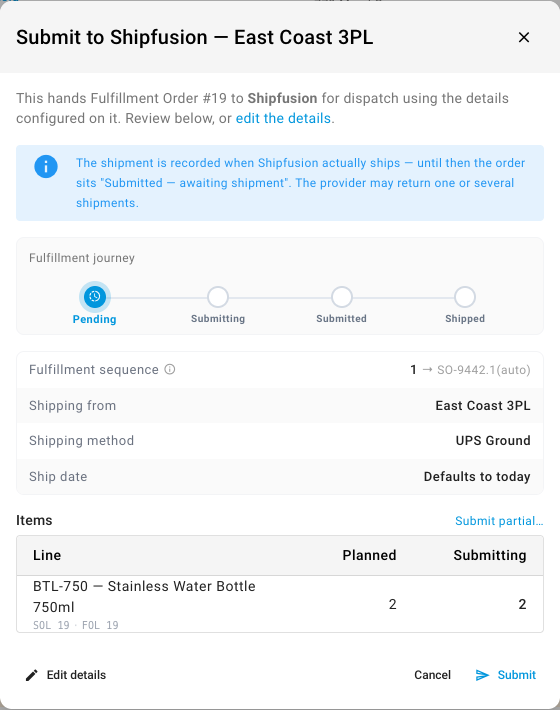
Click Submit now. A confirmation opens that names the warehouse and where the order is going.
-
Check the lines, then click Submit.
The banner disappears and the fulfillment order moves to Submitted. An order that ships from two warehouses can show a banner for each one; submit them one at a time.
An order entered by hand
The steps are the same. The banner reads Entered by hand: SKU.io won't send this order to warehouse automatically. Submit it when ready.

This banner has no settings link, because switching Auto Dispatch on does not send orders entered by hand. They always wait for you to submit them, so the banner appears whether Auto Dispatch is on or off for the warehouse.
Send every waiting order when you turn Auto Dispatch on
Turning Auto Dispatch on only affects orders that arrive afterwards. Orders that arrived while it was off stay where they are, so SKU.io offers to send them when you save.
-
On the banner, click Fulfillment Dispatch settings. Or go to Settings → Fulfillment → Fulfillment Dispatch.
-
Find the warehouse and switch Auto Dispatch Enabled on.
-
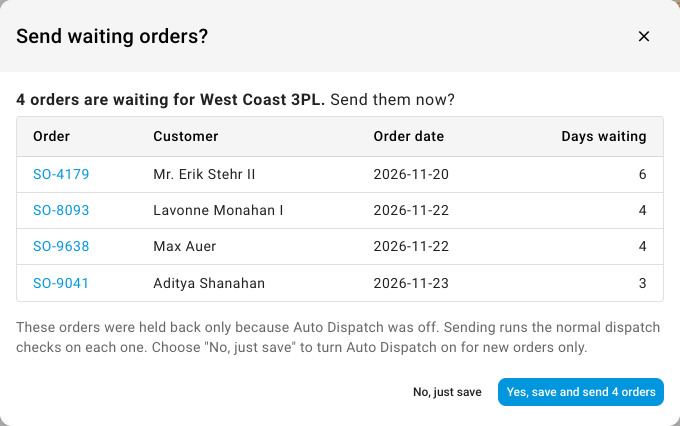
Click Save. If orders are waiting for that warehouse, Send waiting orders? opens and lists them, oldest first.
-
Choose what to do:
Choose What happens Yes, save and send N orders Saves the setting, then sends the listed orders. Each one goes through the normal checks again. No, just save Saves the setting. The listed orders keep waiting, and each still shows its banner's Submit now button until you submit it. Close the dialog Nothing is saved and nothing is sent. Your change stays on the page until you save or reset it.
A message confirms how many orders are being sent. If an order changed after the list was made (for example, it was put on hold), it is skipped and the message tells you how many were skipped.
Orders entered by hand are not in this list. Submit those from each order.
If something doesn't look right
| What you see | What it means |
|---|---|
| No banner, but the order still hasn't been sent | Something else is holding it. Check for a hold, a line that isn't linked to a product, short stock, or an incomplete shipping address. Also check the warehouse: if its shipping provider is Manual, or a sales channel or supplier ships from it, there is nothing to submit and you record the shipment yourself. |
| Submit now is greyed out | You don't have permission to submit fulfillment orders. Hover over the button for the reason. |
| No Send waiting orders? dialog after you save | No orders were waiting only on that switch. |
| The send button in the dialog is greyed out | You don't have the Fulfill sales orders permission. Choose No, just save, then ask someone who has it to submit the orders. |
| The message says the waiting orders could not be sent | The setting was saved, but the send failed. Submit the orders from each one. |