Order in your supplier's unit
Many suppliers sell in their own unit: flour by the 50 lb bag, sugar by the case, wire by the spool. You can order a product in that purchase unit while SKU.io keeps counting your stock in the product's stock unit. You type "3 bags" on the purchase order, the supplier sees 3 bags at their price per bag, and your inventory goes up by 150 pounds when the bags arrive.
Before you begin
- The product needs both units on its Units of Measure tab: its stock unit, and the purchase unit with a conversion factor (how many stock units one purchase unit holds). See Configure a product's units of measure. The unit itself, such as BAG, comes from the units of measure catalog.
- You need permission to edit products to change their units, and to create purchase orders to order.
- Products that have only a stock unit are unaffected. Their purchase order lines look and work exactly as before.
Steps
-
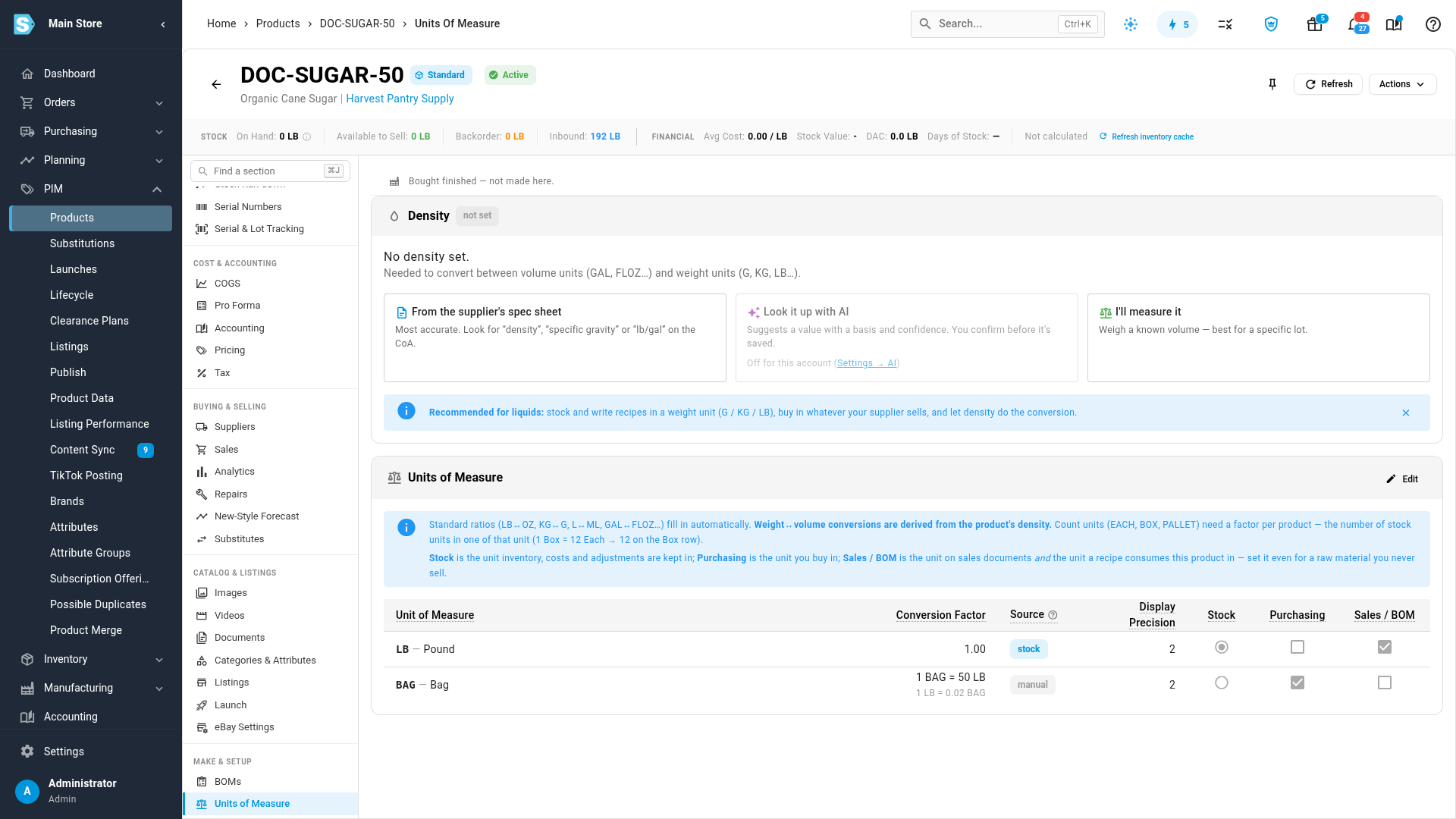
Open the product and click the Units of Measure tab. Check that the purchase unit is listed with its conversion, for example 1 BAG = 50 LB, and that it's ticked under Purchasing.
-
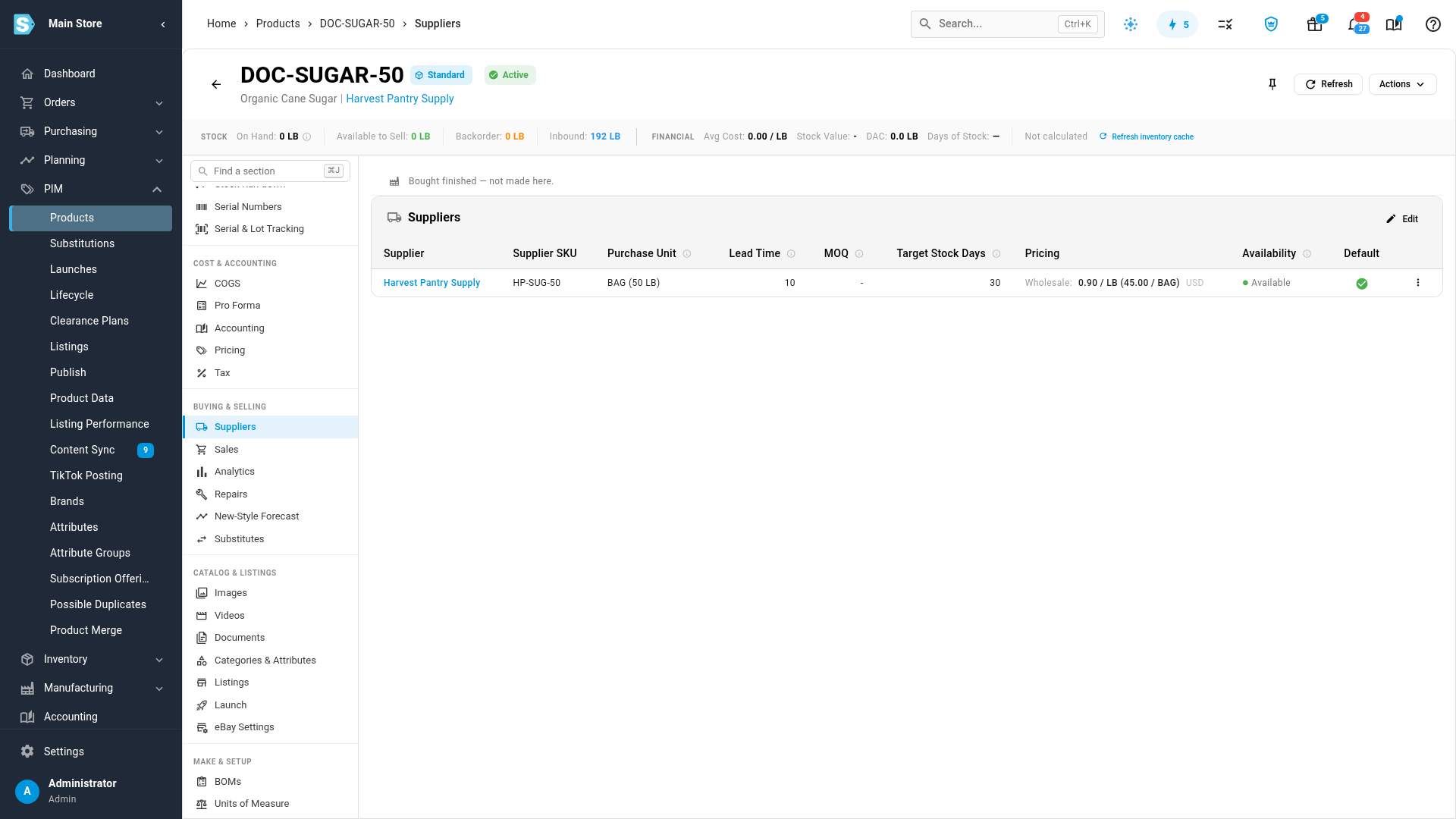
Click the Suppliers tab. The Purchase Unit column shows the unit each supplier sells the product in, and Pricing shows the price per stock unit with the price per purchase unit beside it. To set a different unit for one supplier, click Edit and choose it under Purchase unit. Leave it blank to use the product's purchase unit.
-
Go to Purchasing → Purchase Orders and open a draft purchase order for that supplier, or create one.
-
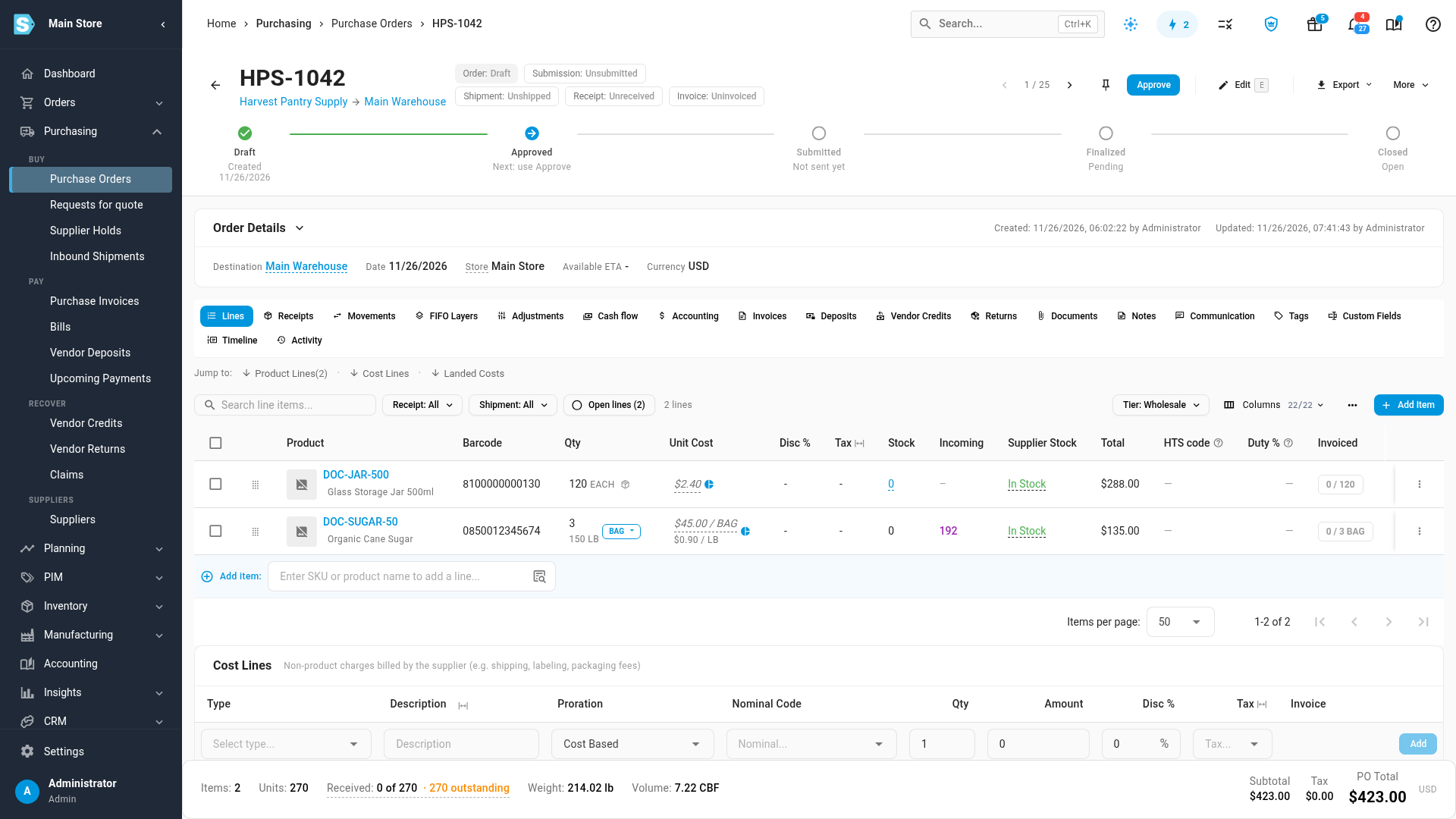
Under Add item, type the product's SKU or name and select it. The new line starts in the supplier's purchase unit: 1 with the chip BAG, and 50 LB underneath. Unit Cost reads per bag ($45.00 / BAG) with the cost per stock unit below it ($0.90 / LB).
-
Click the quantity and type the number of purchase units. While you type, the conversion shows under the field, for example 3 BAG = 150 LB.
-
Press Enter. The line shows 3 BAG with 150 LB underneath, and its Total is the quantity times the price per bag.
-
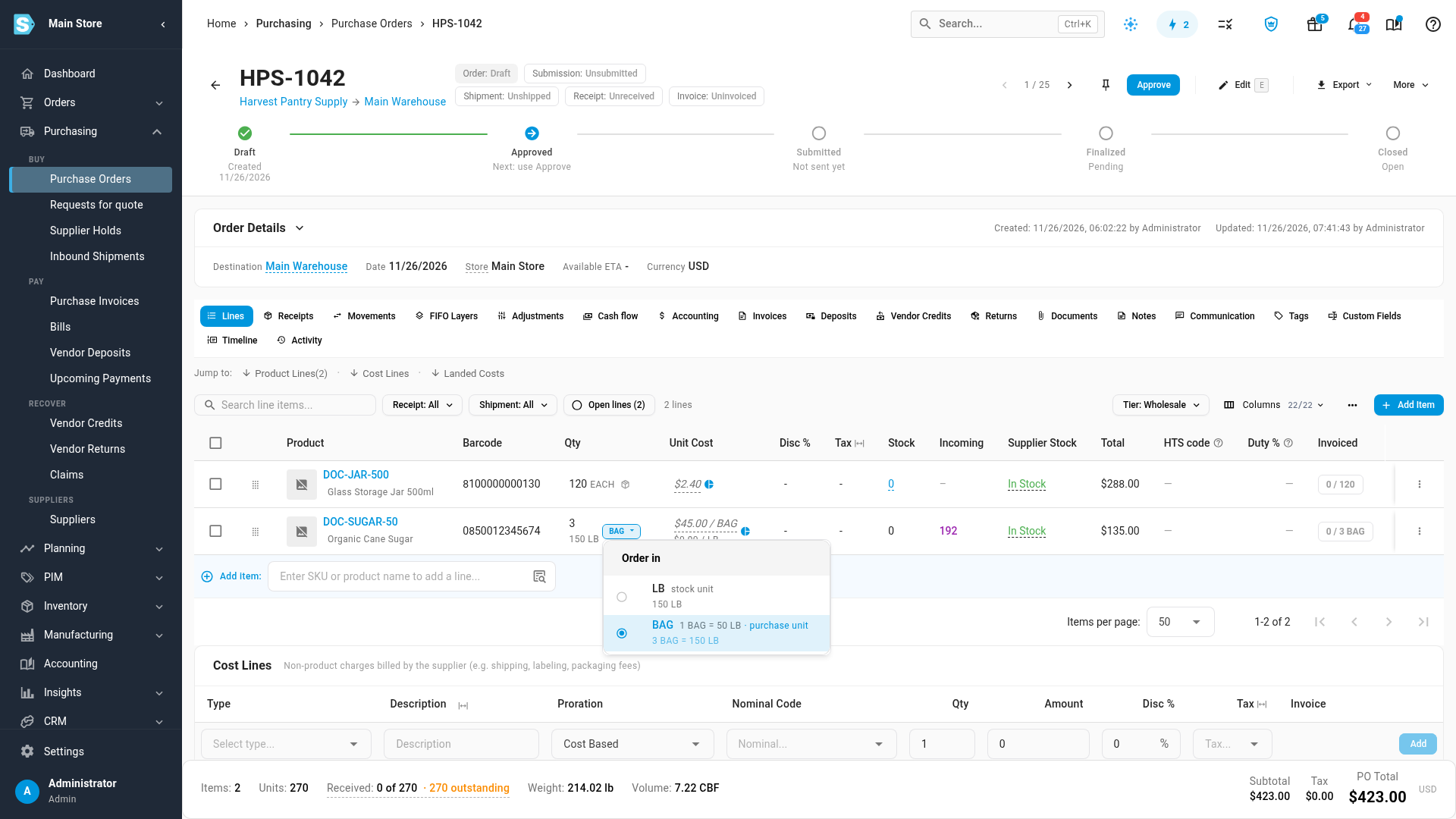
To order the line in a different unit, click the unit chip next to the quantity. The Order in menu lists each of the product's units with its conversion, and previews what the line would become in that unit. Pick one. The stock quantity stays the same and the cost is re-expressed in the new unit.
The purchase order you send shows the supplier their unit: the PDF and email print 3 BAG at the price per bag, with 1 BAG = 50 LB under the description. Suppliers who use the supplier portal see and answer in bags too.
Things to know when you choose a unit
- The supplier's unit comes first. A new line uses the supplier's Purchase unit. If the supplier has none, it uses the product's purchase unit, and otherwise the stock unit.
- A quantity that isn't a whole unit is flagged. If switching units leaves a fraction, such as 6.12 CASE, the line shows a not a whole CASE warning so you can round it.
- A unit with no conversion can't be chosen. It appears greyed out in the Order in menu with Needs a conversion, which links to the product's Units of Measure tab.
- Some orders always use the stock unit. Drop-ship orders and lines created from a sales order are ordered in the stock unit.
Receive in either unit
-
Approve the purchase order and click Receive. The Receive Items drawer opens.
-
For a line ordered in a purchase unit, Ordered, Received and Pending show both units (3 BAG above 150 LB).
-
Type the quantity you counted. Use the toggle beside the field to count in the purchase unit (BAG) or the stock unit (LB). The other unit shows underneath, for example = 100 LB for 2 bags.
-
Click Receive Items, then Confirm.
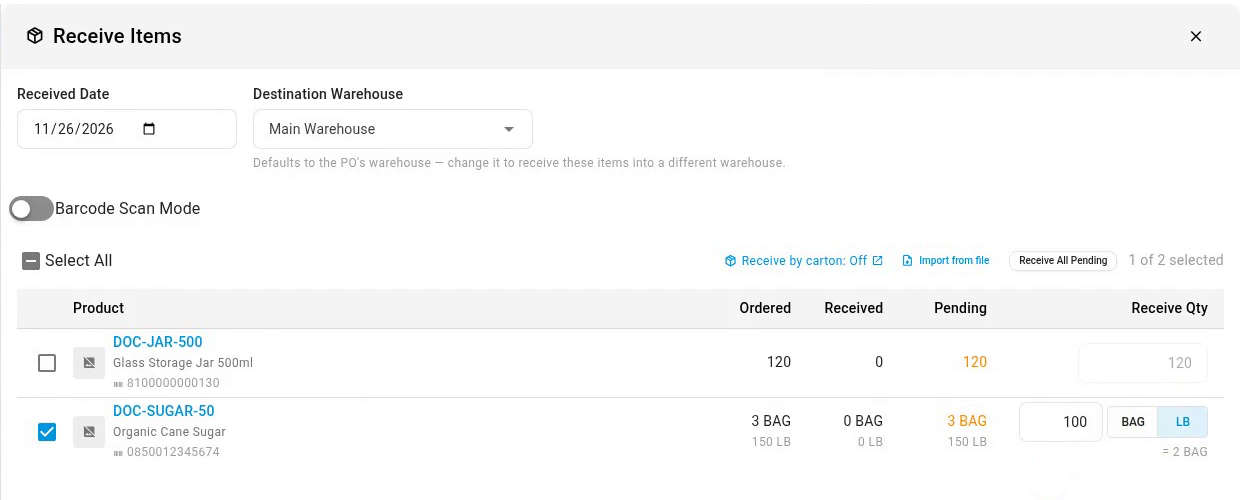
Stock is always received in the stock unit, so your inventory, lots and bins stay in pounds. The Receipts tab lists each receipt in both units, such as 2 BAG (100 LB), and the line's cost per pound is exactly the price per bag divided by the bag size.
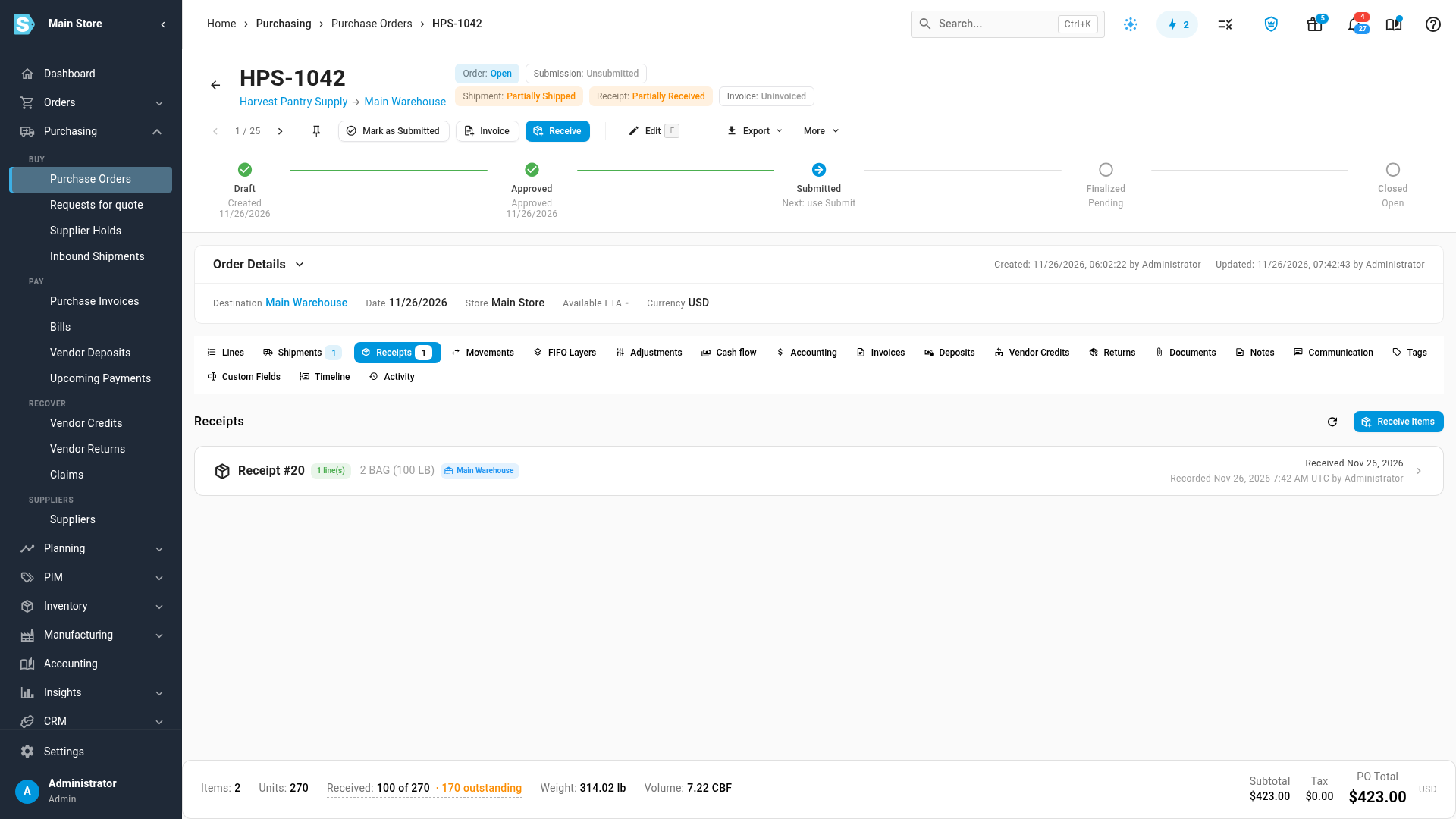
Once anything on a line is received, the line keeps the unit it was ordered in. Its unit chip turns read-only, with the tooltip Received lines keep their unit.
Bill in the purchase unit
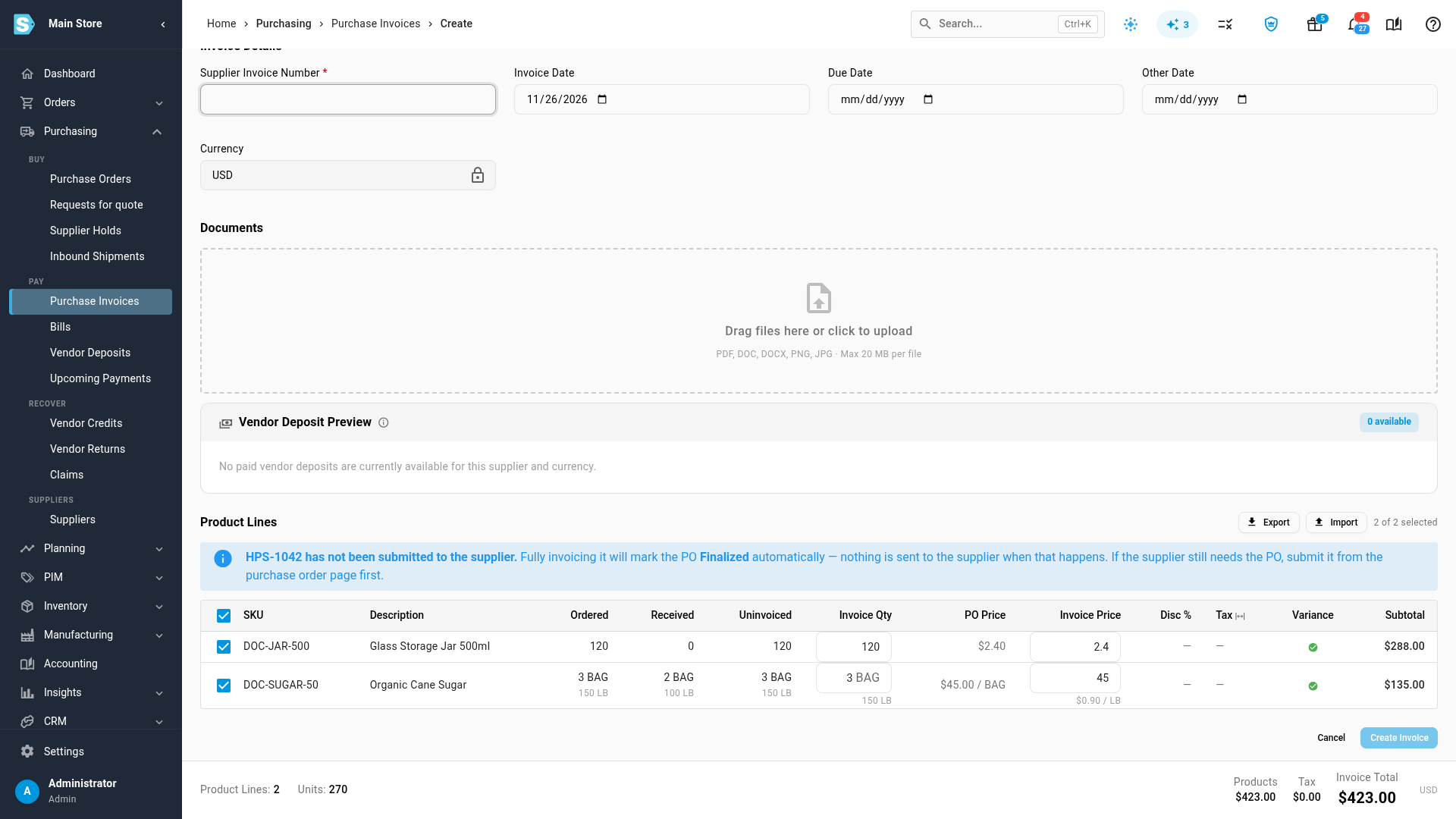
When the supplier's invoice arrives, click Invoice on the purchase order. On the bill, a line ordered in a purchase unit shows the Invoice Qty in that unit (3 BAG, with 150 LB underneath) and the Invoice Price per purchase unit ($45.00 / BAG, with $0.90 / LB underneath). Enter the quantity and price exactly as they appear on the supplier's invoice. For the rest of the bill, see Record a supplier invoice.
Reorder in whole purchase units
Reorder suggestions round up to whole purchase units, so you're never asked to buy 2.7 bags. On the Products list, select products and choose Bulk actions → Reorder. In the Reorder dialog, Quantity is in the stock unit, with the purchase units underneath, for example 150 and 3 BAG (150 LB). The draft purchase orders it creates order those lines in the purchase unit.
When a unit's conversion changes
Suppliers change pack sizes. When you change a purchase unit's conversion factor on the product's Units of Measure tab, purchase orders that are already open keep the conversion they were ordered at. After you save, a banner lists the open lines that keep the old conversion, with links to their purchase orders.
On each of those lines, the unit chip shows an amber dot. Hover over it to compare, for example "Ordered at 1 BAG = 48 LB. The product now says 1 BAG = 50 LB."
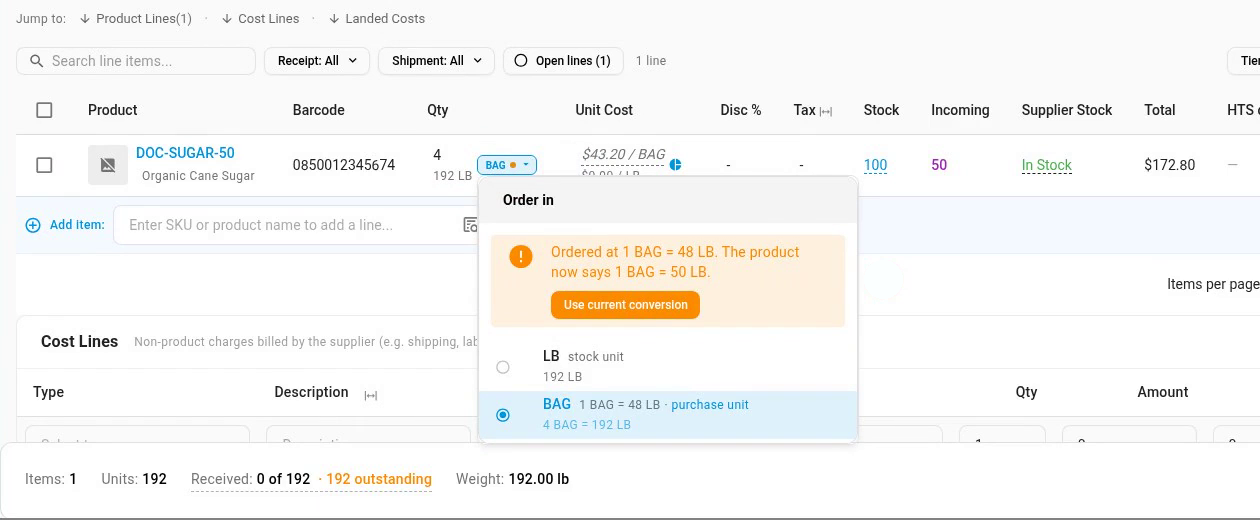
To move a line to the new conversion, click the unit chip, then Use current conversion. The line keeps its number of bags and its price per bag, so 4 bags become 200 pounds instead of 192. This is offered only before anything on the line is received or billed. After that, the line keeps the conversion it was received and billed at. On an order you already sent, the change shows as Modified after submitting, so you can send the supplier the updated order.
Import and export
The purchase order CSV export and import carry three extra columns for lines ordered in a purchase unit. The existing quantity and price columns stay in the stock unit, so older files keep working.
| Column | In | Holds |
|---|---|---|
Purchase Unit | export and import | The unit's code, such as BAG. Blank means the line is ordered in the stock unit. |
Purchase Qty | export and import | The quantity in the purchase unit, such as 3. |
Purchase Unit Cost | export and import | The cost per purchase unit, such as 45.00. |
On import, Purchase Qty and Purchase Unit Cost win over the stock-unit Quantity and Unit Price. A file that has only a Purchase Unit column converts its stock-unit quantity and price into that unit. See Import purchase orders for the rest of the file.
Next steps
- Configure a product's units of measure
- Receive stock against a purchase order
- Record a supplier invoice
- Manage a product's suppliers
Video transcript
When a supplier sells in bags but you count stock in pounds, give the product both units. On its Units of Measure tab, pounds are the stock unit. Here, one bag holds 50 pounds. Bag is the unit ticked under Purchasing. Each supplier can sell the product in a unit of its own. Click Suppliers in the product's list of sections. The Purchase Unit column shows bag, at 50 pounds. Pricing stays per pound, and also shows the price per bag. Now order some sugar from the supplier. In the menu, go to Purchasing, then Purchase Orders, where all your orders are listed. Open a draft purchase order for the supplier. This draft already has one line, for glass storage jars. Click the Add item field below the lines. Type the product's SKU or name, and pick the product from the list that appears. The new line starts in the supplier's unit, one bag, with 50 pounds underneath. Unit Cost reads forty-five dollars per bag, with the cost per pound below. Click the line's quantity, and type the number of bags you want. As you type, the conversion shows that three bags make a hundred and 50 pounds. Press Enter, and the line totals $135. The jar has only one unit, so its line looks the same as always. To order in another unit, click the unit chip beside the quantity. Each unit shows its conversion, and what this line would become. Bag is the supplier's purchase unit, so new lines start in bags. When the delivery arrives, approve the order first. A Receive button now sits at the top of the page, next to Invoice. Click Receive. The Receive Items drawer slides in from the right. Clear the tick on any line you aren't receiving in this delivery. For a line ordered in bags, the drawer shows both units. Click the quantity, and type the number of bags you counted. As you type, the matching pounds show underneath. Counting in pounds works too. Switch the toggle to pounds, and the bag count shows below the field. When the count is right, click Receive Items at the bottom of the drawer. A summary asks you to check the total, so click Confirm. The stock arrives in your warehouse, counted in pounds. When the receipt is saved, open the Receipts tab on the order. It shows each receipt in both units, here two bags, or 100 pounds. Once anything is received, the line keeps its original unit. When the supplier's invoice comes in, click Invoice on the order. The bill lists the sugar in bags, at the supplier's price per bag. Pounds and the price per pound show underneath. So you can check the bill against the supplier's invoice, line for line. Suppose the supplier's bags got bigger after you placed an order. Open orders keep the conversion they were placed with. Their unit chip gets an amber dot, so they are easy to spot. Click the chip to compare the conversion it was ordered at with the product's new one. If nothing on the line is received or invoiced yet, you can move it to the new conversion. Click Use current conversion. The line keeps its four bags, and now expects 200 pounds.