Manage the units of measure catalog
Every unit a product, recipe or manufacturing order uses comes from one shared list, the units of measure catalog. SKU.io ships it with the common weight, volume and count units. You can add your own, like linear feet, yards or rolls, and they then appear in every unit picker.
This page covers the catalog itself. To choose which of these units a product is stocked, bought and sold in, see Configure a product's units of measure.
Before you begin
- You need access to Manufacturing. The catalog lives under Manufacturing → Units of Measure, even though products use it too.
- Converting a liquid to a weight doesn't need a new unit. Set the product's density on its Units of Measure tab and the conversion is worked out for you. See Convert between volume and weight with density.
System and custom units
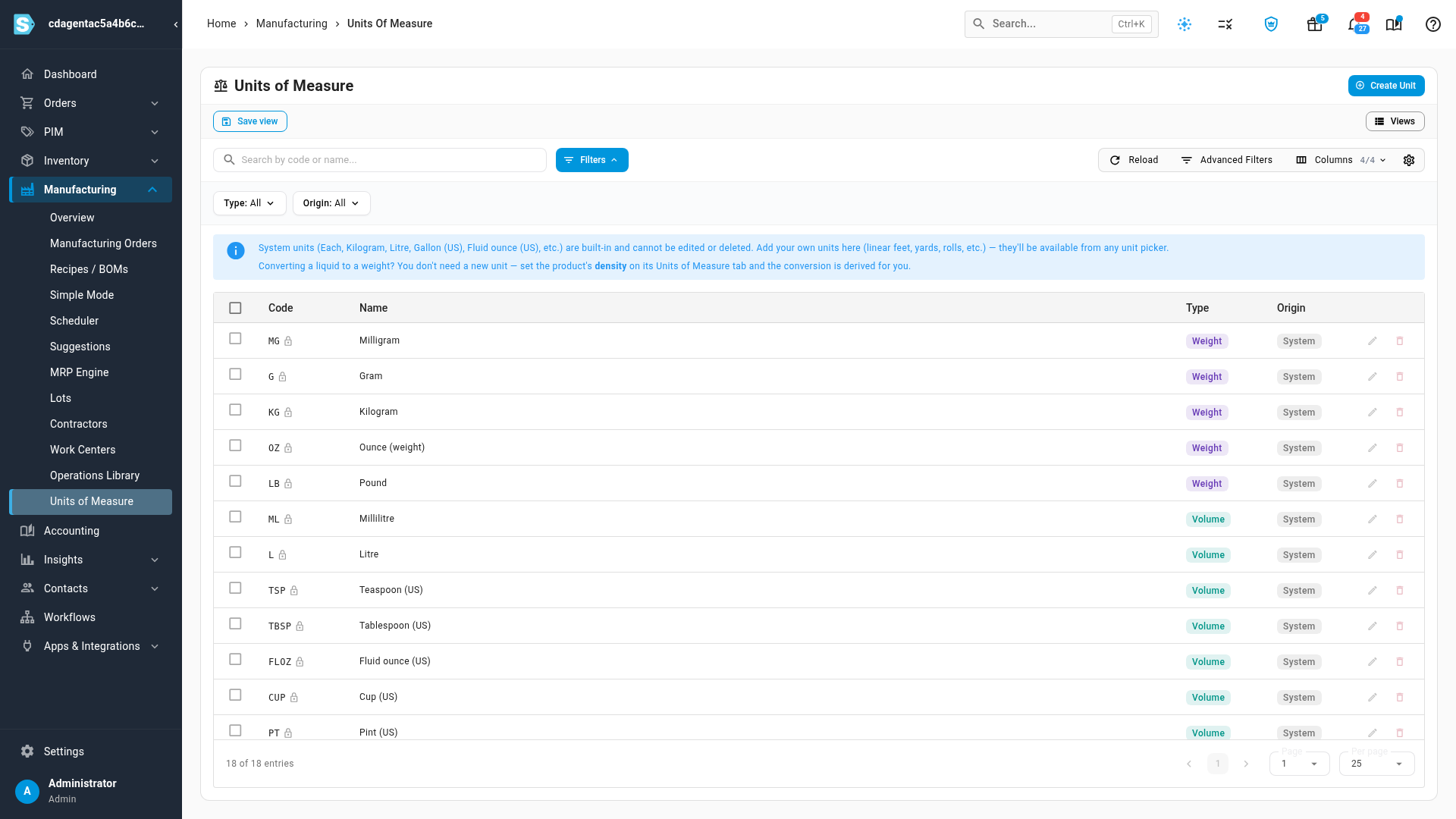
Go to Manufacturing → Units of Measure. The list shows each unit's Code, Name, Type and Origin.
| Origin | What it means |
|---|---|
| System | Built in to every account and marked with a lock. System units can't be edited or deleted. |
| Custom | A unit someone in your account added. You can edit or delete it. |
The system units are:
| Type | Units |
|---|---|
| Weight | MG Milligram, G Gram, KG Kilogram, OZ Ounce (weight), LB Pound |
| Volume | ML Millilitre, L Litre, TSP Teaspoon (US), TBSP Tablespoon (US), FLOZ Fluid ounce (US), CUP Cup (US), PT Pint (US), QT Quart (US), GAL Gallon (US) |
| Count | EACH Each, BOX Box, PALLET Pallet |
Use the Type and Origin filters to narrow the list. Setting Origin to Custom shows only the units your account added.
Create a unit
- Go to Manufacturing → Units of Measure.
- Click Create Unit.
- Enter a Code, up to 16 characters. It's saved in capitals, and no two units can share one.
- Choose the Type: Count, Weight or Volume. See the table below for what the type changes.
- Enter a Name, up to 64 characters.
- Click Create Unit.
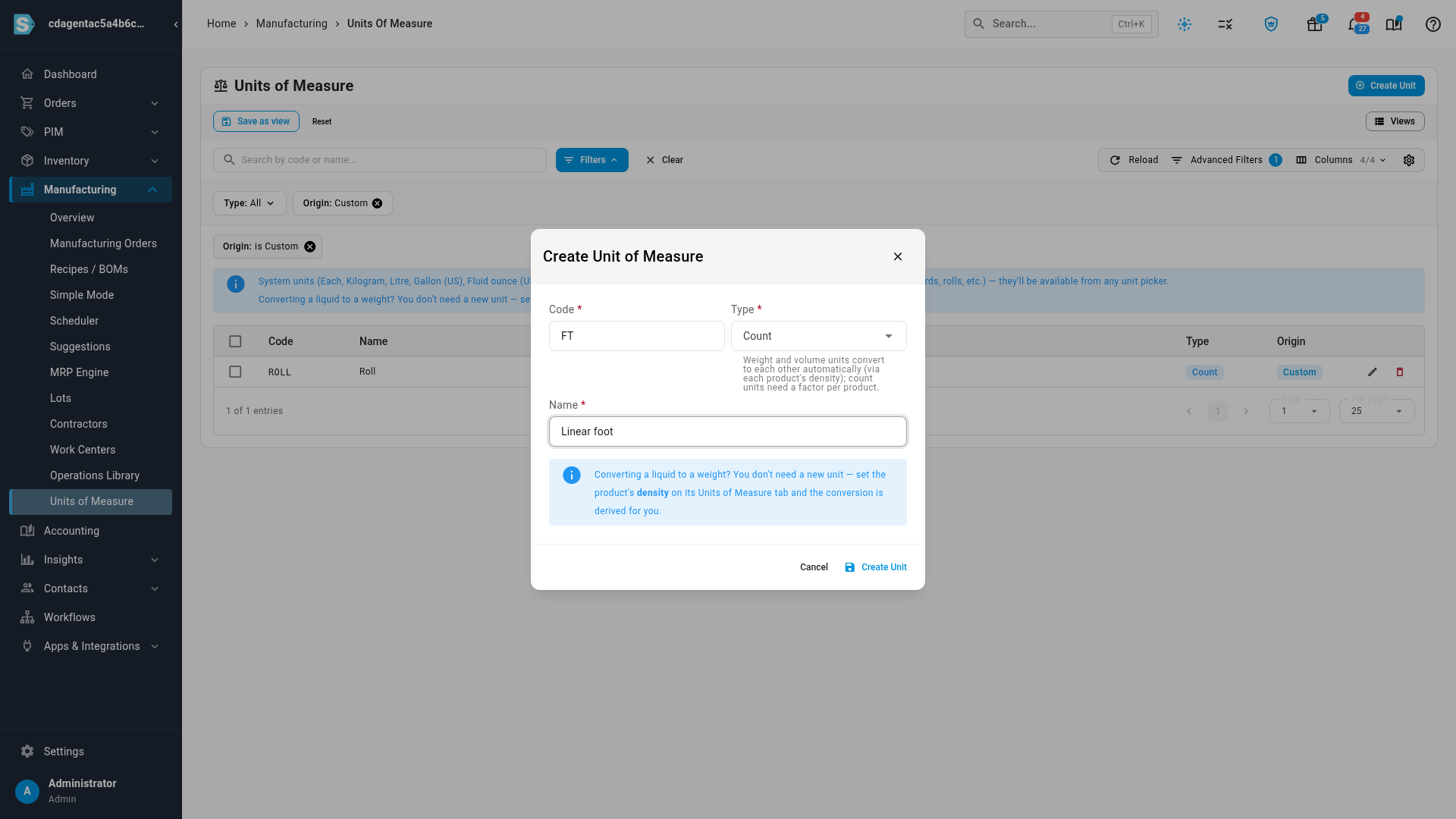
The unit is added to the catalog and appears in unit pickers straight away, marked custom.
What the type changes
| Type | How the unit converts on a product |
|---|---|
| Weight | To other weight units by standard ratios (KG ↔ G, LB ↔ OZ), and to volume units through the product's density. |
| Volume | To other volume units by standard ratios (L ↔ ML, GAL ↔ FLOZ), and to weight units through the product's density. |
| Count | Only by a factor you enter on each product, the number of stock units in one of this unit. For example, 1 Roll = 50 Each. |
A unit's type can't be changed once a product, recipe or manufacturing order uses it, because that would change how their quantities convert. Create a new unit instead.
Edit or delete a custom unit
Each custom unit has Edit (the pencil) and Delete (the bin) at the end of its row. On system units they're greyed out.
- Edit changes the code, the name, and the type if nothing uses the unit yet.
- Delete removes the unit. You can't delete a unit that a product, recipe or manufacturing order still uses. The message says how many records use it.
To delete several units at once, tick them and click Delete in the bar above the list. System units and units in use are skipped, and the rest are deleted.
How products pick from the catalog
A product doesn't define its own units. Each row on its Units of Measure tab picks a unit from this catalog:
- Open the product and click its Units of Measure tab.
- Click Edit, then Add Unit of Measure.
- Click the new row's unit picker. Units are grouped by type, and custom units carry a custom tag. Type to search.
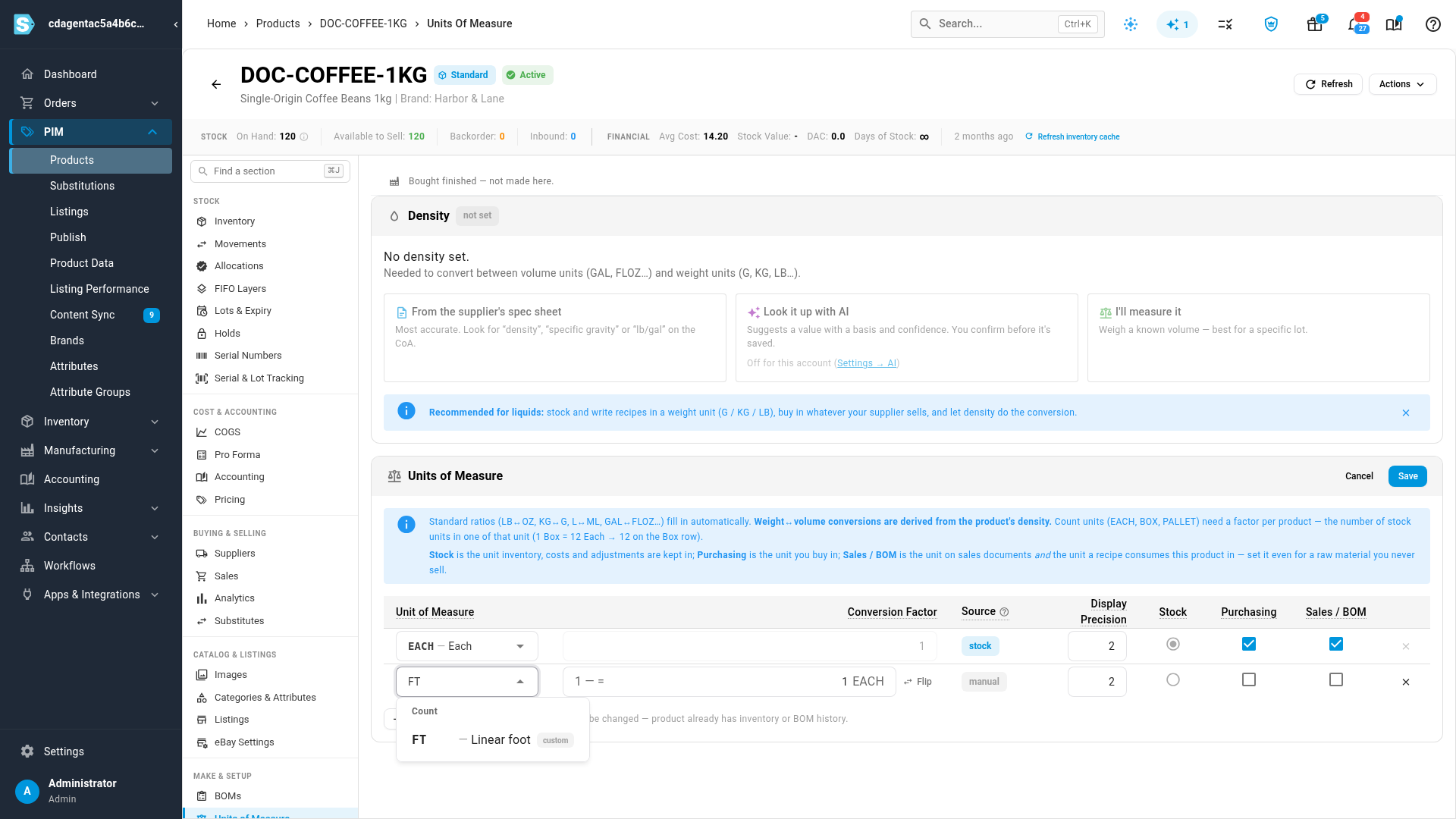
If the unit you need isn't there, choose Create new unit of measure at the bottom of the picker. It opens the same Create dialog without leaving the product. The same picker appears on a recipe's component lines.
Next steps
- Configure a product's units of measure: set the stock, purchasing and sales units and their conversion factors.
- Units of measure reference: every flag, auto-filled factor and error message.
- Convert between volume and weight with density: buy by volume and stock by weight.