Video chapters: 0:00 Open Customs entries · 0:40 Add your importer number · 0:52 Import a 7501 PDF · 1:18 Review the entry · 1:53 Read the lines · 2:15 Check the proposals · 2:41 Apply the proposals · 2:59 Link the duty bill · 3:15 Split the duty by customs entry
Import customs entries
Every shipment you import into the United States gets a customs entry. Your broker files it, and it states, line by line, the HTS code, the value, and every duty actually charged, such as the base rate, a Section 301 duty, and any surcharge. SKU.io can read that entry. It matches each line to your purchase order, proposes the duty rates and product codes the entry proves, and lets you split the broker's duty bill by the duty charged on each product instead of by cost.
You do all of this on the Customs entries tab of Settings → Purchasing → Duty Rates. To add rates by hand instead, see Set up duty rates.
Before you begin
- You need the Customs Entries → List permission to see the tab, Customs Entries → Create to import, and Customs Entries → Edit to apply proposals, edit matches and link bills. Applying rate proposals also needs Duty Rates → Create, and applying product codes needs Products → Edit. Exports need Customs Entries → Export. Roles that can already maintain duty rates get these permissions automatically.
- Have the file from your broker or from ACE:
- a 7501 PDF: the entry summary (CBP Form 7501) your broker sends for one entry, or
- an ACE ES-003 report: the entry summary line tariff report you can run in ACE, as CSV or Excel, covering many entries at once.
- Matching works best when the purchase order exists and, ideally, its inbound shipment carries the customs entry number. See Estimate duty on purchase orders and shipments.
Steps
-
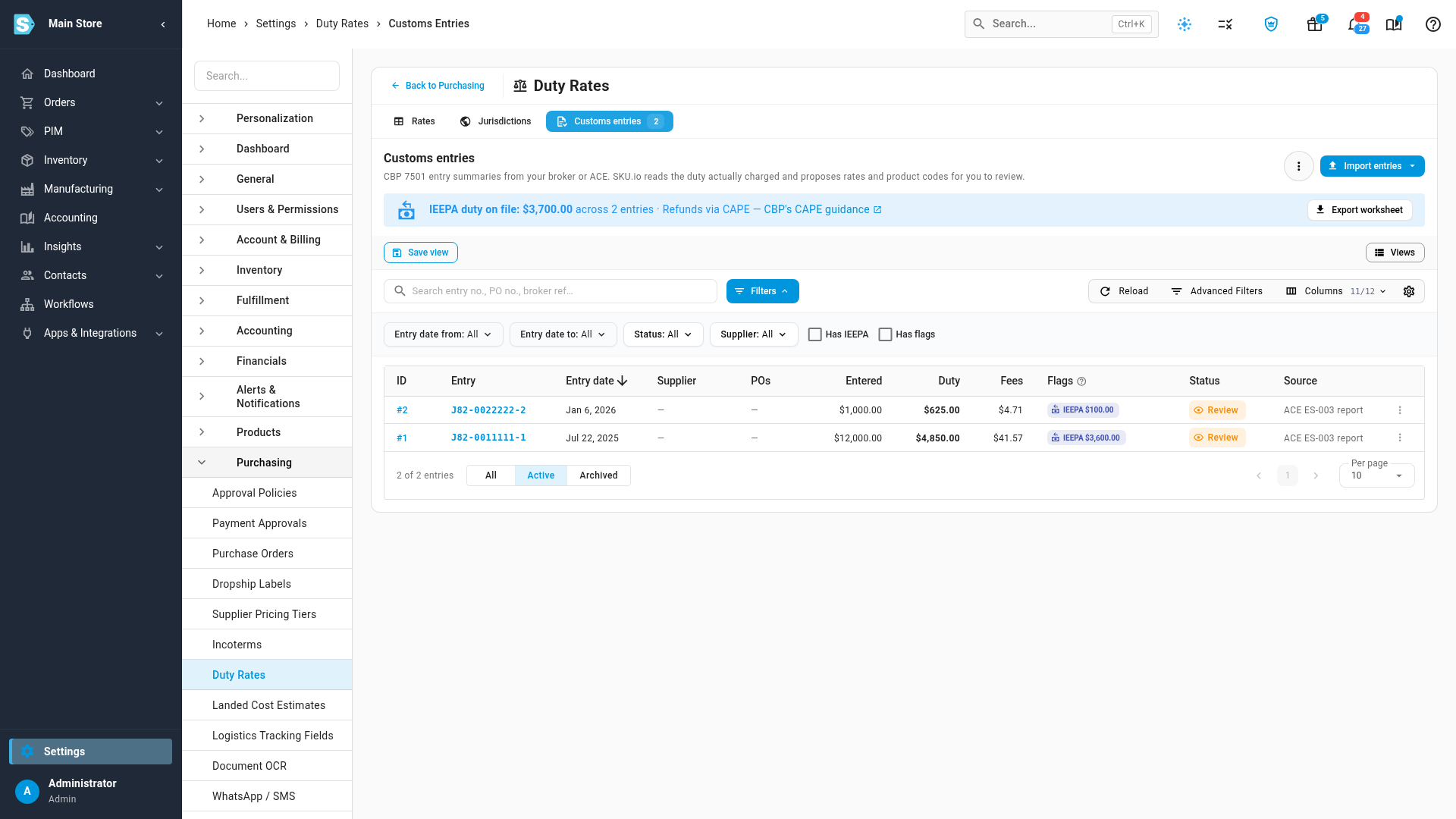
Go to Settings, open Purchasing, and choose Duty Rates. Then open the Customs entries tab.
Each row is one entry: its date, supplier, purchase orders, entered value, duty, fees, flags, and status. The blue banner totals the IEEPA duty on file across your entries (see IEEPA refunds).
-
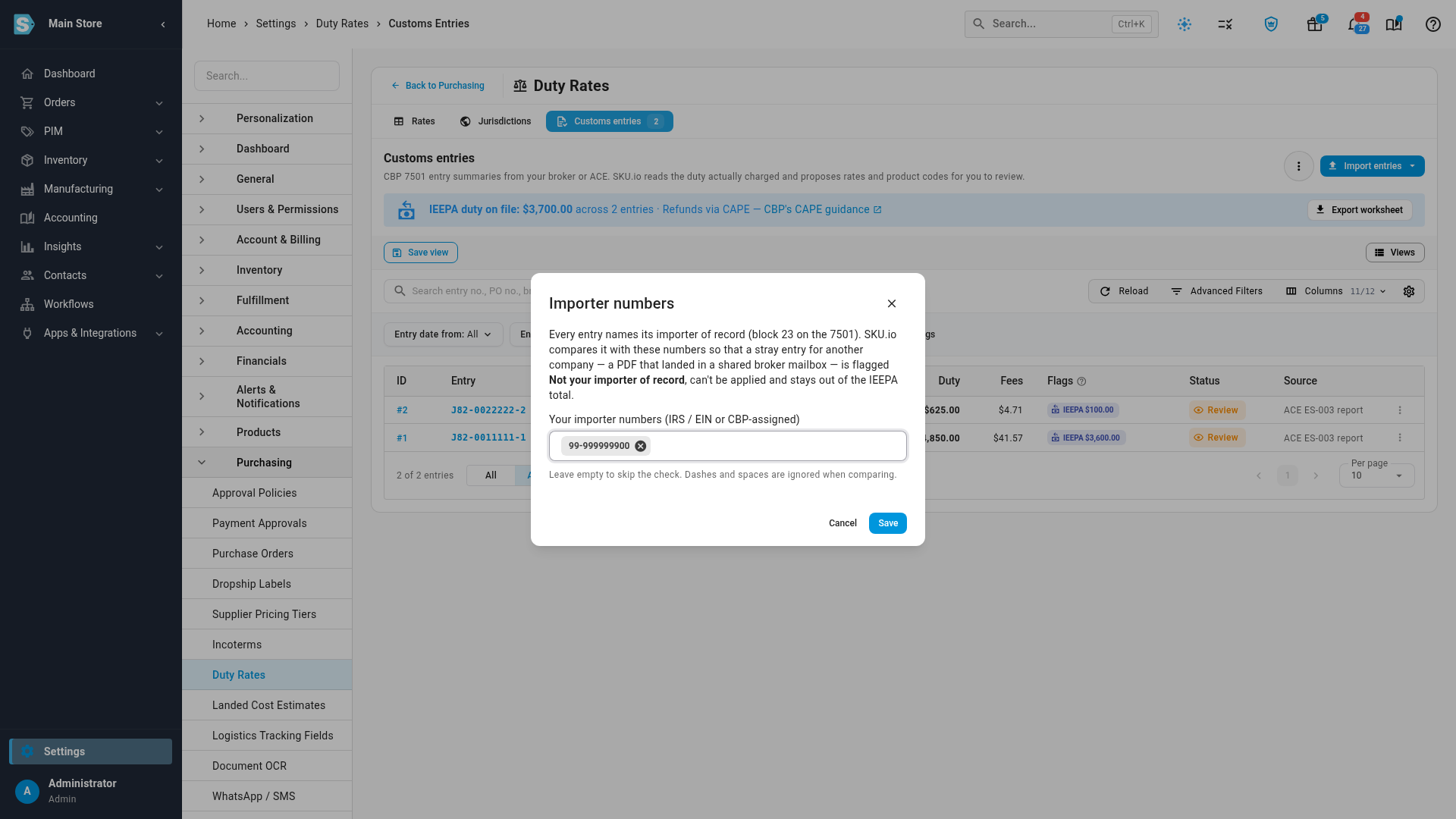
The first time, add your importer numbers. Click the ⋮ menu beside Import entries and choose Importer numbers. Type each importer number (your IRS / EIN or CBP-assigned number) and press Enter after each one, then click Save.
An entry whose importer of record isn't one of these numbers is marked Not your importer. It can't be applied, and it stays out of the IEEPA total. This catches an entry for another company that lands in a shared broker mailbox. Leave the list empty to skip the check.
-
Click Import entries, and choose 7501 PDF for one entry or ACE ES-003 report for many.
-
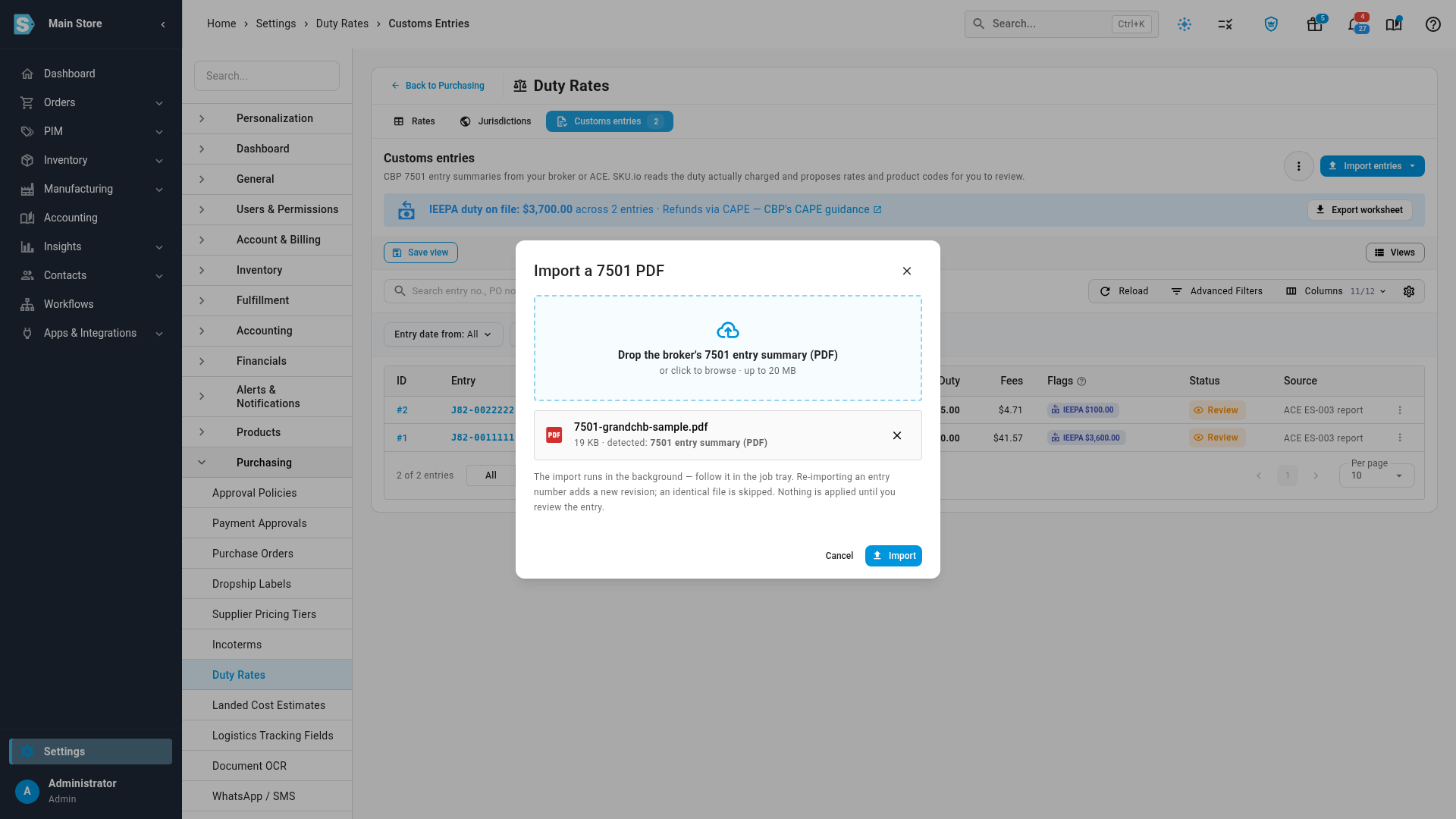
Drop the file on the upload area, or click it to browse. SKU.io shows the file and what it detected, such as 7501 entry summary (PDF). Files can be up to 20 MB.
-
Click Import. The file is read in the background, and you can follow it in the job tray. When it finishes, the entry appears in the list with the status Review. Nothing is applied yet.
-
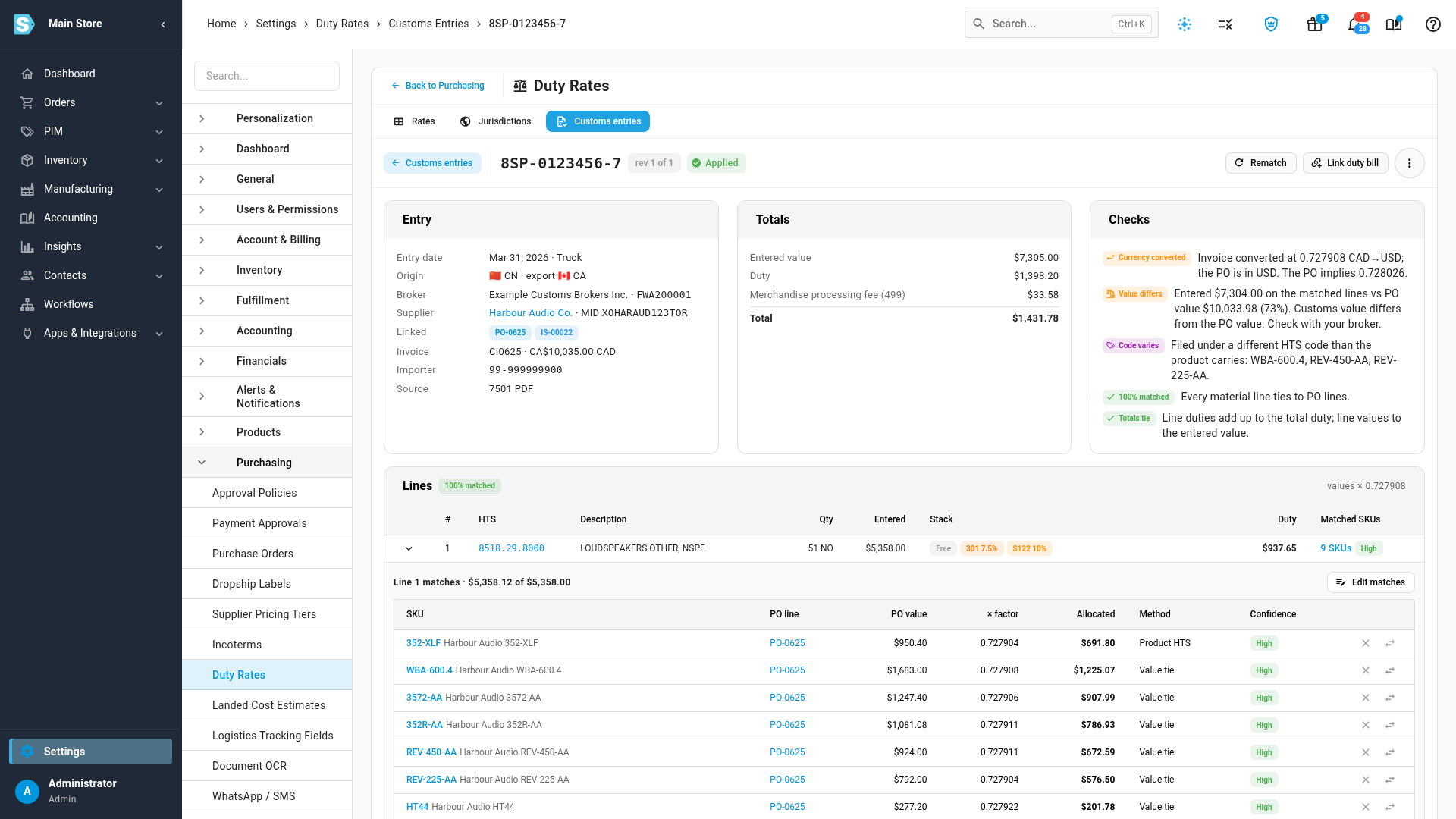
Click the entry number to open it.
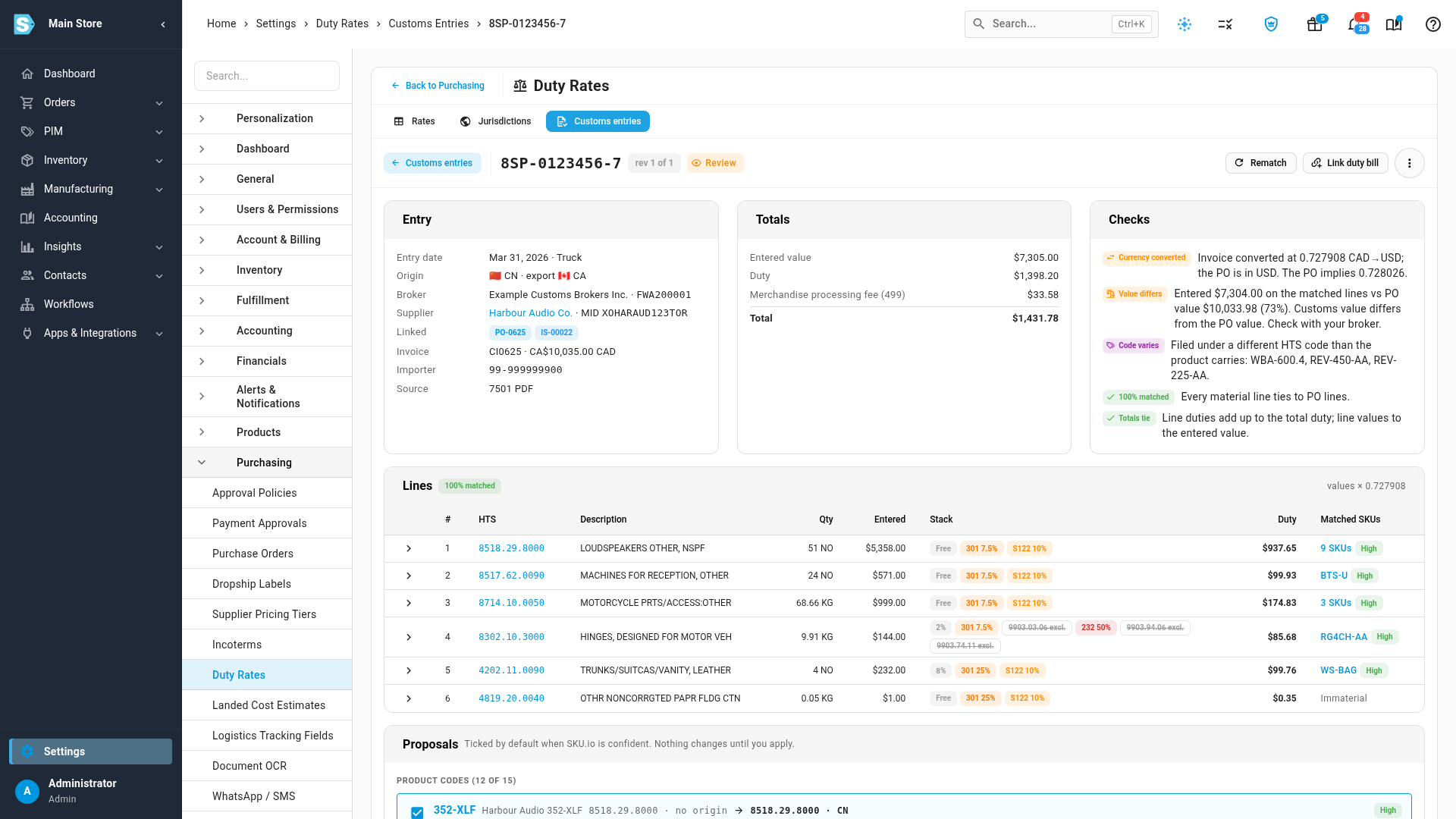
- Entry shows the entry date, transport mode, origin, broker and file number, supplier, and the purchase order, inbound shipment and bills it's linked to.
- Totals shows the entered value, the duty, each fee (such as the merchandise processing fee) and the total.
- Checks compares the entry with your purchase order. See Checks and flags.
-
Read the Lines. Each line shows its HTS code, description, quantity, entered value, the Stack of every tariff that applied (the base rate first, then each extra duty), the duty, and Matched SKUs. Click a line's arrow to see which purchase order lines it covers, the value allocated to each, how it was matched, and with what confidence.
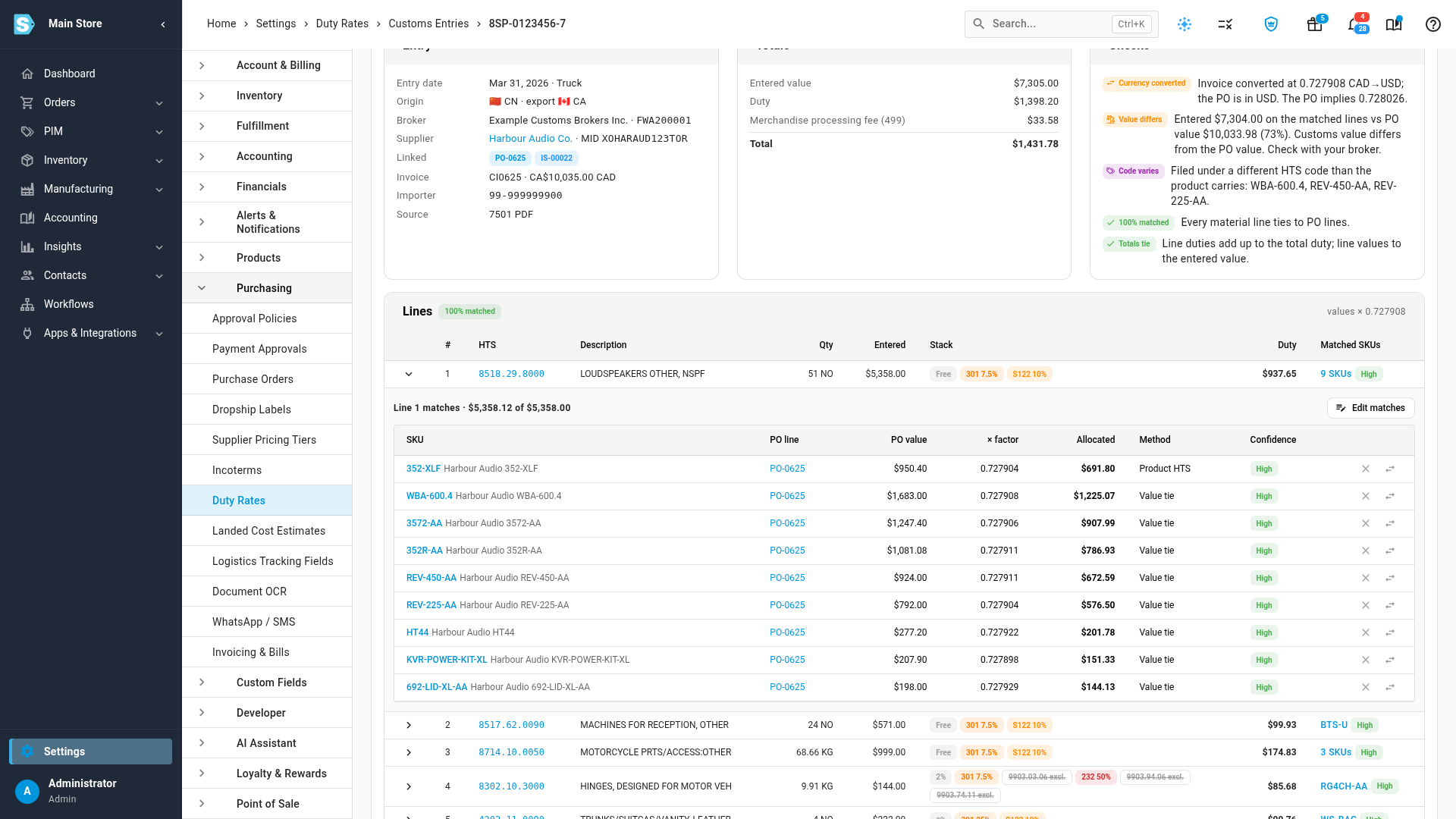
If a match is wrong, click Edit matches on the expanded line. In Assign PO lines, change the Allocate amount on a purchase order line, remove a line with ×, or add another, and watch Remaining until it reaches zero. A line you assign by hand shows Manual confidence, and the entry's status changes to Reviewed.
-
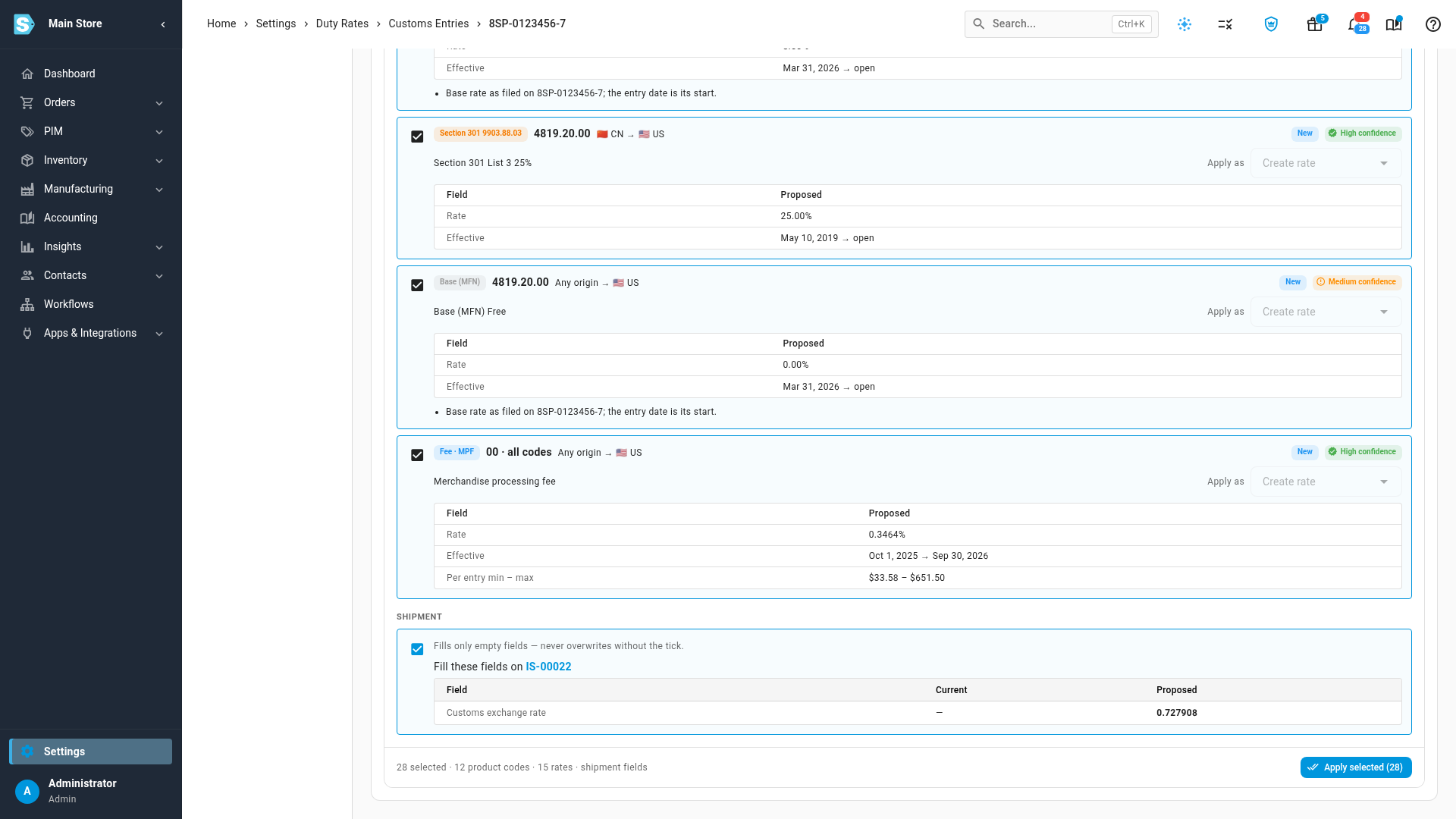
Check the Proposals. SKU.io ticks the proposals it's confident about.
- Product codes sets each matched product's HTS code and country of origin. A product the broker filed under a different code than the product carries stays unticked, with a note, so you can check it first.
- Duty rates proposes one dated rate per HTS code and tariff on the entry, with the source Broker entry and the entry number as its reference. Each card says whether the rate is New, Matches existing, Differs or has an Earlier start, and Apply as offers the right action: Create rate, Mark verified, New version or Correct start date.
- Shipment fills customs fields on the inbound shipment that are still empty, such as the entry number, entry date and customs exchange rate. It changes nothing unless you tick it.
-
Untick anything you don't want, and click Apply selected. The entry's status changes to Applied. If one proposal can't be applied, for example because it overlaps an existing rate, that card says why and the rest still apply. Duty estimates on purchase orders and shipments are then worked out again with the new rates and codes. Estimates already booked at receipt don't change.
-
To split the broker's duty bill by this entry, click Link duty bill, search for the bill, pick it, and click Link bill. The bill joins the entry's links.
-
Click the bill in the entry's links to open it, and click Edit. Set Proration Method to By cost category, so each line splits by its cost category's Allocate by. Because a fully matched entry is linked, the duty line's Allocate by shows By customs entry, while freight and brokerage lines keep their own method. The Customs entry card below shows the entry the duty splits by, such as 8SP-0123456-7 · 100% matched.
-
Click Save. Each product now carries its share of the duty actually charged on its entry line, plus its share of the entry's fees by value. How this bill is split lists the duty line under By customs entry and the other lines under their own method.
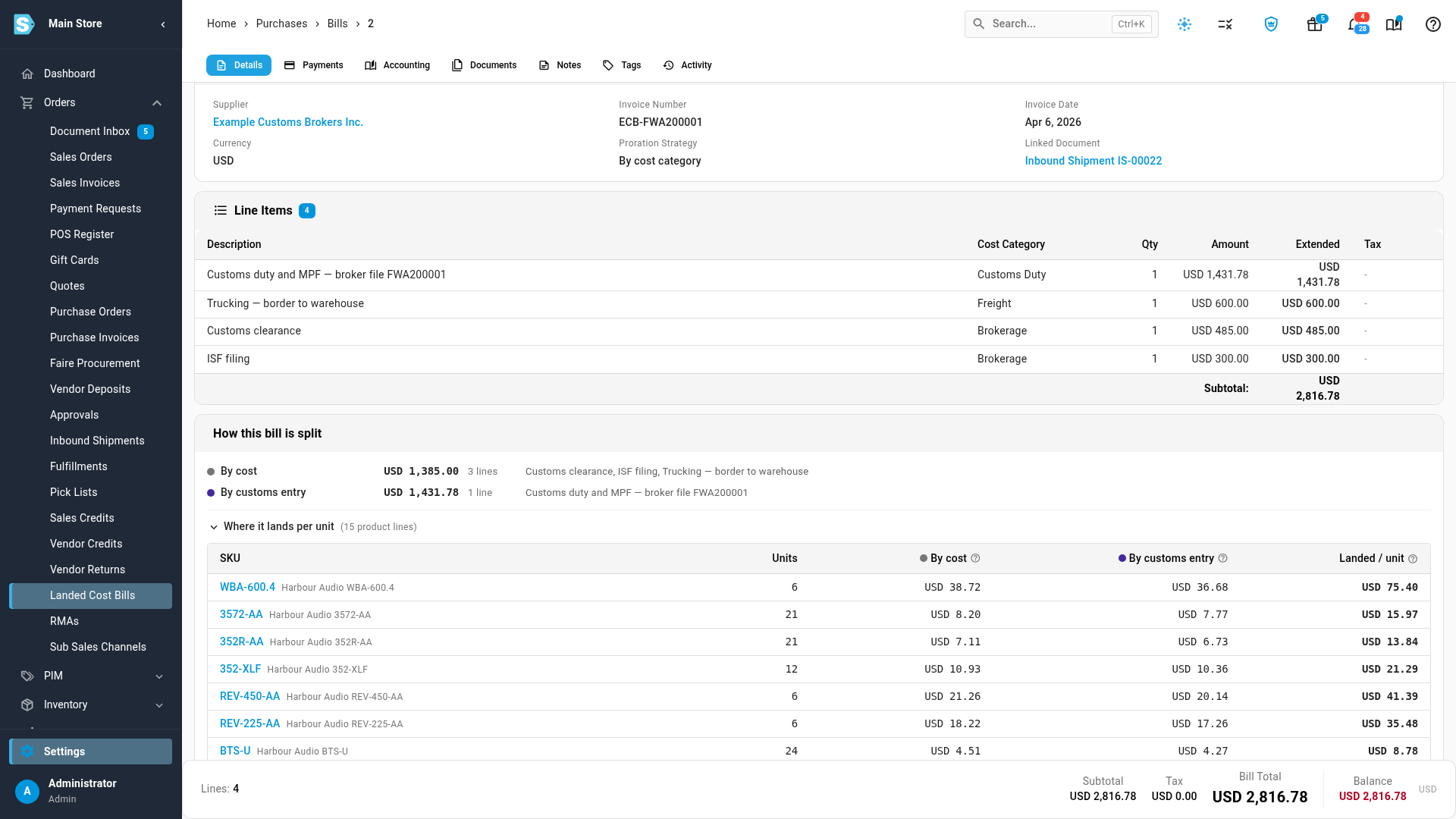
You can also pick By customs entry for a single line from its Allocate by menu, or for the whole bill as its Proration Method. To link an entry from the bill itself, click Link customs entry on the Customs entry card. If you don't link an entry to the bill, the bill uses a fully matched entry linked to its purchase order or inbound shipment, and the card says so. Without a fully matched entry, the duty line falls back to splitting by estimated duty, then by cost.
How matching works
To find the purchase order, SKU.io looks, in order, for:
- an inbound shipment whose customs entry number is this entry's number,
- the purchase order or invoice number the broker printed on the entry, and
- orders from the supplier on the entry, dated up to 120 days before the entry date.
It then assigns purchase order lines to entry lines. A product whose HTS code matches the line goes there first. The rest are placed so that each line's purchase order value, converted with the entry's exchange rate, adds up to the line's entered value within $1 or 0.5%. Confidence is High when the values tie, Medium when only the HTS code or the quantities agree, and Low or Manual when a line was assigned by name or by hand.
A line of $1.00 or less with no purchase order line, such as cartons, is marked Immaterial. Its duty is spread with the fees, so it doesn't stop the entry from being fully matched.
After a confident match, SKU.io remembers the supplier's manufacturer ID, so later entries from that supplier are found even without an entry number on the shipment. To run matching again after you change a purchase order or shipment, click Rematch at the top of the entry.
Checks and flags
| Check | What it means | What to do |
|---|---|---|
| Value differs | The entered value is outside 95–105% of the matched purchase order value. The message gives both numbers. | Check the declared value with your broker. SKU.io never changes purchase order or customs values. |
| Currency converted | The broker converted the invoice into dollars at a rate, but the purchase order is already in your currency. Matching uses the entry's own rate. | Check the rate with your broker. |
| Code varies | A product was filed under a different HTS code than its product record, or than on another entry. | Decide which code is right before you apply it. |
| HMF not ocean | A Harbor Maintenance Fee was charged on an entry that didn't arrive by sea. | Check the fee with your broker. |
| Not your importer | The importer of record isn't one of your importer numbers. | Nothing, if it isn't your entry. Otherwise add the number under Importer numbers. |
| Totals tie | The line duties add up to the entry's total duty, and the line values to the entered value. | Nothing. |
Statuses
| Status | What it means |
|---|---|
| Review | Imported and matched, waiting for you to apply its proposals. |
| Reviewed | You edited its matches by hand, and nothing is applied yet. |
| Applied | At least one of its proposals is applied. |
| Parse error | The line duties or values don't add up to the entry's printed totals, so SKU.io didn't trust the file. The entry shows the difference, and Apply selected stays disabled. Upload the ACE ES-003 report for that entry instead. |
| Not your importer | Another company's entry. It can't be applied. |
Importing again
- The same file again is skipped, and the job says Already imported.
- An amended entry (the same entry number with different lines) becomes a new revision, such as rev 2 of 2. A banner lists what changed, for example a duty added on one line. Earlier revisions stay read-only, and anything you applied from them stays applied.
- A file that isn't an entry summary fails with Not a CBP 7501 entry summary.
- A scanned 7501 without readable text is read with document recognition. If its totals still don't add up, it's saved as Parse error. Upload the ES-003 report instead.
Columns in the ES-003 report
The ES-003 report has one row per tariff number on each entry line. SKU.io groups the rows into entries and lines. It finds each column by its header, ignoring case, spaces and punctuation, and accepts the names ACE has used over time, so you can upload the report as you export it. A file can hold up to 1,000 entries; export a shorter date range for more. CSV files may be comma, tab or semicolon separated, and Excel files are read from the first sheet.
| Column (header in the report) | Required? | What it's used for |
|---|---|---|
| Entry Summary Number (or Entry Number) | Yes, or Filer Code plus an 8-digit entry number | Groups rows into entries. |
| HTS Number (or Tariff Number) | Yes | The commodity code for a line, and each Chapter 99 heading stacked on it. |
| Line Tariff Duty Amount (or Duty Amount) | Yes, or the goods value | The duty charged for each tariff. |
| Line Tariff Goods Value Amount (or Entered Value) | Yes, or the duty | The line's entered value. |
| Entry Summary Line Number | No | Groups tariff rows into lines. Without it, each row is its own line. |
| Entry Date, Entry Summary Date, Import Date, Export Date | No | The entry date dates the proposed rates. |
| Importer Number | No | Checked against your importer numbers. |
| Port Code, Mode of Transportation Code | No | Shown on the entry. The mode fills the shipment's transport mode. |
| Country of Origin Code, Country of Export Code | No | The origin proposed for products and rates. |
| Manufacturer ID | No | Finds the supplier's purchase orders. |
| HTS Description | No | The line description. |
| Ad Valorem Rate, Specific Rate | No | The filed rate for each tariff. |
| HTS Quantity, Unit of Measure, Gross Weight | No | Shown on the line. Quantities help break ties when matching. |
| Line MPF Amount, Line HMF Amount | No | The entry's fees, added up per entry. |
| Entry MPF Amount, Entry HMF Amount, Total Duty Amount, Total Entered Value | No | Used instead of the line sums when present, because the entry-level fee applies the minimum and maximum. |
| Liquidation Status, Liquidation Date | No | Shown on the entry and in the IEEPA worksheet. |
Export
- ⋮ → Export lines (CSV) downloads every line and tariff of the entries your filters show: entry number, revision, date, status, importer number, broker file number, line number, HTS code, description, origin, quantity and unit, entered value, line duty, and each tariff's heading, programme, rate and duty.
- Export worksheet on the IEEPA banner downloads the IEEPA lines only. See below.
IEEPA refunds
Duties charged under IEEPA headings (9903.01.xx) may be refundable. The banner on the Customs entries tab totals the IEEPA duty on file across your entries, leaving out entries that aren't yours, and links to the CBP guidance on claiming it. Export worksheet downloads one row per IEEPA tariff line, with the entry number, entry date, importer number, heading, its name, the rate, the duty, and the liquidation status. Use it to prepare your claim with your broker. Tick Has IEEPA in the filters to list just those entries. When a refund arrives, record it as a vendor credit in Customs Duty.
Next steps
- Keep duty rates accurate: rates applied from an entry are marked verified, with the entry as their reference.
- Capitalise estimated duty and reconcile the broker bill: put duty into stock cost and clear it with the broker's bill.
- Record HS codes and country of origin: set codes on products by hand.
Video transcript
To bring in your customs entries, go to Settings, at the bottom of the sidebar. Open the Purchasing group, which lists every purchasing setting, then choose Duty Rates. Then open the Customs entries tab, next to Rates and Jurisdictions. Your broker files an entry summary for every shipment you import, with the duty charged on each line. Each row here is one entry, with its date, supplier, purchase orders, value, and duty. The blue banner totals the IEEPA duty you paid, which may be refundable. Export worksheet downloads those lines for a refund claim.
First, add the importer numbers your company files under. Click the menu beside Import entries, then click Importer numbers. Type a number, and press Enter after each entry in the box.
Then click Save, and the dialog closes with your numbers kept. An entry filed for another company is then flagged, and is never applied. To bring an entry in, click the Import entries button. Choose 7501 PDF for one entry from your broker, or ACE ES-003 report for many at once. Drop the file here, or click to browse your computer. The dialog shows the file, and what it detected.
Click Import, at the bottom right of the dialog, to start the import. The import then runs in the background, and you can follow it in the job tray. Reading a 7501 takes a few seconds, and you can keep working meanwhile. When the import finishes, the entry appears in the list, waiting for review. Its flags show anything worth checking. Click the entry number to see the details. The Totals card shows the entered value, the duty, and each fee. The Checks card compares the entry with your purchase order. Here the customs value is lower than the order value, so check that with your broker.
Below, each line shows its HTS code, entered value, and the duty charged. The stack lists every tariff that applied, such as a Section 301 duty on top of the base rate. Matched SKUs shows the purchase order lines that each entry line covers. Expand a line to see how each product was matched, and with what confidence.
Under Proposals are the changes this entry supports, and the confident ones are ticked. Product codes sets each product's HTS code and country of origin. A product filed under a different code than it carries stays unticked, so you can check it first. Duty rates adds a dated rate for each tariff on the entry, with the broker entry as its source. Shipment fills in customs details on the inbound shipment.
Untick anything you don't want to change, then click Apply selected at the bottom. Nothing changes until you do, and applying takes a few seconds. The entry is now marked Applied, and its duty rates and product codes are in place. Your purchase orders now estimate duty with these rates and codes.
Next, link the broker's bill that charged this duty. Click Link duty bill, at the top of the entry. Then type part of its invoice number into the search box. Pick the bill from the list that appears. Click Link bill to save the link, and the bill joins the entry's links at the top.
Next, open the bill from the entry's links, near the top of the entry page. It opens on its details, its lines, and how its cost is split today. Click Edit, at the top right of the bill, to change how it splits. Then click the Proration Method field, near the top of the form. Choose By cost category, so each line splits by its own category. The duty line now shows By customs entry, because a fully matched entry is linked. Freight and brokerage keep splitting by cost. Under the lines, the Customs entry card shows the duty split by this entry. Click Save, at the top right of the bill. The bill works out each product's share again, which takes a few seconds. How this bill is split now lists the duty line under By customs entry.