Keep duty rates accurate
Duty rates change. Tariffs are revised, extra duties start and end, and entry fees move every October. A rate that was right when you added it can quietly go out of date, and every estimate that uses it goes wrong with it. SKU.io watches your rates for you. It tells you which ones nobody has checked lately, and which ones your customs broker's bills say are off. When you've checked a rate, you mark it verified. You can also have AI re-check rates against official customs sources. The AI only proposes changes, and nothing changes until you approve it.
All of this happens on the Duty Rates page (Settings → Purchasing → Duty Rates). To add rates in the first place, see Set up duty rates.
Before you begin
- You need the duty_rates.index permission to see the page, and duty_rates.update to mark rates verified or change the thresholds.
- AI research needs the duty_rates.research permission, and your own API key for your AI provider, added in Settings → AI Assistant. Research runs on your key, so your AI provider bills you for it. See Research rates with AI.
- The drift check needs actual duty to compare against. Enter your broker's Customs Duty bill against each inbound shipment. See Capitalise estimated duty and reconcile the broker bill.
Read the Rate accuracy panel
The Rate accuracy panel sits above the list of rates. It counts the rates in force for one destination country (the flag beside the title), sorted by how far you can trust them.

| Count | What it means | What to do |
|---|---|---|
| Verified | Someone checked the rate against its source within the review period (90 days unless you change it), and broker bills agree with it. | Nothing. |
| Review due | The rate was last checked more than 90 days ago. | Check it against the tariff schedule, then mark it verified, or start a new version if it changed. |
| Never verified | Nobody has confirmed the rate against a source. Rates you import start here. | Check it, then mark it verified. |
| Drifting | Actual duty on your broker's bills has missed this rate's estimate by more than ±10% on average, across at least 2 cleared shipments. | Look at the evidence first. See Check a drifting rate. |
| Expiring soon | The rate ends within 30 days, and you haven't set up a newer version. | Add the next version, so estimates don't suddenly lose the rate. |
Click any count to filter the list to those rates. Below the counts, Most drifted lists the rates whose bills miss by the most. Click one to open its evidence.
Each rate in the list also has an Accuracy badge. When more than one applies, the badge shows the most urgent: Drifting, then Review due, then Never verified. A rate that's ending soon also gets a calendar icon beside the badge. An expired rate shows a dash, because it no longer feeds estimates. You can also filter the list with Accuracy in the filter bar.
Adding a rate, changing its figures, or starting a new version all mark the rate verified today. Only imported rates, and rates that haven't been touched in a while, need a separate check.
Check a drifting rate
When you enter a Customs Duty bill for an inbound shipment, SKU.io splits the actual duty across the duty lines it estimated for that shipment, in proportion to each line's estimate. It then compares each rate's share with what that rate predicted. A rate drifts when its last shipments (up to 10) miss by more than your threshold on average.
- In the Rate accuracy panel, click drifting to filter the list, or click the rate under Most drifted.
- Open the rate. Its drawer opens on the Accuracy tab.
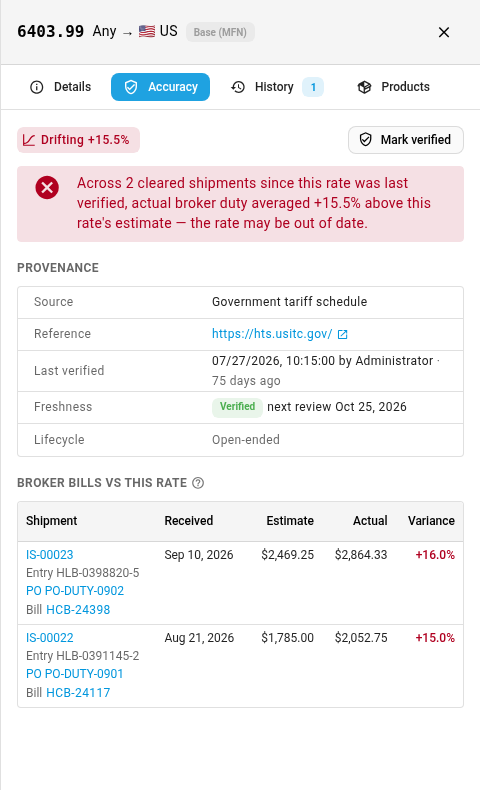
The tab shows:
- A summary of the evidence, for example: Across 2 cleared shipments since this rate was last verified, actual broker duty averaged +15.5% above this rate's estimate.
- Provenance: the rate's Source, its Reference, who verified it last and when, its Freshness, and its Lifecycle (open-ended, or the date it ends).
- Broker bills vs this rate: one row per cleared shipment, with the date it was received, this rate's Estimate, its share of the Actual duty, and the Variance. Variances past your threshold show in red. The shipment number, the customs entry number, the purchase order, and the bill are all links, so you can open the entry and see what your broker charged.
A drifting rate doesn't always mean the rate is wrong. The product may have the wrong HS code, the broker may have classified it differently, or the bill may include something else. Check the entry before you change the rate.
- If the rate has changed, don't edit its figures. Start a new version from the date the new rate applies, so receipts already booked keep the old figures. See Start a new version.
- If the rate is still right, mark it verified.
Mark a rate verified
- Open the rate's Accuracy tab and click Mark verified. You can also choose Mark verified from the rate's row menu in the list.
- In Checked against, choose what you checked: Government tariff schedule, Broker entry, and so on, or Keep the current source.
- Optionally, enter a Reference, such as the tariff schedule link, a CBP notice number, or the broker's entry number.
- Click Mark verified.
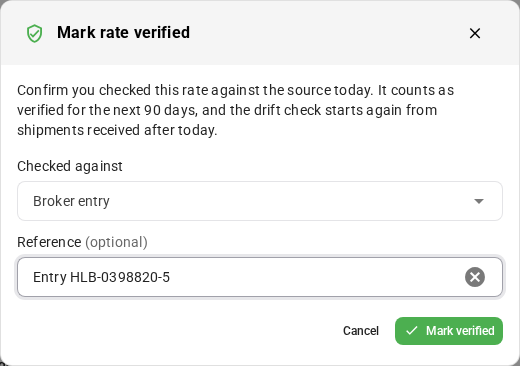
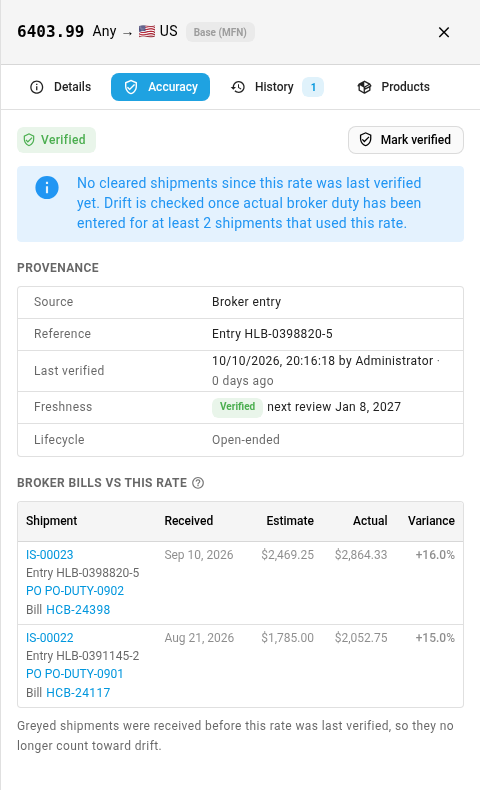
The rate counts as verified for the next 90 days. Verifying also restarts the drift check: shipments received before today no longer count, and the tab shows them greyed out. The rate drifts again only if bills on shipments received from now on miss it.
Verify several rates at once
- Filter the list, for example by clicking never verified or review due in the panel.
- Tick the rates you checked.
- Click Mark verified in the bar above the table.
- Choose what you checked them against, add a reference if you like, and click Mark verified.
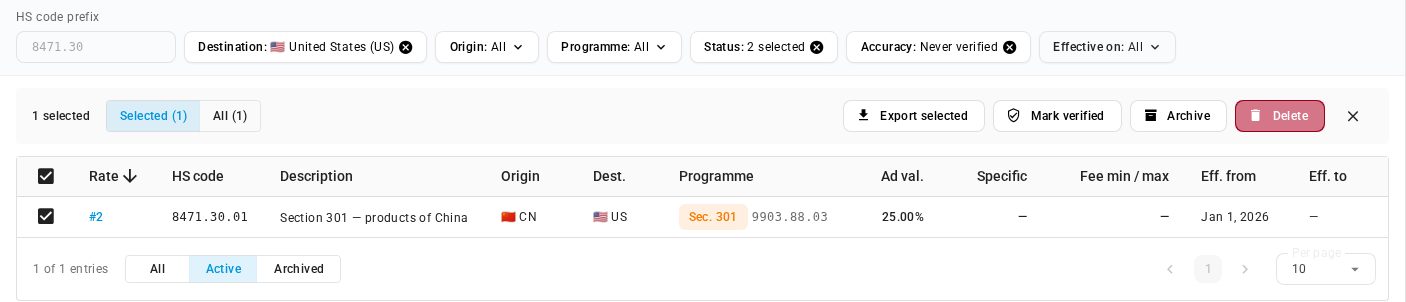
With Keep each rate's current source, every rate keeps its own source. Choosing a source sets it on all the rates you ticked.
Set the thresholds
Click How accuracy works, at the right of the panel. It explains each signal, and holds three thresholds that apply to every rate:
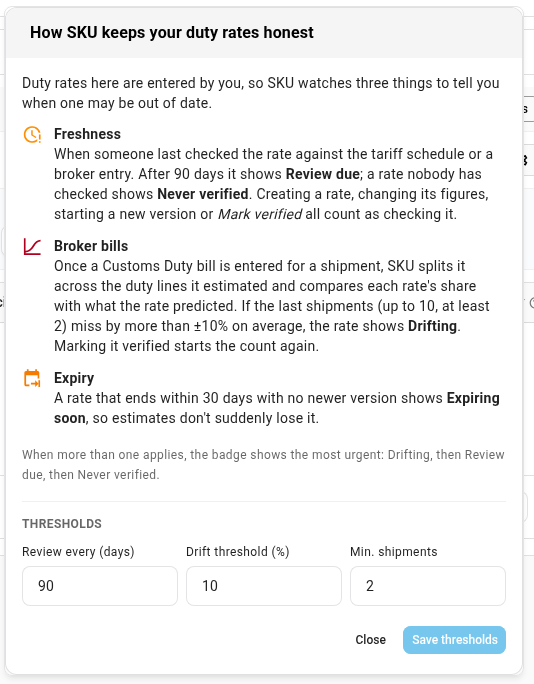
| Threshold | Default | What it controls |
|---|---|---|
| Review every (days) | 90 | How long a check lasts before the rate shows Review due. |
| Drift threshold (%) | 10 | How far, on average, broker bills can miss a rate's estimate before it shows Drifting. |
| Min. shipments | 2 | How many cleared shipments it takes before a rate can drift. One odd bill never flags a rate on its own. |
Change a value and click Save thresholds. The counts and badges update straight away.
Research rates with AI
SKU.io can ask an AI model to re-check a rate, or find a missing one, against official customs sources only: the US tariff schedule, the Federal Register, CBP, the UK Trade Tariff, EU TARIC, CBSA, the Australian Border Force, and similar. The AI proposes and you decide. It never changes a rate by itself. Every proposal comes with its sources and the text it quoted, and nothing is saved until you review it and apply it.
Use your own AI key
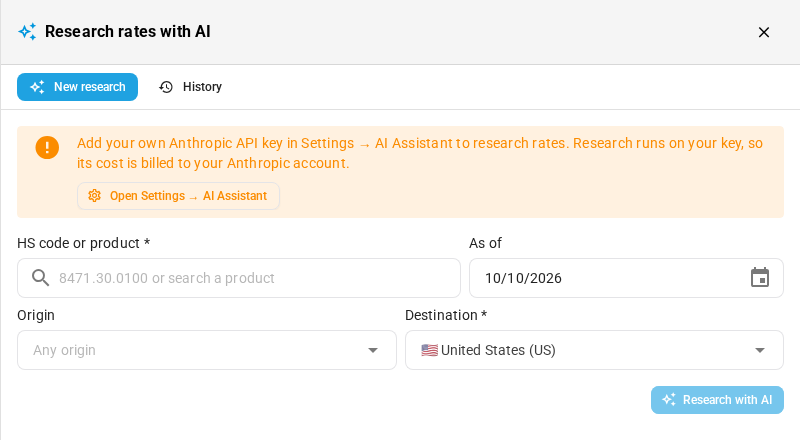
Research runs on your own AI provider key, so its cost goes on your provider account, not SKU.io's. Add the key in Settings → AI Assistant. Research works with Anthropic or OpenAI as your provider. Gemini and DeepSeek can't be used for it, because they can't limit their searches to official customs sources.
Without a key, the AI buttons on the Duty Rates page are greyed out, and hovering one tells you why. The research drawer shows the same message, with a link to Settings → AI Assistant.
Start research
You can start research from several places:
- Research with AI at the top of the page, for any HS code or product.
- Research with AI in a rate's drawer, to re-check that rate.
- Research a missing rate with AI in the Coverage panel, for a code you import that has no rate yet.
- Re-check N with AI in the Rate accuracy panel, to re-check every review-due and drifting rate at once (up to 25 a run). It asks you to confirm first, and tells you the most the whole batch can cost.
In the drawer, enter an HS code or product, the Origin (or leave it blank for any origin), the Destination, and the As of date. Before you click Research with AI, the drawer shows what a run typically costs on your key, and the cap, for example Typically $0.19–$0.47 on your key; capped at $0.50. It also shows how many AI requests you have left this hour.
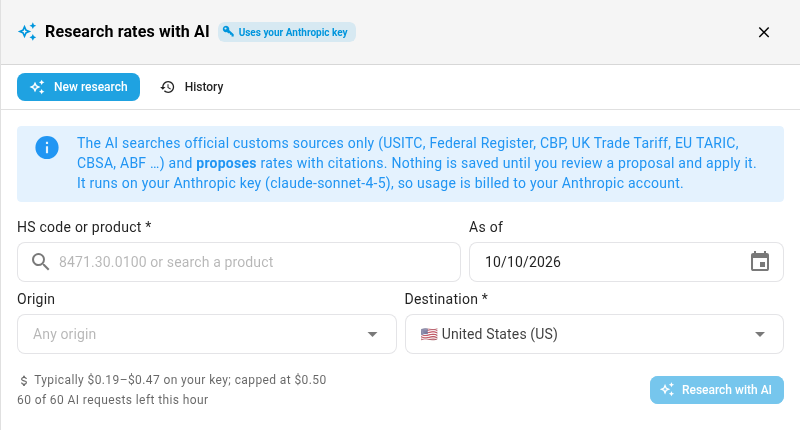
A run takes a minute or two and runs in the background. You can close the drawer and come back to it.
See past runs and their cost
The History tab lists every run: the HS code and route, its status, how many rates it proposed, the model, whose key it used, its Cost, and who requested it. Click a run to open it.
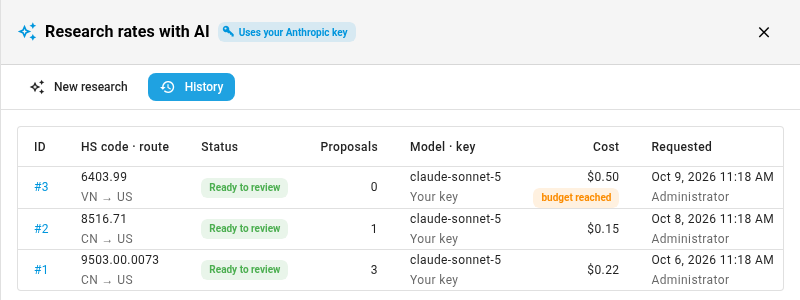
Budget reached means the run hit its per-run cost limit. It stopped searching and answered from what it had already found, and the first note in the run says so. Treat its findings as incomplete, and check the rate yourself.
Review the results
A finished run opens with a one-paragraph summary, then two sections.
Your current rates compares each rate you already have with what the AI found. Each one gets a verdict:
| Verdict | What it means | Action |
|---|---|---|
| Still matches | The official source gives the same figures. | Mark verified marks the rate verified, with the AI's first source as its reference. |
| Changed | The official figures differ from your rate. | Review the proposal below and apply it as a new version. If only the start date differs, click Correct start date. |
| Not found | The AI couldn't confirm the rate from an official source. | Check it yourself. |
Each verdict shows the source the AI used, as a link, with the exact text it quoted.
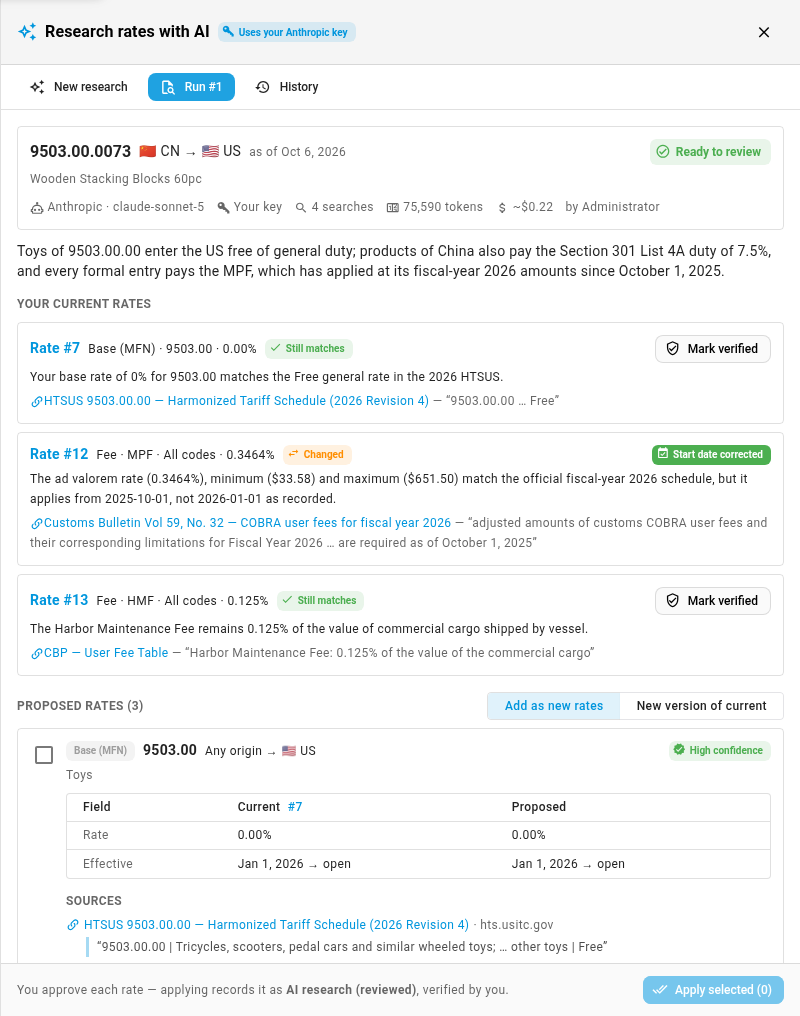
Correct start date appears when a rate's figures are right but it started on a different date. Instead of adding a new version, it moves the rate's start date earlier, so it covers the period it should have. In the example above, the processing fee's 2026 amounts applied from October 1, 2025, not January 1, 2026. SKU.io only offers this when nothing else would change, and it won't move a start date in a way that changes duty already booked on a receipt.
Proposed rates lists each rate the AI suggests, with its confidence, a Current vs Proposed comparison, its Sources with quoted text, and Why: the AI's reasoning. Any proposal the AI couldn't cite from an official source is filtered out, and the run says how many.
Under Notes from the research, the AI lists anything it wants you to know, such as cases that depend on the manufacturer or exclusions it checked.
Apply a proposal
- Choose how to apply: Add as new rates, or New version of current to replace an existing rate from the proposal's start date. The second option appears when the proposals match rates you already have.
- Tick each proposal you want, and adjust its effective date if you need to.
- Click Apply selected.
Applied rates are recorded with AI research (reviewed) as their source, and as verified by you. You can always see the change in the rate's History tab.
The AI reads the official sources, but you are responsible for the rates you keep. Open the cited source, compare the quoted text with your product, and check with your broker for anything that depends on the manufacturer, such as anti-dumping duties.
Next steps
- Set up duty rates: add a rate, or start a new version when a rate changes.
- Capitalise estimated duty and reconcile the broker bill: enter the broker bills that the drift check compares against.
- Estimate duty on purchase orders and shipments: see the estimates your rates produce.
Video transcript
When tariffs change, your duty rates can fall out of date. SKU.io shows you which ones you can still trust. The Rate accuracy panel sits near the top of the Duty Rates page. Verified means a rate was checked recently, and broker bills agree. Review due means nobody has looked at a rate for ninety days. Never verified rates were imported, or added without a check. And expiring soon rates end within thirty days, with no newer version set up. Drifting is the one to act on first. Once your customs broker's bill is entered for a shipment, SKU.io compares the actual duty with what each rate estimated. Click drifting to list only those rates. Here, one footwear rate is off by fifteen and a half percent. To see why, click the rate under Most drifted. Its Accuracy tab opens with the evidence. Each row is a cleared shipment, with the estimate, the actual duty from the broker's bill, and the variance. Both came in about fifteen percent over. The shipment, purchase order, and bill are all links, so you can check the entry itself. Next, check the rate against the tariff schedule, or your broker's entry. If the rate has changed, start a new version instead of editing the figures. If the rate is still right, go ahead and click Mark verified. In the dialog, choose what you checked it against. Here, it was checked against the broker's entry. Then add a reference, such as the entry number, and click Mark verified to confirm. The rate now counts as verified for another ninety days. The drift check starts over, so the earlier shipments are greyed out. And the panel shows no drifting rates. To verify several rates at once, close the drawer, and filter the list, here by never verified. Tick each rate you checked against its source. Then click Mark verified, in the bar above the table. Confirm in the dialog, and every rate you ticked is verified. How accuracy works explains each signal, and holds the thresholds. Set how often rates come up for review. Set how far broker bills can miss before a rate is drifting. And set the number of shipments needed before a rate can drift. You can also have AI re-check your rates against official customs sources. It runs on your own AI provider key, which you add in Settings, under AI Assistant. Click Research with AI, at the top of the page. Before you start a run, the drawer shows what one typically costs on your key, and the most it can cost. Open History to see every run, and what each one cost. Budget reached means a run hit its cost limit, and answered from what it had found. Open a run from the list to see its findings. Under Your current rates, the AI says whether each rate still matches, and quotes the official source. Here, the processing fee's figures are right, but they took effect in October, months before the date you recorded. Click Correct start date to fix just that date. Further down, each proposed rate comes with its sources and reasoning. You can add proposals as new rates, or as new versions of the rates you have. Nothing changes until you tick a proposal and click Apply selected. The AI proposes, and you decide.