Estimate duty on purchase orders and shipments
SKU.io estimates the import duty on every purchase order line from your duty rates. You see the estimate before the goods ship, while you can still change the supplier, the origin, or the price. When the goods ship, the estimate follows them to the inbound shipment, where the customs entry details make it more exact.
An estimate is never a bill. It isn't added to the purchase order total, and it reaches landed cost only through the settings described in How duty estimates work.
Before you begin
- Add duty rates for the HS codes you buy. The Est. duty column appears on purchase orders once you have at least one rate.
- Give your products an HS code and a country of origin, and give each warehouse you receive into an address with a country. Those three things decide which rates match.
- Set a default incoterm on each supplier, or on the purchase order. It decides whether you or the supplier clears import.
- To override an estimate, or change a line's origin, you need permission to update purchase orders. The links to rates need permission to view duty rates.
Read the Est. duty column
- Go to Orders → Purchase Orders, and open a purchase order.
- Find the Est. duty column in the lines table.
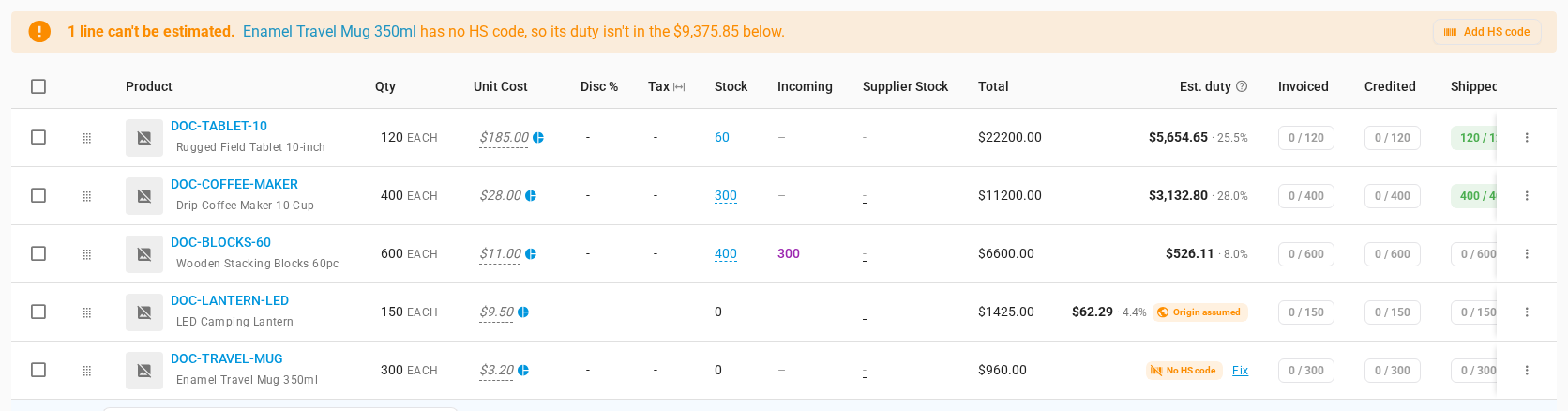
Each cell shows the line's estimated duty and, after it, the duty as a share of the line's value. A chip beside the amount tells you more about the estimate:
| Chip | What it means |
|---|---|
| Origin assumed | The product has no country of origin, so the supplier's country was used. Check it. |
| Overridden | Someone replaced the estimate with their own amount. |
| DDP | The supplier clears import under the order's incoterm, so you pay no duty. The cell shows $0.00. |
| Missing weight | A rate charges by weight, and the product has no weight, so that part couldn't be worked out. |
| De minimis | The entry is below the destination's duty-free threshold. |
| Recalculating… | Something the estimate depends on changed, and the new figure is on its way. |
A line that can't be estimated shows the reason instead of an amount, with a Fix link:
| Chip | Why | Where Fix takes you |
|---|---|---|
| No HS code | The product has no HS code. | The product, with its HS Code field ready to edit. |
| No origin | Neither the product nor the supplier has a country. | The product, to set its Country of Origin. |
| No destination | The receiving warehouse has no country in its address. | The warehouse's settings. |
| No rate | No rate matches the product's code into that country. | Duty Rates, filtered to the code, so you can add one. |
When any line can't be estimated, a banner above the lines says how many, and that their duty isn't in the order's total.
To hide or show the column, click the … button above the lines, and choose Hide Est. duty column or Show Est. duty column. SKU.io remembers your choice on this browser.
See how a line was worked out
Click an amount in the Est. duty column. A breakdown opens.
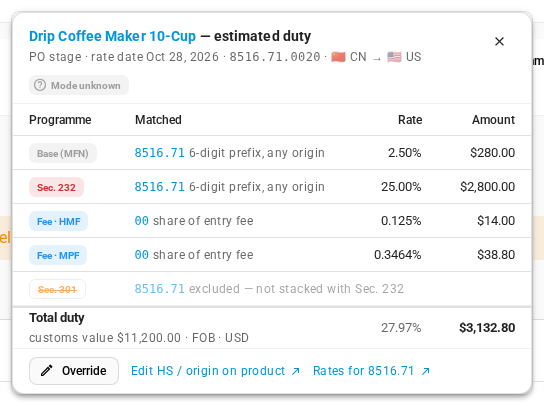
- The header shows the stage (PO, Shipment, or Receipt), the rate date, the product's HS code, and the origin and destination countries.
- Chips under the header flag anything the estimate had to assume. Mode unknown means the order doesn't know yet how the goods will travel, so a fee that applies only to some modes, such as the harbor maintenance fee for ocean freight, is included anyway. The shipment's Mode settles it.
- Each row is one rate that matched. Programme says what kind of duty it is, such as Base (MFN), Sec. 301, or Sec. 232. Click the code under Matched to open that rate.
- Beside the code, the match reason says how it matched, such as 6-digit prefix, any origin or 8-digit prefix, origin CN. For each programme, the rate with the longest matching code wins. When two codes are the same length, a rate for the product's origin wins over one for any origin.
- Fee · MPF and Fee · HMF rows are this line's share of entry fee. Entry fees are charged once per customs entry, so SKU.io spreads them over the lines by value.
- A crossed out row was excluded. The reason follows. not stacked with Sec. 232 means that rate doesn't apply when the other one does. preference not claimed means a preferential rate exists but the line doesn't claim it (see Change the origin for one order).
- Total duty adds it all up, with the customs value, its valuation basis (such as FOB), and the currency.
The links at the bottom open the product (Edit HS / origin on product) or every rate for the code (Rates for 8516.71).
Check an assumed origin
When a product has no country of origin, SKU.io uses the supplier's country and marks the line Origin assumed. The breakdown shows the country it used, such as Origin assumed (CN, supplier).
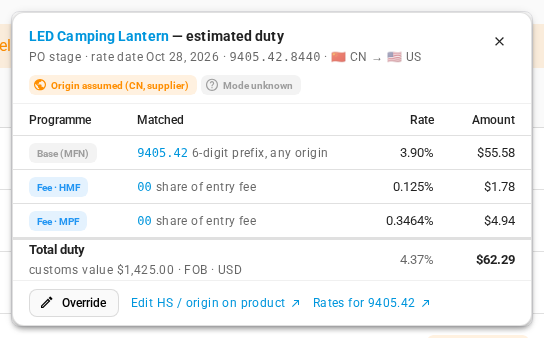
If that country is wrong, click Edit HS / origin on product and set the product's Country of Origin. If only this order ships from somewhere else, change the line's origin instead. See Change the origin for one order.
Fix a line that can't be estimated
-
Find the line with a chip such as No HS code, or read the banner above the lines.
-
Click Fix on the line. When only one line is flagged, the banner's button (such as Add HS code) goes to the same place.
-
For a missing HS code, the product opens with Product Details in edit mode and the HS Code field ready. Type the code, with or without the dots, and click Save.
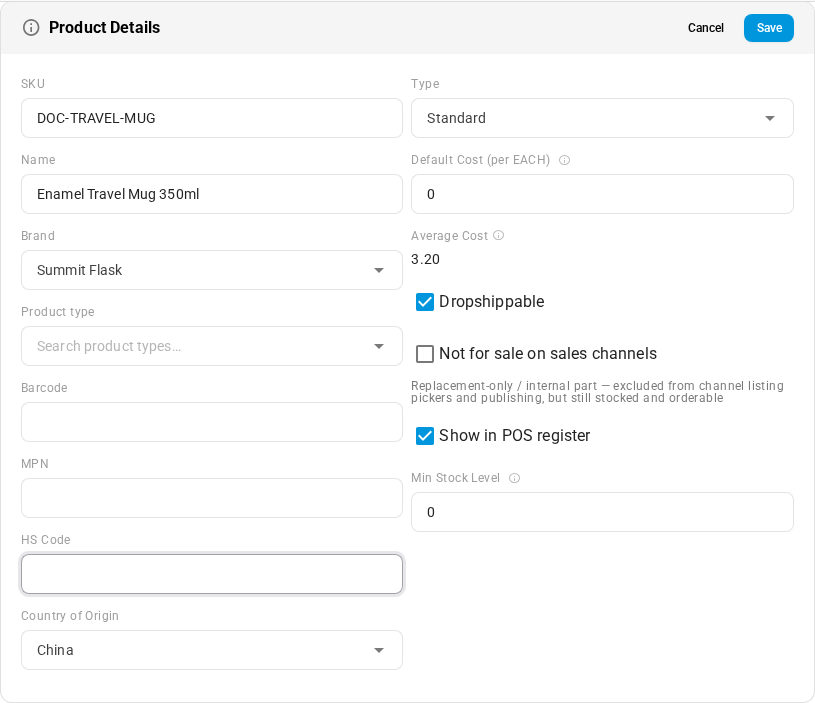
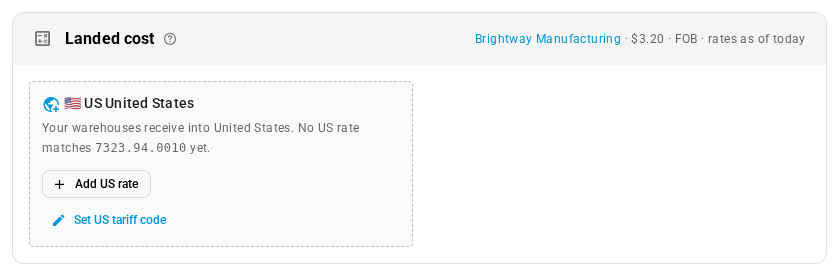
SKU.io estimates the line again. If no rate covers the new code yet, the line now shows No rate, and the product's Landed cost card offers Add US rate. Add the rate, and the estimate fills in. See Set up duty rates.
Override an estimate
Override an estimate when you know the real figure, for example from your broker's quote.
- Click the line's amount in the Est. duty column.
- Click Override.
- Enter the Override amount. The hint under it shows the calculated amount.
- Enter a Reason. It's required.
- Click Save.
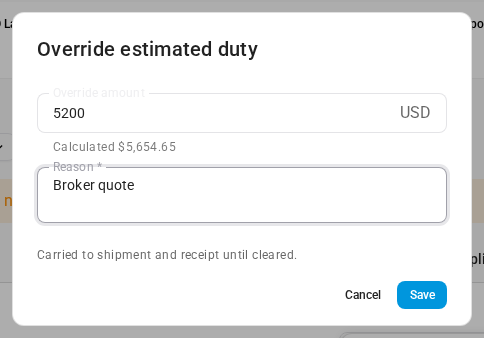
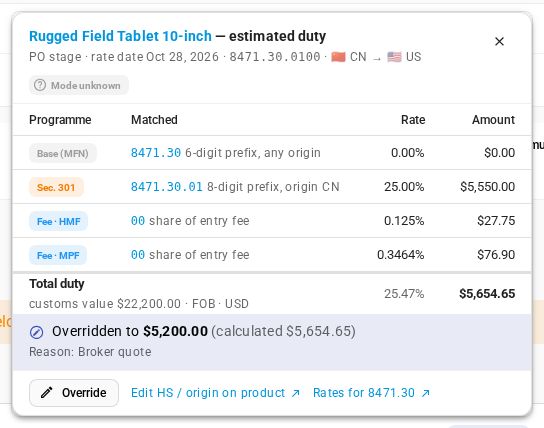
The line shows Overridden, and the breakdown keeps the calculated amount and your reason beside the override. The override carries to the inbound shipment and the receipt, until the duty bill clears it.
To go back to the calculated amount, open Override again and click Clear override. You can't override a receipt's estimate once it's booked. Enter the duty bill instead.
Change the origin for one order
Sometimes a supplier ships an order from a different country than usual, or the goods qualify for a free trade agreement. Change that on the line, for this order only. The product keeps its own origin.
-
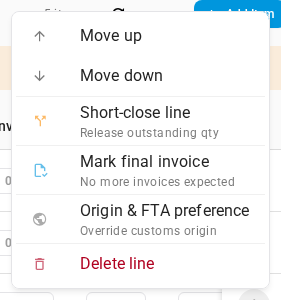
Click the line's menu (⋮), at the right end of the line.
-
Choose Origin & FTA preference.
-
In Country of origin (this PO), choose the country the goods come from. Leave it blank to use the product's origin. The hint shows the country the line uses now.
-
To claim a free trade agreement rate, turn on Claim FTA preference. SKU.io then uses a Preferential rate for the origin instead of the Base rate, if one exists.
-
Click Save.
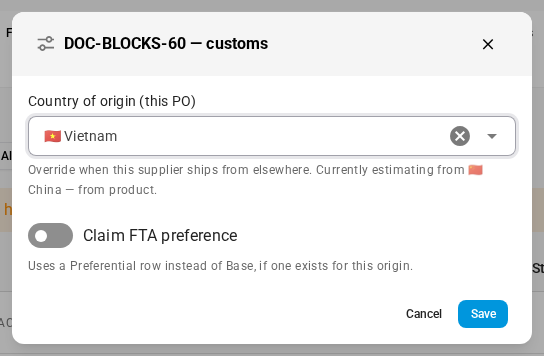
SKU.io estimates the line again. In the example, the blocks now come from Vietnam, so the Section 301 rate for goods from China no longer applies, and the duty drops.
Claiming a preference is a declaration to customs. Make sure the goods qualify before you turn it on.
Read the order's duty total
The Estimated duty card sits below the lines, beside Landed Costs.
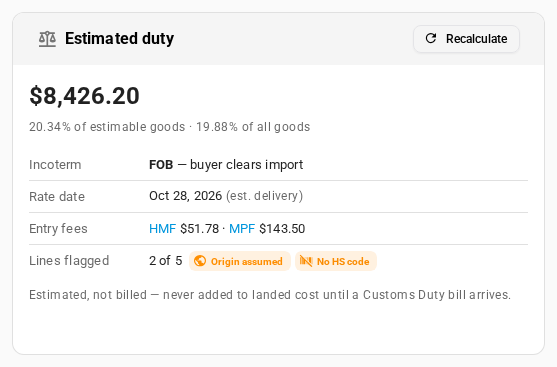
| Row | What it shows |
|---|---|
| Total | The order's estimated duty, and its share of the goods SKU.io could estimate. When some lines are flagged, the share of all goods follows. |
| Incoterm | The incoterm and who clears import. FOB — buyer clears import means you pay the duty. (supplier default) means it came from the supplier. With no incoterm, SKU.io assumes you clear import. |
| Rate date | The day the rates are read for, and where it came from: the expected delivery (est. delivery), a shipment's expected arrival or entry date, or today. A rate that starts or ends around that day changes the estimate. |
| Entry fees | Each entry fee for the order, such as HMF and MPF. Click one to open its rate. |
| Duty currency | Shown when the destination charges duty in another currency than yours. |
| Lines flagged | How many lines can't be estimated or carry a warning, with a chip for each reason. |
The note under the card says when the estimate reaches inventory cost: never before a duty bill arrives, or at receipt when your account books estimated duty into cost. See How duty estimates work.
Click Recalculate to estimate the order again now. SKU.io also does it by itself when you change a line, a product's HS code or origin, a rate, or a destination's customs settings. While it works, the total shows Recalculating….
When the supplier clears import
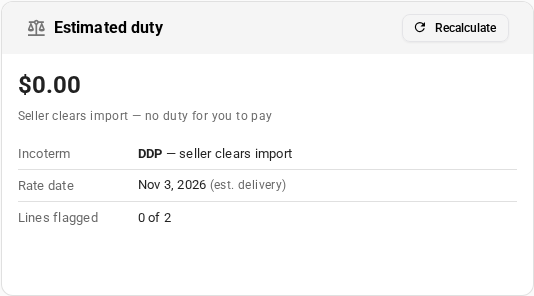
On a purchase order whose incoterm makes the seller clear import, such as DDP, each line shows a DDP chip and $0.00. The card says Seller clears import — no duty for you to pay.
Follow the duty to the inbound shipment
When goods ship, the estimate moves with them to the inbound shipment, and is worked out again for what's on that shipment.
- Go to Orders → Inbound Shipments, and open the shipment. You can also open it from the purchase order's Shipments tab.
- Find the Customs card on the Overview tab.

The top row holds the customs entry details. Click a value to edit it, then click the check mark or press Enter.
| Field | What to enter |
|---|---|
| Entry no. | The customs entry number from your broker. |
| Entry date | The date of the customs entry. Once it's set, it becomes the rate date, and lines not yet received are estimated again. Booked receipts don't change. |
| Mode | How the goods travel: Ocean, Air, Truck, Rail, or Courier. Some fees depend on it. For example, the harbor maintenance fee applies to ocean shipments. |
| Customs FX | The exchange rate customs used, when duty is charged in another currency. Leave it as system rate to use your account's rate. |
Below, four tiles follow the duty through its life: Estimated (with its rate date), Booked at receipt, Billed, and Variance. The last three fill in once the goods are received and the duty bill arrives.
Entry fees
Entry fees are worked out once for the whole entry, not per line.

| Column | What it shows |
|---|---|
| Fee | The fee, such as Fee · HMF (Harbor Maintenance Fee) or Fee · MPF (Merchandise Processing Fee). |
| Basis | What it's charged on, usually the entry value. |
| Rate | The fee's percentage. |
| Raw | The fee before any limits. |
| Min – max | The fee's minimum and maximum per entry, and whether the raw amount hit one. |
| Applied | The fee charged. |
A De minimis row shows the destination's duty-free threshold, with a link to Jurisdictions. The Entry value under the table is the value of the goods on the entry.
When the broker's bill arrives, click Enter duty bill. See Capitalise estimated duty and reconcile the broker bill.
See landed cost with duty on a product
Open a product, and find the Landed cost card on its Overview.
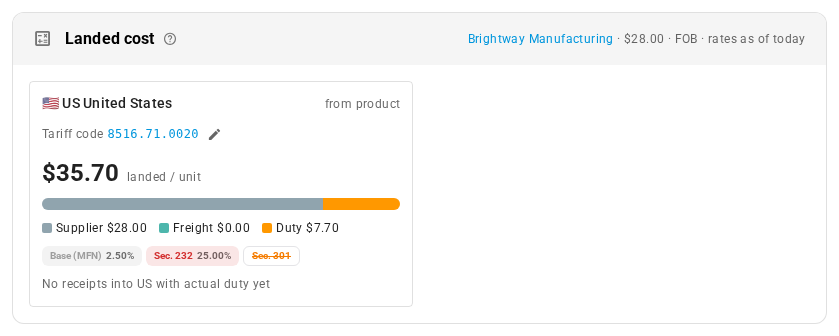
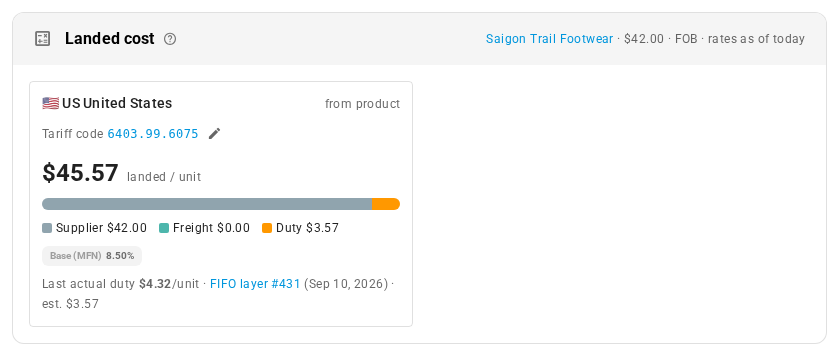
The card estimates the duty on one unit bought from the product's default supplier, at that supplier's cost and incoterm, with rates as of today. There's one tile for each country your warehouses are in:
-
The tile's large figure is the landed / unit cost. The bar under it splits it into Supplier (the default supplier's cost), Freight (your pro forma freight estimate), and Duty.
-
The chips list each rate that applies, with its percentage. A crossed out chip is a rate that doesn't stack with another one.
-
Tariff code shows the code used for that country. Click the pencil to give the product a different code for one destination.
-
Once the product has been received with an actual duty bill, the tile also shows Last actual duty per unit, and the FIFO layer it came from, beside the estimate.
-
When no rate matches, the tile says so, and offers Add US rate (for that country) or Set US tariff code.
Entry fees aren't included, because they're charged per entry, not per unit.
Find products by duty status
On PIM → Products, two columns and a filter show duty for every product.
-
Click Duty status, and choose one or more of Estimable (OK), Missing HS code, Missing origin, No duty rate, or DDP (seller clears import).

-
To add the columns, click Columns, search for duty, and tick Duty status and Est. duty %. They join the table after Updated, so you may need to scroll sideways. The example below hides the other columns to keep it narrow.

- Duty status shows the same chips as a purchase order line, such as Estimated, No HS code, or DDP when the default supplier clears import. Warnings such as Origin assumed appear beside it.
- Est. duty % is the duty rate at the default supplier's cost, before entry fees. A product with no default supplier cost shows a dash.
Hover over either column for the details: the destination, the tariff code, and the duty per unit. Both use the country of your default purchasing warehouse. A product whose default supplier clears import, such as on DDP terms, counts only as DDP (seller clears import), never as missing a code, origin, or rate, so the filter, the column, and the Coverage panel on Settings → Purchasing → Duty Rates always agree. The panel's counts link to the same filter.
Next steps
- How duty estimates work: the whole journey from rate to estimate to stock cost.
- Set up duty rates: add the rates and entry fees that estimates use.
- Keep duty rates accurate: see which rates your broker's bills say are off.
- Capitalise estimated duty and reconcile the broker bill: book estimated duty into stock cost, and clear it with the broker's bill.
- Duties & Tariffs: every guide in this chapter.
Video transcript
SKU.io estimates the import duty on every purchase order line. To see it, go to Orders in the sidebar, then choose Purchase Orders from the list. Then open a purchase order from an overseas supplier. The lines table loads, with the estimated duty for every line. Each line shows its estimated duty, and the duty as a share of the line value. Some amounts carry a chip, which warns that part of the estimate is a guess. A line that can't be estimated shows why, with a Fix link. The banner above the lines counts them, so nothing is missed. Click an amount to see how it was worked out. Each row is a duty rate that matched the product's HS code, origin, and destination. Matched shows the code and why it matched. A crossed out row is a rate that doesn't stack with another one, so it's skipped. Entry fees are shared across the lines, and the amounts add up to the line's estimated duty. Next, click another amount that carries a chip, such as an assumed origin. This product has no country of origin of its own. So the supplier's country was assumed, and the breakdown says so at the top. If that's wrong, use Edit HS / origin on product to set the right country. When you know better, for example from a broker's quote, override the estimate. To do that, click the line's amount, and in the breakdown, click Override. Enter the amount you expect, and a short reason, such as the broker's quote. Then click Save, and the override is kept with your reason. After a moment, the line shows Overridden, and the breakdown keeps the calculated figure beside your amount. Some goods ship from a different country than usual. To change the origin for this order only, click the line's menu, and choose Origin and preference. Pick the country the goods really come from, typing a few letters of its name. The preference switch claims a free trade agreement rate instead, where one exists. Then click Save to keep the new origin. Give the estimate a moment to catch up. For the new origin, the line's estimated duty is much lower. Below the lines, the Estimated duty card totals the order. Here the trade terms say that you clear import, so you pay the duty. The rate date is the day the rates are read for, from the expected delivery. The card also lists the entry fees, and shows a chip for each flagged line. Now go up again, and fix the line that has no HS code. Click Fix, and the product opens with its HS Code field ready. Type the product's code, with or without the dots, and then click Save. No rate covers this code yet, so the Landed cost card offers Add US rate. To check many products at once, go to PIM, then Products. The Duty status filter finds products by whether their duty can be estimated. DDP lists the products whose supplier pays the duty for you. Then choose Estimable, to list every product with a complete estimate, and close the menu. Then add the duty columns. Click Columns, type duty into the search box, and tick both of the duty columns it finds. The duty percentage is the rate at the default supplier's cost, before any entry fees are added. Open a product from the list to see its landed cost with duty. The Landed cost card adds the estimated duty per unit to the supplier's cost. Its chips list each rate, and any rate that doesn't apply has a line through its chip. When goods ship, the estimate moves to the inbound shipment. Go to Orders in the sidebar, then choose Inbound Shipments from the list. Then open the shipment that's still at sea. Its Customs card holds the entry number, entry date, transport mode, and customs exchange rate. Any of these values can be changed with a click. Once a shipment has an entry date, that date becomes the rate date for its estimate. Below, Entry fees are worked out once for the whole entry. Each fee shows its rate, the raw amount, and any minimum and maximum. When the broker's bill arrives, Enter duty bill records the actual duty.