Set up duty rates
SKU.io estimates the import duty on every purchase order, inbound shipment, and receipt from a table of duty rates that you keep. Each rate says how much duty an HS code pays when it's imported into a country, from a given origin, under a given programme. Set them up once, and keep them current as tariffs change. Every estimate in SKU.io reads from this one table.
This guide covers the Duty Rates settings page: adding a rate, how rates combine, starting a new version, the customs settings for each country, and importing or exporting rates as a spreadsheet. To learn how SKU.io tells you a rate may be out of date, see Keep duty rates accurate.
Before you begin
- You need the duty_rates.index permission to see the page. Adding, editing, and archiving rates need duty_rates.create, duty_rates.update, and duty_rates.archive. Importing and exporting need duty_rates.import and duty_rates.export.
- Give your products an HS code and a country of origin. SKU.io matches rates on both, and can't estimate a product without an HS code.
- Make sure each warehouse you receive into has an address with a country. That country is the destination SKU.io estimates duty for.
Open the page
Go to Settings → Purchasing → Duty Rates.
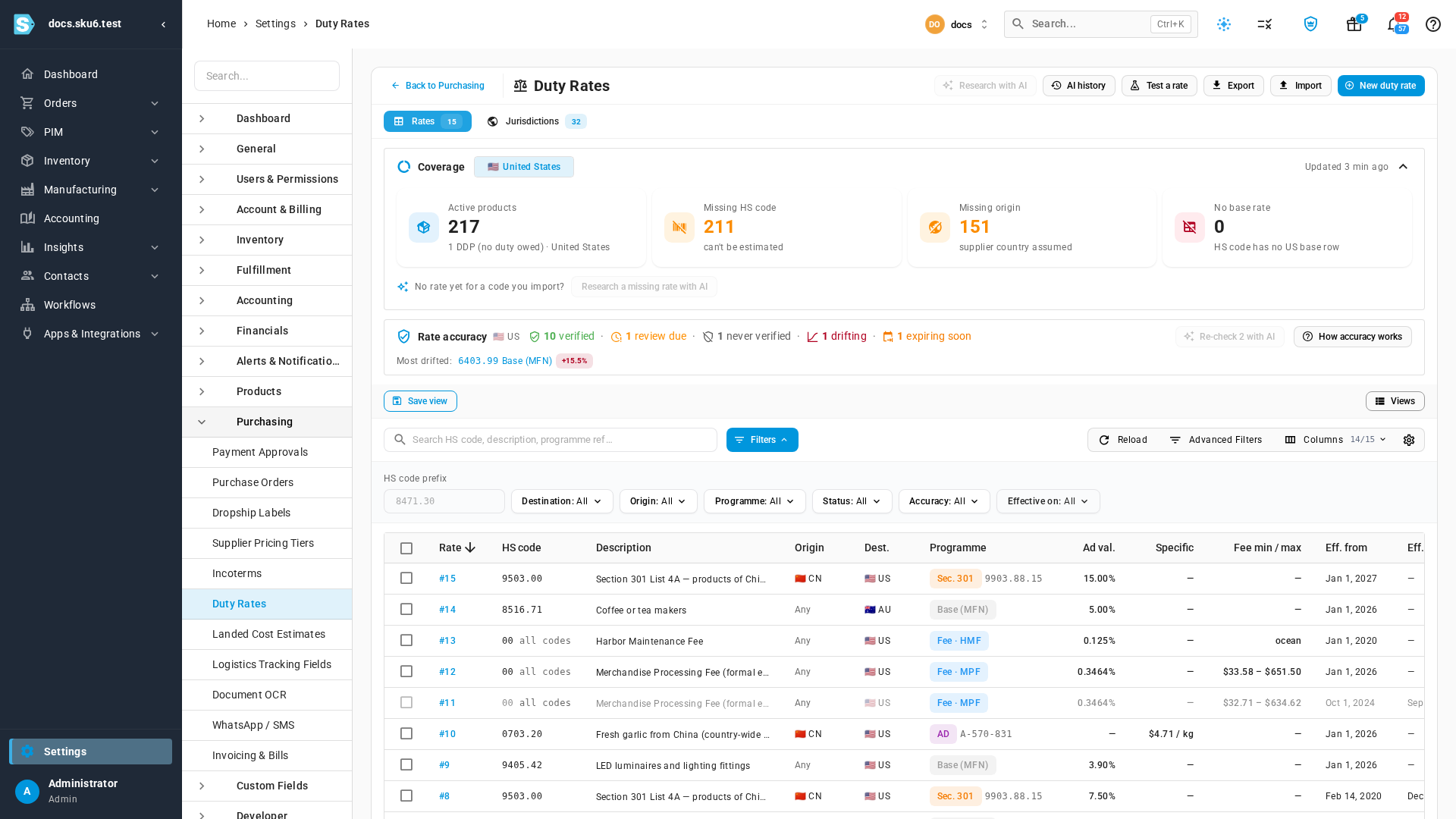
The page has two tabs: Rates, the list of rates, and Jurisdictions, the customs settings for each destination country. Above the list:
- Coverage counts, for each country your warehouses are in, the products that can't be estimated yet. Missing HS code products get no estimate at all. Missing origin products are estimated using the supplier's country. No base rate products have an HS code with no general rate in force today. Click a count to open those products.
- Products whose default supplier sells on terms where the seller clears import, such as DDP, owe you no duty. Active products counts them separately (for example, "1 DDP (no duty owed)"), and they're left out of the three gap counts, even when they have no HS code or rate.
- Rate accuracy shows how many of your rates were checked recently, and which ones your broker's bills say are off. See Keep duty rates accurate.

Each row in the list is one rate. The columns show the HS code, Origin (or Any), Dest., Programme, the rate itself, the per-entry Fee min / max, the dates it applies, its Status (Active, Scheduled, Expired, or Archived), and its Accuracy.
Add a rate
- Click New duty rate.
- Enter the HS code. You can type it with or without dots (
0703.20or070320). SKU.io stores the digits only, and a code can be 2 to 10 digits long. - Enter a short Description, so you can tell rates apart in the list.
- Leave Origin blank to cover goods from every country, or choose a country to apply the rate only to goods made there.
- Choose the Destination, the country you import into. It defaults to the country most of your warehouses are in, and the hint under it shows that country's duty currency and valuation basis.
- Choose the Programme. Base (MFN) is the general rate. See Programmes for the rest.
- Enter the rate:
- Ad valorem is a percentage of the goods' value.
- Specific amount is an amount per unit. Choose the unit in per: each, dozen, or kg.
- Enter both for a compound rate.
- Set Effective from to the date the rate took effect. Leave Effective to blank unless the rate has a known end date.
- Choose a Source and enter a Source reference, such as the tariff schedule link or your broker's entry number, so anyone can check the figure later.
- Check the Preview. It shows what the row adds to a sample shipment of $10,000 and 100 units.
- Click Create rate.
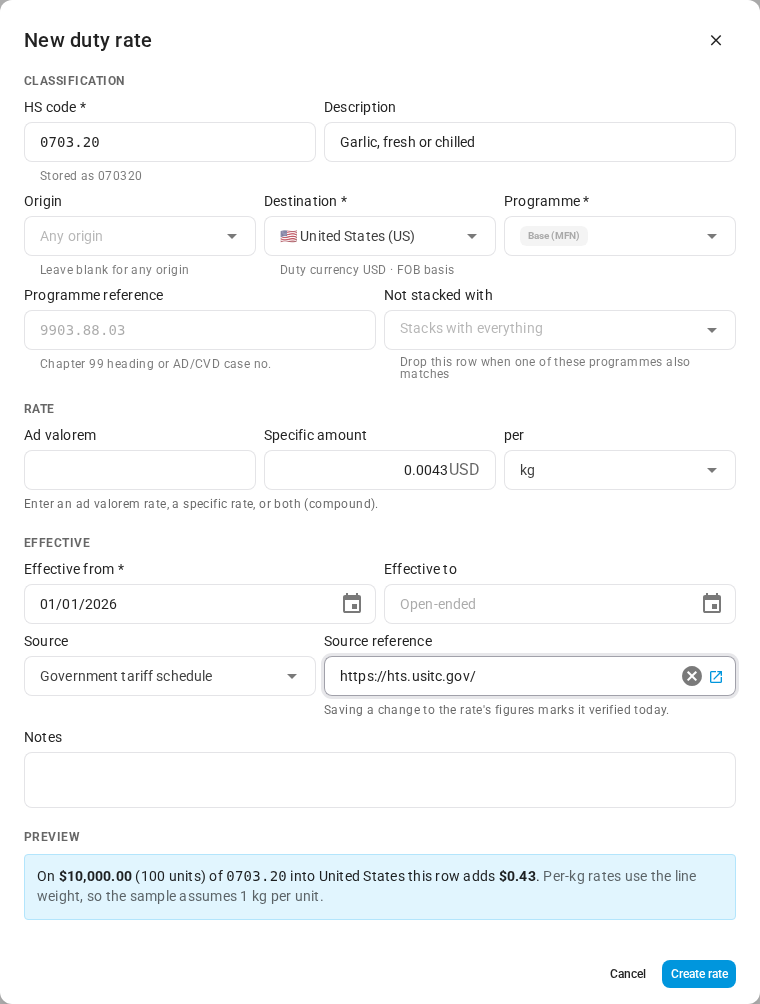
The rate joins the list, and the Coverage counts update. Creating a rate, or changing its figures, also marks it as verified today.
Fields in the rate dialog
| Field | What it does |
|---|---|
| HS code | The tariff code the rate applies to. A shorter code covers every longer code that starts with it, so 8471.30 covers 8471.30.0100. On a fee row, 00 means every code. |
| Description | Your label for the rate. |
| Origin | The country of origin the rate applies to. Blank means any origin. |
| Destination | The country you import into. Required. |
| Programme | The kind of duty: base, an additional duty, a preferential rate, or a fee. Required. |
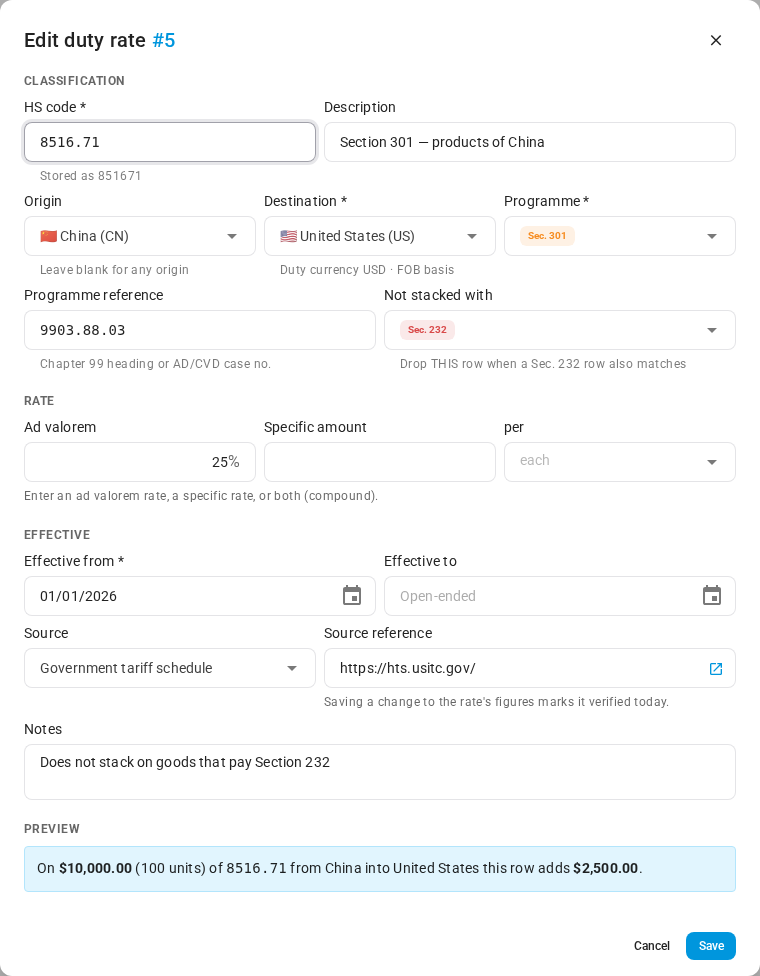
| Programme reference | The tariff heading or case number, such as 9903.88.03 for a Section 301 duty or A-570-831 for an anti-dumping case. |
| Not stacked with | The programmes this row gives way to. When one of them also applies to the same goods, SKU.io leaves this row out. |
| Ad valorem | Percentage of the customs value. |
| Specific amount and per | Amount per each, dozen, or kg. Per-kg rates use the product's weight. |
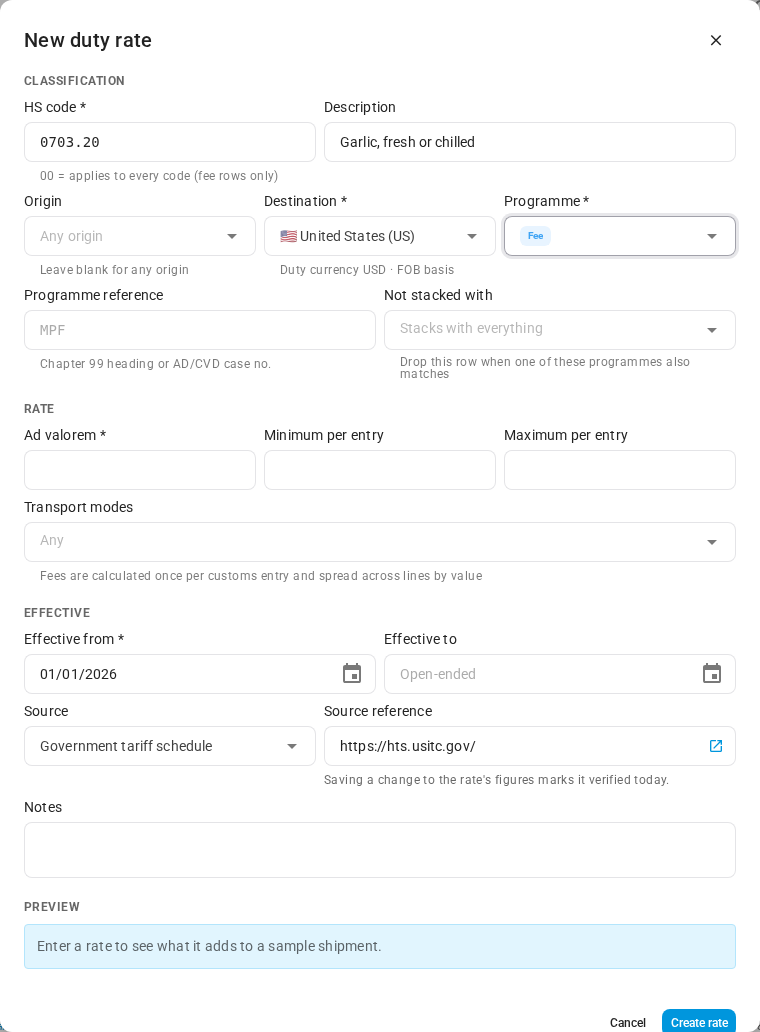
| Minimum per entry, Maximum per entry | Fee rows only. The fee is never less than the minimum or more than the maximum for one customs entry. |
| Transport modes | Fee rows only. Limits the fee to shipments by those modes, such as ocean only. |
| Effective from, Effective to | The dates the rate applies. Effective from is required. |
| Source, Source reference | Where the figures came from: Entered manually, Government tariff schedule, Broker entry, or Spreadsheet import, plus a link or citation. |
| Notes | Anything your team should know about the rate. |
If something doesn't add up, the dialog tells you before it saves. For example:
- "Enter an ad valorem rate, a specific rate, or both."
- "Fees need an ad valorem rate."
- "Choose the unit the specific rate is charged on."
- "Per-entry minimum, maximum and transport modes apply to fee rows only."
- "The all-codes code 00 can only be used on fee rows."
Two rates with the same HS code, origin, destination, programme, and reference can't cover the same dates. Close the earlier one first, or start a new version.
Programmes
| Programme | Use it for |
|---|---|
| Base (MFN) | The general rate for the HS code. Every product needs one to be fully estimated. |
| Section 301, Section 232, Section 122 | US additional duties, added on top of the base rate. |
| Anti-dumping, Countervailing | Case-specific duties. They often apply only to certain manufacturers, so confirm the rate with your broker. |
| Preferential (FTA) | A free-trade-agreement rate. It replaces the base rate when a purchase order line claims the preference. |
| Other additional | Any other duty added on top of the base rate. |
| Fee | A charge per customs entry, such as the US Merchandise Processing Fee (MPF) or Harbor Maintenance Fee (HMF). |
How rates combine
For each product, SKU.io works through every programme separately:
- It looks for rates for the destination, in force on the estimate's date.
- Within each programme, the longest matching HS code wins. Then a rate for the product's own origin beats an Any origin rate.
- The duty is the base rate, plus every additional duty that matches, plus the fees.
- When a row is set Not stacked with a programme that also matched, that row is left out.
- Fees are worked out once per customs entry, on the entry's total value, with the minimum and maximum applied. The fee is then shared across the lines by value.

Test how rates combine
The rate tester runs the same calculation as your purchase order estimates, without saving anything.
- Click Test a rate.
- In HS code or product, type an HS code, or search for a product and pick it. With a product, SKU.io uses its HS code and country of origin.
- Adjust Customs value, Qty, Weight, Date, Incoterm, Transport mode, and Claim preference if you need to.
- Click Calculate.
The result shows the estimated duty and, for each programme, the Matched row, Why it matched, the Rate, and the Amount. A row left out because it doesn't stack is crossed out and marked Excluded. Open How we got there to see each step.
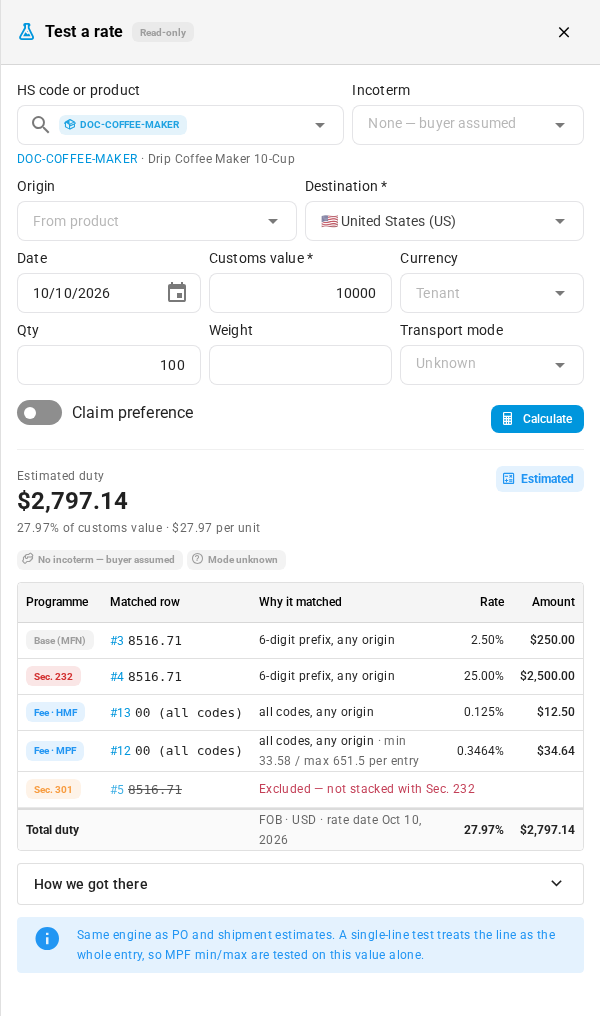
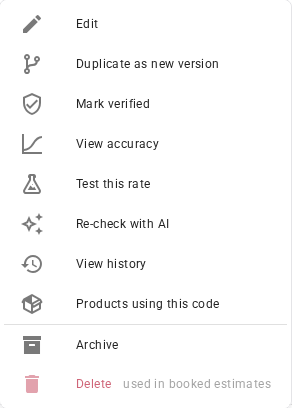
You can also test one rate from its row menu: click ⋮ → Test this rate.
Start a new version
When a rate changes, add a new version rather than editing the old figures. Receipts already booked against a rate keep the rate they used, so SKU.io won't let you change the figures of a rate that a receipt has used.
- Find the rate. The search box above the list matches HS codes, descriptions, and programme references.
- Click ⋮ at the end of the row, then Duplicate as new version.
- Enter the new figures, and the date the new version starts in New version effective from.
- Read the note at the top of the dialog. It says how many booked receipts use the current figures and the day the current version ends. What will happen shows the two versions on a timeline.
- Click Save as new version.
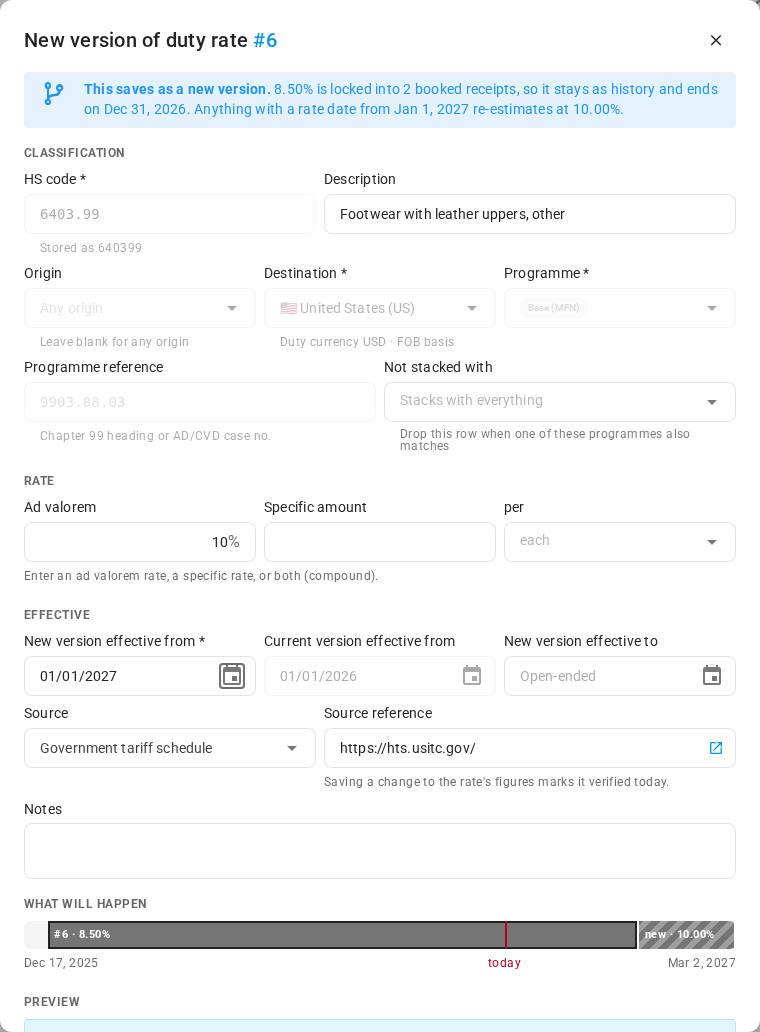
The current version now ends the day before the new one starts, and the new version shows as Scheduled until its start date. To see every version of a rate and who changed it, click ⋮ → View history.
You can still edit a rate's description, notes, end date, and source at any time. If a rate isn't used anymore, Archive it. You can only Delete a rate that no receipt has used.
Check customs settings for each country
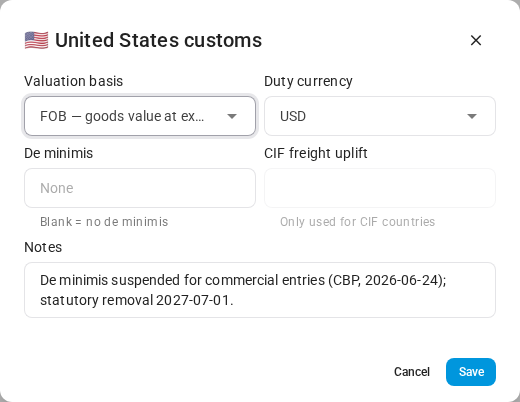
Open the Jurisdictions tab to see the customs settings for each destination country. SKU.io sets up the United States, Canada, the United Kingdom, Australia, New Zealand, and the 27 EU countries for you.
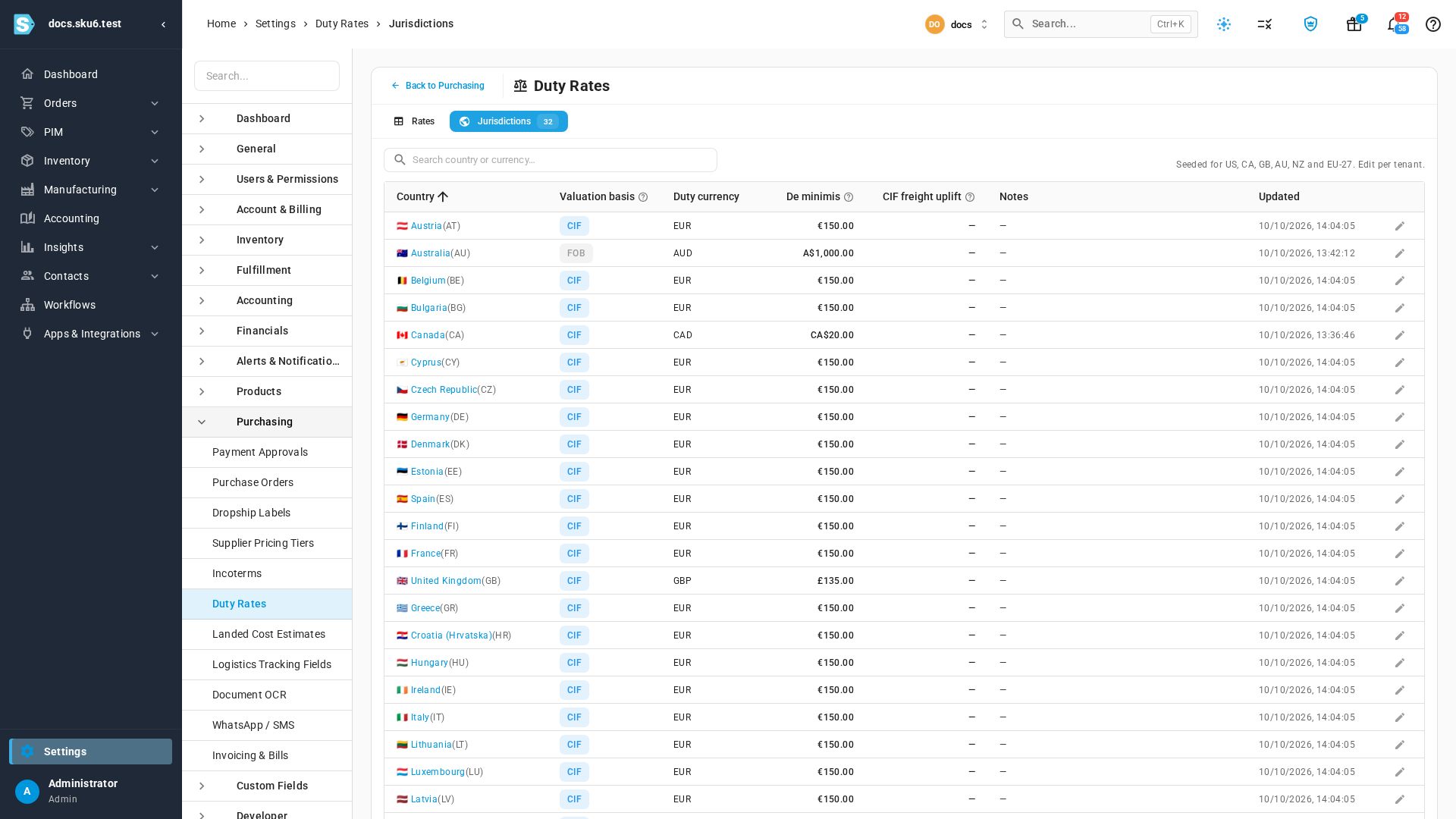
| Setting | What it means |
|---|---|
| Valuation basis | FOB charges duty on the goods' value at export. CIF adds insurance and freight to the border. |
| Duty currency | The currency the country assesses duty in. Leave it blank to use your own currency. |
| De minimis | Entries valued below this pay no duty. Blank means no threshold. |
| CIF freight uplift | CIF countries only. When no freight cost is known yet, SKU.io adds this percentage of the goods' value as estimated freight and insurance. |
| Notes | Anything to remember about the country's rules. |
To change a country's settings, click the pencil at the end of its row, then click Save.
Import rates from a spreadsheet
Importing is the quickest way to add many rates, or to update rates in bulk.
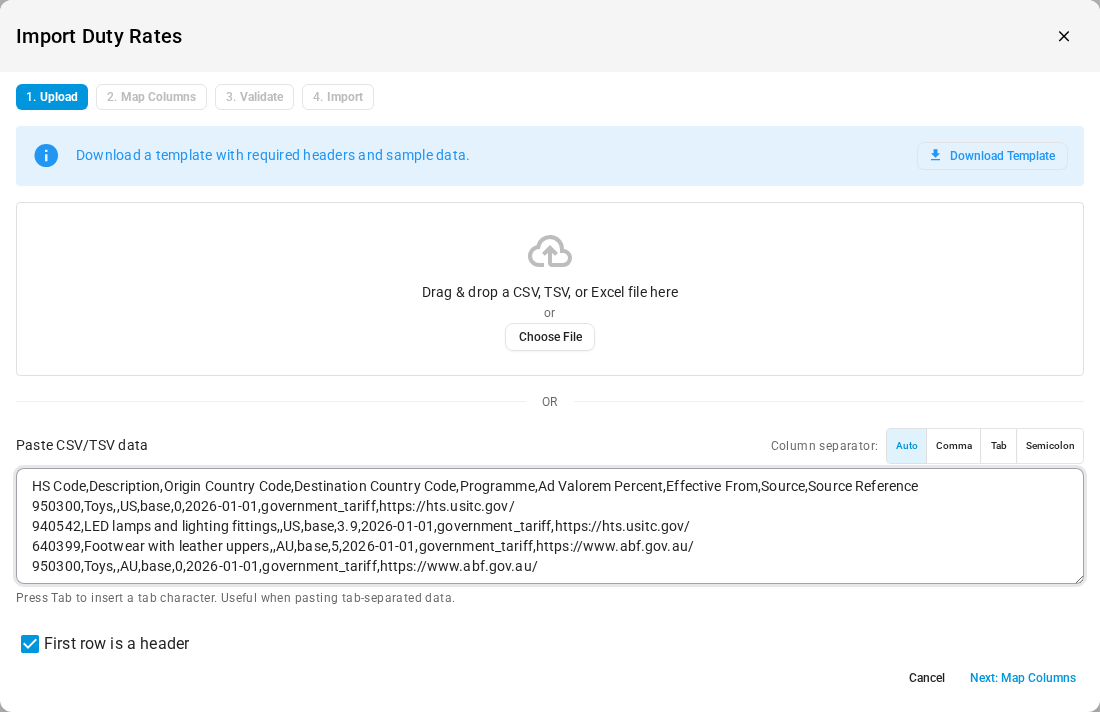
- On the Rates tab, click Import.
- To get a file with the right headings and three sample rows, click Download Template.
- Drag your CSV, TSV, or Excel file onto the dialog, click Choose File, or paste rows straight from a spreadsheet into Paste CSV/TSV data.
- Click Next: Map Columns. SKU.io matches your headings to its fields. Change any match in Maps To. You can't continue until HS Code, Destination Country Code, Programme, and Effective From are mapped.
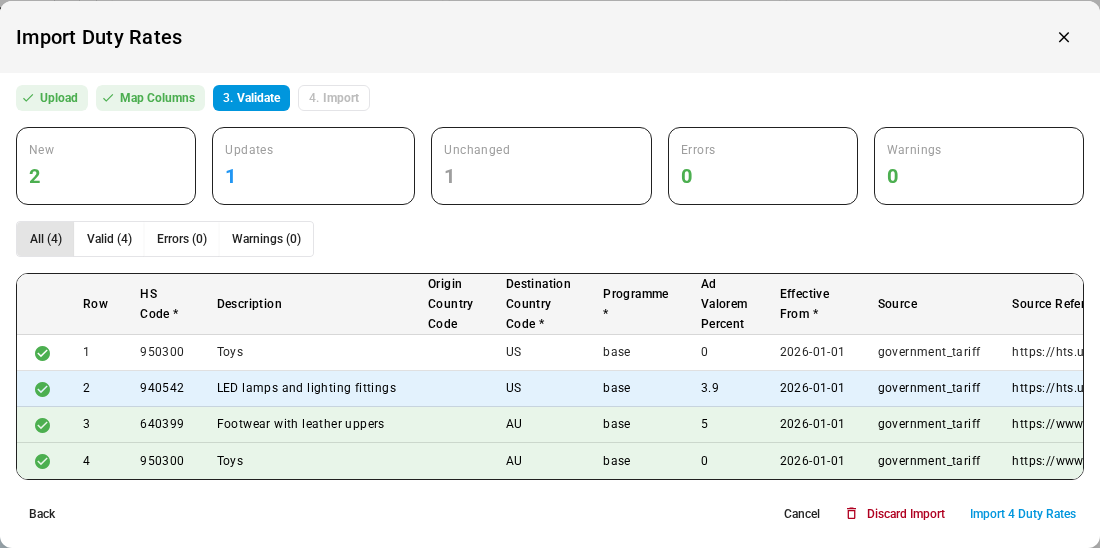
- Click Next: Validate. SKU.io checks every row before anything changes, and shows how many rows are New, Updates, Unchanged, Errors, and Warnings.
- Click Import to apply the rows.
How rows match existing rates
- When a row has an ID, it updates that rate. If no rate has that ID, the row is an error.
- Without an ID, a row updates the rate with the same HS code, origin, destination, programme, programme reference, and effective from date. Leave Origin Country Code blank to mean any origin.
- Otherwise, the row creates a new rate.
- A row that matches a rate exactly is reported as Unchanged and skipped. So you can export your rates, edit some rows, and import the whole file again.
- When you update a rate, a column your file leaves out keeps the rate's current value. A column that's in the file but empty clears that value.
- A row can't change the figures of a rate that a receipt has used. Import a new version instead, with a later Effective From date.
Columns
These are the column headings in the template and in an export. Only the four required columns must be in your file.
| Column | Required | Format | Notes |
|---|---|---|---|
ID | No | Number | The rate to update. Leave blank to match on the other columns. |
HS Code | Yes | 2 to 10 digits; dots allowed | 00 means every code, on fee rows only. If a spreadsheet dropped a leading zero (70320), SKU.io adds it back and warns you. |
Description | No | Text, up to 255 characters | |
Origin Country Code | No | Two-letter country code, such as CN | Blank means any origin. |
Destination Country Code | Yes | Two-letter country code, such as US | |
Programme | Yes | base, section_301, section_232, section_122, anti_dumping, countervailing, preferential, other_additional, or fee | |
Programme Reference | No | Text, up to 64 characters | Such as 9903.88.03, MPF, or an anti-dumping case number. |
Ad Valorem Percent | No | Number, such as 25 for 25% | A row needs an ad valorem percent, a specific amount, or both. Fee rows need an ad valorem percent. |
Specific Amount | No | Number | Requires Specific UOM. |
Specific UOM | No | each, dozen, or kg | |
Specific Currency | No | Currency code, such as USD | Must be a currency set up in your account. |
Minimum Per Entry | No | Number | Fee rows only. |
Maximum Per Entry | No | Number | Fee rows only. Can't be less than the minimum. |
Transport Modes | No | Comma-separated: ocean, air, truck, rail, courier | Fee rows only. |
Not Stacked With | No | Comma-separated programme values, as in Programme | A rate can't list its own programme. |
Effective From | Yes | Date, YYYY-MM-DD | Excel dates are converted. |
Effective To | No | Date, YYYY-MM-DD | Must be on or after Effective From. |
Notes | No | Text | |
Archived | No | 1 or 0 | 1 archives the rate. |
Source | No | manual, government_tariff, broker_entry, import, or ai_research | New rows default to import. A blank cell keeps the current source. |
Source Reference | No | Text, up to 255 characters | A link or citation. |
Last Verified At | No | Date and time, YYYY-MM-DD HH:MM:SS, in your account's time zone | Can't be in the future. |
What the validation step catches
Each row is checked on its own, and a row with an error isn't imported. Common errors:
- The rate overlaps another version of the same rate. The message names the rate and its dates.
- The same rate appears more than once in the file.
- The currency isn't set up in your account.
- The ID doesn't match a rate.
- The row would change the figures of a rate that a receipt has used.
Importing a rate never marks it as verified. Only the file's own Last Verified At date is recorded.
Export rates
Click Export to download the rates in the current list, with your filters applied, as a CSV file with the same columns as the import. To export only some rates, select them first and click Export selected. A list of more than 1,000 rates exports in the background, and the job tray offers the file when it's ready.
Next steps
- How duty estimates work: how a rate becomes an estimate on an order, a shipment, and a receipt.
- Estimate duty on purchase orders and shipments: see the duty on each line of an order, and fix the products it flags.
- Capitalise estimated duty and reconcile the broker bill: enter your broker's duty bill against the shipment, and compare it with the estimate.
- Keep duty rates accurate: see which rates are due for review or drifting from your broker's bills, and re-check them.
- Record landed cost bills: enter your broker's duty bill.
- Duties & Tariffs: every guide in this chapter.
Video transcript
SKU.io estimates import duty from a table of duty rates that you keep. To open it, go to Settings, at the bottom of the sidebar. Settings are grouped by area of the app. Open the Purchasing group, which lists every purchasing setting, then choose Duty Rates. The page opens on the Rates tab, with every rate you have added. Each row is one rate for an HS code. In the Programme column, Base is the general rate, and extras such as Section 301 get rows of their own. Above the table, the Coverage panel shows which products can't be estimated yet. Products bought DDP are counted apart, because the seller pays their duty. To add a rate, click New duty rate, at the top right. Enter the HS code and a short description. Leave Origin blank to cover every country. Destination is where you import into, and Base is already chosen. Some rates take a percentage of the value. Others charge an amount per unit. This one is charged by weight, so type the charge per kilogram, and choose kilograms as the unit. Then set Effective from to the day the rate took effect. Next, choose where the figure came from, and paste a link to the tariff schedule for your team to check. On a sample shipment, the preview shows what this row adds. When it looks right, click Create rate. The new rate joins the top of the list, and estimates use it from its start date. To see how your rates combine, click Test a rate. Pick a product, and the tester uses its HS code and origin. Then click Calculate to run the numbers. Together, the base rate, Section 232, and both entry fees make the total duty. Section 301 is excluded, because that row doesn't stack with Section 232. When a rate changes, don't edit the old rate. Booked receipts still rely on those numbers. Instead, close the tester, and search for the HS code above the list. Scroll along the rate's row, and open the menu at its far end. Choose Duplicate as new version. A copy of the rate opens in the editor. Enter the new rate, and the date the new version starts. The note confirms the old figures stay as history, ending the day before. When you are ready, scroll down and click Save as new version. The list now shows both versions, with the new one scheduled. The Jurisdictions tab holds the customs settings for each country you import into. Valuation basis says whether duty includes freight and insurance. The threshold column is the value below which an entry pays no duty. To add many rates at once, go back to the Rates tab, and click Import. Upload a file, or paste rows from a spreadsheet. Then click Next to map your columns. SKU.io matches your headings to its fields. Click Next again to check every row. Nothing changes until you confirm. The counts show exactly what will happen. A row that matches an existing rate updates it. An identical row counts as Unchanged, and is skipped. Then click Import to apply the rest of the rows. The import runs in the background, and the new rates appear at the top of the list. Export downloads the same columns, so you can edit a copy and import it back. Next, learn how to keep these rates accurate as tariffs change.