Plan for promotions with promo windows
A promotion creates two problems for a forecast. While it runs, sales jump, and a plain average reads that jump as your new normal and over-buys for the weeks after. Before the next one, a plain average knows nothing about the promotion and under-buys. A promo window solves both. It marks the promotion's dates so those days are kept out of your everyday sales rate, measures how much the promotion lifted sales, and adds that lift to the same days the next time they fall inside an order.
Promo windows are saved, so a window you add for this year's Black Friday is still there, with its measured lift, next year.
Before you begin
- Choose at least one supplier on Planning → Demand Planning, or build a forecast. A promotion's lift is measured from one product's sales, so the dialog needs a product to measure against.
- The lift is measured against the 90 days before the promotion, so the product needs sales history going back that far.
Steps
- Go to Planning → Demand Planning. In step 2, How should we read demand?, click Manage promo windows.
- Under Common sale periods, click the sale you want to add. It fills in the name and last year's dates.
- Check the dates, then click Add window.
- Read the lift in the Measured column.
- Click Use in this plan on the window's row.
- Click Done.
The sections below go through each step, and what the lift does to an order.
Open promo windows
In the new view, Manage promo windows is in step 2 of 1 · Set up, and Promo windows is above the order list on 2 · Review & adjust. In the classic view, build a forecast and click Promo Windows in the Anomaly Detection bar below the results. The dialog is the same in both.
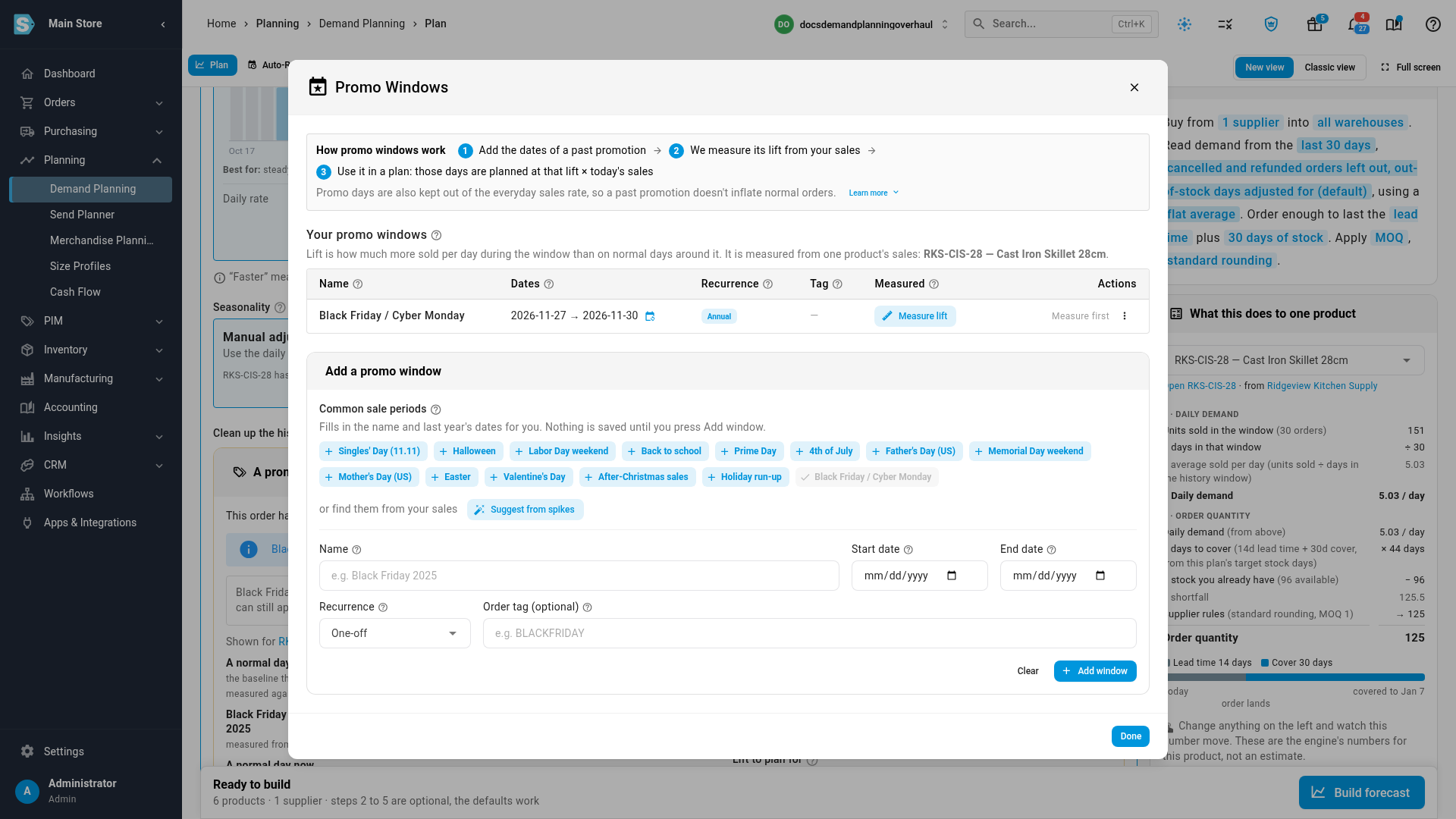
Your promo windows lists every window you've saved. Under the heading, the dialog names the product the lift is measured on.
Add a promo window
- Scroll to Add a promo window.
- Under Common sale periods, click a period, for example Holiday run-up or Black Friday / Cyber Monday. The Name, Start date and End date are filled in with that period's most recent dates, and Recurrence is set to Annual. A period you've already saved is greyed out.
- Check the dates. Both days count as part of the promotion. Nothing is saved yet: a note says "Filled in, not saved yet", and the Add window button pulses.
- Optional: enter an Order tag if your orders for this promotion carry a tag, such as BLACKFRIDAY. Leave it blank to measure by the dates alone.
- Click Add window.
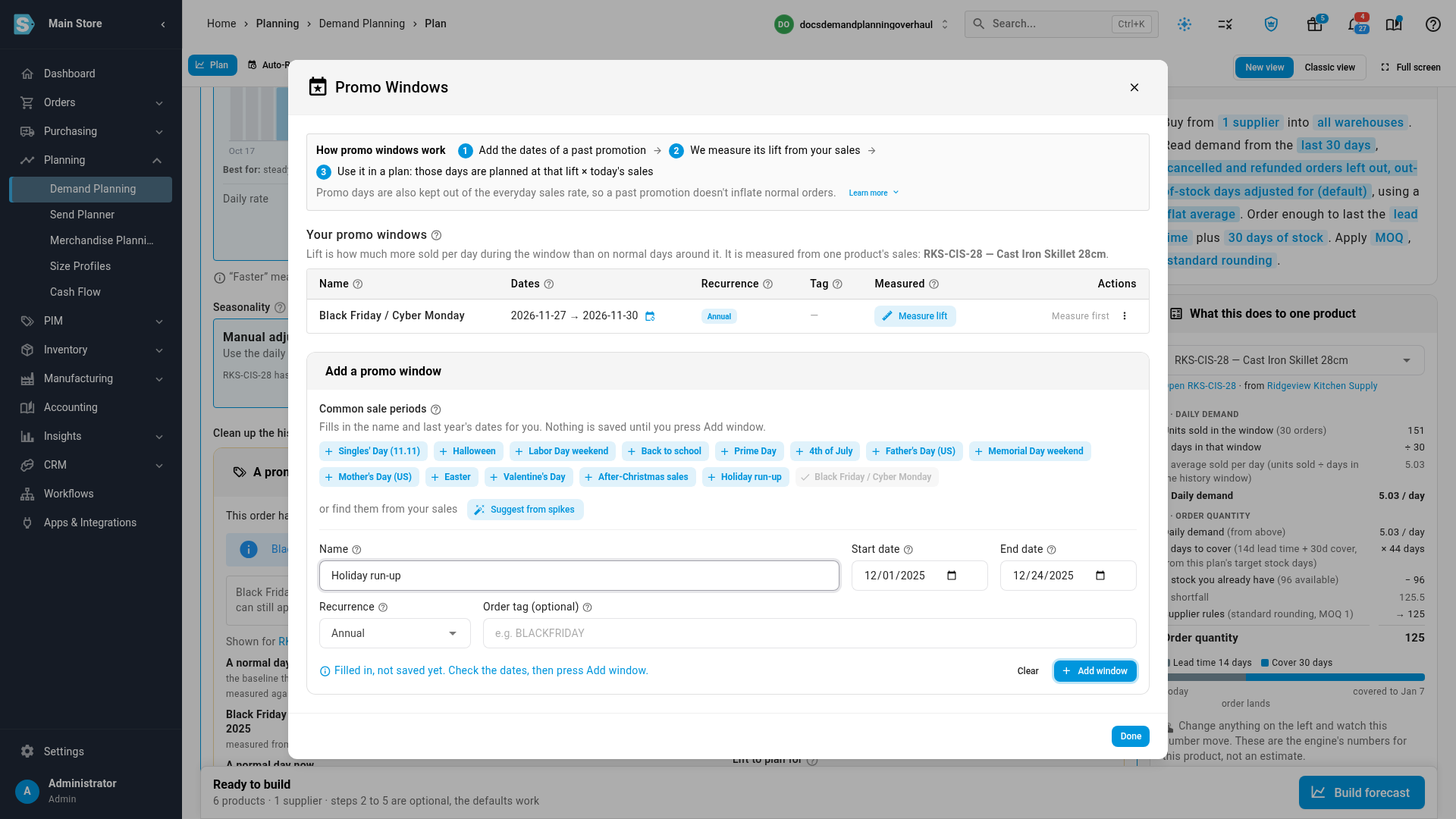
For a promotion that isn't in the list, type the Name and dates yourself, and choose One-off for a single event or Annual for one that repeats.
Windows that follow a holiday
Some sale periods move each year: Easter, Mother's Day, Black Friday. A window added from one of those shows "Repeats on the holiday itself each year (the dates move), not on these calendar dates" when you add it, and Follows the holiday in the list. Its Dates column shows the next occurrence's real dates, so a Black Friday window measured on last year's dates is planned onto this year's.
An annual window you saved before this was available keeps its calendar dates. If it matches one of the common sale periods, its ⋮ menu offers Make it follow the holiday.
Let SKU.io find past promotions
If you don't know when past promotions ran, click Suggest from spikes. SKU.io scans the product's sales history for clusters of unexplained spikes and lists them with their Dates, a Peak score, the Excess units sold above normal, and the number of Days. Click Use on a row to copy its dates into the form. Window exists marks dates you've already saved.
Read the measured lift
A new window is measured as soon as you add it. For a window with no figure yet, click Measure lift in its Measured column.
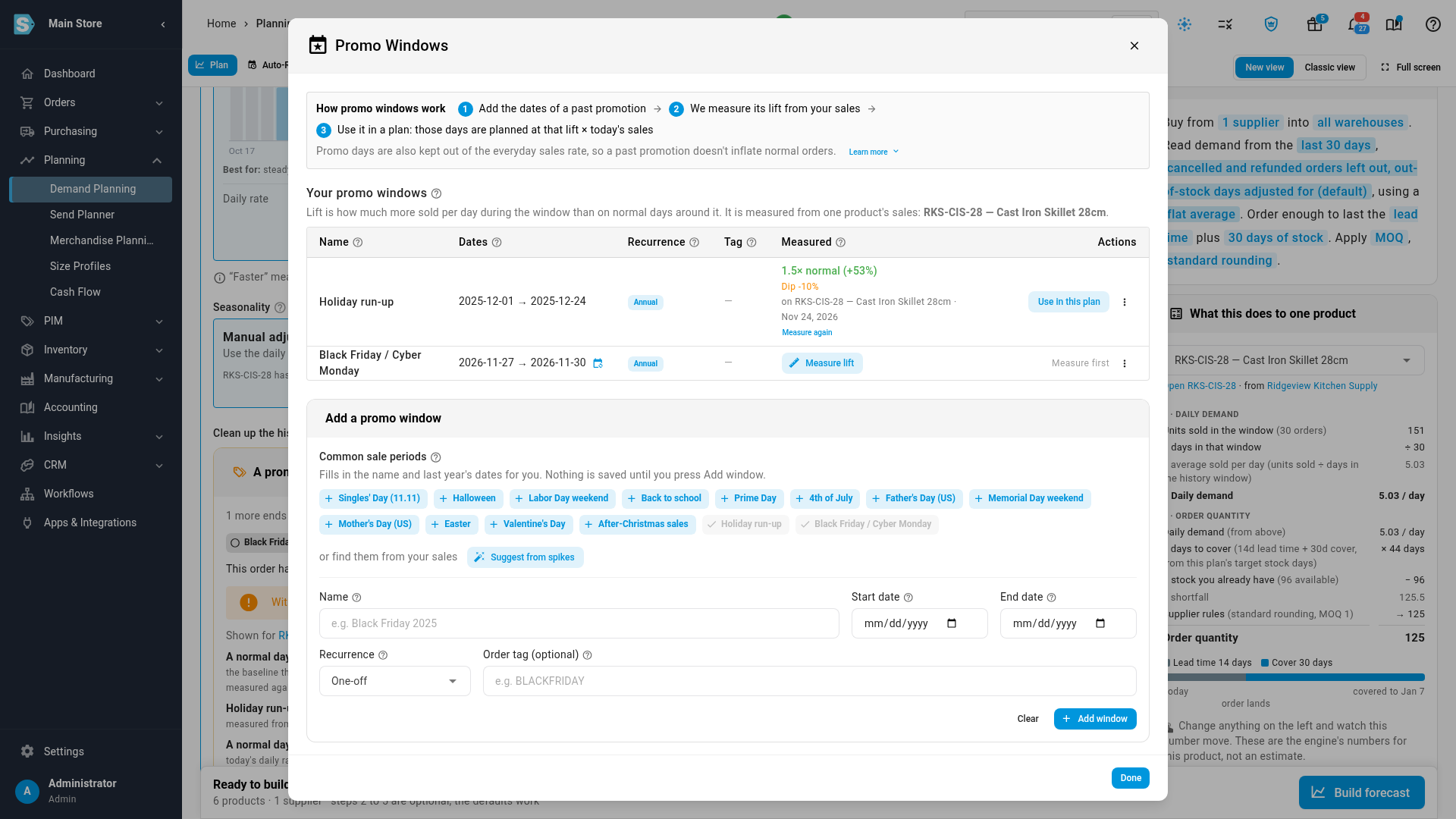
- The lift is how much more sold per day during the window than on normal days around it. 1.5× normal (+53%) means about one and a half times the usual daily sales.
- Dip or After promo is how sales compared with normal in the two weeks after. A negative number means customers bought early and sales fell afterwards.
- The last line names the product and the date it was measured. Click Measure again to refresh it.
SKU.io compares each promotion day with a normal day of the same weekday, so a weekend promotion isn't flattered by being compared with quiet weekdays. Measuring only reads your history.
Use the promotion in a plan
Click Use in this plan on the window's row. The button changes to In this plan. Click Done.
The window stays live in the plan: every build reads its latest measured lift.
The ⋮ menu on a row has the other actions:
- Copy as a fixed event instead adds the lift as a dated event modifier with today's numbers. You can edit it by hand, but it doesn't change when you measure again.
- Edit changes the name, dates, recurrence or tag. Measure the lift again after you change the dates.
- Delete removes the window. You're asked to confirm first.
What the lift does to an order
The lift applies to the promo days that fall inside the order's cover, and to nothing else. An order has to cover the days from today until the stock it brings runs out: the lead time plus your cover. For each promo day inside that stretch, the forecast adds the extra units the promotion is expected to sell, on top of the normal daily rate. Days outside the window are planned at the normal rate, and a window that doesn't overlap the order adds nothing.
For example, a product selling 5 a day with a 1.5× lift over 24 promo days gets 5 × 0.5 × 24 = 60 extra units. Its daily rate stays 5.
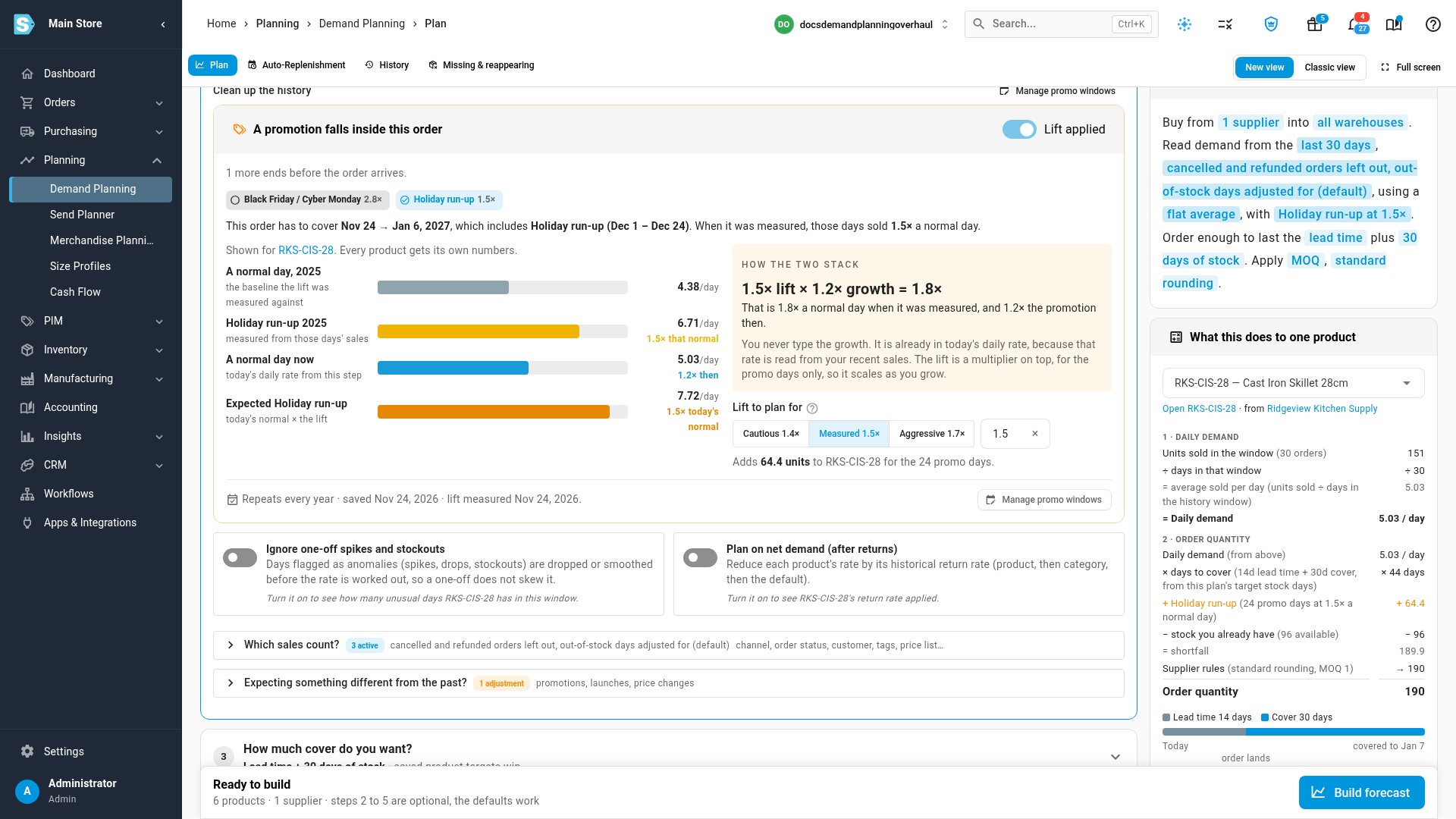
In the new view, step 2 shows this on a card whenever a saved window overlaps the order:
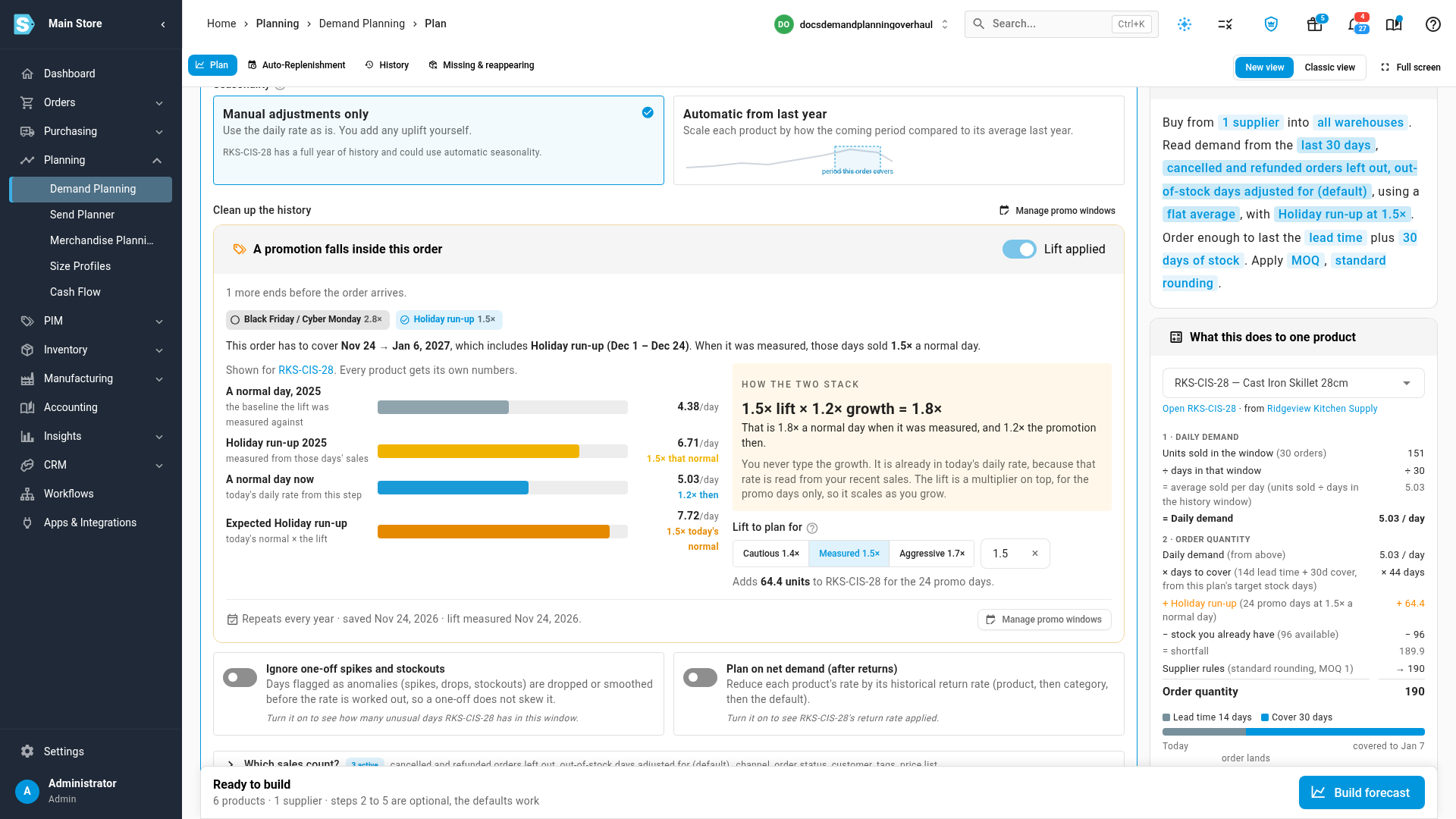
- The card names the promotion, the dates the order has to cover, and how many units the lift adds for the promo days.
- Lift to plan for lets you plan for the Measured lift, a Cautious or Aggressive one, or your own number, for this plan only.
- The lift is a multiplier on today's daily rate, so it grows with you. If the product sells more now than when the promotion was measured, the promotion is planned higher too. You never enter the growth yourself.
- The worked example on the right shows the extra units as their own line.
After the build, each supplier's order on 2 · Review & adjust says which promotion it covers and how many units that adds. In either view, a line's Calculation Details lists the promotion on its own row.
A promotion that ends before the order arrives
If a promotion ends before a new order could arrive, the order can't help it: only the stock you already have can serve those days. The card and the supplier's order call this out, with the promotion's dates and the date the order would land, and the lift is left out of that order. You can still apply it if you want the order to replace what the promotion sells from stock.
Earlier, a promotion you applied live multiplied the whole daily rate for the entire order, including days outside the promotion. It now adds units for the promo days inside the order's cover only. Saved plans and schedules that use a live promotion suggest lower quantities than before.
Keep promotions out of your everyday baseline
When you review demand anomalies, a spike that came from a promotion can be tagged to its promo window with Keep as promo. The day stays in your history, marked as part of that promotion, and isn't flagged as unusual. Drops and stockouts inside a window are still flagged.
Next steps
- Plan and order in the new Demand Planning view to build the plan with the promotion in it.
- Review demand anomalies to tag promotional spikes and clean the rest of the history.
- Replenish stock on a schedule to run a forecast with its promotions automatically.
- Try a what-if with a scenario to reuse a saved promo window when you plan sends to your fulfillment networks.
Video transcript
A promotion sells more than a normal day, so a good forecast plans for the extra demand. In step two of the new Demand Planning view, click Manage promo windows. Your saved promotions are listed first. This one follows a holiday, so its dates move with the holiday each year. To add another, find Common sale periods, and click the one you want. The name and last year's dates are filled in automatically. Nothing is saved yet, so check the dates. The Add window button pulses as a reminder. Click Add window, and the new promotion is measured within seconds. The Measured column shows its lift over normal days. Under the lift is how sales moved in the two weeks after. A window with no figure yet has a Measure lift button instead. Click it, and that promotion is measured from your sales as well. To plan for a promotion, click Use in this plan, on the same line as its name. The three dots beside it hold the other actions, such as edit and delete. When you have finished with the windows, click Done at the bottom. Back in step two, a card shows the promotion that falls inside this order. The lift is added only for the promo days within the order's cover. A promotion that ends before the order can arrive is called out separately. It can only be met from the stock you already have. Plan for the measured lift, a cautious or an aggressive one, or type your own. The worked example on the right shows the extra units as their own line.