Turn on shipping below zero
Out of the box, SKU.io refuses to ship a sale that would take a warehouse below zero on hand: the short line is backordered and waits for stock. This guide turns that refusal into a choice — either a prompt that asks someone to acknowledge what the shipment will cost, or a silent record — and then narrows the rule for any warehouse or product that should stay stricter.
Everything here governs shipments your team chooses to make. An order a sales channel has already fulfilled records what it owes whatever you set — see Debt the sales channel created.
Before you begin
- You need rights to change settings. The policy, the reason toggle and the period-close toggle all sit under Settings → Inventory, and saving any of them needs permission to edit settings. Administrators hold it implicitly.
- Accounting must be set up far enough to have a chart of accounts. The policy will not save as anything other than Block until an Inventory Debt Clearing account is mapped, and that mapping lives on the Accounting page. Step 1 belongs to whoever owns your chart of accounts — usually a bookkeeper or your finance team, not the inventory manager — so if that is not you, hand it over as: map Inventory Debt Clearing to a liability account, and leave Inventory Debt Variance unmapped.
- Decide which policy you want before you start:
| Policy | What it does |
|---|---|
| Block — refuse the fulfillment (default) | The short line cannot ship. It stays backordered until stock arrives. |
| Warn — allow with a reason | The short line can ship, but only after someone holding the inventory.debt.acknowledge permission sees the shortfall and its estimated cost and confirms — with a reason, if you require one. |
| Allow — record silently | The short line ships. The shortfall is recorded as inventory debt without a prompt and without a reason. |
Whichever you choose, the record is the same: an inventory debt claim for the units that shipped without stock, carried at an estimated cost until the next receipt settles it. See What inventory debt is.
Step 1 — Map the clearing account
The cost of a unit that ships before you own it has to sit somewhere until the receipt arrives. That somewhere is the Inventory Debt Clearing account. SKU.io will not let you switch the policy on without it.
- Go to Accounting and click the Settings tab.
- Click Nominal Code Mappings.
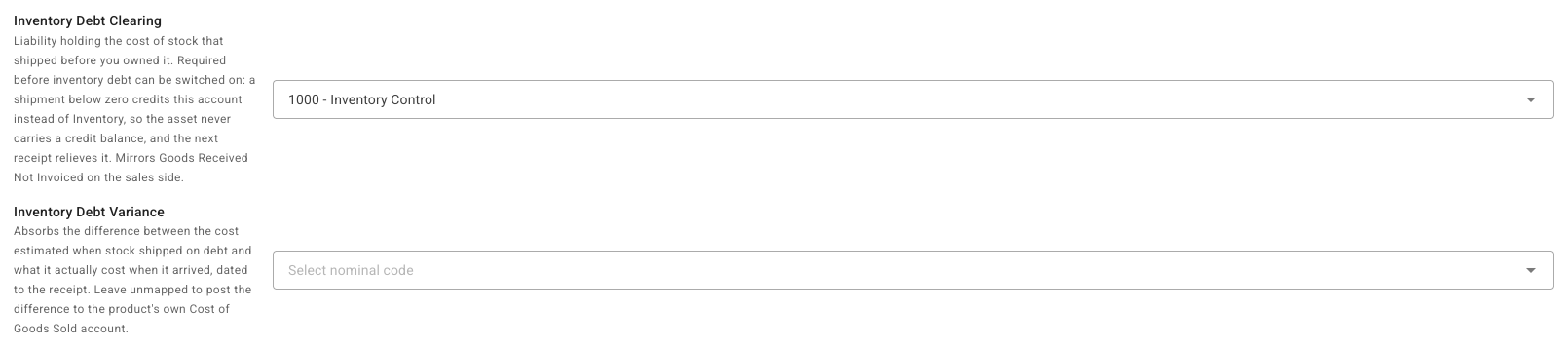
- In the Default Nominal Code Mappings list, find Inventory Debt Clearing. Its description on screen reads: "Liability holding the cost of stock that shipped before you owned it. Required before inventory debt can be switched on…"
- Select a liability account from the drop-down. Do not reuse your inventory asset account — this account exists so that Inventory never carries a credit balance.
- Optionally, map Inventory Debt Variance, the row immediately below it. Leave it unmapped and the difference between the estimate and the actual cost posts to the product's own Cost of Goods Sold account, which is the right answer for most businesses. Map it only if finance wants that difference visible on its own line. Do not point it at your Purchase Price Variance account — the two would become impossible to reconcile separately.
- Click Save at the top of the list.
For what actually posts to these accounts, and when, see What posts to your ledger.
Step 2 — Choose the policy
-
Go to Settings → Inventory → Inventory Debt. To search for it instead, use Search all settings… on the Settings landing page — the Inventory Debt page itself has no search box. Searching for debt, negative, oversell or clearing returns this page and nothing else; backorder returns it alongside one other result.
-
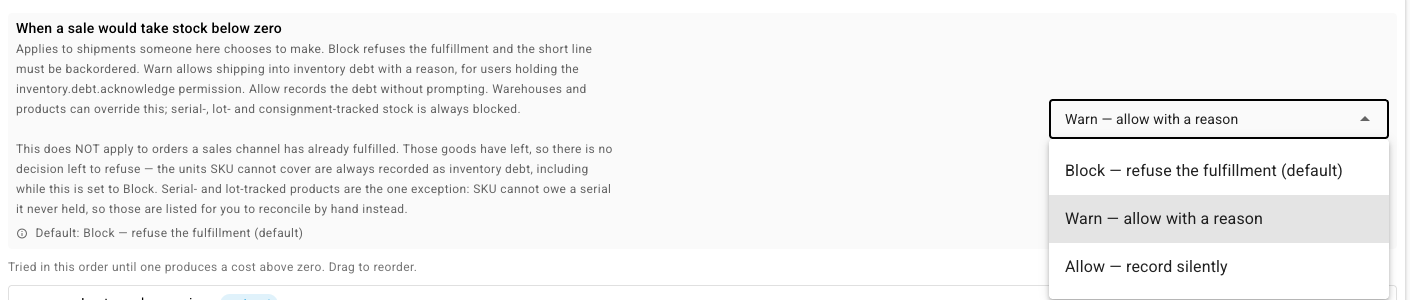
Under When a sale would take stock below zero, open the drop-down and choose Warn — allow with a reason or Allow — record silently.
-
Click Save Changes.
If no clearing account is mapped, the save is refused and the field reports:
Map an Inventory Debt Clearing account before allowing stock to go below zero. Shipping without stock posts its cost to that account, and without it the shipment will succeed but its journal will not.
Go back to Step 1, then save again. Switching back to Block never needs the account — nothing ships into debt under it.
Changing the policy changes only what happens to new shortfalls. Claims that are already open keep repaying as stock arrives, and nothing about them is cancelled or rewritten.
Step 3 — Check how a debt unit is costed
Below the policy is an ordered list headed Tried in this order until one produces a cost above zero. Drag to reorder. It decides what provisional cost a debt unit carries until a receipt restates it.

The default order — Last purchase price, then Average cost, then Product default cost — is right for almost everyone, and this step is normally just a look. Two things you might change:
- Reorder with the arrows on each row, or drag a row by its handle. The first row carries the preferred chip; it is the basis the acknowledgement prompt names when it has had to fall back to something else.
- Zero, the chip beside the Add: caption under the list, adds a zero basis — use it if you would rather cost every debt unit at nothing and let the whole cost land as a variance when the receipt arrives. Zero stops the search, so put it last — anything below it is greyed out and the page warns you it will never be used.
Every basis, and what each one reads, is in Inventory debt settings.
Step 4 — Decide about reasons and the month-end close
Two toggles sit at the bottom of the same page. Both are on by default.

- Require a reason adds a Reason box to the acknowledgement prompt under Warn. The reason is stored on the claim and shown in the Reason column of the Fulfillment Debt report. It has no effect under Allow, which never prompts. Leave it on: the person reading the report months later was not in the room.
- Block period close while debt is outstanding makes the Inventory debt settled check on the month-end close a blocking failure rather than a warning, so a month with debt still outstanding will not close until the debt clears or this toggle comes off. Debt never blocks a shipment; this is the one place it applies pressure. See Close a month with debt outstanding.
Click Save Changes if you changed either.
Step 5 — Set a different policy for one warehouse (optional)
The company policy applies to every warehouse unless a warehouse says otherwise. A 3PL that should never oversell, or a single site you trust to ship short, can carry its own setting.
- Go to Contacts → Warehouses and open the warehouse.
- Click Edit.
- In the Warehouse Settings card, find Shipping below zero (inventory debt). It reads Use the company default until you change it.
- Choose Block — refuse the shipment, Warn — allow with a reason or Allow — record silently.
- Click Save Changes.
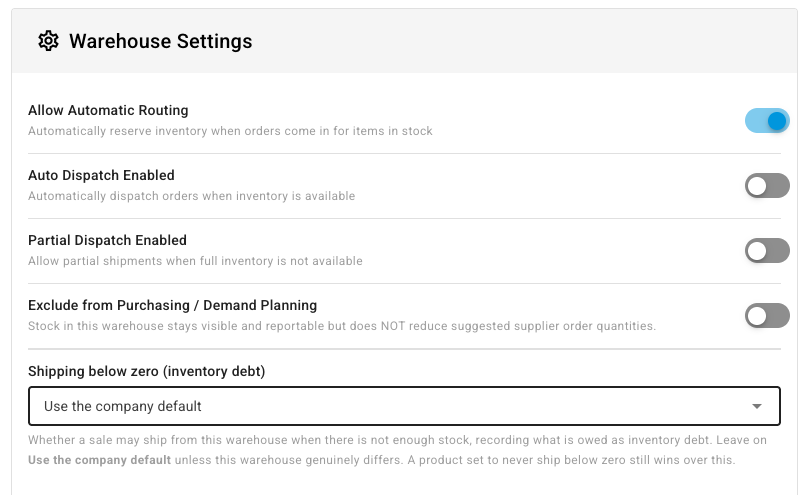
A warehouse can be looser or stricter than the company. It is the only place a policy can be loosened below the company level, and the field's own hint says the rest: "A product set to never ship below zero still wins over this."
The same card may also show a Negative Bin Policy with the same Block / Warn / Allow words. That is a different control — it governs whether a single bin location can be picked below its count — and has nothing to do with inventory debt. Only Shipping below zero (inventory debt) affects whether a sale ships short.
Step 6 — Keep one product from ever shipping short (optional)
A product can tighten the rule but never loosen it. Use this for an item that must never oversell regardless of what its warehouse allows.
- Open the product and click its Inventory tab.
- In the card with Min Stock Level, turn on Never ship this product below zero.
- Click the Save beside it. The confirmation reads "This product will never ship below zero".
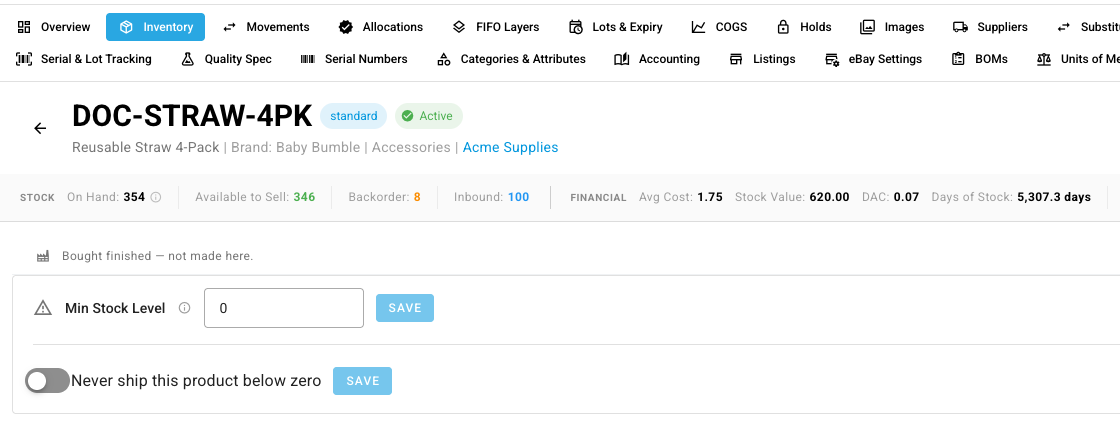
Hover the switch for the full explanation: "Overrides the company and warehouse settings for this product only, and only to make them stricter. Turn it on for an item that must never oversell. Leaving it off does not grant permission — the warehouse or company setting still decides." Turning it off returns the product to following the warehouse and company settings; it does not grant anything.
Serial-tracked, lot-tracked and consigned products are already excluded from debt at every setting, so the switch changes nothing for them.
What an existing business starts with
If you have never opened this page, this is your position today:
- When a sale would take stock below zero: Block. Nothing ships short until someone changes it.
- Cost estimate order: last purchase price, then average cost, then product default cost.
- Require a reason: on. Block period close while debt is outstanding: on.
- Inventory Debt Clearing and Inventory Debt Variance: unmapped.
- Every warehouse: Use the company default. Every product: switch off.
None of this stops a sales channel's own shipments from being recorded as debt — those have always been facts, not choices.
Next steps
- Ship an order when the stock isn't there — what your team sees once the policy is on.
- Which policy applies to a shipment — how company, warehouse and product settings combine.
- Inventory debt settings — every setting on the page.
- What posts to your ledger — the entries behind the clearing account.