Inventory debt settings
Inventory debt is governed from one page — Settings → Inventory → Inventory Debt — plus one field on each warehouse, one switch on each product, two rows in your account mappings and one alert. This page lists all of them, what each option does, what it starts as, and what moves when you change it.
Where the settings live
Settings → Inventory → Inventory Debt. The page's own description reads: "Allow shipping when stock would go below zero, and record what is owed. These settings govern shipments your team chooses to make — an order a sales channel has already fulfilled always records what it owes, whatever you set here."
Searching settings for debt, negative, below zero, oversell, backorder, shortfall or clearing finds it.
Changes are staged: Discard and Save Changes at the top right stay disabled until you change something, and nothing takes effect until you save.
When a sale would take stock below zero
The policy. A drop-down with three options; the hint under it reads Default: Block — refuse the fulfillment.
| Option | What changes |
|---|---|
| Block — refuse the fulfillment (default) | A shipment that would take the warehouse below zero is refused. The short line stays backordered; a backordered line shows no Ship Anyway; in the Fulfill Items dialog it caps at what is reserved. One blocked line refuses the whole shipment — SKU.io does not ship the rest and quietly drop the short one. |
| Warn — allow with a reason | The short line may ship, but the first attempt is refused and Ship without stock? opens with the shortfall, its estimated cost and the basis behind it. Confirming needs the inventory.debt.acknowledge permission, and a reason if Require a reason is on. The shortfall is then recorded as an inventory debt claim. |
| Allow — record silently | The short line ships and the claim is recorded with no prompt and no reason. The confirmation still says the shortfall was recorded as inventory debt. |
The field's own help text is the shortest statement of the rules: "Block refuses the fulfillment and the short line must be backordered. Warn allows shipping into inventory debt with a reason, for users holding the inventory.debt.acknowledge permission. Allow records the debt without prompting. Warehouses and products can override this; serial-, lot- and consignment-tracked stock is always blocked."
Three things the policy does not govern:
- Shipments a sales channel has already made. The goods have left, so there is no decision to refuse. The units SKU.io cannot cover are recorded as debt even under Block. Serial- and lot-tracked products are the exception — SKU.io cannot owe a serial it never held, so those are listed for you to reconcile by hand. See Debt the sales channel created.
- Anything other than a sale. Warehouse transfers, manufacturing consumption and vendor returns always refuse to go below zero in this release; there is no setting to change that today. Adjustments and stock takes can never go negative at all — they record a physical count, and a count cannot be below zero.
- Claims that already exist. Switching from Allow back to Block blocks new shortfalls only. Open claims keep repaying from receipts exactly as before; nothing is cancelled or rewritten.
Saving Warn or Allow needs a clearing account. If Inventory Debt Clearing is unmapped, the save is refused with:
Map an Inventory Debt Clearing account before allowing stock to go below zero. Shipping without stock posts its cost to that account, and without it the shipment will succeed but its journal will not.
Switching back to Block never needs the account.
How a debt unit is costed
Under the policy is an ordered list introduced by "Tried in this order until one produces a cost above zero. Drag to reorder." It sets the provisional cost a debt unit carries until a receipt restates it — the figure the acknowledgement prompt shows as Est. unit cost, and the amount that posts to the clearing account when the shipment goes out.
Default order: 1 Last purchase price · 2 Average cost · 3 Product default cost.
| Basis | What it reads (the row's own description) |
|---|---|
| Last purchase price | What you last paid a supplier for it, at this warehouse then anywhere. The most recent receipt into the shipping warehouse first; failing that, the most recent receipt of the product anywhere. A purchase price does not change by which door the goods came in. |
| Average cost | Weighted average of the stock on hand, at this warehouse then anywhere. |
| Product default cost | The product's own average or default cost — the last resort with a real number. Reads the product's average cost first, then its unit cost. A product that has never been received has a genuine zero average, which is skipped rather than used. |
| Zero | Cost the debt at nothing and make the variance loud when a receipt settles it. Not in the list by default — add it with the Zero chip beside the Add: caption under the list. |
How the list behaves:
-
Each basis is tried in order until one returns a cost above zero. The prompt names the basis that actually produced the figure, and adds (fallback — no last purchase price) in orange when it had to move past the first row.
-
The first row carries a preferred chip. That is the basis the fallback note refers to.
-
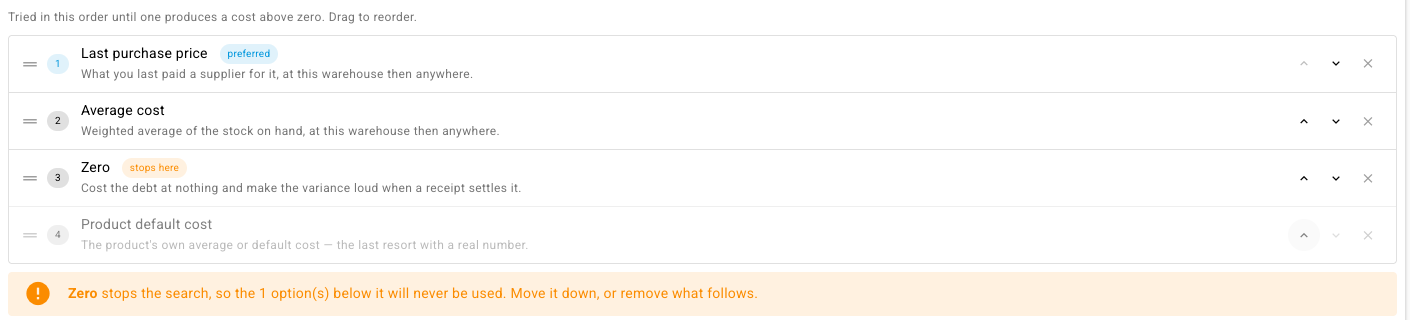
Reorder with the up and down arrows on each row, or drag by the handle. Remove a row with its ×; the last remaining row cannot be removed, because an empty list would cost every debt unit at nothing.
-
Zero stops the search. Its row carries a stops here chip. Put it anywhere but last and the rows below it grey out and an amber warning appears: "Zero stops the search, so the 1 option(s) below it will never be used. Move it down, or remove what follows." The warning does not stop you saving.
-
Zero first costs every debt unit at nothing. There is no warning for that; it is a legitimate choice for a business that would rather see the whole cost arrive as a variance at settlement.
-
If every basis comes back empty — a brand-new product with no history anywhere — the unit is costed at zero, nothing posts to the clearing account, and the entire actual cost posts as a variance when the receipt settles the claim.
The order you save here is the order every shipment uses. Reordering it changes the estimate on the next shipment, not on claims already open.
For the accounting consequence of the estimate and its later restatement, see What a debt shipment costs.
Require a reason
A toggle. On by default. Its description: "Operators must give a reason when acknowledging a shipment into debt. The reason is stored on the claim and read months later from the debt report by someone who was not there."
- On. The Ship without stock? prompt under Warn carries a Reason box ("Why is this shipping before stock arrives?"). What is typed is stored on the claim and shown in the Reason column of the Fulfillment Debt report.
- Off. No box; the claim is recorded without a reason.
It affects only the Warn prompt. Allow never asks, so no reason is captured under it either way.
Block period close while debt is outstanding
A toggle. On by default. Its description: "Users holding accounting.period.override can still close, with a reason; the override is audited and the clearing balance disclosed. Debt never blocks a shipment — the pressure lands on the close instead."
It controls the severity of one row on the month-end close checklist, Inventory debt settled:
- On. The row is a blocking failure while any claim incurred in the month is still outstanding. Two things can then get the month closed: somebody holding the override permission closes over that one check with a reason, which is recorded against the period along with the clearing balance at the moment of closing; or you turn this toggle off. The first is a one-month decision by a named person, the second changes every month that follows — prefer the first.
- Off. The same row becomes a warning. It still states the exposure and still has to be acknowledged in the close dialog, but nothing is refused.
The switch is tenant-wide and it stays where you put it — it is not a one-month exception. Debt never blocks a shipment in either position. Further reading: Close over outstanding inventory debt and Close settings and custom checklist items.
Per-warehouse policy
Contacts → Warehouses → (warehouse) → Edit → Warehouse Settings → Shipping below zero (inventory debt).
| Option | What changes |
|---|---|
| Use the company default (the starting value for every warehouse) | The warehouse follows When a sale would take stock below zero. |
| Block — refuse the shipment | Sales from this warehouse never ship short, whatever the company says. |
| Warn — allow with a reason | Sales from this warehouse prompt for an acknowledgement, whatever the company says. |
| Allow — record silently | Sales from this warehouse ship short silently, whatever the company says. |
A warehouse's own value beats the company value in both directions. It is the only place a policy can be made looser than the company setting. The field's hint: "A product set to never ship below zero still wins over this." Saving is part of the warehouse's Save Changes.
Do not confuse it with Negative Bin Policy on the same card, which uses the same three words to govern a single bin location's count and has no effect on inventory debt.
Per-product switch
Product → Inventory tab → Never ship this product below zero, with its own Save beside it. Off for every product to begin with.
- On. The product resolves to Block at every warehouse, whatever the warehouse or company allows. Saving confirms "This product will never ship below zero".
- Off. The product follows the warehouse and company settings. Saving confirms "This product now follows the warehouse and company settings".
It only ever tightens. There is no per-product way to permit shipping short that the warehouse or company has not already permitted, and the switch changes nothing for serial-tracked, lot-tracked or consigned stock, which are excluded regardless. See Which policy applies to a shipment.
A sales channel connection's Allow negative inventory sync option is a different setting with a similar name: it controls the quantity published to the channel when stock is negative and has nothing to do with debt.
The two accounts
Accounting → Settings tab → Nominal Code Mappings → Default Nominal Code Mappings. Both rows start unmapped on every business. Changes save with the list's Save button.
| Row | Required? | What it does |
|---|---|---|
| Inventory Debt Clearing | Yes — the policy will not save as Warn or Allow without it | A liability holding the cost of stock that shipped before you owned it. A shipment below zero credits this account instead of Inventory, so the asset never carries a credit balance, and the next receipt relieves it. The row's description calls it the mirror of Goods Received Not Invoiced: that is goods in with the invoice pending; this is goods out with the cost pending. Map a liability account, not your inventory asset. |
| Inventory Debt Variance | No | Absorbs the difference between the cost estimated when the stock shipped and what it actually cost when it arrived, dated to the receipt. Leave it unmapped to post that difference to the product's own Cost of Goods Sold account, which is the right answer for most businesses. Do not point it at Purchase Price Variance; mixing the two makes both unreconcilable. |
The entries themselves are described in What posts to your ledger.
Reaching your accounting provider
Debt entries — Inventory Debt Recognised when a shipment goes out short, and Inventory Debt Settlement when a receipt repays it — sync to your accounting provider under the Inventory Adjustment sync category rather than a category of their own. Turning that category off under Accounting → Settings → Sync stops debt entries reaching the provider too.
The alert
Settings → Alerts & Notifications → Alert Preferences, in the Inventory group: Inventory Debt Incurred. Its description: "Triggered when units ship without stock behind them — either a sales channel reported a shipment SKU could not cover, or an operator chose to ship below zero. Each one becomes a claim on the next receipt, carried at an estimated cost until stock arrives and settles it."
| Column | Starts as | Notes |
|---|---|---|
| Enabled | On | Unlike most inventory alerts, this one is on from the start. Debt is money owed against stock that has already left; the businesses with the most of it are the ones least likely to know. |
| Priority | high | |
| Email / Email Recipients | Off / none | Separate opt-in. Enabled alone is the in-app bell only. |
| Slack / Slack Channel | Off / none | Separate opt-in. |
| Frequency | Instant |
One notification covering every new claim since the last, not one per claim: a business carrying a backlog of claims gets a single digest listing them, not a flood.
Who can change what
| Action | Needs |
|---|---|
| Read the Inventory Debt page | Access to settings |
| Change the policy, the cost order or either toggle | Rights to edit settings. There is no finer permission: anyone who can edit any setting can change these. Administrators pass implicitly. |
| Map the two accounts | Rights to edit accounting settings |
| Set a warehouse's policy or a product's switch | Rights to edit that warehouse or that product |
| Confirm Ship without stock? under Warn | The inventory.debt.acknowledge permission. Administrators pass implicitly. Allow needs nothing — there is no prompt. |
| Close a month over outstanding debt | The override permission, exercised on that one check with a recorded reason — see Close over outstanding inventory debt. Turning Block period close while debt is outstanding off is the tenant-wide alternative. Close permissions themselves are in Who can do what in the close. |
| Settle claims from stock, or raise a catch-up stock take | Ordinary inventory access. Neither sits behind a permission of its own, even though settling consumes real stock and posts entries, and a catch-up count moves real inventory. Restrict who can reach the Fulfillment Debt report if that matters to you. |
Nothing in the settings save checks the accounting side beyond the clearing account, and nothing checks the settings side when you map an account. Do the mapping first.
Next steps
- Turn on shipping below zero — the walkthrough in the right order.
- Which policy applies to a shipment — how the three levels combine.
- What a debt shipment costs — the estimate, the restatement and the variance.
- Close settings and custom checklist items — the close-side view of the period-close toggle.