Find the orders that owe stock
Debt is easy to miss. The goods went out, the customer is happy, the order looks finished — and the shortfall lives on a report nobody opens. SKU.io therefore surfaces it in three places you already look: an alert when new debt appears, a tile on your dashboard, and a filter on the Sales Orders list. This guide sets up all three.
Before you begin
- You need permission to view inventory to open the Fulfillment Debt report, and permission to edit settings to change the alert.
- The alert is on from the start; the dashboard tile may already be there. Most of what follows is checking and tuning rather than switching on.
- Clearing the debt itself is work through your outstanding debt. This page is about the routes in.
1. The Inventory Debt Incurred alert
The alert tells you when debt is created — the moment units ship without stock behind them, whether a person chose it or a sales channel reported it.
-
Go to Settings → Alerts & Notifications → Alert Preferences.
-
Click the Inventory chip above the table to filter to inventory alerts.
-
Find Inventory Debt Incurred.
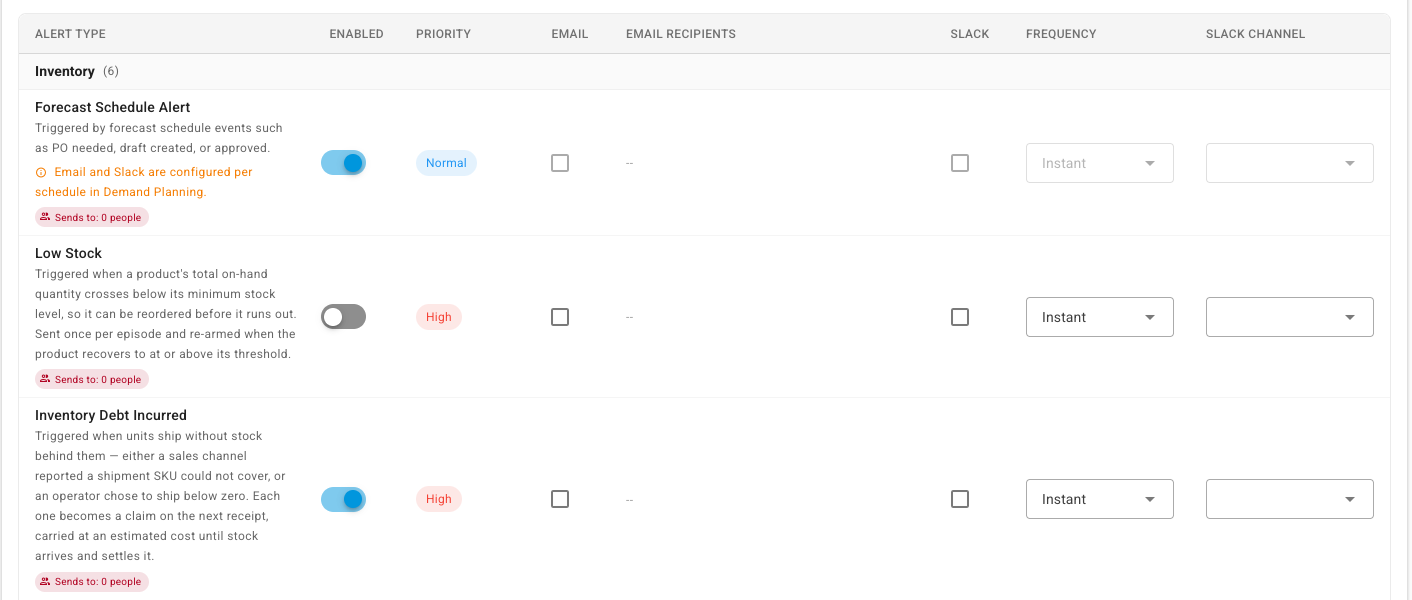
Its description states exactly what fires it: Triggered when units ship without stock behind them — either a sales channel reported a shipment SKU could not cover, or an operator chose to ship below zero. Each one becomes a claim on the next receipt, carried at an estimated cost until stock arrives and settles it.
-
Check the row's settings. Read left to right: Enabled, Priority, Email, Email Recipients, Slack, Frequency, Slack Channel.
Setting Starts as What to know Enabled On Unusually for an inventory alert, this one is on from the start. Debt is money owed against goods that already left, and the businesses carrying the most of it are the least likely to know. Priority High Email Off A separate opt-in. Enabled on its own is the in-app bell only. Slack Off A separate opt-in, with its own Slack Channel column. Frequency Instant The alternatives are Daily Digest and Weekly Digest. -
To send it to people by email, tick Email, then click the Sends to: 0 people chip under the alert's name.
The dialog is headed Who receives "Inventory Debt Incurred" and notes Default audience: all administrators. Add people under Add person, then click Save.
-
Leave Frequency on Instant unless the noise bothers you. Even on Instant you get one notification covering every new claim since the last one, not one per claim — a bulk channel sync that creates twenty claims sends a single digest listing them, not twenty messages.
Changes on this page apply company-wide, as the note above the table says.
What the alert does not do. It tells you debt was incurred. It does not chase debt that is merely getting old, and it never sends you the report itself — there is no scheduled or emailed version of the Fulfillment Debt report. For age, use the dashboard tile or the report's Age filter.
2. The dashboard tiles
Where the alert is an event, the dashboard is the standing figure.
-
Go to Dashboard.
-
Find the Inventory Debt tile among the tiles under My Dashboard. They carry no group heading above them, so look for the tile by its name.

The big number is units owed. The sub-line is the clearing balance and the age of the oldest claim — the same two figures the month-end check reports. Hovering the i explains it: Units a sale shipped without stock behind them. Each one is a claim on the next receipt, carried at an estimated cost until stock arrives and settles it. The sub-line is the Inventory Debt Clearing balance — posted minus relieved — which is what has to agree with the account.
-
Click the tile. It opens the Fulfillment Debt report.
-
Check Needs Attention further down the dashboard. Outstanding debt appears there as its own row.
The row counts claims, units and the oldest age, and clicking it also opens the report.
-
If your dashboard has no debt tile, add one. Click CUSTOMIZE, then ADD WIDGET, and search for
debt.Two widgets match, and both are live previews of your own data before you commit:
- Fulfillment debt (Inventory & Stock) — Total fulfillment-debt units owed to already-shipped fulfillments, with affected lines. It renders as Fulfillment debt (units) with the line and product counts underneath.
- Fulfillment debt lines (Fulfillment & Shipping) — Sales-order lines carrying sales-channel fulfillment debt (out-of-sync inventory). It renders as a line count with the products affected underneath.
Click ADD TO DASHBOARD, place the tile, then SAVE. Both tiles open the Fulfillment Debt report when clicked, and both go red or amber once anything is owed.
These two widgets count both kinds of debt — the claims and the channel lines that never reached the ledger — so their figures match the Debt Lines and Total Debt Qty cards at the top of the report. The Inventory Debt tile in step 2 counts claims only, so it reads lower. That difference is the point of having both: one is the exposure with a price on it, the other is everything that shipped short.
3. The Sales Orders list
The first two routes start from the debt. This one starts from the orders, which is what you want when a customer asks or you are working a queue.
-
Go to Orders → Sales Orders.
-
Click Advanced Filters.
-
Under Order Info, click Fulfillment Debt.
-
Leave the operator on Is and choose Yes.
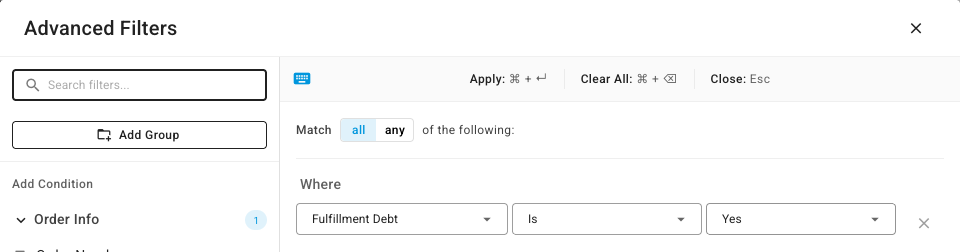
Choosing No gives you the opposite list. To go back to every order, remove the condition rather than looking for an "all" option — there isn't one, because no condition means no filter.
-
Click Apply Filters. The list narrows to orders carrying debt, with a Fulfillment Debt: is Yes chip above it that you can clear with its ×.
-
Click Save as view if this is a queue you work regularly.
What "Yes" means here. An order matches when any of its lines still owes stock, which covers both kinds of debt: a line carrying an open claim, and a line whose shipment the sales channel made but SKU.io could not record — the ones listed under Shipped, Not on the Ledger on the debt report. So this one filter finds every order on that report, whichever section it sits in.
Do not reach for Fulfillment: Out of Sync as a way to find debt. It looks like it should work and it quietly misses cases: an unmapped channel SKU deliberately does not mark its order out of sync, precisely so the rest of that order can still be dispatched.
Note too that a debt order usually looks finished: the shipment went out, so its Status reads Closed and its Fulfillment reads Fulfilled. That is precisely why the filter exists — nothing else on the row gives the debt away.
Which route to use
| You want to know | Use |
|---|---|
| Debt has just been created | The Inventory Debt Incurred alert |
| How much is owed right now, and how old | The dashboard Inventory Debt tile, or the report's cards |
| Which orders are involved | Sales Orders → Advanced Filters → Order Info → Fulfillment Debt |
| Which channel shipments never reached the ledger | Shipped, Not on the Ledger on the report |
| What it will cost, and what to do about each claim | Work through your outstanding debt |
Next steps
- Work through your outstanding debt — the weekly loop over the report.
- Fulfillment Debt report reference — every card, column and filter on it.
- Inventory debt settings — the alert alongside every other debt setting.
- Settle a claim from stock you've received
- Debt the sales channel created — why some of these orders read Out of Sync and some do not.
- Close a month with debt outstanding