Work through your outstanding debt
Inventory → Fulfillment Debt lists every unit you have shipped without stock behind it. This guide is the loop you run over it — weekly is about right: sort the oldest debt to the top, decide what each claim needs, then repay it from stock that has since arrived or count in stock that was on the shelf all along.
Before you begin
- You need permission to view inventory to open the page, and permission to edit inventory to settle a claim or raise a count.
- The page is a live picture of what is owed now, not a period report. The figures move as receipts arrive.
- Every card, column, filter, hover text and action on the page is listed in Fulfillment Debt report reference. Keep it open beside you the first few times — this guide does not repeat it.
- There is no claim detail panel: what a claim knows is on its row and in its hover text.
- Nothing on this page exports. The debt figures leave through the reports that already carry them — see debt on your reports.
Decide whether this is worth a session
-
Go to Inventory → Fulfillment Debt.
-
Read the second row of cards before anything else.

Oldest claim decides your day: the age of the oldest thing you owe, and how many claims have passed 30 days. Inventory Debt Clearing beside it is the figure your balance sheet has to agree with. If the clearing balance is flat and nothing has passed 30 days, the rest of this guide can wait.
Sort the oldest debt to the top
-
Leave Status on Outstanding. It starts there, so settled claims are already hidden and every row in front of you is something still owed.
-
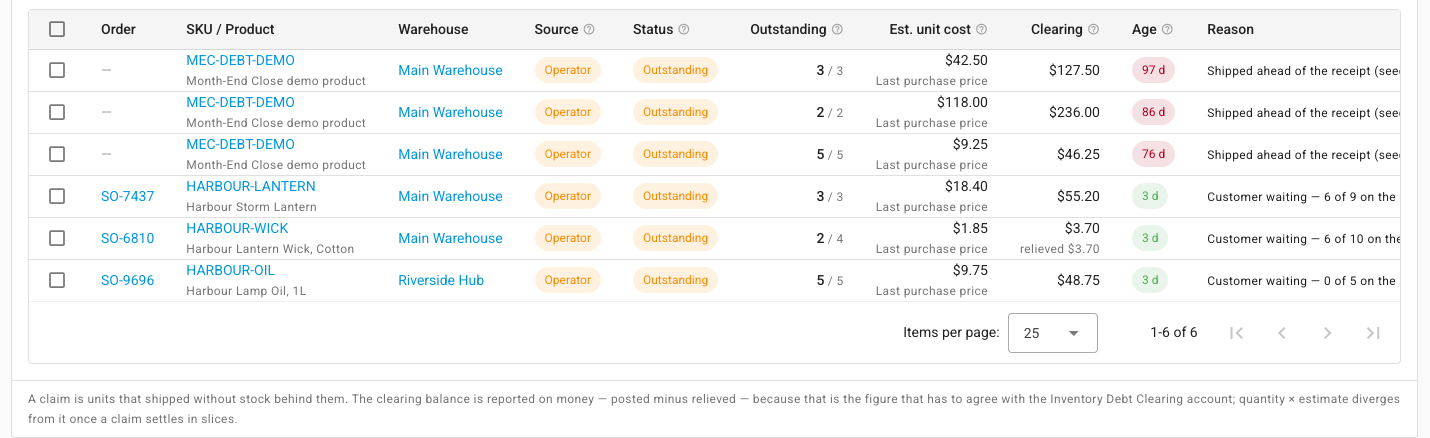
Sort the Age column with the oldest first. The red chips are the money. Age is counted from the day the units actually shipped, not from the day the row appeared, so a claim can arrive already old.
-
Narrow the list if it is long — but filter before you tick anything, because changing a filter clears your selection.
-
Read Outstanding on each row rather than the quantity that shipped. 2 / 4 means a receipt has already repaid two of the four units that shipped short, and the claim stays outstanding until the last one is covered.
-
If this is a loop you run every week, click Save view so the filter, sort and columns come back next time.
Decide what each claim needs
Every claim comes down to one question: is stock coming for this product at this warehouse, or is it not? The Reason column usually answers it — it carries the words the person who shipped short typed, or the name of the channel that reported the shipment.
- Stock is coming. Leave the claim alone. It repays itself the moment the goods land, oldest claim in that product-and-warehouse pool first. See how debt repays itself.
- Stock has already arrived and the claim is still open. Settle it from stock — the next section.
- Nothing is ever coming, because the goods were on the shelf all along or a receipt went to the wrong warehouse. Count them in — the section after that.
There is no fourth option. A claim cannot be written off: it is repaid by real stock, or the shipment behind it is undone. Nothing on this page invents stock.
Settle claims from stock that has since arrived
-
Tick the claims you want to repay. The bar above the table always reads Select claims to act on with both buttons greyed out, so you can see what is possible before committing; ticking a claim turns that into a count and enables both.

-
Read the reminder beside the count: settling runs oldest claim first within each product-and-warehouse pool, so settling a newer claim also repays the older ones ahead of it.
-
Click Settle from Stock. It repays the ticked claims from stock that has since arrived, at what that stock actually cost, and posts the difference from the estimate as a dated variance. It does nothing if no eligible stock has landed.
Full walk-through: settle a claim from stock you've received.
Count in the debt no receipt will repay
- Tick the claims nothing is coming for.
- Click Create Catch-Up Stock Take. It raises a draft adjustment stock take for the outstanding units — it settles nothing by itself.
- Review and finalise that stock take. The claims then repay from it automatically, exactly as they would from a real receipt.
Full walk-through: clear debt no delivery will repay.
Work the channel lines that never reached the ledger
Below the ledger sits Shipped, Not on the Ledger — shipments a sales channel reported that could not be turned into a claim at all, because there was no product or warehouse to owe against. It appears only while such lines exist.

-
Read the Why not on the ledger chip on each line. The colour is the whole instruction: grey means nothing is being asked of you; amber means something is.

Hover the chip for the remedy. What each reason means, and what clears it, is on claim statuses and sources.
-
Check Fulfillment on the same row. A line reading out of sync is holding its whole order back from automatic dispatch; any other status holds nothing back.
-
Act on the amber lines as their chip says — free the commitment holding the stock, reconcile the identity-tracked units by hand, or re-run the channel sync.
-
For lines that can be counted in, tick them and click Catch Up Selected Channel Lines. Catch Up All Channel Lines in the section header does the whole section instead, one draft count per warehouse, and creates nothing until you confirm.
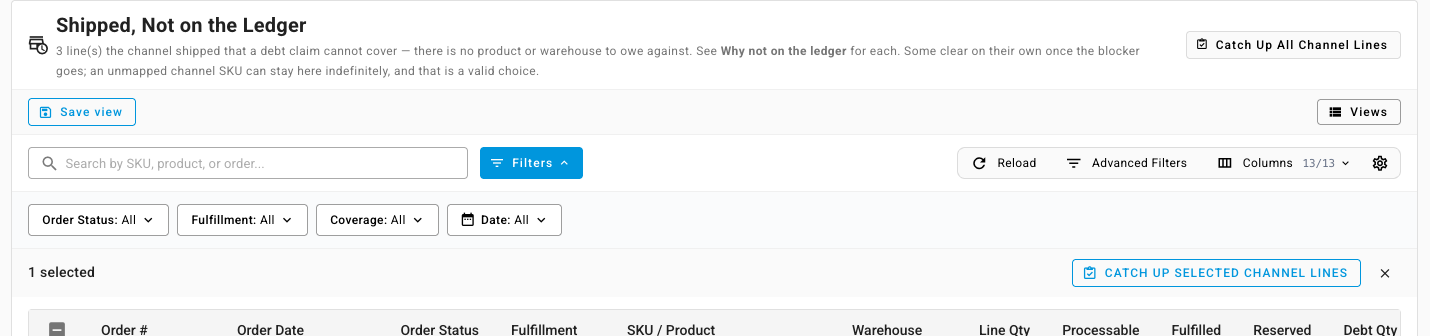
A line whose reason is Unmapped product is skipped by both routes: until the channel SKU is mapped to a product there is nothing to count in. Leaving it grey is a valid permanent answer.
When there is nothing to work
- No claims match the filter. The table shows a tick icon and No inventory debt claims for this filter. Because the default filter is Outstanding, that is what a business with nothing owed sees — and it is the answer you want.
- No channel lines are outstanding. There is no Shipped, Not on the Ledger card at all: the section is absent rather than empty.
Next steps
- Fulfillment Debt report reference — every card, column, filter and action, in lookup form.
- Claim statuses and sources — what each status, source and reason means.
- Find the orders that owe stock — the alert, the dashboard tiles and the Sales Orders filter.
- Settle a claim from stock you've received
- Clear debt no delivery will repay
- Debt the sales channel created
- Close a month with debt outstanding