Clear debt no delivery will repay
A debt claim expects a receipt to repay it. Sometimes none is coming: the goods were on the shelf all along and the count was wrong, or a delivery was received against the wrong product or warehouse. Create Catch-Up Stock Take covers that case by raising a draft stock take that counts the owed units in. It settles nothing by itself — you review and finalise the count, the stock lands, and the claims repay themselves from it exactly as they would from a real receipt.
Because a count asserts stock without a document behind it, use it after the other options, not before. If a purchase order or transfer for the product is on its way, wait: it repays the claim on its own, and a catch-up count raised on top of it would leave you overstocked.
Before you begin
- You need permission to view and change inventory and to work with stock takes.
- Be sure no receipt is coming for the product in that warehouse. Check the claim's Reason and your open purchase orders and transfers first.
- Know that you get one stock take per warehouse. Ticking claims across three warehouses gives you three separate drafts to finalise, because a stock take cannot span warehouses.
- The claims must still be Outstanding. A settled claim has nothing left to count.
Steps
-
Go to Inventory → Fulfillment Debt.
-
In the Inventory Debt Claims table, leave the Status filter on Outstanding.
-
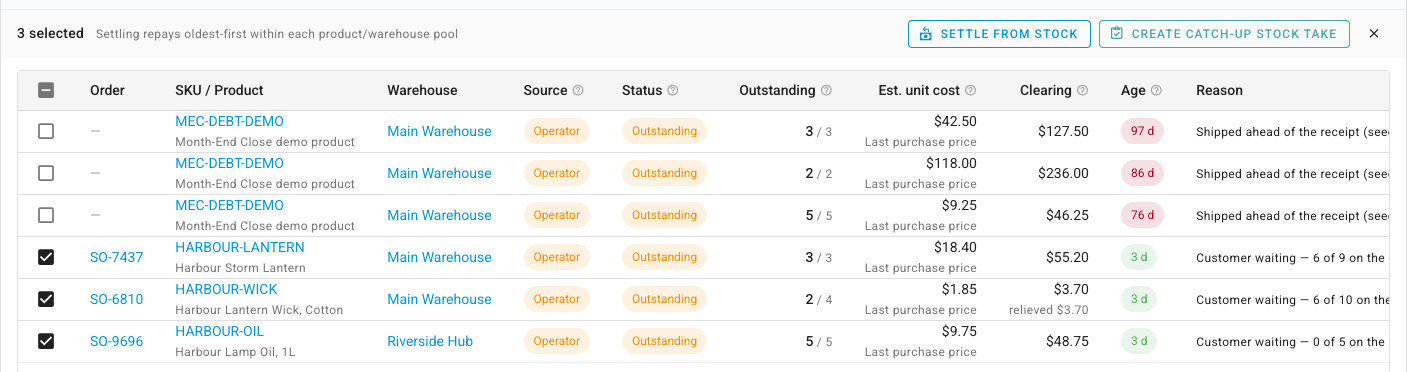
Tick the claims you want to count in. The bar above the table shows how many are selected, and Create Catch-Up Stock Take becomes clickable. Here three claims are ticked, in two different warehouses:
-
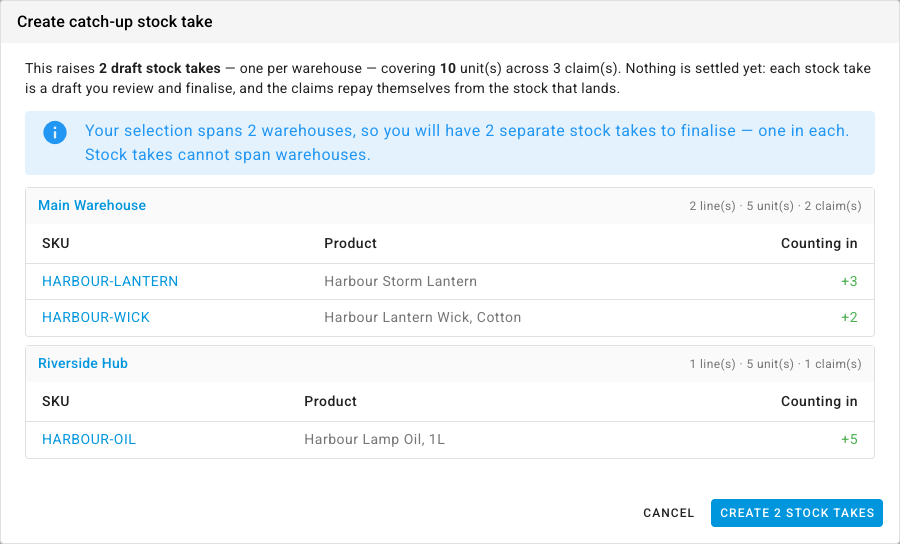
Click Create Catch-Up Stock Take. The Create catch-up stock take dialog opens with a plan, and nothing has been created yet. The first line states the whole plan — This raises 2 draft stock takes — one per warehouse — covering 10 unit(s) across 3 claim(s) — and then, plainly: Nothing is settled yet: each stock take is a draft you review and finalise, and the claims repay themselves from the stock that lands.
-
If your selection spans more than one warehouse, read the blue notice: Your selection spans 2 warehouses, so you will have 2 separate stock takes to finalise — one in each. Stock takes cannot span warehouses. Below it, each warehouse has its own block headed by the warehouse name and a summary such as 2 line(s) · 5 unit(s) · 2 claim(s).
-
Check each block's table — SKU, Product, Counting in. The quantity under Counting in is shown in green with a plus sign and is what is still outstanding on the claim, not what was originally shipped. A claim that a receipt has already half repaid contributes only its remainder. Two claims for the same product in the same warehouse are added into one line.
-
Click the confirm button at the bottom of the dialog — it names how many stock takes it will raise, so with a selection spanning two warehouses it reads Create 2 stock takes. The preview and the button use the same plan, so what you were shown is what gets created.
-
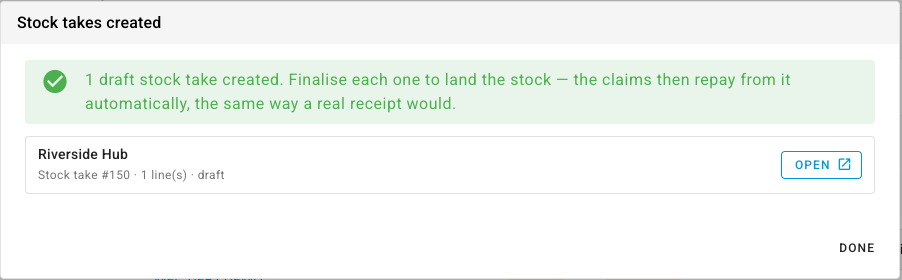
The dialog's title changes to Stock takes created and confirms 2 draft stock takes created. Finalise each one to land the stock — the claims then repay from it automatically, the same way a real receipt would. Each created stock take is listed with its warehouse, its number, its line count and its status, draft, beside an Open button that opens it in a new browser tab. The dialog stays open on purpose so you can work through every warehouse from this list; click Done when you have opened them all.
-
On each draft stock take, review the lines. It opens marked Draft and Adjustment, with a green Finalize Adjustment button at the top and the claim's units already counted in. You do not have to count anything: every line arrives with the owed quantity already in the Adjustment (+/-) column and a Unit Cost already filled in from the product's best available cost for that warehouse. The stock take's Notes say it was raised from the Fulfillment Debt Report and when. Check the unit cost before you go further — it becomes the cost of the stock you are counting in, and therefore the size of the variance the settlement posts against the claim's estimate. It routinely differs from that estimate, and a difference is normal: the gap between the two is the variance. Clearing the field means "no cost given" and SKU.io resolves the best available cost again; typing
0is read as a deliberate zero cost.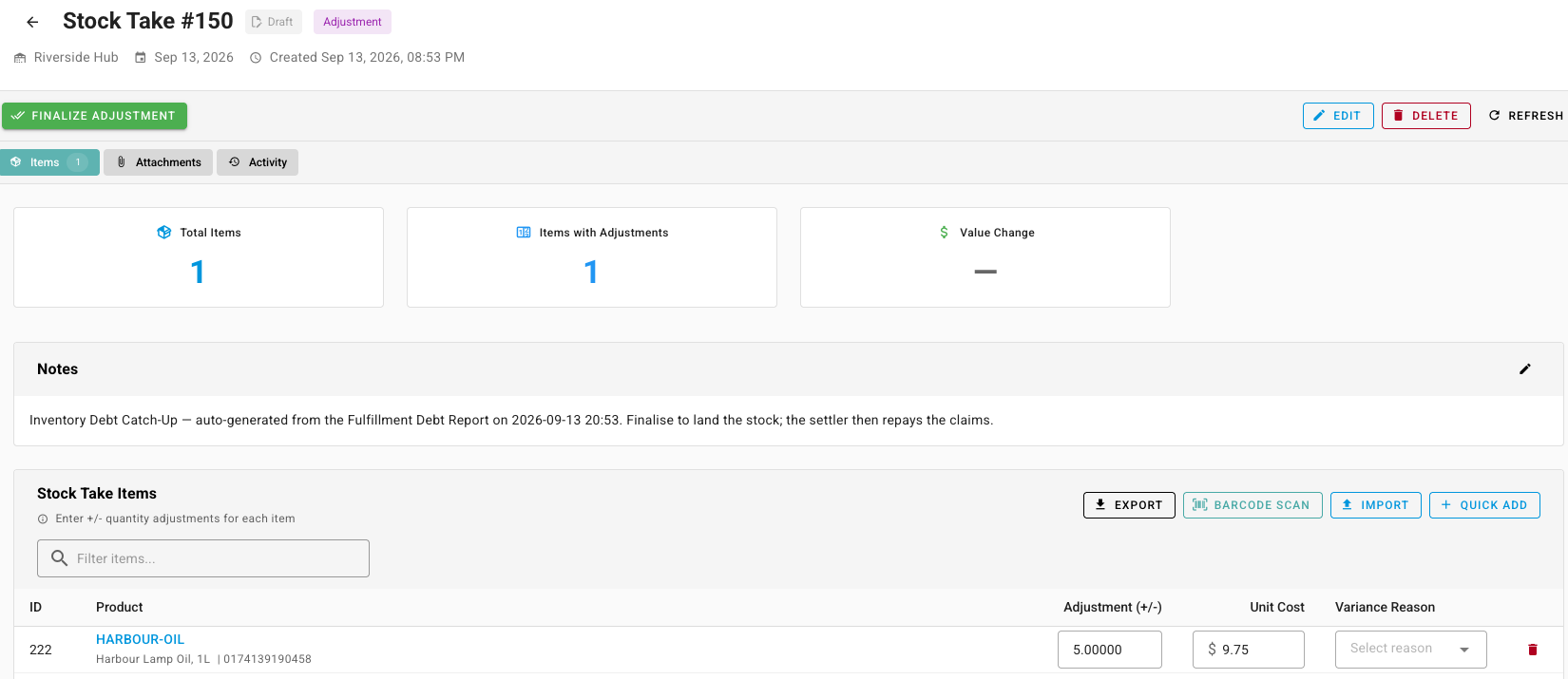
-
Click Finalize Adjustment, then confirm in the Finalize Adjustment dialog. A draft adjustment goes straight to closed — there is no Initiate Count step for this kind of stock take. If some lines cannot be applied, the dialog offers Apply N Feasible Items instead and explains what is blocked.
The dialog also carries an Allocation Release Preview, and on a catch-up count it normally reports each line as over-allocated — 3 over-allocated, for example. That is expected here rather than an error: a product carrying debt has more units promised to orders than it has on the shelf, which is the shortfall you are counting in. It does not, on its own, stop you finalising.
-
Return to Inventory → Fulfillment Debt and click Reload. The claims whose units landed now read Settled; a claim that was only partly counted in stays Outstanding with the remainder.
What the count does, and does not, do
- It counts units in, never out. The adjustment is positive because the claim's own movement already took the units off the shelf when the goods shipped. Counting them down again would deduct the same goods twice.
- It creates drafts only. Nothing changes until you finalise each stock take. Raising the drafts and walking away leaves the claims exactly where they were.
- Finalising does not settle the claims directly. It lands the stock, and the ordinary repayment then takes that stock to repay the claims — oldest first within the product and warehouse. See how debt repays itself.
- A count on a product with debt outstanding always settles first. If five units are owed and a count finds three on the shelf, that is treated as counting in eight — five repay the claims and three go on the shelf as new stock — never as an increase of three.
- It refuses when there is nothing to count. Tick only claims that are already settled and the button answers None of the selected claims are outstanding, so there is nothing to count in. Nothing is created.
- You do not need to type, scan or import anything. The draft arrives complete. The stock take's other ways of adding lines — typing into the grid, barcode scanning, importing a file — are only relevant if you want to add or correct lines on top of what the catch-up filled in.
- It leaves no trace in the Inventory Adjustments export. Finalising a catch-up stock take does not create an inventory adjustment record, so it never appears in that file. The stock take itself is the record.
Lines in Shipped, Not on the Ledger are not included
Only claims can be selected for a catch-up stock take. The lines in the Shipped, Not on the Ledger section further down the page are channel shipments SKU.io could not record a claim for, so ticking claims never touches them. That section has its own Catch Up All Channel Lines button, which is a separate action. A line whose reason is Unmapped product cannot be counted in by either route — it reads No stock to adjust — fine to leave — because until the channel SKU is mapped there is no product to count.