Settle a claim from stock you've received
Inventory debt normally repays itself: the moment stock arrives for a product in a warehouse that owes some, the arrival settles the oldest claim first, and you never touch it. Settle from Stock is for the times that did not happen on its own — and for seeing, before anything moves, exactly which stock a claim would be repaid from and what the cost correction will be.
Before you begin
- You need permission to view and change inventory. There is no separate permission for settling debt.
- Settling repays a claim from stock that is already on the shelf in the claim's warehouse. If nothing has arrived, there is nothing to settle from — the preview tells you so, and a catch-up stock take is the alternative when no receipt is ever coming — see Clear debt no delivery will repay.
- The walkthrough below assumes a receipt has already landed for the product and warehouse the claim was incurred in; without one you land in when the preview finds nothing to repay instead.
- Reach for this by hand only when something did not happen automatically. Stock that came in through an ordinary receipt, transfer, return or finalised count has already repaid what it could; running Settle from Stock on top of that does nothing and says so. See how debt repays itself.
- You can settle up to 200 claims in one go.
Steps
-
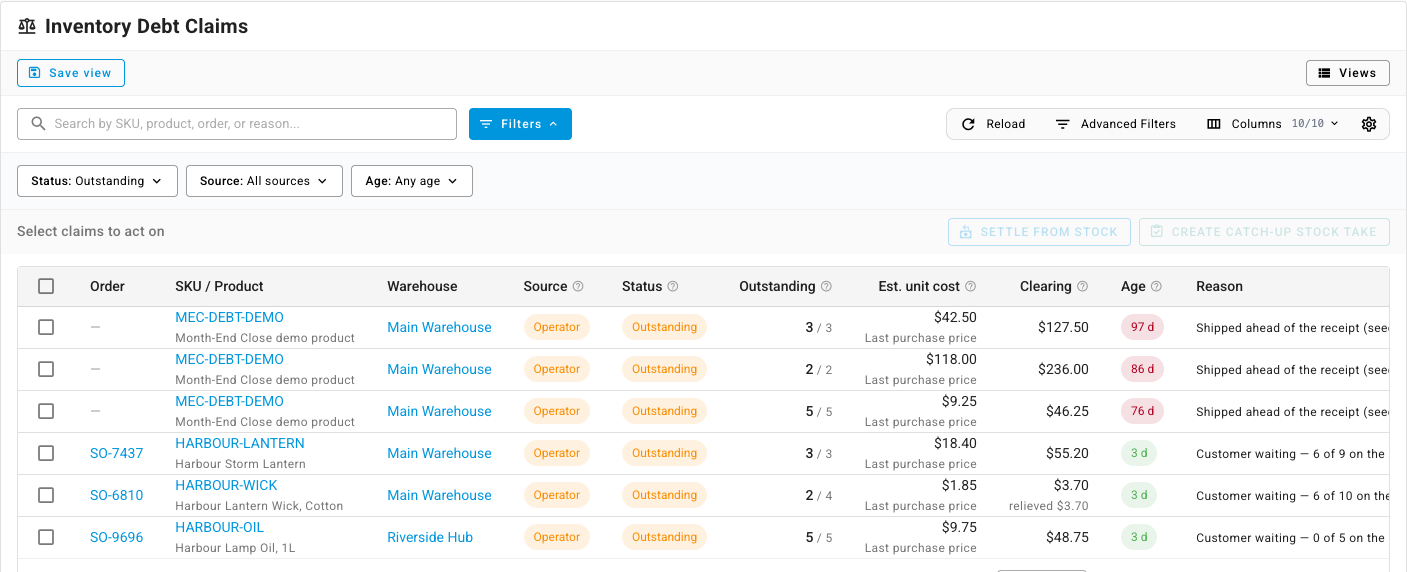
Go to Inventory → Fulfillment Debt.
-
In the Inventory Debt Claims table, leave the Status filter on Outstanding. Only outstanding claims can be repaid; a claim that already reads Settled is finished.
-
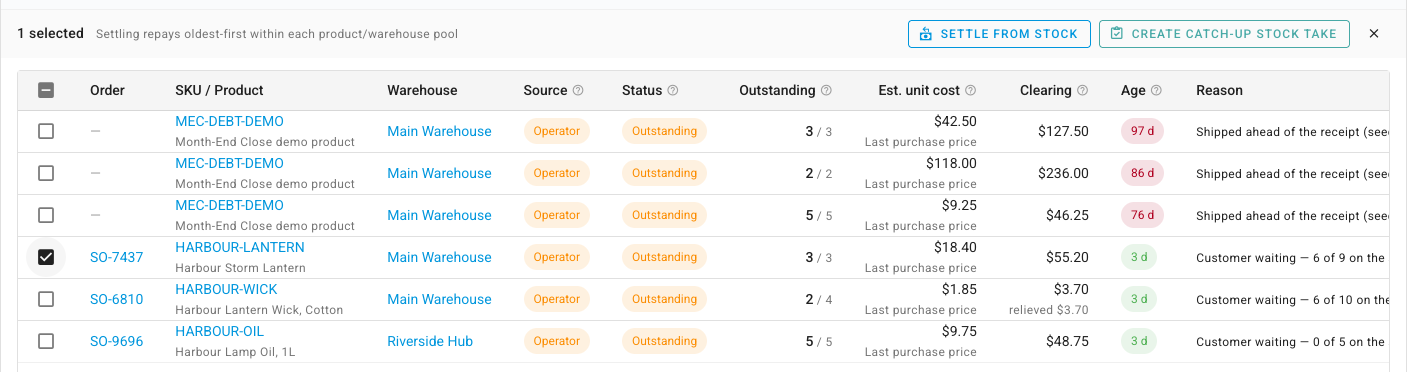
Tick the claim or claims you want to repay. The bar above the table changes from Select claims to act on to a count — 1 selected — with the reminder Settling repays oldest-first within each product/warehouse pool, and Settle from Stock becomes clickable.
-
Click Settle from Stock. Nothing is settled yet: a Settle from stock preview opens that walks the same stock, in the same order, that the real settlement will. The title bar counts how many of your selected claims can be repaid right now — for example 1 of 2 selected claim(s) can be repaid now.
-
Read the three figures across the top of the preview:
- Repaid now — the units that will be repaid from the stock listed below.
- Still outstanding after — units with no eligible stock yet. They stay owed.
- Cost variance posted — the difference between what the stock actually cost and what the claims were estimated at, actual vs estimate, dated to today. Red with a plus sign means the real stock cost more than the estimate; green means it cost less.
-
Read each claim's block. The header names the claim number, links the SKU and the warehouse, and carries a green chip reading repaying 3 of 3 — how much of that claim this run covers. Beneath it, one row per piece of stock the claim will draw from, under Stock layer, Came from, Units, Actual cost, Estimate and Variance:
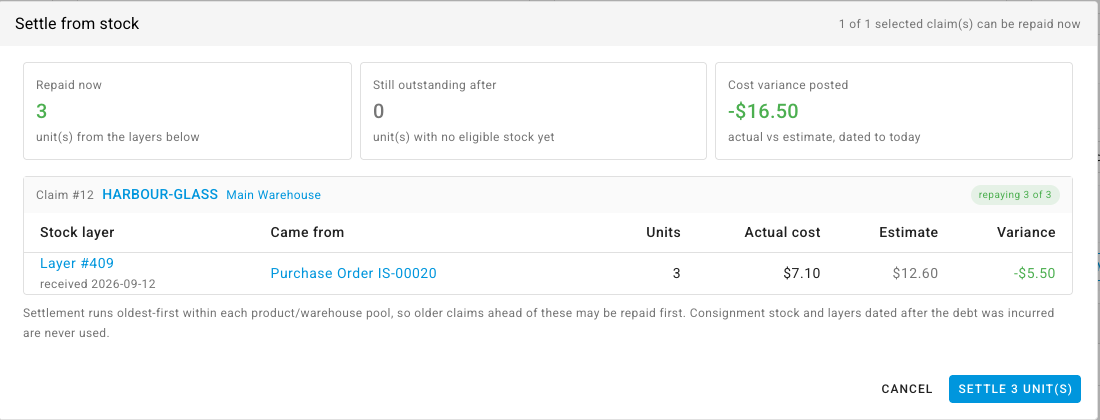
- Stock layer names the batch of stock and the date it was received.
- Came from links the receipt, transfer or count that put it on the shelf, so you can open that document before you commit.
- Units is how many of that batch this claim takes.
- Actual cost is what those units really cost, Estimate is what the claim was booked at, and Variance is the difference per unit — the figure in Cost variance posted at the top is the total across every row.
A claim with no eligible stock reads No eligible stock for this claim — it stays outstanding. Under the rows, a footnote repeats the two rules that decide what you are looking at: settlement runs oldest-first within each product/warehouse pool, so older claims ahead of these may be repaid first, and consignment stock is never used.
-
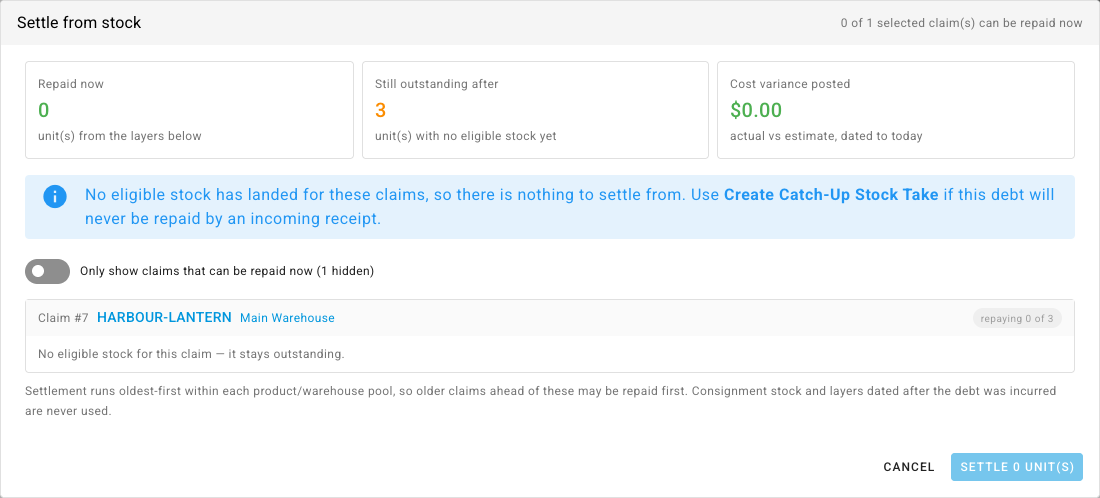
If some of your claims cannot be repaid yet, the switch Only show claims that can be repaid now is on, hiding them so the list is only what will move — the switch's own label counts them, as in (1 hidden). Turn it off to see every selected claim, each with the reason it is going nowhere. The switch changes what you see, not what is settled — the figures at the top and the button stay the same.
-
Click the confirm button at the bottom of the preview — it names the number of units it will repay, so a single three-unit claim reads Settle 3 unit(s). It stays disabled while nothing can be repaid. A message confirms the result:

The claims that were fully repaid drop out of the Outstanding list — find them again under All statuses, reading Settled — and the Settled this month card above the table takes on their units and their variance.
When the preview finds nothing to repay
If none of the stock in the claim's warehouse is free to repay it, the preview says so before you can do anything:
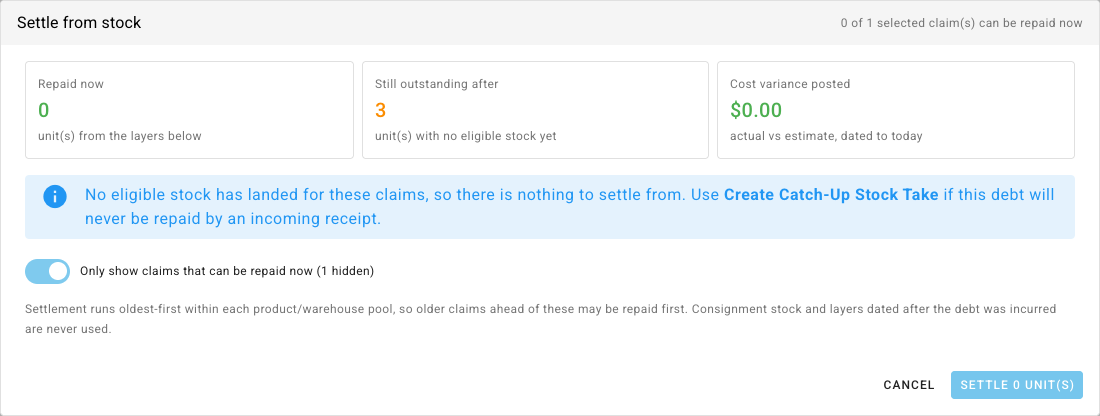
No eligible stock has landed for these claims, so there is nothing to settle from. Use Create Catch-Up Stock Take if this debt will never be repaid by an incoming receipt.
Repaid now reads 0, Still outstanding after is the whole outstanding quantity, and the confirm button reads Settle 0 unit(s) and stays disabled. Click Cancel. Either wait for the receipt that will repay the claim on its own, or — if the goods were on the shelf all along, or were received wrongly — count the units in instead: Clear debt no delivery will repay.
Two kinds of stock never appear in the preview and never repay a claim: stock a supplier still owns (consignment), and stock in a different warehouse from the one the claim was incurred in.
What settling does
- It repays oldest-first within the product and warehouse, not only what you ticked. Claims for the same product in the same warehouse form a queue, ordered by when the debt was incurred. Ticking a newer claim repays every older claim ahead of it first, and the result message counts those too. The preview's footnote says so — Settlement runs oldest-first within each product/warehouse pool, so older claims ahead of these may be repaid first — and the automatic repayment on a receipt follows the same rule.
- Stock is counted once. If two ticked claims want the same units, the preview shows those units against the older claim only, so the total it promises is the total the button delivers.
- Part repayment is normal. A claim repaid from less stock than it owes stays
Outstanding with the remainder — the Outstanding column reads
1 / 3— and the next arrival, or the next run, takes the rest. Each part carries its own date, its own actual cost and its own variance; the final part takes whatever clearing amount is left, so the claim's clearing balance returns to exactly zero. - The variance is posted today, not backdated. The shipment's own cost of sale was recorded at the estimate on the day it shipped and does not change. Settling adds a dated correction for the difference between that estimate and the real cost of the stock consumed. It posts to the product's own Cost of Goods Sold account unless you have mapped a separate Inventory Debt Variance account under Accounting → Settings → Nominal Code Mappings, in which case it goes there. Leaving that mapping blank is the usual choice; do not point it at your purchase price variance account, or the two become impossible to tell apart.
- Each repayment is traceable. The repayment records the stock it drew from, and that stock records the receipt, transfer or count that created it — the same links the preview's Came from column showed you. A repaid cost is final; if that stock is later revalued, the change reaches your ledger as its own dated correction rather than by restating the repayment.
- Running it again is harmless. A selection that is already repaid is refused before anything can move: the preview reads This claim has already been repaid in full — there is nothing left to settle., the confirm button stays disabled, and nothing changes.
What you cannot do from here
There is no way to write a claim off, and no import that creates, settles or cancels one. A claim is repaid from real stock — a receipt, a return, a transfer, a finalised count, or this button — or it stays open. Cancelling a claim outright would put units back on the shelf that already left with the customer, which is why that action does not exist. If the shipment itself never happened, void it instead: see undo a shipment that went out on debt.