Debt on your reports
Inventory debt is not stock. It is the record of stock you owe. That distinction decides how every report treats it: debt is reported beside your inventory, never folded into it, and the one place it does move a number is availability — where it should, because units you owe are units you cannot sell twice.
This page covers where to find it and how to read it.
Inventory Valuation
Insights → Reports → Inventory Valuation carries inventory debt as its own column group, sitting between Prepaid and Discrepancy:
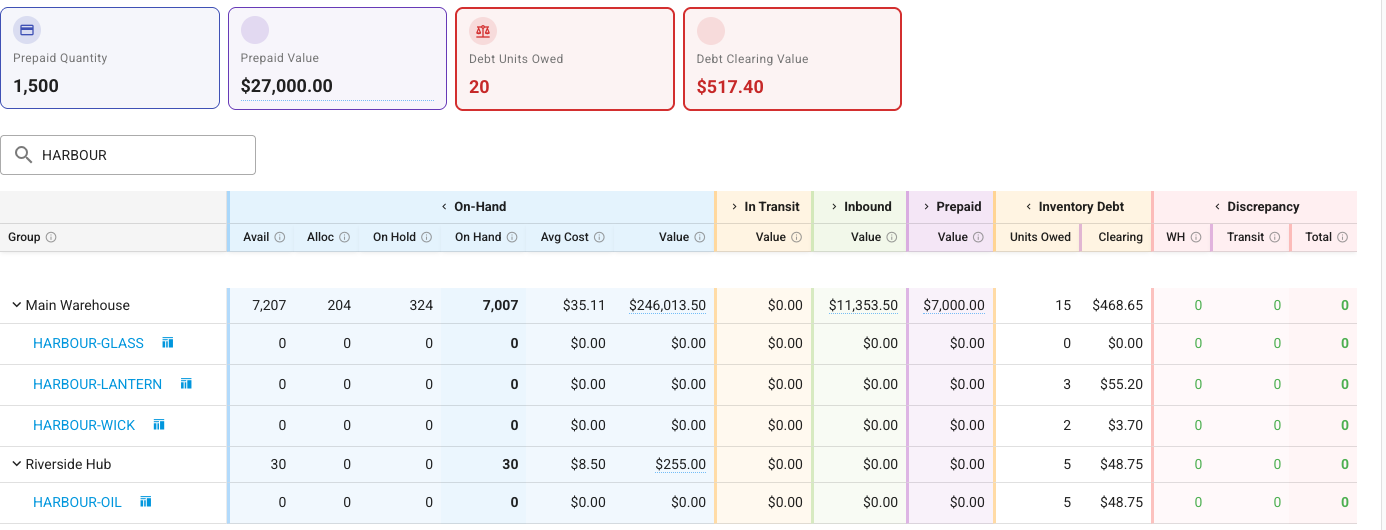
- Units Owed — how many units are still owed for that product and warehouse.
- Clearing — the money still sitting in the Inventory Debt Clearing account behind them.
Two summary cards at the top of the report give the same pair for the whole report: Debt Units Owed and Debt Clearing Value.
Read them with three things in mind.
Debt does not move any other column. It is not in On Hand and not in the on-hand Value; it is not in In Transit, Inbound or Prepaid either. A product whose only position is debt reads zero across all of those and carries its figures in the Inventory Debt pair alone. That is the honest answer — you hold none of it and none is on its way from a purchase order.
Clearing is money, not units multiplied by the estimate. It is what was posted less what has been relieved, because that is the number that has to agree with the account. The two diverge once a claim is part repaid. See what posts to your ledger.
Grouping changes where debt lands. Group the report by Supplier and all of it collects under None, because a debt was never bought from anybody. Group by Warehouse — the default — and it lands where the shortage happened.
The report is read to the end of the day you choose, so a shipment made this afternoon already shows on a report dated today.
Do not backdate the report to reconcile a closed month. The debt columns answer what is still owed now, out of what was owed by that date — they list claims that are outstanding today and were incurred on or before the date you pick. A claim that was open at the end of last month but has been repaid since has gone from the report entirely, so a backdated run understates the month it is dated and will not tie to what the clearing account held then. Run the report on the day you need the figure for, and keep the file.
Availability can legitimately read negative
Once you ship below zero, a product's quantities go below zero too, and they are supposed to.
Open a product and its header strip reads On Hand: -3 and Available to Sell: -3. Its Inventory tab says the same per warehouse, in the Warehouse Inventory table.

That is not a fault. Availability answers how much can I sell?, and the answer is what is on the shelf, less what is already promised to other orders, less what you still owe. Three units short means the next three that arrive are already spoken for, so there is minus three to sell. It nets back to normal on its own as claims are repaid.
Two consequences:
- Every way of asking gives the same answer. The product page, the warehouse breakdown, a bulk lookup and the allocation engine all subtract what is owed, so the screen and the engine cannot disagree and a negative figure can never turn into an oversell.
- Owed units are never counted as stock you hold. Debt is excluded from allocated and on-hand quantities everywhere else, so it never inflates a figure that is supposed to mean goods in the building.
What your sales channels are sent
Nothing debt-specific happens when quantities are pushed to a sales channel — debt is simply another way availability can be negative, and your existing setting decides.
Where negatives are clamped, a negative quantity is sent as zero, and a channel already showing zero is treated as in step. Where negatives are allowed, the real negative goes across to any channel that accepts one.
Purchasing suggestions do not add up what you owe
Replenishment suggestions do not treat outstanding claims as demand of their own. Availability already reads negative, so a suggestion built on availability partly reflects the shortfall — but nothing adds owed units to demand explicitly. If you are replenishing a product that owes stock, check the Fulfillment Debt report as well and order enough to cover the claims on top of what the suggestion asks for.
Profit on a debt order is provisional
Open an order that shipped below zero, click its Profit tab and expand the line. The Cost Attribution panel is marked with an amber chip — Shipped into inventory debt — provisional cost — and explains itself:
These units shipped with no stock behind them, so no FIFO layer was consumed and this cost is an estimate. It is restated to the actual cost when a receipt settles the claim, and the difference posts as a dated variance to COGS — so the profit and margin shown here will change.
Beneath it is a small table of Cost Source, Quantity, Still Owed, Est. Unit Cost, Est. Total Cost and Status, with the claim named and linked so you can open it on the debt report.

One point that surprises people: the order keeps showing the estimate even after the claim has been repaid. The correction is booked separately, dated the day the stock arrived, and it never restates the order. So an order's reported margin and your accounts can legitimately disagree by the estimate-to-actual difference, and that disagreement is permanent. The accounts are right; the order's margin is the number that was true on the day it shipped.
Margin-level reports built on order cost — profitability, contribution margin — carry the estimate for the same reason. They do not mark a debt order in any way, so a month with a lot of debt is a month whose reported margin is provisional until the claims are repaid. The Fulfillment Debt report's Settled this month card tells you how much correction has already gone through.
A product's stock history
A claim is a real event in a product's history. On a product's Movements tab
it appears with Status debt: a negative quantity carrying the estimated
unit cost, with no stock behind it, referencing the claim. It is never re-dated or re-pointed at the stock
that eventually repays it, and when it is repaid two more rows appear on the
arrival date — one retiring the debt, one consuming the real stock.
The Status filter above the table offers Debt beside All, Active and In Transit, so you can narrow a product's history — or the whole Inventory → Inventory Movements list — to nothing but debt rows.
Open one of those rows and the movement's own page names the claim behind it. Beside Source Document — the shipment the units left on — sits an Inventory Debt block, holding a Debt claim link through to the debt report and one line of explanation:
These units shipped with no stock behind them — no FIFO layer was consumed.
The rest of the page is the ordinary movement record: date, product, warehouse, type, Status, quantity and reference, with an Activity tab beside Details.
The tally, and the two balances
Switch a product's movements to the tally view — from View in Tally, or from the banner described below — and pick a warehouse. The Movement Ledger there carries two running totals:
- Balance — "The ledger running balance from inventory movements only — channel-debt events never move it."
- Physical — "The implied physical balance: ledger balance minus units the sales channel shipped that never got an inventory movement (channel fulfillment debt)."
They are the same number until a sales channel reports a shipment SKU.io could not record. Such a line appears in the ledger as Channel Fulfilled — No Stock with its quantity in brackets, leaving Balance unchanged and pulling Physical down. A Channel Debt figure joins the summary tiles above the chart, and an alert spells out the gap:
Channel Fulfillment Debt — 2 units on 1 order were fulfilled by the sales channel with no stock — no inventory movements exist for them. The ledger balance is 0, but the implied physical balance is -2.
The same alert appears on the plain Movements tab, with View in Tally and a Fulfillment Debt Report button that opens the report filtered to that product.
These events sit at the moment the channel shipped, which is where the eventual repayment will land — not at the order's date, and often weeks after it. A SKU.io record of the channel's shipment sets that moment; where there is none, the order date is used instead.
Note what this view is and is not. It covers channel shipments that were never recorded — the Shipped, Not on the Ledger side of the debt report. Inventory debt claims do not appear in it, because the tally is a ledger of stock and a claim deliberately sits outside stock valuation. For claims, use the debt report or the product's Movements tab with Status set to Debt.
The Export button writes this ledger out for the product and warehouse on screen — one product, one warehouse, chosen on the panel before you export. It needs the export inventory permission, and dates come out in your organisation's timezone.
A debt shipment counts as shipped
Worth stating plainly, because it is the assumption the whole feature rests on: a line that shipped entirely below zero is a fully shipped line, not a short one. Debt is excluded from stock valuation but included in the check that asks did this shipment actually deduct? — otherwise a shipment made wholly into debt would read as under-deducted and be unwound, which is the one outcome the feature exists to prevent.
The order shows the line as fulfilled, the shipment appears under its warehouse card, and the customer's tracking works, exactly as for any other shipment.
Getting the debt figures out
The Fulfillment Debt report has no export of its own. The figures leave the app through the three reports that already carry them, and which one you want depends on what you are reconciling.
Inventory Valuation — the debt figures themselves. Generate the report, then use Export. You get a CSV, and the two debt figures come out as columns of their own, named in full because the screen's Units Owed and Clearing headings read as unqualified once they are out of the Inventory Debt group above them:
- Inventory Debt Units Owed — the units column.
- Inventory Debt Clearing — the money column, the one that has to agree with the clearing account.
The file follows both settings on the Report Configuration panel: the End of Day date you generated for, and whichever Group By boxes are ticked. Those become the leading columns, so a run grouped by Warehouse and SKU gives one row per product per warehouse, and a run grouped by Supplier collects the debt under None, just as the screen does. On a very large catalogue the file may be prepared in the background instead of downloading straight away; the app tells you when it is ready. The backdating warning above applies to the file exactly as it does to the screen.
Balance Sheet — what the clearing account actually holds. Open Accounting → Reports → Balance Sheet, set As of Date, Refresh, then Export. The file lists every account with its balance under Assets, Liabilities and Equity, so whichever account you mapped as Inventory Debt Clearing comes out on a row of its own. Agreeing that row with the valuation report is the procedure in Tie the clearing account to your balance sheet, below.
Inventory Movements — the underlying events. Set Status to Debt on
Inventory → Inventory Movements (or on a product's Movements tab), then
use Export with Filtered results selected: the file contains only debt
rows, each carrying debt in its Status column. Choose CSV or XLSX
(Excel). It writes out the columns visible in the table, so add any you are
missing with the column selector before you export.
Where debt is not
Three exports people reach for do not answer a debt question, and it is worth knowing before you go looking:
- Accounting COGS (Accounting → Reports → Accounting COGS). A debt shipment's cost is in there, at the estimate — it went to cost of sale like every other shipment. What is not in there is the correction that follows the receipt. So the report does not move when a claim is repaid, and nothing in it marks which part of the cost was owed. The restatement lives in the ledger; see what posts to your ledger.
- Income Statement (the tab beside it). Its export is one row per account per period, so the correction is only ever as visible as your mapping makes it: on a line of its own if you mapped Inventory Debt Variance, folded into the product's cost of sale account if you left it unmapped.
- Stock Holds and Allocations. Neither export carries a debt column. Units you owe are not a hold and not an allocation — they are the absence of stock, not a reservation against it.
Tie the clearing account to your balance sheet
One report says what you owe; the other says what the account holds. Agreeing the two is the whole inventory-debt reconciliation, and it is the piece to do before you freeze a period.
- Go to Insights → Reports → Inventory Valuation.
- On the Report Configuration panel, set End of Day to the date you are reconciling, then generate the report. Do this on that date wherever you can — a backdated run does not reproduce what the account held then, for the reason set out under Inventory Valuation above. If the date has passed, work from the file you kept on the day.
- Read Debt Clearing Value on the summary cards. That is the money still sitting in the clearing account for everything on the report. If you want it broken down, Export: the Inventory Debt Clearing column totals to the same figure.
- Go to Accounting → Reports → Balance Sheet.
- Set As of Date to the same date and click Refresh.
- Find the account you mapped as Inventory Debt Clearing and compare its balance with the figure from step 3. The two should be equal.
- Keep both files. They are the evidence that the balance you signed for was the balance the debt report could account for.
If they disagree, check the dates before anything else — a backdated valuation run and a true as-of balance are answering different questions. Then check that you are comparing money with money: the clearing figure is what was posted less what has been relieved, never units multiplied by the estimate. See what posts to your ledger.
The month-end close reads the same balance. Inventory debt settled on Accounting → Close reports what is still owed for the period and the clearing amount behind it, so a close that will not pass and a balance sheet you cannot tie out are the same problem seen twice. See close a month with debt outstanding.
Next steps
- What a debt shipment costs — where the estimate comes from.
- What posts to your ledger — the entries and the clearing account.
- Work through your outstanding debt — the one page that lists everything owed.
- Debt the sales channel created — where the channel figures come from.
- Close a month with debt outstanding — what finance has to sign for.