Monitor daily financials and margin alerts
A single mispriced listing or a cost that jumped can quietly sell stock at a loss for weeks. Financial Alerts watch every sales order line and flag the ones that lose money or fall below the margin you set. Alerts can reach you instantly or as a daily or weekly digest, by email or Slack. The Daily Financial Summary report then shows revenue and cost day by day, so you can see the pattern behind an alert.
Before you begin
- You need permission to change settings to set up alerts, and to view Reports to work through them.
- For Slack delivery, connect a Slack channel under Settings → Alerts & Notifications → Slack Channels.
Turn on financial alerts
-
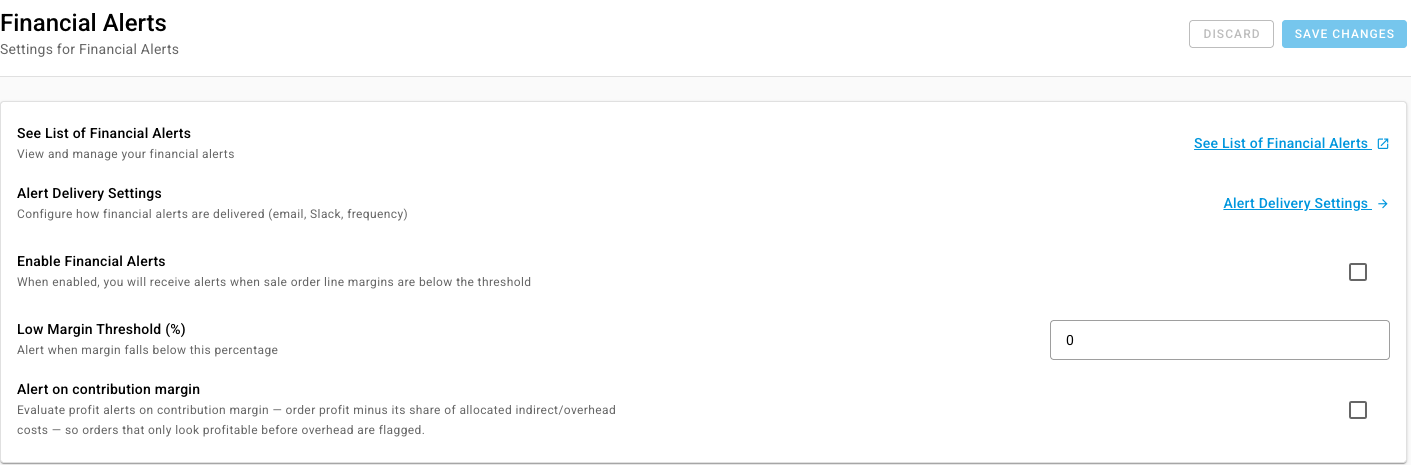
Go to Settings → Alerts & Notifications → Financial Alerts.
-
Tick Enable Financial Alerts.
-
Set Low Margin Threshold (%). A sales order line whose margin falls below it raises an alert. Lines sold at a loss always raise one.
-
Optionally tick Alert on contribution margin. Alerts then judge each order after its share of allocated overhead costs, so orders that only look profitable before overhead get flagged too.
-
Click Save Changes.
Choose how alerts reach you
-
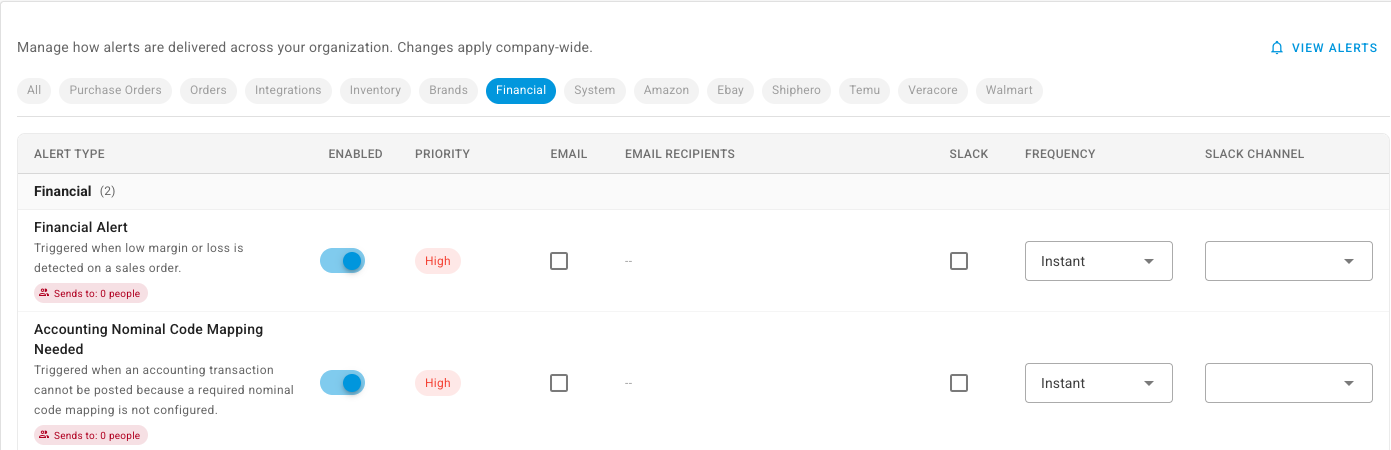
On the same page, click Alert Delivery Settings. Alert Preferences opens. Click the Financial chip to show the financial alerts.
-
On the Financial Alert row, make sure Enabled is on.
-
Tick Email and choose the Email Recipients, tick Slack and pick a Slack Channel, or both.
-
Set Frequency:
- Instant sends each new alert as it's raised. When a run raises more than five at once, you get one summary instead of a flood.
- Daily Digest or Weekly Digest sends one message a day or a week. It counts the new alerts, splits them into losses and low margins, and lists the orders affected.
The Sends to chip under the alert's name shows how many people will receive it. If it reads 0 people, nobody is getting the alert yet.
Work through the alerts
-
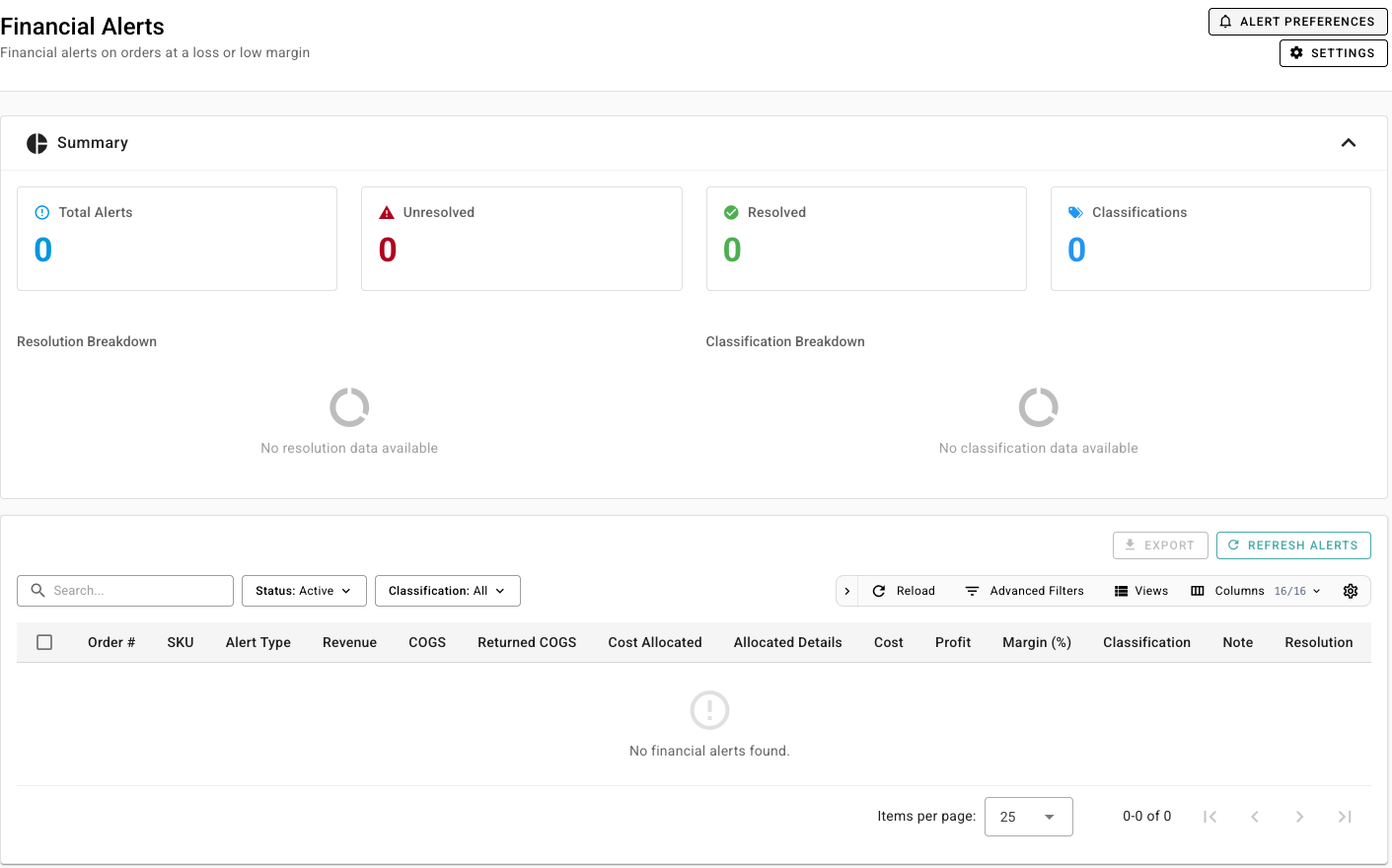
Go to Insights → Reports → Financial Alerts, or click See List of Financial Alerts on the settings page.
-
Read the Summary cards (Total Alerts, Unresolved, Resolved and Classifications) and the breakdown charts under them.
-
In the table, each row is one order line, with its Alert Type, Revenue, COGS, Returned COGS, Cost Allocated, Cost, Profit and Margin (%).
-
Find out why the line lost money. Open the order or the product from the row's actions menu.
-
Give the alert a Classification, such as the reason you found, and a Note, so the breakdown shows which causes recur.
-
Click Archive in Resolution once you've dealt with it. Archived alerts leave the default Active view. Set Status to Archived or All to see them again.
Click Refresh Alerts to check recent orders again after you change costs or prices. Use Export to take the list into a spreadsheet.
Review revenue and cost day by day
Go to Insights → Reports → Daily Financial Summary. Each row is one day for one product, with Sold, Returned, Orders, revenue, credits, cost and allocated cost.
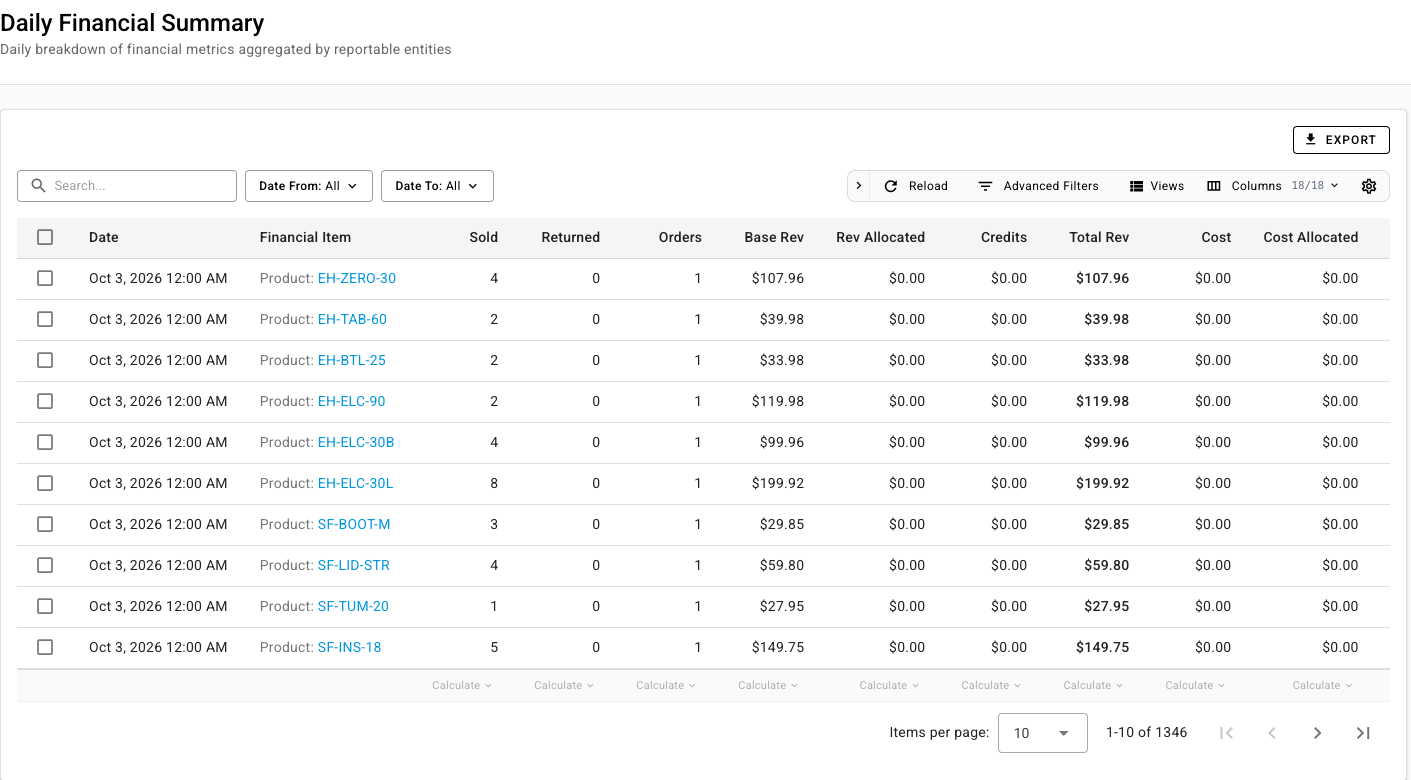
- Narrow it with Date From and Date To, or search for a product.
- Use Calculate under a column to total or average it for the rows shown.
- Click Export to download it.
The Daily Financial Summary is a report you open, not a message SKU.io sends. The digests above are the only financial messages sent on a schedule.
Next steps
- Reports catalog: the other finance reports, such as Profitability and Contribution Margin.
- Read the accounting dashboard: the health of your books at a glance.