Read the accounting dashboard
The Dashboard is the first thing you see when you open Accounting. It answers three questions before you read a single entry: is SKU.io still turning your activity into entries, are those entries reaching your accounting provider, and is there anything waiting on you? Start each finance session here, then click through to whatever needs attention.
Before you begin
- You need permission to view Accounting.
- Accounting setup must be finished. Until a chart of accounts exists, the setup wizard replaces the dashboard.
Open the dashboard
-
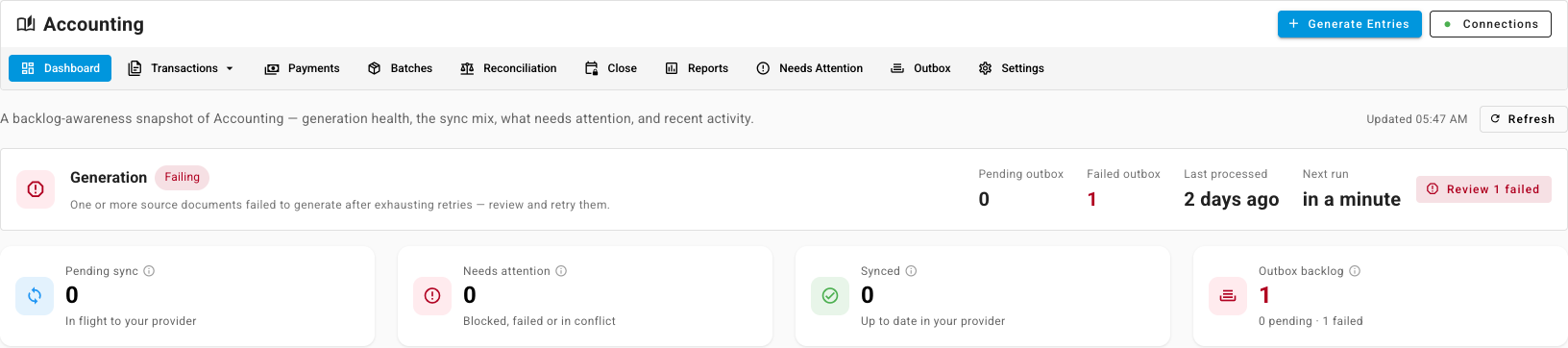
Go to Accounting. The Dashboard tab opens by default.
-
Click Refresh at the top right to reload the figures. The time next to it shows when they were last updated.
Check that entries are being generated
The Generation strip at the top tells you whether SKU.io is keeping up with your activity, such as orders, receipts, and bills.

-
Read the chip next to Generation:
Chip What it means Healthy Entries are being generated as documents arrive, or nothing is waiting. Behind Documents are queued but haven't cleared recently. The queue isn't draining. Failing One or more documents failed to generate after every retry and need you. Paused Entry generation is switched off, so documents queue up until you turn it back on. -
Read the counters: Pending outbox (documents waiting to become entries), Failed outbox, Last processed and Next run.
-
If documents failed, click Review n failed to open the failed documents, then retry them once you've fixed the cause.
A large Pending outbox on its own isn't a problem. After a bulk import the queue spikes and then drains. Behind is the warning sign, because it means the queue has stopped clearing.
Read the headline tiles
Each tile counts entries in one state. Hover the information icon on a tile for its definition, and click a tile to open the list behind it.
| Tile | What it counts | Click it to open |
|---|---|---|
| Pending sync | Entries on their way to your provider: pending, syncing, retrying or waiting to update. | Not clickable. Drill in from the Sync status panel below. |
| Needs attention | Entries that are blocked, failed or in conflict and need a person. | The Needs Attention tab. |
| Synced | Entries posted to your provider and up to date. | Transactions, filtered to synced entries. |
| Outbox backlog | Documents not yet turned into entries, plus unresolved generation failures. | The Outbox tab. |
| Current close | The earliest month that isn't closed yet, with its checklist progress. | The Close tab. See month-end close. |
See where your entries stand with your provider
The Sync status panel breaks every entry down by sync state, as a bar and a row of chips with a count each. Click a chip to open Transactions filtered to entries in that state.

When no accounting provider is connected, or sync is off for a kind of entry, those entries count under a grey status rather than an error. They're kept in SKU.io only.
The Needs attention panel groups everything waiting on you by cause, with a count for each, so one setting fix can clear many entries at once. Click a cause, or View inbox in the panel header, to open the Needs Attention tab. Nothing needs attention means the inbox is empty.
Check balance, recent activity and connections
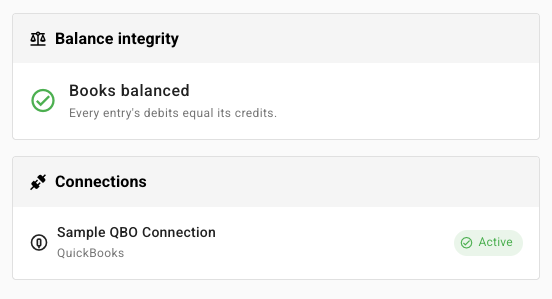
- Balance integrity reads Books balanced when every entry's debits equal its credits. If any entry is out of balance, the card counts them and links to Transactions filtered to the unbalanced entries so you can rebuild them. If postings were displaced by a lock date, the card also counts them and links to the Lock exceptions report.
- Recent entries lists the latest entries with their reference, type, source document, sync status, amount and date. Click a reference to open the entry, or click the source to open the order or bill it came from. View all opens Transactions.
- Connections lists each connected accounting provider with an Active or Paused chip, and its lock date when it has one. For a fuller health check, click Connections at the top of the page.
Next steps
- Review the ledger: read the entries behind the numbers.
- See why entries haven't reached your provider: account for every entry that hasn't synced.
- Close a month: act on the Current close tile.