Keep a product off some or all channels
Not every product you stock belongs on every channel. A replacement cable you keep only for warranty claims shouldn't be listed anywhere. An Amazon-only kit shouldn't turn up as a Walmart or TikTok candidate. SKU.io gives you two switches for this, both on the product itself:
| Switch | Where | What it does |
|---|---|---|
| Not for sale on sales channels | The product's Overview, in Product Details | Takes the product off every channel at once |
| Channel availability | The product's Listings section | Takes the product off the channels you switch off, and leaves it on the rest |
Neither switch touches stock. The product can still be bought, received, counted and sold on orders you enter yourself. Neither one removes a listing that's already live on a channel. To take a live listing down, archive or end it on the channel.
Before you begin
- You need permission to edit products.
- To limit a channel to part of your range across many products at once, by brand, category or product, use a channel catalog instead of switching products one at a time.
Take a product off every channel
Use this for parts you keep in stock but never sell through a channel, such as warranty replacements, labels or spare accessories.
-
Open the product, and go to its Overview section.
-
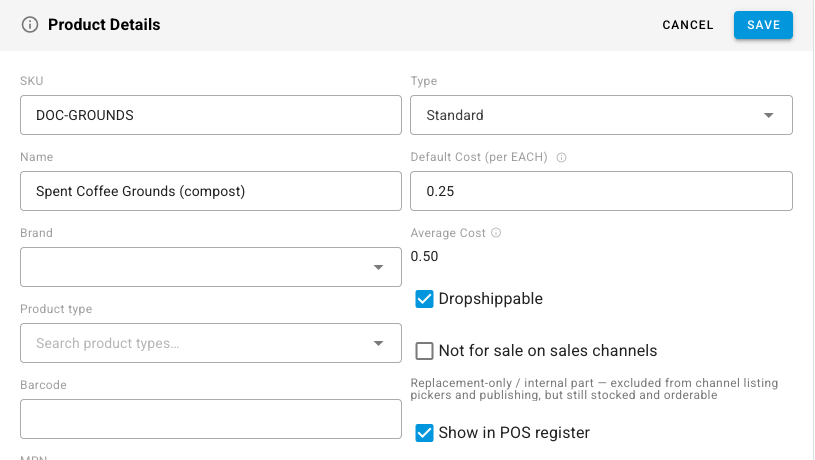
On the Product Details card, click Edit.
-
Tick Not for sale on sales channels. The hint underneath explains that the part is kept out of channel listing pickers and publishing, but is still stocked and can still be ordered.
-
Click Save.
From now on the product:
- doesn't appear when you pick products to link to a channel listing,
- isn't counted as a product your listing templates should publish, so it drops out of the gaps on Product Data,
- still carries stock and can still go on sales orders, purchase orders and transfers like any other product.
To make it sellable again, edit Product Details and clear the checkbox.
See which products are kept off every channel
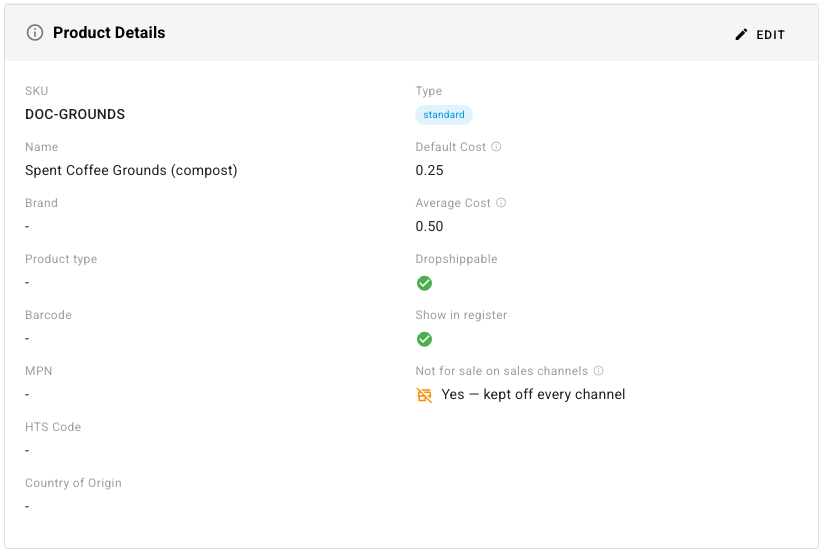
The Product Details card shows the setting once it's saved: Not for sale on sales channels reads Yes — kept off every channel, or No.
To list them all, go to PIM → Products:
- Click Advanced Filters. Under Other, pick Not For Sale On Channels, leave it ticked, and click Apply Filters. Only flagged products are left.
- To see the flag as a column, open Columns and turn on Not For Sale On Channels. It's hidden by default. Flagged products show an orange tick.

Take a product off some channels only
Use this when a product belongs on some channels and not others.
-
Open the product, and go to its Listings section.
-
Scroll to the Channel availability card. It lists every connected channel you can publish to, each with a switch.
-
Turn off the switch for each channel the product shouldn't be offered on. The row gets an Excluded label, and a message confirms the change, such as "Walmart Marketplace hidden from this product's listings."
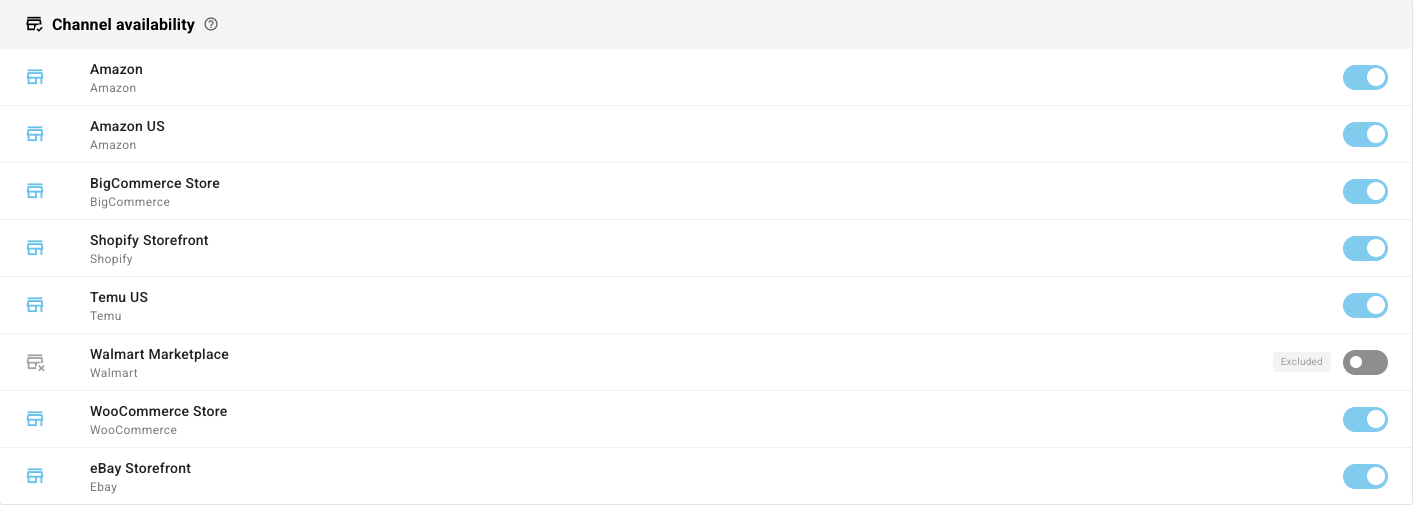
The change saves as soon as you flip the switch. The product stops being treated as a candidate for that channel, so it drops out of that channel's listing gaps on Product Data, and stays a candidate on every channel you left switched on.
To offer it on the channel again, turn the switch back on. The message reads, for example, "Walmart Marketplace re-enabled for this product."
If the card says No publishable sales channels are connected yet, there's nothing to switch off. Connect a channel first.
Which one to use
| You want to… | Use |
|---|---|
| Keep a part in stock that's never listed anywhere | Not for sale on sales channels |
| Keep one product off one or two channels | Channel availability |
| Limit a channel to a brand, a category or a hand-picked range | A channel catalog |
Next steps
- Limit a channel to part of your catalog: restrict a whole channel by rule.
- Find missing product data for listing: see what the products you do list are still missing.
- Work with listing drafts: publish the products that belong on a channel.