Set up fulfillment and replenishment warehouses
Not every warehouse ships orders. A fulfillment warehouse picks, packs and ships your customers' orders. A replenishment warehouse, such as overflow storage, a bulk store or a seasonal site, only holds stock that you move to a fulfillment warehouse by transfer.
SKU.io has no warehouse type for this. A warehouse's role comes from a few settings, and you can change them at any time. That also answers what to do with a warehouse you don't use all the time: pause it with the same settings, and turn them back on when you need it. You only archive a warehouse you've stopped using for good. See Pause a warehouse without archiving it.
| Setting | Where you set it | Fulfillment warehouse | Replenishment warehouse |
|---|---|---|---|
| Allow Automatic Routing | The warehouse's Edit Details tab | On, and ranked in Warehouse Priority | Off |
| Stock Warehouses | Each sales channel's Inventory Sync settings | Selected | Not selected |
| Default Destination Warehouse | The warehouse's Edit Details tab | Optional | The fulfillment warehouse it refills |
| Exclude from Purchasing / Demand Planning | The warehouse's Edit Details tab | Off | Usually off |
Before you begin
- You need permission to edit warehouses.
- To change the priority list, you need access to Settings.
- To change a channel's stock warehouses, you need permission to update integrations.
- The warehouse already exists. See Create & edit a warehouse.
Steps
To make a warehouse replenishment-only:
- Go to Contacts → Warehouses, and open the warehouse.
- Click the Edit Details tab.
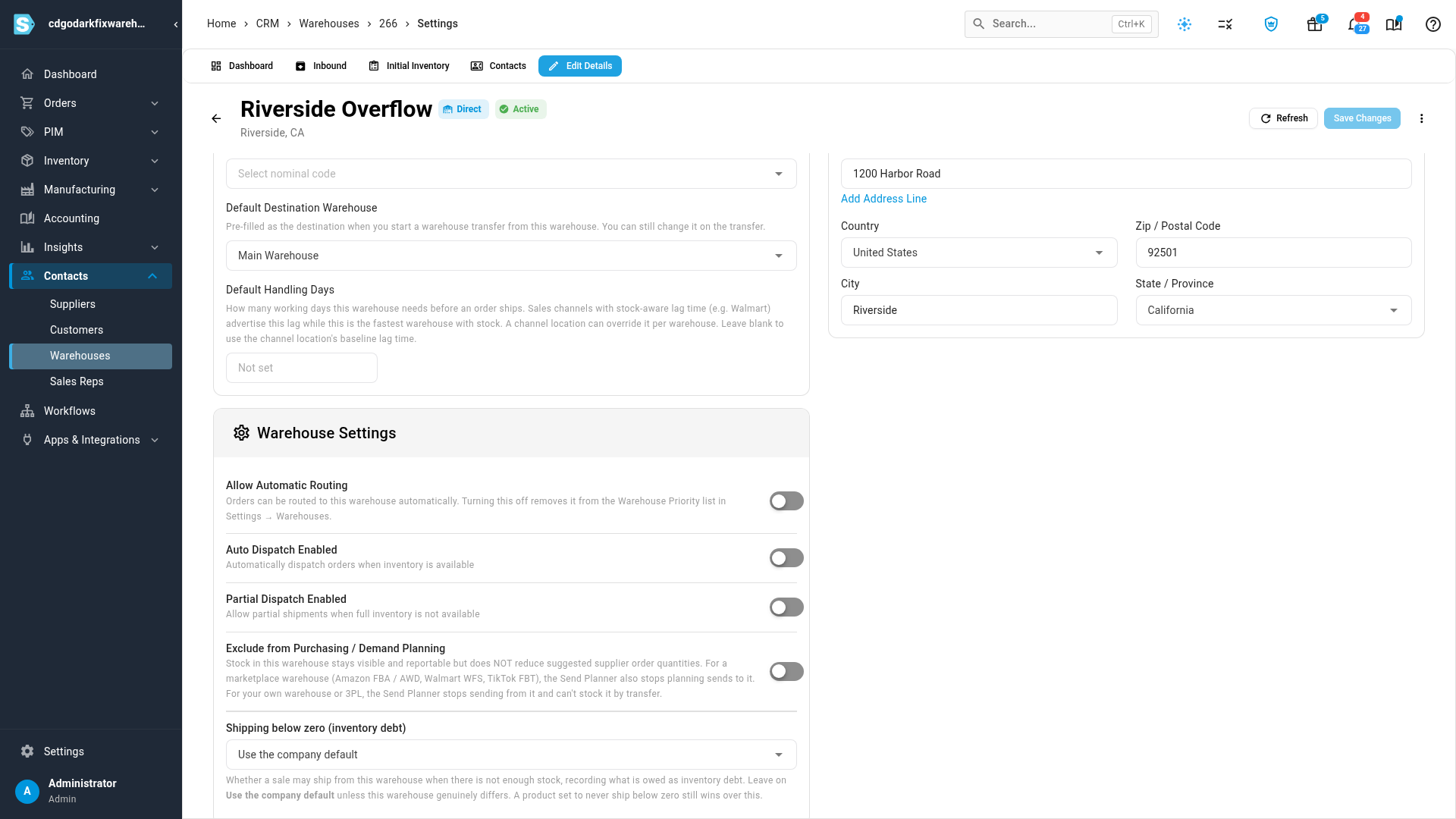
- Under Warehouse Settings, turn off Allow Automatic Routing.
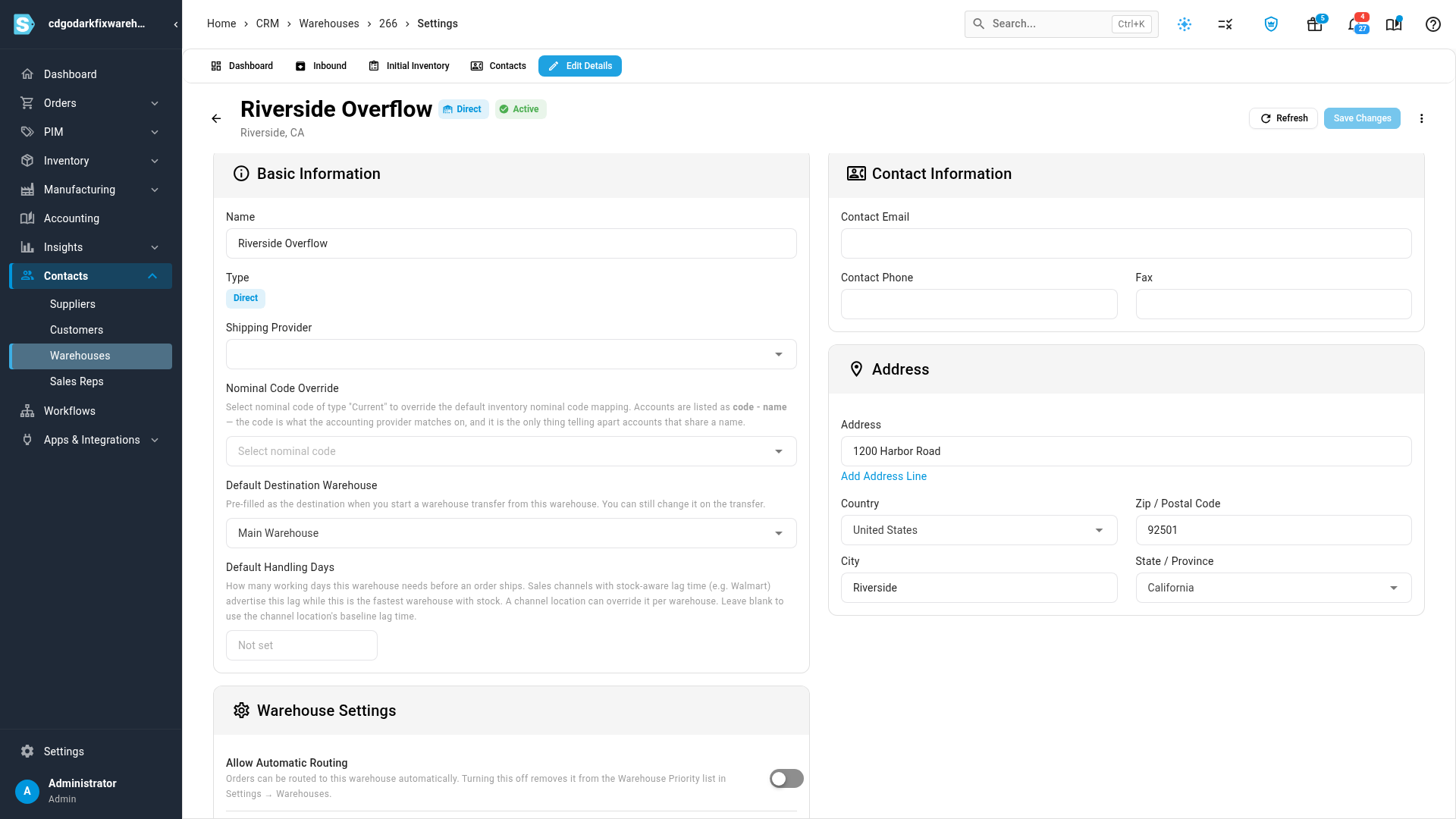
- Under Basic Information, set Default Destination Warehouse to the fulfillment warehouse this one refills.
- Leave Exclude from Purchasing / Demand Planning off, unless you don't want this stock counted when you reorder.
- Click Save Changes, at the top of the page.
- In each sales channel's Inventory Sync settings, remove the warehouse from Stock Warehouses, and save. See Set the stock each channel sees.
To make a warehouse a fulfillment warehouse, do the opposite: turn on Allow Automatic Routing, rank it in Warehouse Priority, and add it to each channel's Stock Warehouses.
What each setting does
Allow Automatic Routing
This setting decides whether orders can be sent to the warehouse automatically.
- On: the warehouse can be a routing candidate. It joins the bottom of Warehouse Priority in Settings → Fulfillment → Warehouses, where you drag it into place. The warehouse's header shows Auto-routing enabled.
- Off: the warehouse leaves Warehouse Priority and isn't listed under Not in the priority list either. Orders are never assigned to it automatically. That includes Prioritize Closest Warehouse to Customer, which only considers warehouses with automatic routing on. You can still choose the warehouse by hand on an order line.
Turning the setting back on adds the warehouse to the bottom of Warehouse Priority, not to its old position. Check the order in Settings → Fulfillment → Warehouses afterward. See Set your warehouse routing priority.
If you sell on Shopify and the store's New Orders setting is Use Shopify's assigned location, an order from a Shopify location goes to the warehouse that location is mapped to, even when that warehouse has automatic routing off. Map only the Shopify locations that ship orders, and don't map one to a replenishment warehouse. See Let orders follow Shopify location changes.
Stock Warehouses
Allow Automatic Routing doesn't change what your sales channels show. Each channel counts the stock of the warehouses chosen under Stock Warehouses in its Inventory Sync settings. If a replenishment warehouse stays selected there, a channel can sell its stock even though orders never ship from it. On Shopify, you choose the stock warehouses for each Shopify location under Location-Specific Settings.
Default Destination Warehouse
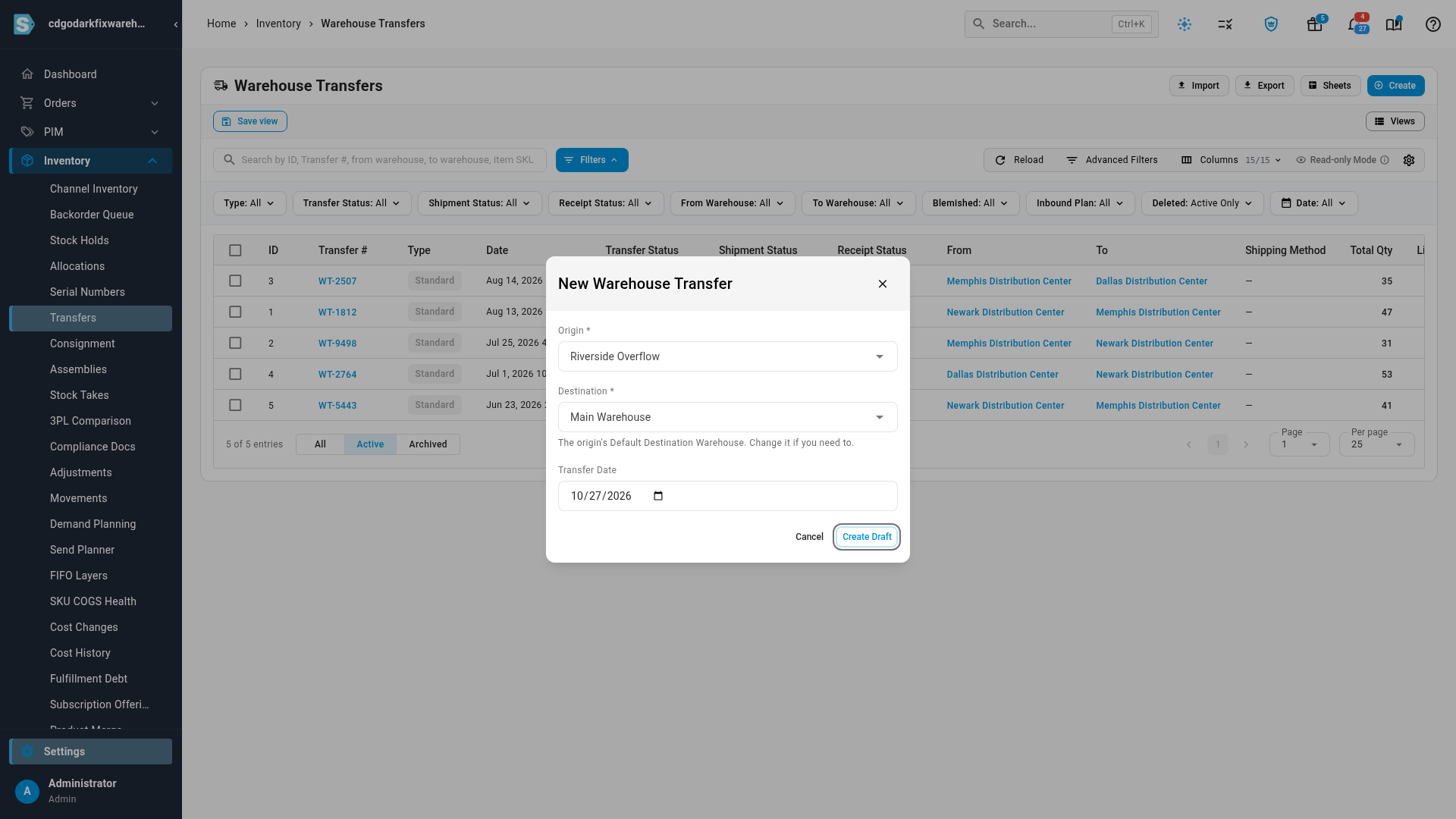
When you start a warehouse transfer from this warehouse, the Destination starts on its Default Destination Warehouse. Change it on the transfer if this shipment is going somewhere else. Set it on every replenishment warehouse, so a refill transfer takes one pick instead of two.
Exclude from Purchasing / Demand Planning
Turned on, the warehouse's stock stays visible and reportable, but it doesn't reduce suggested supplier order quantities. For your own warehouse or a 3PL, the Send Planner also stops sending from it and can't stock it by transfer.
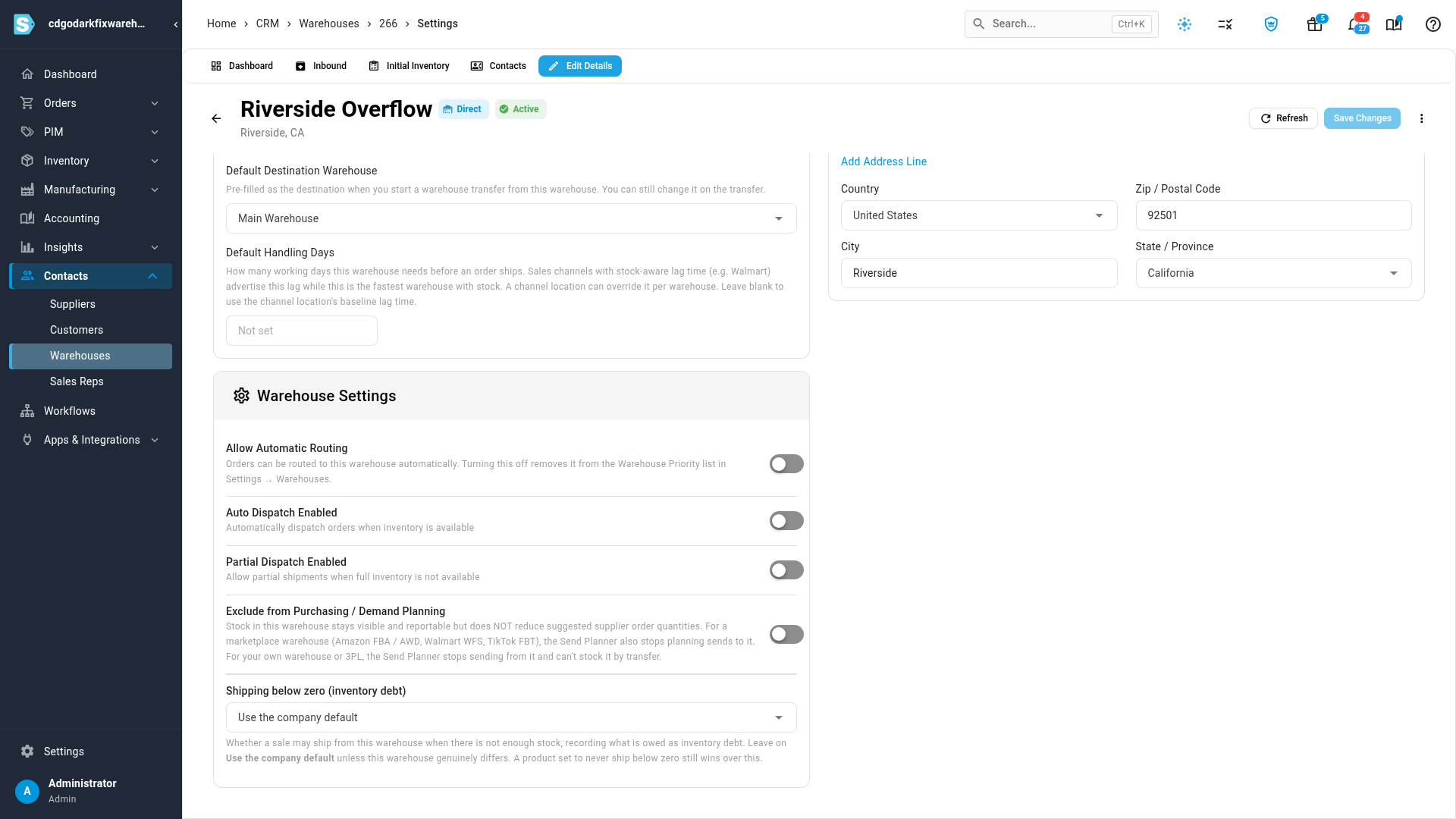
Leave it off for overflow stock you'll sell later. That stock is part of what you have, so it should hold back your reorders. Turn it on for stock you never want counted, such as samples or display units. See Choose where sends ship from.
Move stock from a replenishment warehouse
- Go to Inventory → Transfers.
- Click Create.
- Under Origin, pick the replenishment warehouse. Destination fills in with its Default Destination Warehouse.
- Click Create Draft, then add the products to move.
For the rest of the transfer, see Create & open a warehouse transfer.
Pause a warehouse without archiving it
There's no pause switch. To pause a warehouse you use part of the year, such as a seasonal pop-up or an overflow site, combine the settings on this page. Every step can be undone.
- Open the warehouse's Edit Details tab.
- Turn off Allow Automatic Routing.
- Optionally, turn on Exclude from Purchasing / Demand Planning so its leftover stock doesn't hold back your reorders.
- Click Save Changes.
- Remove the warehouse from each sales channel's Stock Warehouses.
While it's paused, the warehouse keeps its stock, history, address and settings. It still appears in reports and when you choose a warehouse by hand, so you can transfer its leftover stock out.
To bring it back, reverse the steps. Then go to Settings → Fulfillment → Warehouses and drag the warehouse to its place in Warehouse Priority.
| Pause | Archive | |
|---|---|---|
| Stock | Kept and counted | The warehouse must have no available stock |
| Orders routed to it automatically | No | No |
| Shown when you pick a warehouse | Yes | No |
| To undo | Reverse the settings | Unarchive, then add it back to Warehouse Priority |
To retire a warehouse for good, see Archive or delete a warehouse.
Next steps
- Set your warehouse routing priority: order your fulfillment warehouses.
- Set the stock each channel sees: choose the warehouses each channel sells from.
- Create & open a warehouse transfer: move stock between warehouses.
- Archive or delete a warehouse: retire a warehouse you no longer use.
Video transcript
Some warehouses ship your orders. Others only hold stock that refills them, like overflow storage or a seasonal site. A few settings decide the job of each warehouse. To find them, open Contacts in the sidebar, and then click Warehouses. Every warehouse you stock is in this list. Search the list for the warehouse you want to change, and type part of its name. When it shows up in the list, click its name to open the warehouse page. On the warehouse page, click the Edit Details tab. Its settings are grouped into a few sections. Allow Automatic Routing, under Warehouse Settings, decides whether orders can be sent here automatically. Turn it off for a warehouse that only refills others. It then leaves the Warehouse Priority list, and orders never land here on their own. Next, set Default Destination Warehouse to the warehouse this one refills. Every new transfer from here then starts with it as the destination. Exclude from Purchasing and Demand Planning, the last switch in this section, is usually left off. Overflow stock is still yours, so it should hold back your reorders. Turn it on only for items you never want counted, such as samples. These same settings pause a warehouse you use part of the year. Turn off automatic routing, and click Save Changes. Then remove the warehouse from each sales channel's Stock Warehouses. Reverse both steps when the season starts again. To check the routing order, open Settings at the bottom of the sidebar. Click the Fulfillment card, which holds the shipping and dispatch rules. Then click Warehouses, to open the settings for your warehouses. Warehouse Priority, further down this page, ranks the warehouses that can ship orders automatically. Only those with automatic routing on are listed. One you turn back on joins the bottom, so drag it into place. To move stock out of a replenishment warehouse, open Inventory, and then the Transfers page. Click Create, at the top right, and a short form opens. Under Origin, start typing the replenishment warehouse's name, and pick it from the list. Destination then fills in on its own, from the Default Destination Warehouse you set earlier. You can still change it for a single transfer. When you're ready, click Create Draft, and add the products to move. Once the stock arrives, your fulfillment warehouse can ship it to customers.